Browse to https://auth.ccsdetroit.edu and sign in with your normal credentials (just the first part of your email address before the ‘@’).
You’ll see a page that looks like this:
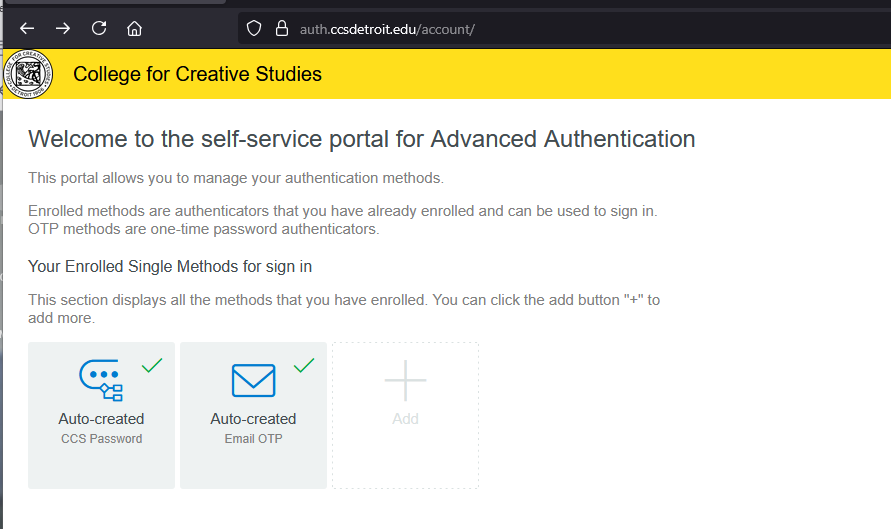
Email – receive a code via email
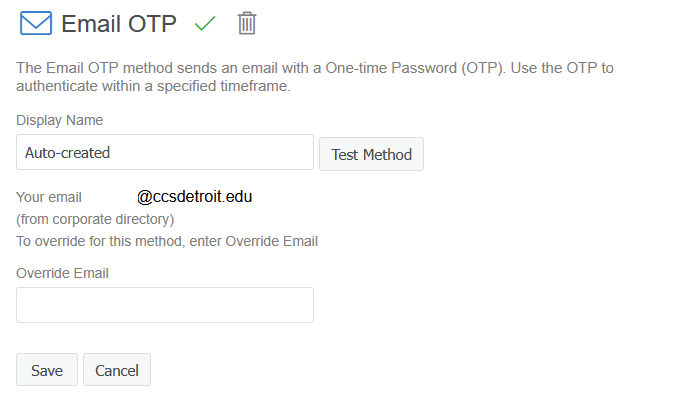
By default, your email address is already populated, but isn’t always the best choice to receive a sign-in code since it requires being logged into the account in the first place, creating somewhat of a catch 22 unless you have access to email via a phone or other device. However, you can customize this to send to a personal email account. To do so, click on the “Auto-created Email OTP” box. Enter your personal email account in the Override Email field:
Other Options
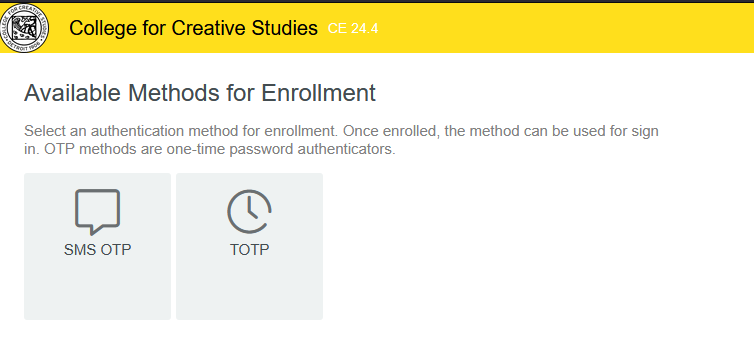
To add another method, click on the Add icon. At the present time, SMS OTP (receiving a code via text — see opt-in information below) and TOTP (through an app on a personal device) are the additional options. You may set up either or both of these.
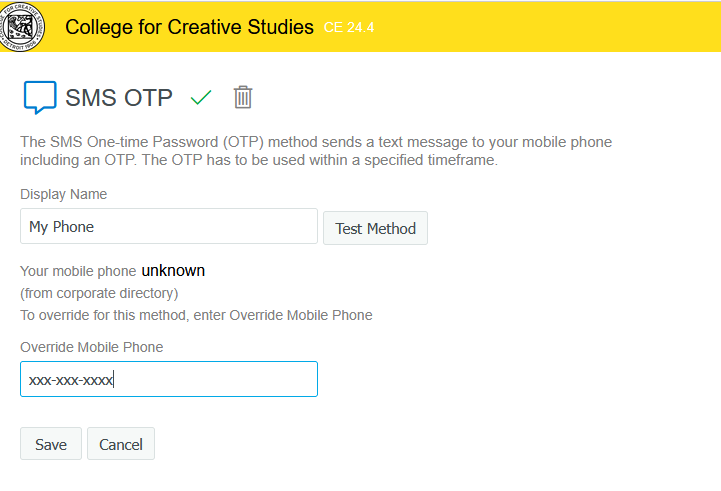
SMS OTP – receive a code via text
SMS OTP sends a six digit code via text to a number you supply. By supplying your phone number here, you opt in and consent to receiving text messages from CCS for the purpose of multi-factor authentication. To revoke this access at any time, you can edit the SMS OTP option and click the delete icon (trash can) to remove this means of access or contact helpdesk@ccsdetroit.edu for assistance.
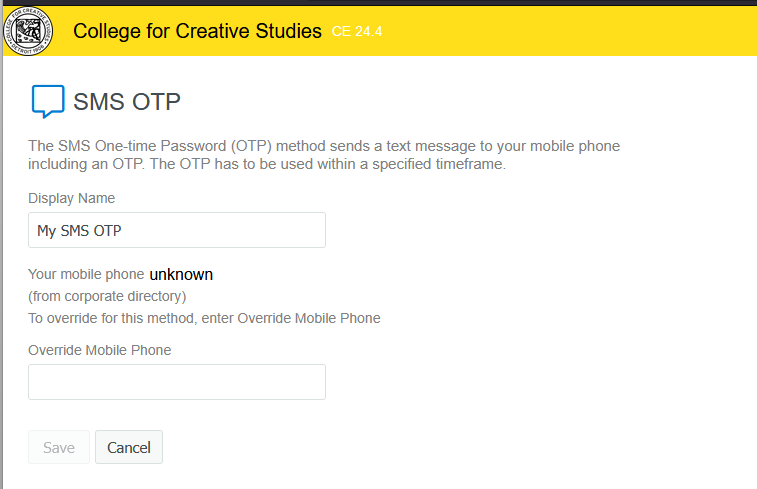
Set the display name as desired and enter your phone number in the Override Mobile Phone field. After saving, you may go back and edit this contact method and send a test text via the ‘Test Method’ button that will now be displayed.
TOTP – receive a code on an installed app (necessary for VDI)
TOTP (time-based one-time password), works in conjunction with a free app on your smart phone such as Google Authenticator, 2FAS, or any of several other options available from either the Apple or Google stores for free. Clicking on TOTP, you’ll get this page:
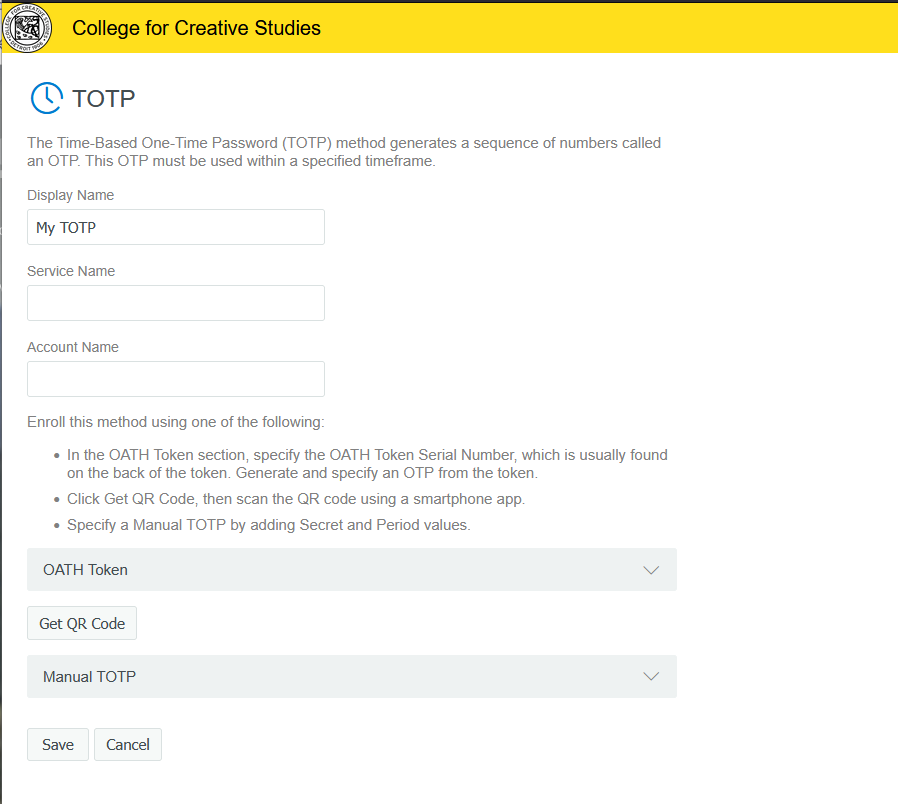
Keep the display name or change it at your discretion. If you enter a value for Service Name, that will be the name that shows up in your identifier app. If left blank, it will display Netiq. The other fields can be left as is.
Click on ‘Get QR Code’.
When the code is displayed, scan it with your smart phone authenticator app.
Once you’ve imported the site to your phone, click save.
To test that the TOTP works, click back into the TOTP area and click ‘Test Method’
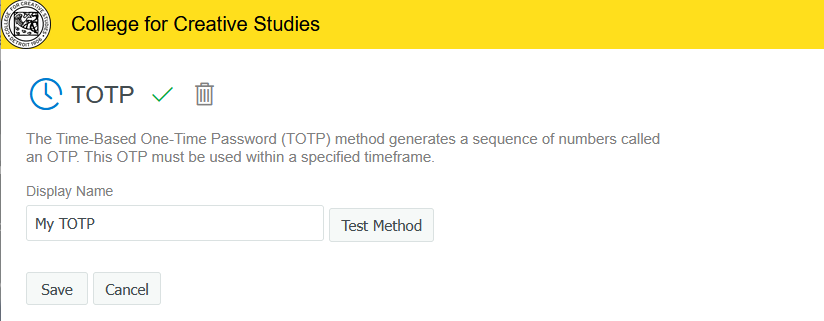
You’ll be prompted for the six digit code from the app on your phone and it will tell you if the test worked or not.
That’s it – at this point you’re ready to use multi-factor-authentication at CCS!