Access to VDI will require multi-factor authentication (MFA) each time you log in. Important: at the present time VDI only supports MFA with a TOTP authenticator app (not texting or email). See https://campus.collegeforcreativestudies.edu/its/multi-factor-sign-in/ for information on setting that up.
When connecting to vdi via the Omnissa Horizon Client, the first login you get will look like this:
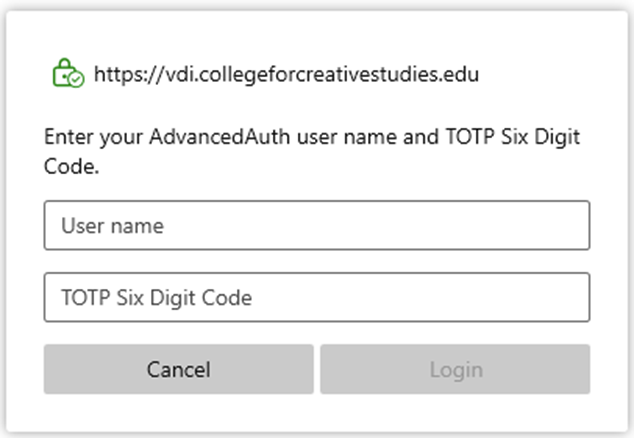
Note that this is in reverse order of most other MFA apps. You’ll need to enter your login (the part of your email address before the ‘@’) and the current six digit code from your authenticator app. If you’re within a few seconds of the expiration of the code on your app, it’s best to wait for the next code to be generated.
Next, you’ll get a normal login dialog:
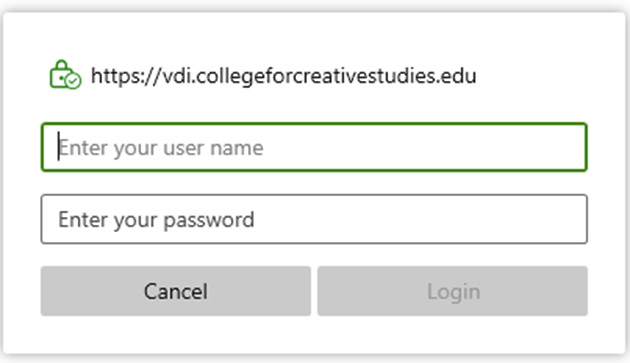
Enter your login and password normally and you’ll be all set!
If you haven’t yet set up a TOTP app, you can do so here: https://campus.collegeforcreativestudies.edu/its/multi-factor-sign-in/