Processing a Payment Requisition
Whenever an invoice is received or a check needs to be issued, complete a Payment Requisition Form via Softdocs. Do not use this form if a purchase order (PO) has already been completed.
- Complete the Payment Requisition Form. Include the vendor name and address, invoice date and number, description of goods or services, and any special instructions. If paying an individual, include their legal name.
- Attach any required backup documentation (invoices) to the form in Softdocs.
- The form will route through the approval workflow and ultimately reach Accounts Payable for processing in the next scheduled check run.
Weekly Check Run
The Accounts Payable check run is typically conducted on Wednesdays. To ensure a payment requisition is included in the week’s check run, all requisitions must be fully approved in Softdocs by Tuesday at noon, so please plan accordingly.
Paper checks will be available for pick-up on Friday at the Cashier’s Window; unless otherwise noted, checks will be mailed. If a check is picked up to deliver to a vendor, it must be delivered within one week of issuance, as holding checks is not permitted.
Submitting a Form via Softdocs
By submitting a payment requisition, you (or the department) is authorizing the payment. The Business Office uses Softdocs for all internal and external forms.
You can sign in using your CCS credentials by entering your email a
ddress. If you are not already logged into Access Manager, Softdocs will prompt you to log in using your CCS username and password.
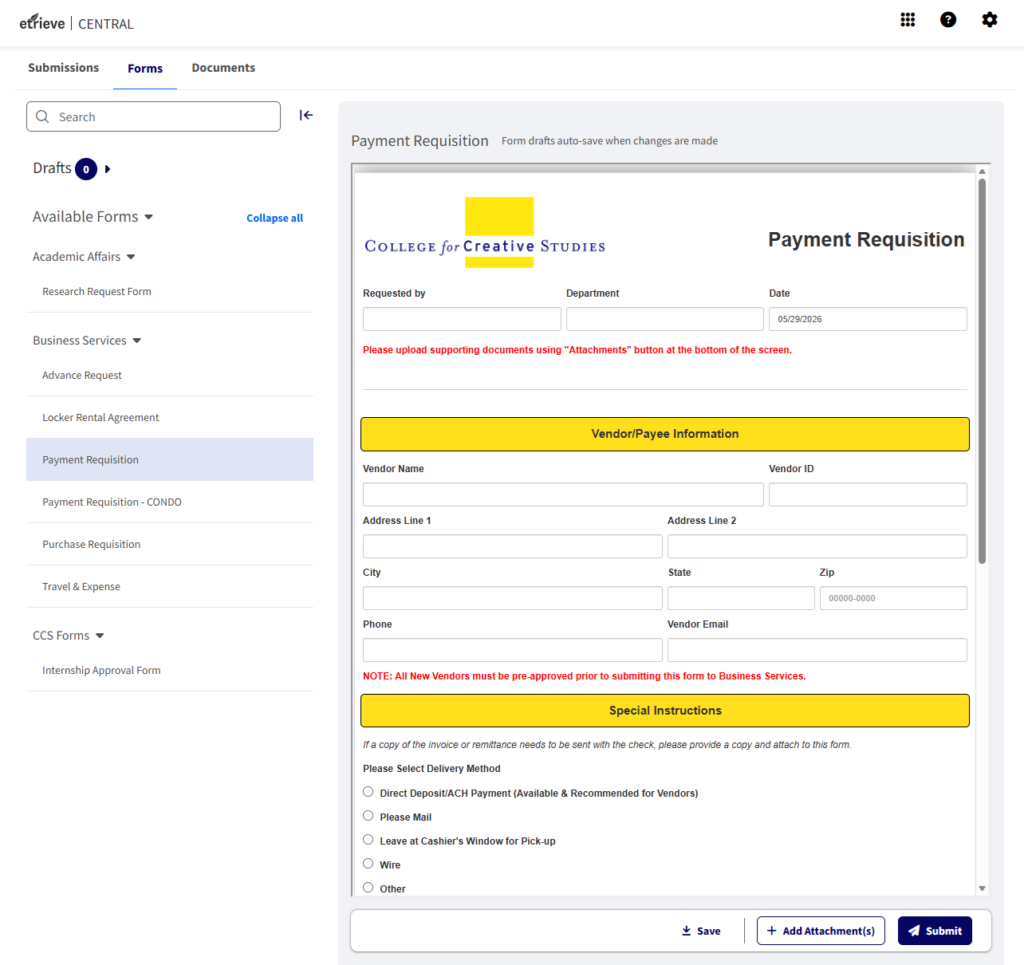
Once signed in, you will be taken to your Central Dashboard, which includes Submissions, Forms, and various Documents.
Click on Forms and use the arrows to navigate through the available forms for the Business Services Department.
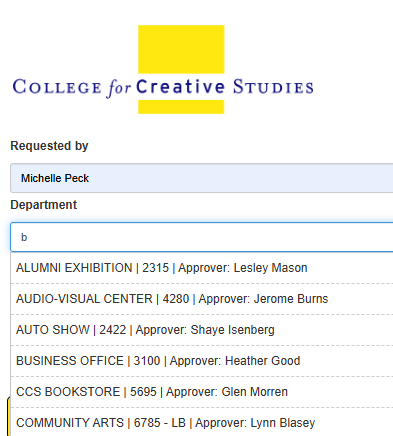
Once a form is selected, you can view and complete it directly within the dashboard. Form drafts automatically save whenever changes are made. Many fields, including Department,
Vendor, and GL Account information, will
auto-populate based on the information entered.
The forms are designed to calculate pricing and route requests to the appropriate authorized signers, as well as any departments that may need to approve sponsored project funding, technology requests, capital project funding, or other specialized requests.
Once a department is selected, the Authorized Signature fields at the bottom of the form will automatically populate. These fields should not need to be changed. If you notice an issue or inconsistency, please contact the Business Office at busserv@ccsdetroit.edu
If attachments are required, use the Add Attachment(s) button at the bottom of the form. When you are ready to submit your request, click Submit.

The approval workflow takes place behind the scenes and will automatically route the form to the appropriate individuals and departments for review and approval.
If you are an Authorized Signer receiving a form for approval, you will see Approve and Decline buttons at the bottom of the form. If a form is declined, it will be routed back to the originator for edits, and they will receive an email notification explaining that revisions are needed before the request can proceed. You are also able to Return or Refer the packet to another person.

Manual Checks
In emergency situations, a manual check may be processed if the appropriate staff are available to prepare and sign the check. However, in most cases, planning ahead can prevent the need for this process.
1099 Tax Forms
A 1099 tax form may be issued to any individual who provides a service to the College and whose payment is not processed through payroll. The Business Services department collects all necessary information to generate the 1099 during the New Vendor Process.
Received Goods & Services
If goods or services were ordered using a purchase order (PO), notify Accounts Payable once the items have been received. To do so, email acctspayable@ccsdetroit.edu, indicating that the item(s) have arrived on campus and providing the delivery date, which is required for accurate year-end reporting. If an invoice was received from the vendor along with the items, please forward it to Accounts Payable as well.
Questions?
Any questions regarding payment requisitions or checks that have been written should be directed to Accounts Payable at 313-664-7436 or email at acctspayable@ccsdetroit.edu.