Accounts Payable Information

Processing a Payment Requisition

Whenever an invoice is received or a check needs to be issued, complete a Payment Requisition Form via Softdocs. Do not use this form if a purchase order (PO) has already been completed.

  1. Complete the Payment Requisition Form. Include the vendor name and address, invoice date and number, description of goods or services, and any special instructions. If paying an individual, include their legal name.
  2. Attach any required backup documentation (invoices) to the form in Softdocs.
  3. The form will route through the approval workflow and ultimately reach Accounts Payable for processing in the next scheduled check run.

Weekly Check Run

The Accounts Payable check run is typically conducted on Wednesdays. To ensure a payment requisition is included in the week’s check run, all requisitions must be fully approved in Softdocs by Tuesday at noon, so please plan accordingly.

Paper checks will be available for pick-up on Friday at the Cashier’s Window; unless otherwise noted, checks will be mailed. If a check is picked up to deliver to a vendor, it must be delivered within one week of issuance, as holding checks is not permitted.

Submitting a Form via Softdocs

By submitting a payment requisition, you (or the department) is authorizing the payment. The Business Office uses Softdocs for all internal and external forms.
You can sign in using your CCS credentials by entering your email a
ddress. If you are not already logged into Access Manager, Softdocs will prompt you to log in using your CCS username and password.

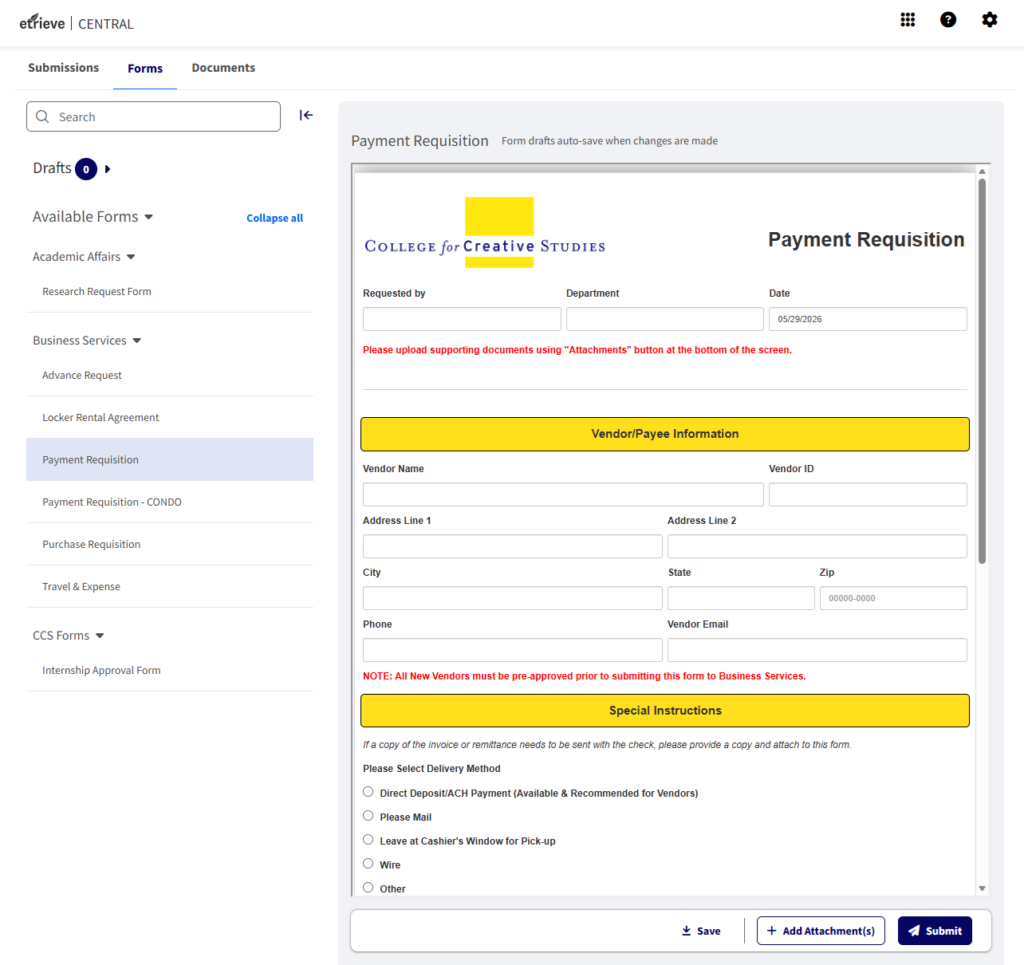
Once signed in, you will be taken to your Central Dashboard, which includes Submissions, Forms, and various Documents.

Click on Forms and use the arrows to navigate through the available forms for the Business Services Department.

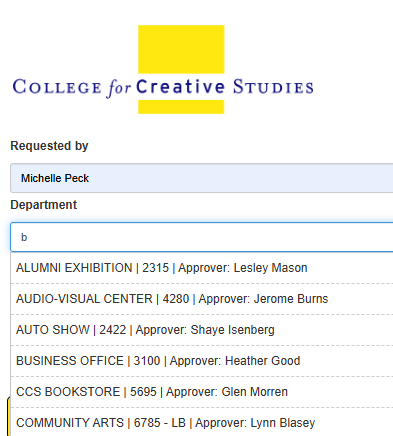
Once a form is selected, you can view and complete it directly within the dashboard. Form drafts automatically save whenever changes are made. Many fields, including Department,
Vendor, and GL Account information, will
auto-populate based on the information entered.

The forms are designed to calculate pricing and route requests to the appropriate authorized signers, as well as any departments that may need to approve sponsored project funding, technology requests, capital project funding, or other specialized requests.

Once a department is selected, the Authorized Signature fields at the bottom of the form will automatically populate. These fields should not need to be changed. If you notice an issue or inconsistency, please contact the Business Office at busserv@ccsdetroit.edu
If attachments are required, use the Add Attachment(s) button at the bottom of the form. When you are ready to submit your request, click Submit.

The approval workflow takes place behind the scenes and will automatically route the form to the appropriate individuals and departments for review and approval.

If you are an Authorized Signer receiving a form for approval, you will see Approve and Decline buttons at the bottom of the form. If a form is declined, it will be routed back to the originator for edits, and they will receive an email notification explaining that revisions are needed before the request can proceed. You are also able to Return or Refer the packet to another person.

Manual Checks

In emergency situations, a manual check may be processed if the appropriate staff are available to prepare and sign the check. However, in most cases, planning ahead can prevent the need for this process.

1099 Tax Forms

A 1099 tax form may be issued to any individual who provides a service to the College and whose payment is not processed through payroll. The Business Services department collects all necessary information to generate the 1099 during the New Vendor Process.

Received Goods & Services

If goods or services were ordered using a purchase order (PO), notify Accounts Payable once the items have been received. To do so, email acctspayable@ccsdetroit.edu, indicating that the item(s) have arrived on campus and providing the delivery date, which is required for accurate year-end reporting. If an invoice was received from the vendor along with the items, please forward it to Accounts Payable as well.

Questions?

Any questions regarding payment requisitions or checks that have been written should be directed to Accounts Payable at 313-664-7436 or email at acctspayable@ccsdetroit.edu.

Accounts Payable Forms

Payment Requisition

Whenever an invoice is received or a check needs to be issued, complete a Payment Requisition Form via Softdocs. Do not use this form if a purchase order (PO) has already been completed.

  1. Complete the Payment Requisition Form. Include the vendor name and address, invoice date and number, description of goods or services, and any special instructions. If paying an individual, include their legal name.
  2. Attach any required backup documentation (invoices) to the form in Softdocs.
  3. The form will route through the approval workflow and ultimately reach Accounts Payable for processing in the next scheduled check run.

Travel & Expense Form

Please refer to the Travel and Entertainment Policy for all rules and guidelines. CCS recognizes that the effective conduct of the College’s activities will require employees to travel from time to time on behalf of CCS. It is therefore the policy of the College to reimburse employees for all expenses that are necessary, and incurred, when traveling on authorized College business.

For reimbursements under $60, petty cash may be provided at the Cashier’s Window.

If you are an Authorized Signer for your department, you may not approve your own travel & expense report.

For meal reimbursements, an itemized receipt is required. If an itemized receipt is not submitted, the meal will not be reimbursed. Credit card authorization slips are not acceptable as documentation for meals.

Mileage Reimbursement

The current mileage reimbursement rate is posted on the Business Services Campus page. This rate is based on IRS publications and will change each January. CCS reimburses based on mileage, not on gas receipts. For reimbursements under $60, petty cash may be provided at the Cashier’s Window. Mileage will not be reimbursed for trips where the College shuttle is available.

To request reimbursement, complete a Mileage Reimbursement Form via Softdocs. CCS reimburses employees only for mileage that exceeds their normal commute. The reimbursable distance is calculated by taking the total miles driven and subtracting the miles to the employee’s usual work destination (e.g., Home, Taubman Center, Ford Campus). The Softdocs form guides employees through this calculation for each trip.

Travel Advance

Employees may request a travel advance for business-related trips by completing an Advance Request Form approximately two weeks prior to the planned travel. Advances may cover the cost of meals, lodging, transportation, mileage, tips, parking, conference fees, and other related expenses. Faculty professional development funds must be requested in advance and approved by the Academic Affairs Office.

Upon returning to campus, a Travel & Expense (T&E) Reimbursement Form must be submitted via Softdocs within 10 business days, detailing how the advance was spent. The form will be reviewed and approved by the employee’s supervisor. Any unspent advance must be returned immediately to the Cashier’s Office upon completion of the Travel & Expense form. If additional funds are due to the employee, a check will be processed through Accounts Payable.

All receipts for petty cash purchases must be returned to the Coordinator, and receipts for check-issued travel advances must be submitted to Accounts Payable. Returned funds may be paid by cash, check, or credit card (note: a fee applies if using a credit card).

Accounts Payable Forms

New Vendor Procedures

All New Vendors must be preapproved through our office before you are permitted to work with them. Here is a quick timeline of what should happen during the New Vendor Process:

  1. Fill out a New Vendor Approval Form (NVF) and submit it to Business Services. 
  2.  Ask the vendor you are wanting to work with to submit a W9 or W8 (If Vendor is not a US Citizen) and an ACH Authorization Form. This is the responsibility of the department who is working with the vendor. Business Services will not request this information from the vendors directly. Please note: You should send the W9 and/or the ACH Authorization Form directly to your vendor to complete.
  3. Once Business Services has received the NVF, W9 and ACH forms, we will be able to review the information and come to a decision. Please plan ahead by at least 2 weeks to allow ample time for processing. 
  4. You will receive an email from Juan Vicente or Heather Good stating you are approved/not approved to use the vendor. If they are not approved, we will give you any information we can on why. However, sometimes the reasoning is something we will be unable to share (IRS isn’t able to confirm the information on the W9, legal reasons, etc). 
  5. You can then start working with the Vendor if you received approval from us and you can also then submit the Purchase/Payment requisition to our office. 
  6. We have also created a new ACH Change Form for Vendors to complete if they have new banking information to share.

**If any of the steps above are not followed in order, it will delay the process of approving your vendor. Please be sure to follow the steps as outlined above.**

Please remember we are no longer able to provide a link to these forms on our office page.
Contact busserv@ccsdetroit.edu for access to the NVF, W9, and ACH forms.