View All Canvas Course Accessibility Scores for a Subaccount (for Chairs & Program Managers)

This guide will show how Department Chairs and Program Managers at CCS can use the UDOIT Advantage Admin to view all course accessibility scores within their subaccount. 

To run an individual course accessibility check, refer to the UDOIT Accessibility Checker guide.

Click on the Admin tab in the global navigation menu. Click on your subaccount. (You may be an admin for multiple subaccounts.)
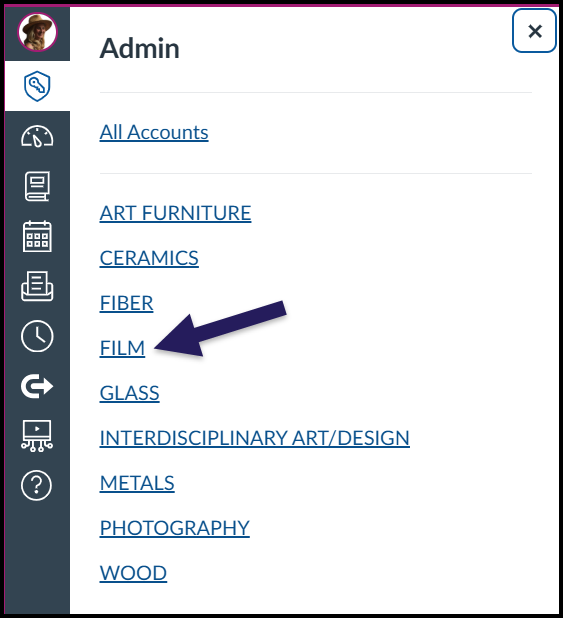
A screenshot of the Canvas LMS interface showing the expanded "Admin" menu tray on the left side of the screen. The menu lists various departmental sub-accounts in alphabetical order, including Art Furniture, Ceramics, and Fiber. A large purple arrow points directly to the "FILM" link, visually instructing the user to select that specific sub-account from the list.

Click on UDOIT Accessibility Check Admin in the subaccount navigation menu.
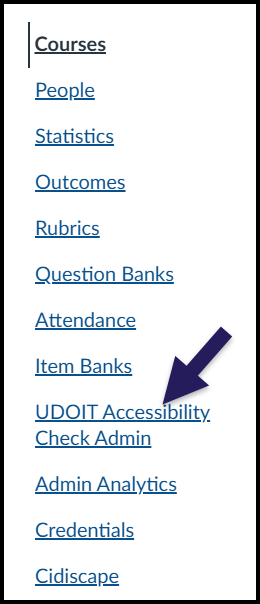
A screenshot of the vertical "Admin" navigation menu within the Canvas LMS admin interface. The menu lists various administrative links including "People," "Statistics," and "Item Banks." A large, dark purple arrow points specifically to the link labeled "UDOIT Accessibility Check Admin," visually indicating that the user should select this tool from the list.

If this is your first time using the tool, you will need to authorize it.
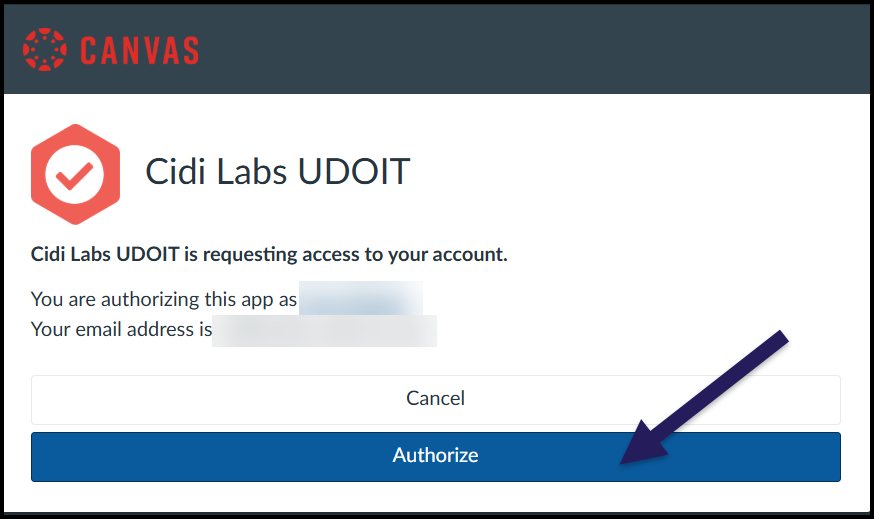
A screenshot of the "Cidi Labs UDOIT" authorization screen within the Canvas LMS. The page has a red Canvas logo at the top left and a "Cidi Labs UDOIT" logo with a red checkmark. Text below reads, "Cidi Labs UDOIT is requesting access to your account," followed by a statement that the user is authorizing the app with their specific account and email address, which are blurred out. A dark purple arrow points to the blue "Authorize" button at the bottom of the screen.

On the Home screen, you will see your subaccount’s mean accessibility score given as a percentage.
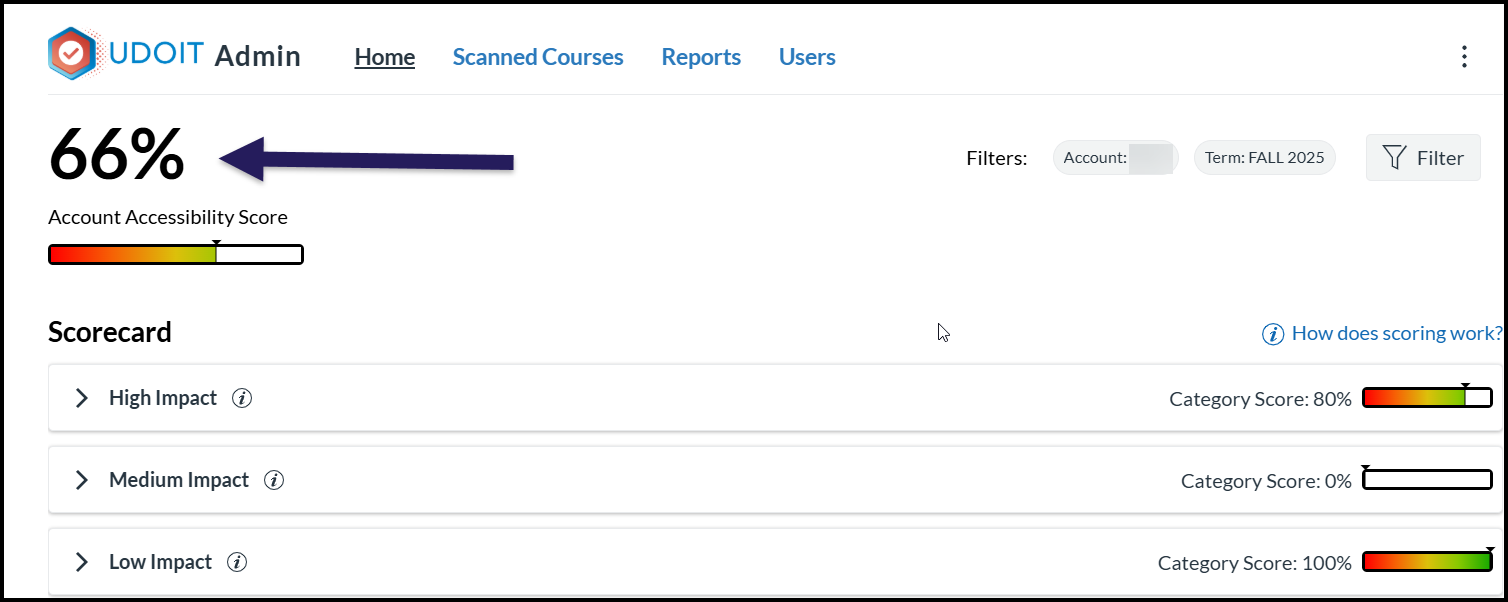
A screenshot of the UDOIT Admin dashboard displaying an "Account Accessibility Score" of 66%, which is highlighted by a large purple arrow pointing directly to the percentage. Below the main score, a "Scorecard" section lists category scores for different impact levels, showing High Impact at 80%, Medium Impact at 0%, and Low Impact at 100%, each accompanied by a visual progress bar. The interface also displays filters for the account and term, specifically set to "FALL 2025".

Click on Scanned Courses in the top menu, and click the Rescan Courses button. You will know this is complete when you see “0 scans remaining” next to the button.
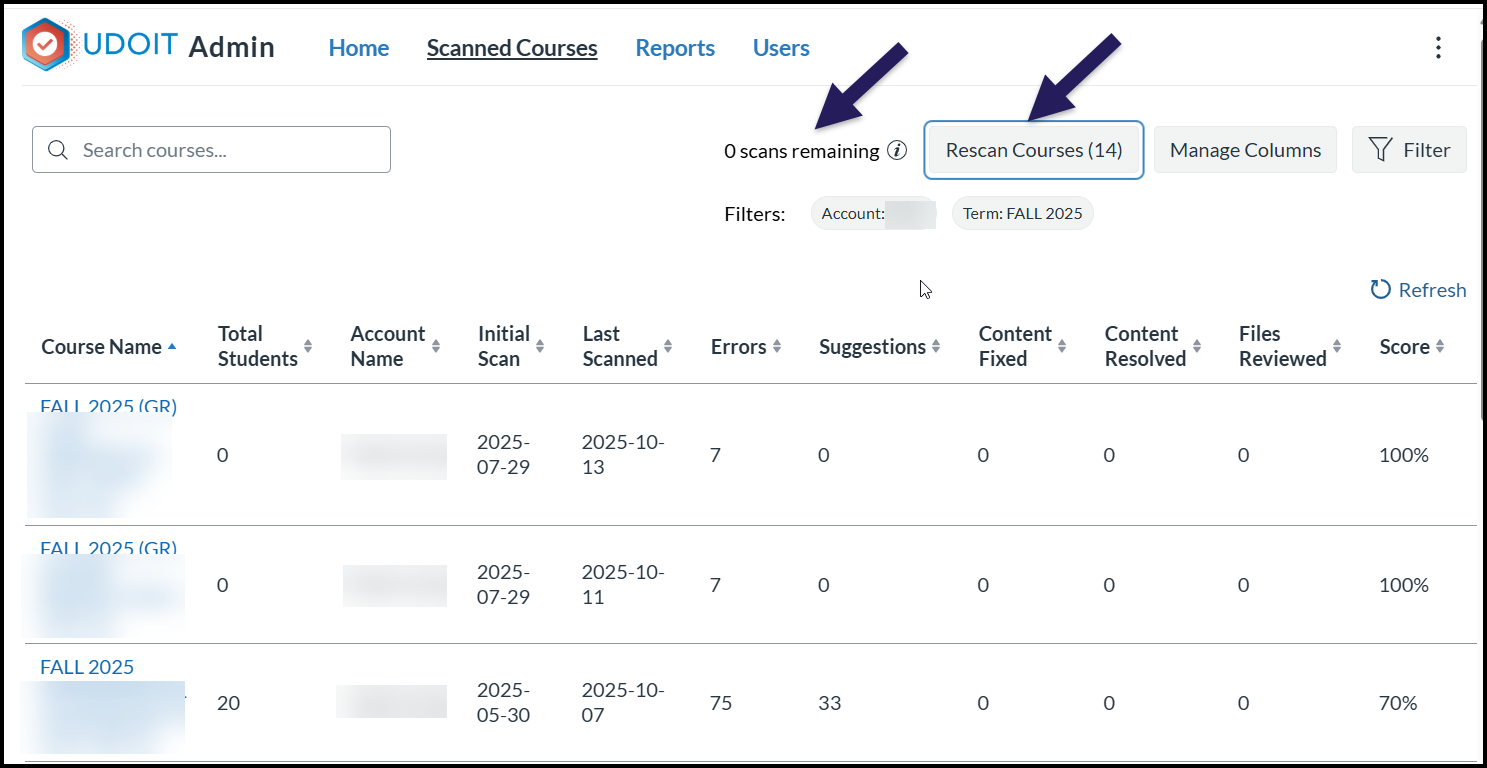
A screenshot of the "Scanned Courses" tab within the UDOIT Admin interface of the Canvas LMS. Two large dark purple arrows emphasize the scanning status and controls at the top right of the page: one arrow points to the text "0 scans remaining," while the second arrow points to the "Rescan Courses (14)" button. Below these controls, a detailed table lists courses with accessibility metrics, displaying columns for "Total Students," "Errors," "Suggestions," and "Score," with the view currently filtered for the term "FALL 2025".

When the scan has finished, click on the Score heading and sort accessibility scores from highest to lowest.
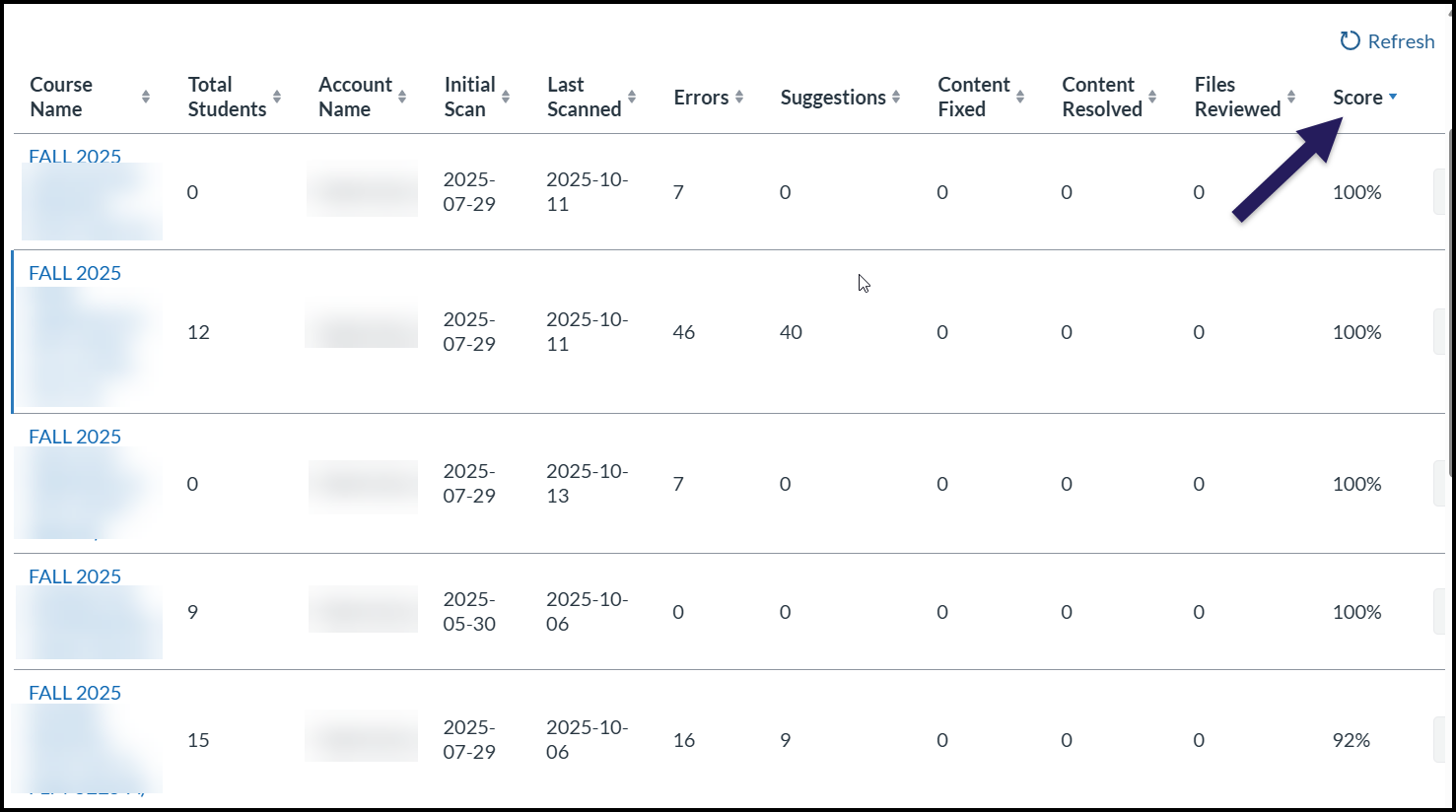
A screenshot of the "Scanned Courses" data table within the UDOIT interface in Canvas, displaying accessibility scan results for multiple courses. A large dark purple arrow points specifically to the "Score" column header on the far right. This column is currently sorted from highest to lowest, indicated by a small downward-pointing triangle on the header and confirmed by the visible course scores descending from 100% down to 92%. The table also lists other metrics for each course, including "Total Students," "Errors," "Suggestions," and "Content Fixed".

Note: UDOIT currently has an error where some courses’ accessibility scores appear as 100%, even though they have accessibility issues. To ensure the scores are correct, go to these individual courses and run an accessibility check using the UDOIT Accessibility Checker guide.

To generate a CSV file of all the courses in your subaccount and their accessibility scores, scroll to the bottom of the Scanned Courses page and click the Generate CSV button. You can save this file and share it with your department.
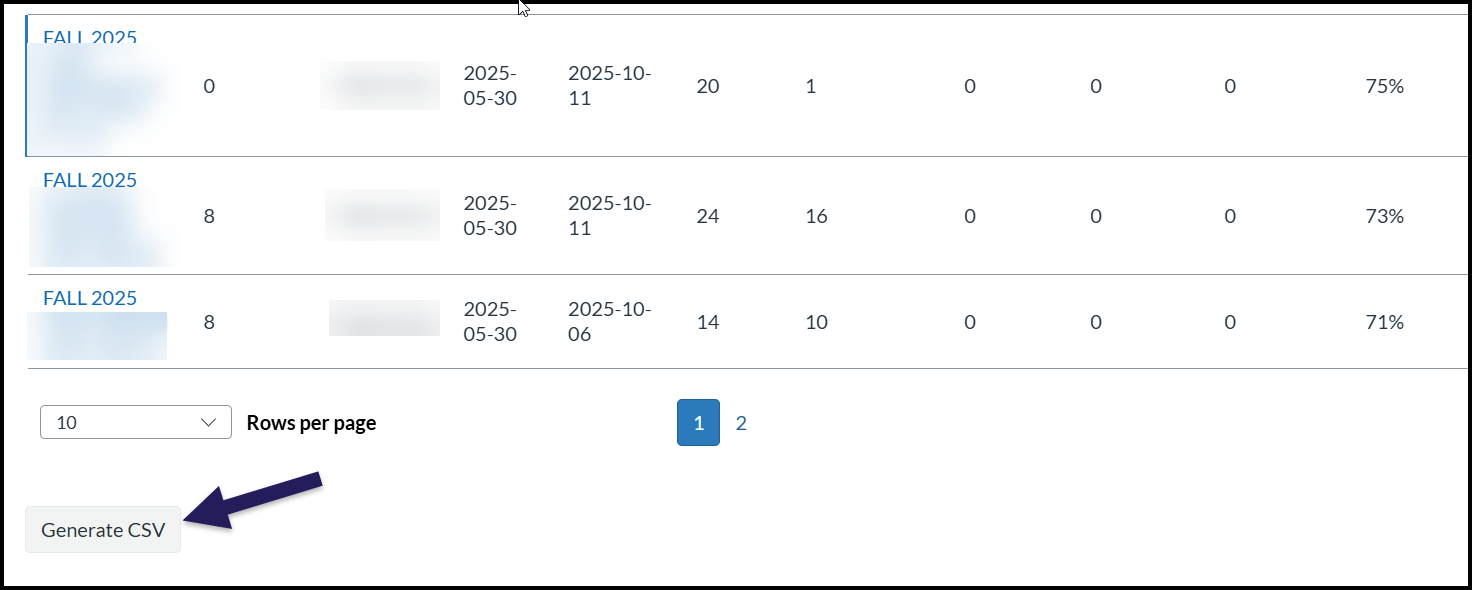
A screenshot of the bottom section of the UDOIT course scan data table, displaying the final visible rows of course accessibility metrics, including scores such as 75%, 73%, and 71%. Below the table and the pagination controls, which indicate page 1 of 2 is currently viewed, a large dark purple arrow highlights the "Generate CSV" button situated in the bottom left corner.

If you have questions about how to improve accessibility scores, reach out to the Educational Technology + Innovation team by emailing edtech@ccsdetroit.edu, submitting an EdTech Support Ticket, or by stopping by Taubman 622. Please refer to the Professional Development/Training calendar for Accessibility training opportunities. We are also available to attend departmental meetings to provide direct accessibility training to your instructors.