- Entering Midterm/Final Grades
- Status Messages
- Grading Scales, Policies, and Resources
- Troubleshooting Tips
- Additional Resources
Entering Midterm/Final Grades
Refer to the Academic Calendar to determine when Midterm and Final grades are due and available for viewing by students in Self-Service. All grades must be submitted by 12:00 p.m. (EST) on the established due date.
In the Canvas LMS (Learning Management System), navigate to one of your current courses.
Select Send Grades to AARO on the left-hand course navigation menu.
- Send Grades to AARO may be located in a different place than what is shown below.
- If you do not see Send Grades to AARO in your course navigation menu, refer to Enabling “Send Grades to AARO” in the Canvas Course Navigation Menu for more information.

Select the MIDTERM 1 or FINAL tab at the top of the screen.
- Use the arrow icons < or > next to the image below to see examples of the MIDTERM 1 and FINAL tabs.
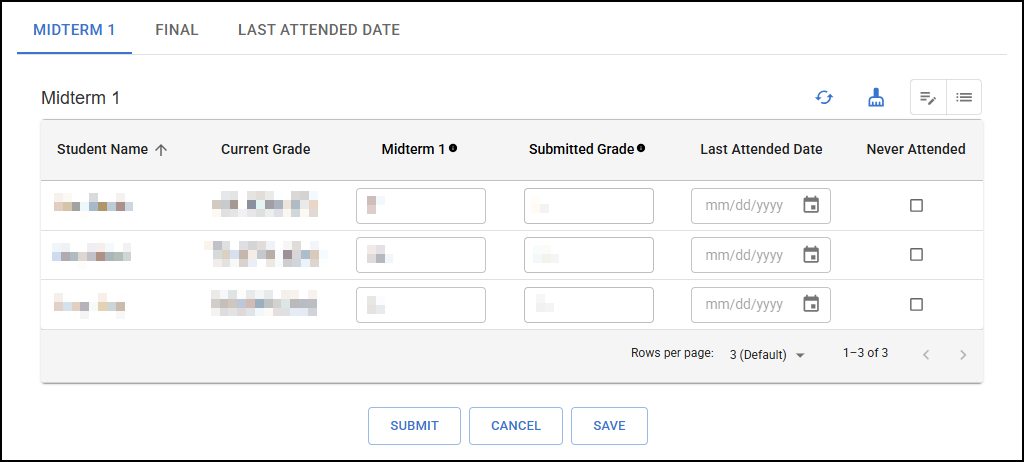
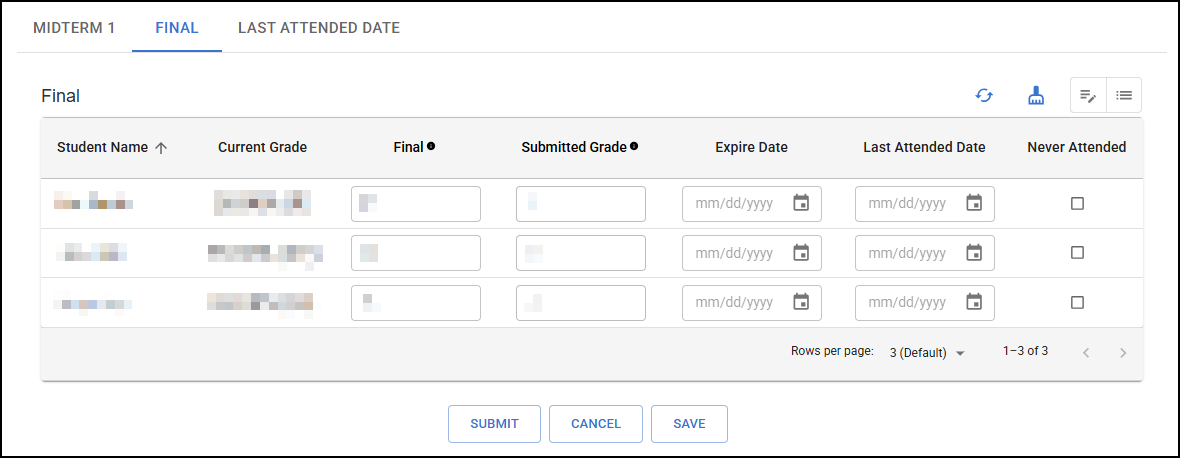
The following columns will appear under each tab and are important for submitting your grades. Be sure to read the following information carefully to know what each column is for.
- Current Grade – This column will display the student’s total grade as it currently appears in the Canvas Gradebook (what he/she has earned in the course to date). If the instructor has not graded any items on Canvas, this column will be blank.
- Midterm 1/Final – This column will be titled based on the tab you selected. Your students’ current letter grades will auto-populate into the Midterm 1/Final column. You can refer to the Current Grade column to see the corresponding Canvas grade. If the grade should differ from what is pre-populated (e.g., due to assignments not yet added to the Canvas Gradebook), you can edit the letter grade before submitting.
- Submitted Grade – This column will populate only after you’ve submitted grades from the Midterm 1/Final column. If this column displays a grade, that means the grade for those students was successfully submitted to AARO.
- Expire Date (on FINAL tab) – Please ignore this column as it is no longer used.
- Last Attended Date – This column needs to be filled out if you had a student who earned an F or WF grade within the course. If a student did not drop or withdraw from the course, but failed due to non-attendance, enter a grade of WF in Midterm 1/Final for this student. Then enter the Last Attended Date of attendance using the mm/dd/yyyy format.
- Never Attended – For students who never attended the course and have failed due to non-attendance, enter a grade of WF in Midterm 1/Final column, and then check the box for Never Attended.
Enter grades into the Midterm 1/Final column.
Review all grades to ensure they are entered correctly, and then click the SUBMIT button.
Grade changes can be made while the grading period is still open. Revisit the Send Grades to AARO item in your course menu, update the grade in the Midterm 1/Final column, and then click SUBMIT again.
Entering Non-Attendance, Failing, and Incomplete Grades
For students who stopped attending or never attended, enter a grade of WF into the Midterm 1/Final column, and provide a Last Attended Date or ✅ check the box for Never Attended. All students who have not officially withdrawn from your course MUST be assigned a grade! If a student dropped/withdrew your course, it will say “inactive” next to his/her name.
If a student earned a failing grade (F) based on academic performance rather than a lack of attendance, you must still provide a Last Attended Date.
FINAL GRADES ONLY: Faculty that wish to assign an “Incomplete” should first review the Incomplete Grading Policy to ensure students fall within the criteria for “I” grading and to verify requirements. If you need to follow incomplete grading protocol, take the following steps:
- All students must have a final grade entered for their course, including students anticipating an “I” grade.
- Enter the students earned grade into the Final column. You will not be able to enter an “I” grade.
- Incompletes can only be submitted for Final grades and not Midterms.
- Work with your Program Manager, who can submit the “Incomplete Grade Form” to AARO on your behalf.
- Forms must be received PRIOR to the grading deadline.
- Students will maintain their “earned grade” if the form is not received or if the form is incomplete.
- AARO will enter the “I” grade manually to overwrite the earned grade.
Grade Changes or Late Submissions
Grade Changes or late submissions (after the grading deadline) will require an approved Grade Change form and may cause inaccurate records and calculations of a student’s Academic Standing. If a grade change is needed, work with your Program Manager to initiate the form, and submit to AARO on your behalf.
The AARO will report missing midterm and final grades to Academic Departments and Academic Affairs, as required.
Status Messages
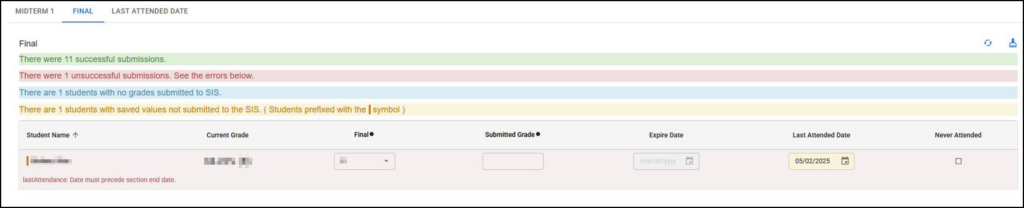
After submitting, you will receive a status message to indicate whether or not your submission was successful. In some instances, you may receive multiple status messages at once, so it is important to review each status carefully to understand whether or not your grades are fully submitted.
- A green message indicates your grade submissions were successful.
- A red message indicates an error. If you have questions about the error message, you can contact EdTech or Helpdesk.
- The problem area(s) will be highlighted in the matching color so you can quickly identify where the issue lies.
- A blue message indicates that a grade was not entered for a student, and therefore not submitted.
- A yellow message indicates that a grade was saved, but not submitted.
- The problem area(s) will be highlighted in the matching color so you can quickly identify where the issue lies.
- If you receive a yellow status bar, find the issues highlighted in yellow, and verify whether or not a Last Attended Date is added. Refer to the Entering Non-Attendance and Incomplete Grades notice below to determine if the Last Attended Date is needed or the grade is entered in a way that does not align with Last Attended Date requirements.
Grading Scales, Policies, and Resources
- Undergraduate Grading Scale: A, A-, B+, B, B-, C+, C, C-, D+, D, D-, F, WF, I
- Graduate Grading Scale: A, A-, B+, B, B-, C+, C, F, WF, I
- Please note A+ is NOT a valid grade. For complete grading policy please visit Grading.
- Incompletes can only be submitted for Final grades and not Midterms. Please read the Incomplete Grades Policy for more information.
- For technical issues entering grades: helpdesk@ccsdetroit.edu or Helpdesk
- For grading questions: aaro@ccsdetroit.edu
Troubleshooting Tips
- This guide will show you how to add Send Grades to AARO in Canvas: Enabling “Send Grades to AARO” in the Canvas Course Navigation Menu.
- If you are using a Safari browser and receive this error message, “The session has expired. Please allow access to cross-site tracking then refresh and try again”, follow the directions on the Can’t Submit Grades, Session Expired guide.
Additional Resources
You can also watch a video tutorial on this process.