This guide is for Department Chairs and Program Managers at CCS. All course syllabi and Canvas Courses must be reviewed and approved each semester. Use the directions below to approve or reject syllabi in Simple Syllabus. You should also be prepared to review each instructor’s Canvas course while reviewing their syllabi.
To jump to specific sections of this document, use the links below:
- Syllabi Due Dates and Notification Schedule
- Log in to Simple Syllabus
- Review, Approve, and/or Reject a Syllabus
- Search for and View Syllabi for All CCS Courses
Syllabi Due Dates and Notification Schedule
Course Syllabi
Course Syllabi are due for approval 7 days prior to the first day of the semester.
Instructors receive email notifications on the following timeline until their syllabi have been submitted and/or approved:
- 14, 7 and 3 days prior to the due date
- On the due date
- 3, 7 and 14 days after the due date
*If a syllabus is not submitted and approved, it will not be visible for students on the Canvas course. It is essential to push for all syllabi to be submitted and approved by the first day of class.
Department Chairs receive email notifications when syllabi have been submitted.
Log in to Simple Syllabus
Department Chairs and Program Managers can view submitted syllabi by logging in to Simple Syllabus.
- Visit the Simple Syllabus website.
- Use your CCS network credentials to log in.
Review, Approve, and/or Reject a Syllabus
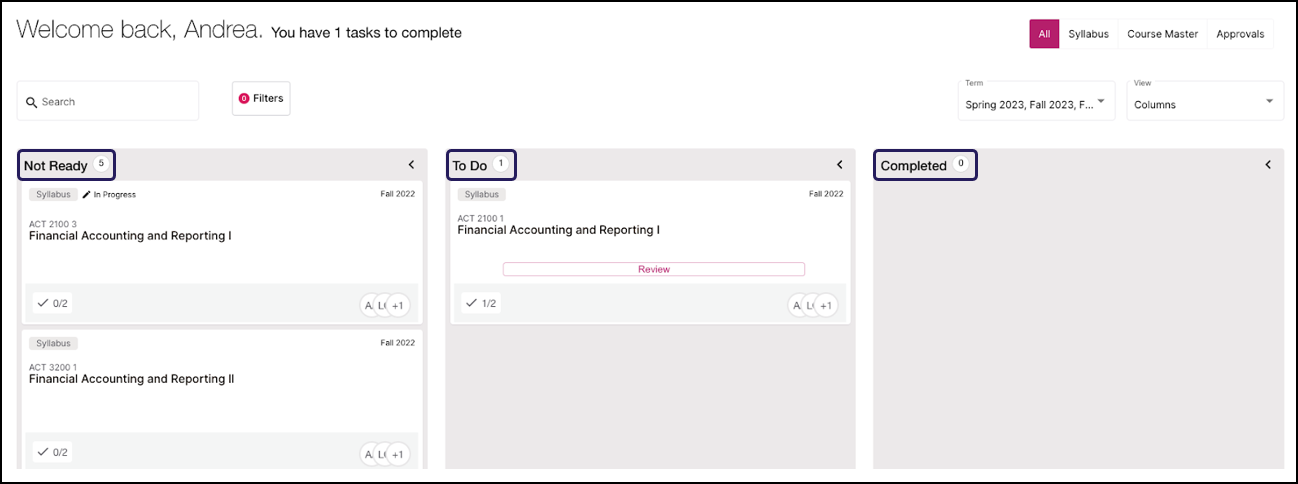
Once logged in, your Dashboard will display a Task List with 3 columns. Next to the name of each column, a number displays in a white circle of how many items are currently in that column. (Example: Not Ready – 5, To Do – 1, Completed – 0)
- Not Ready: This column includes syllabi that are in process and have not been submitted for approval by the instructor. These syllabi cannot be accessed until submitted by the instructor. When submitted, they will be moved to the To Do column.
- To Do: This column contains syllabi that require the approver’s attention.
- Completed: This column contains syllabi that have been submitted and approved. No changes are needed.
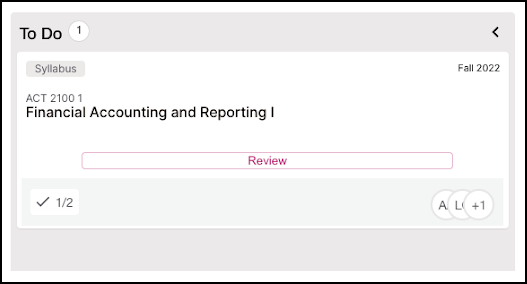
To approve a syllabi, find the To Do list. Under one of the items in the list, click Review.
There are some components of the syllabus that are uneditable, while others are editable. As an approver, you are able to make changes to any editable components. Click into an editable component to make changes.
If you or the instructor want to edit non-editable content, you will need to request assistance.
- Course Learning Outcomes (CLOs) are set by the program Chair and provided in the syllabus to prospective instructors. To update CLOs, fill out the Academic Affairs Change to Existing Course (CTEC) form.
- To edit course information (day/time/room changes) fill out the Schedule Course Change form.
- To edit any other non-editable content, create an Ed Tech Support Ticket or email edtech@ccsdetroit.edu.
Once these forms are submitted, there will be a short delay in the updates to your Simple Syllabus, as multiple parties will need to approve and update the information in Colleague.
Note: Since assignments need to be created in Canvas before they populate to Simple Syllabus, approver’s should check both the instructor’s Canvas course and the Simple Syllabus at the same time. Use the following tools to verify all needed components on both the Canvas Course and syllabus:
- In-Person Course Checklist: Use this for in person courses.
- Online Course Review Rubric: Use this for online or hybrid courses.
After you have completed the above checklist for the course (which includes details on what to check on Simple Syllabus), scroll to the bottom of the syllabus and click Approve. Or, click the down arrow next to Approve, and select Reject.

Once you have approved or rejected the syllabus it will be removed from your To Do list. The instructor will receive an email notification and will be prompted to make additional edits.
Once a rejected syllabus is resubmitted, it will again appear in the To Do list.
Search For and View Syllabi for All CCS Courses
In some instances, a Department Chair or Project Manager may wish to search current or prior course syllabi. If this is the case, start by logging in to Simple Syllabus.
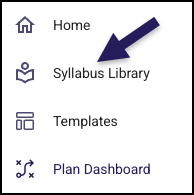
Once logged in, find and click the Syllabus Library icon in the menu to the left.
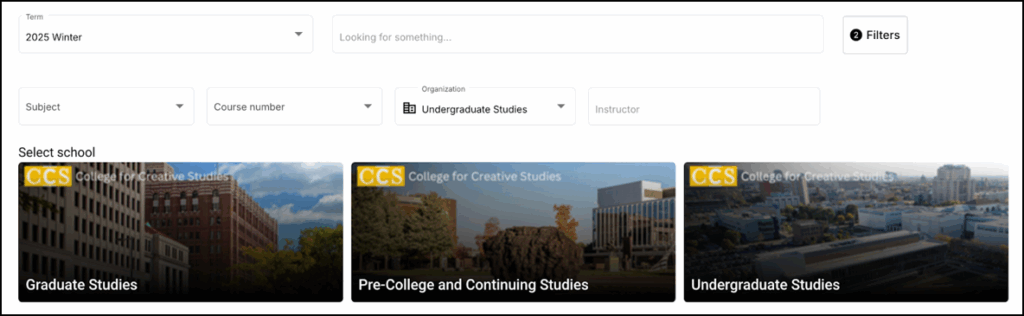
Click the image for the category of syllabi you would like to view: Graduate Studies, Pre-College and Continuing Studies, or Undergraduate Studies.
Click the image for the desired Department.

By default, you will be shown a list of all syllabi for the current semester in that department.
You can use the Term filter along the top of the page to select which term(s) to view. Users can view Future, Current, or Historic course syllabi.
You can use the Subject and Course Number drop-down filters to search for specific course syllabi.

Click into any syllabus to view it. You can also share a syllabus by hovering over the syllabus, clicking Share and sending the URL to anyone who needs to view it.