As you set up your Canvas course for a new semester, you can reuse course content from a previous semester using the Import Content tool.
What if I want to import content from a different course I did not teach previously?
The EdTech team requires permission from the instructor who previously taught the course. We will reach out to this instructor on your behalf for copy approval. If the instructor is no longer at CCS, we will reach out to the Department Chair/Program Manager for copy approval.
Options for Importing Course Content
You have three options for importing previous course content: complete a Canvas Course Import Request, import all of a course’s content, or select specific content to import (this is EdTech’s suggested method).
You can submit a Canvas Course Import Request to have the EdTech team copy content into the new course for you. As part of this process, we will remove duplicate or outdated templated content, ensure a clean menu, verify links, and run accessibility checks. We will then share any recommended updates with you.
To begin the import process on your own, navigate to your Canvas Dashboard and select the course you want to import content into.
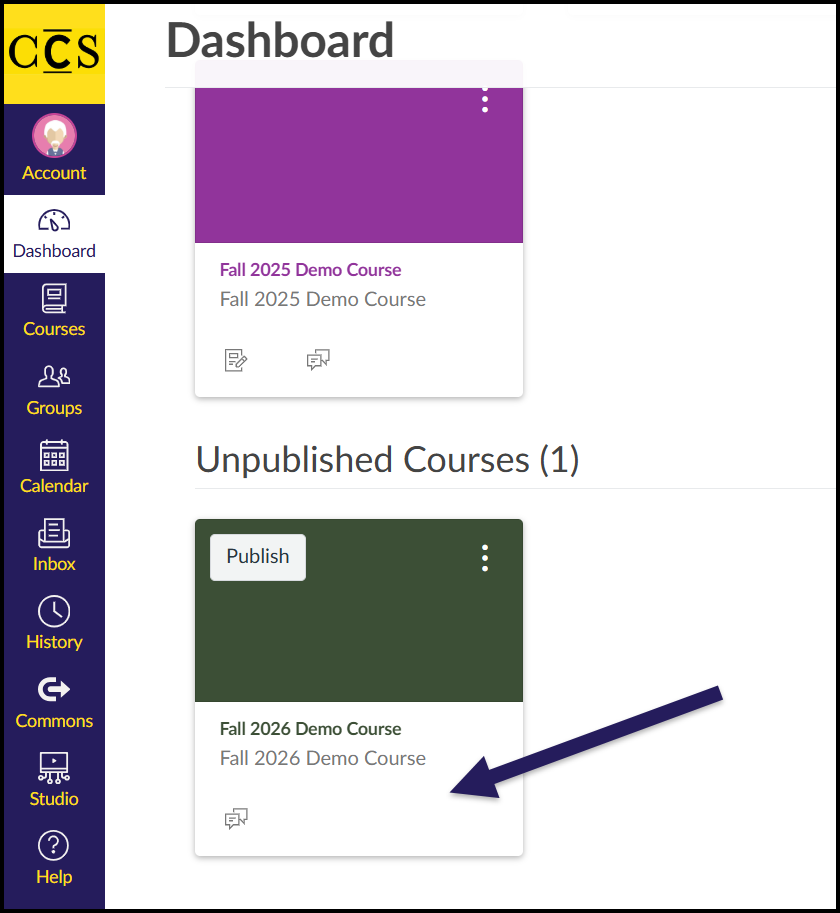
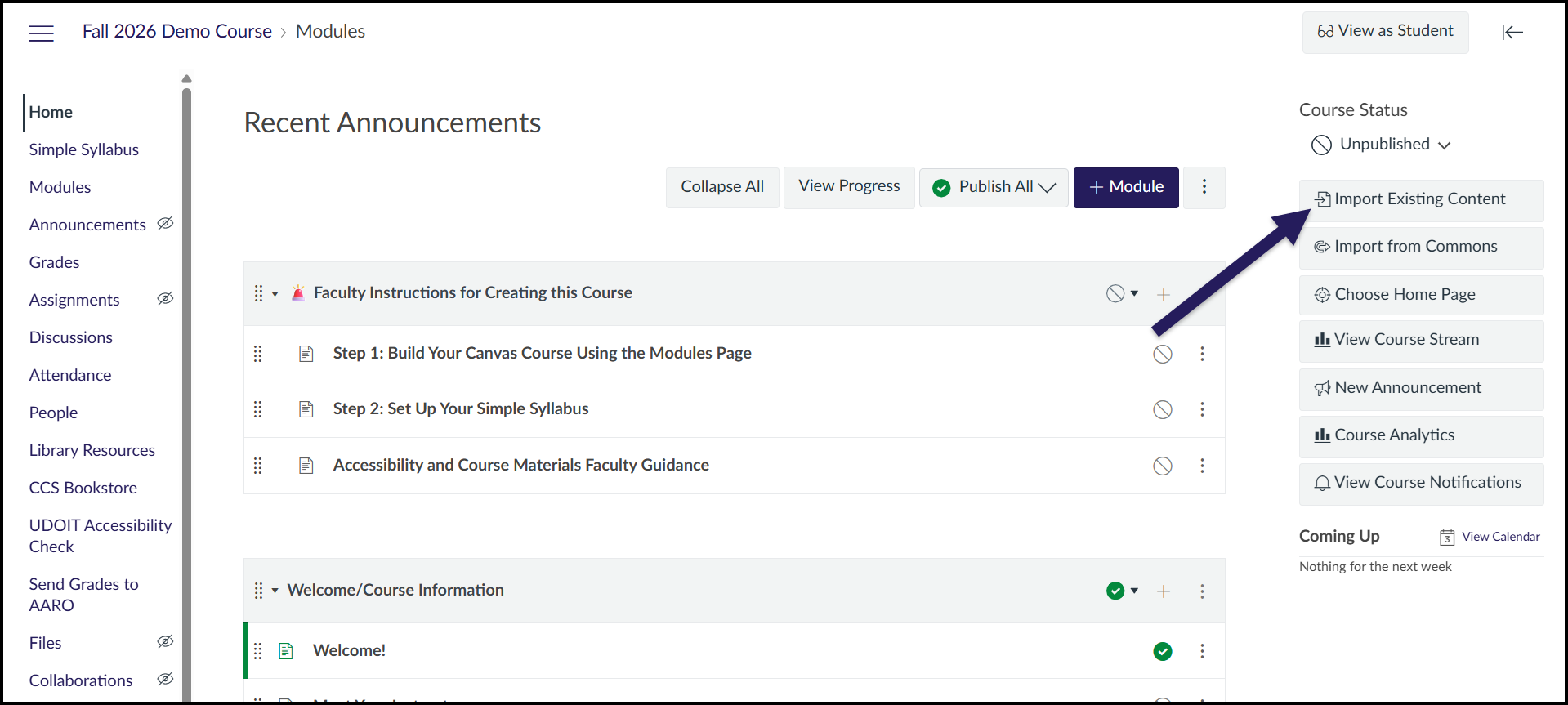
Click the Import Existing Content button on the right side of the screen.
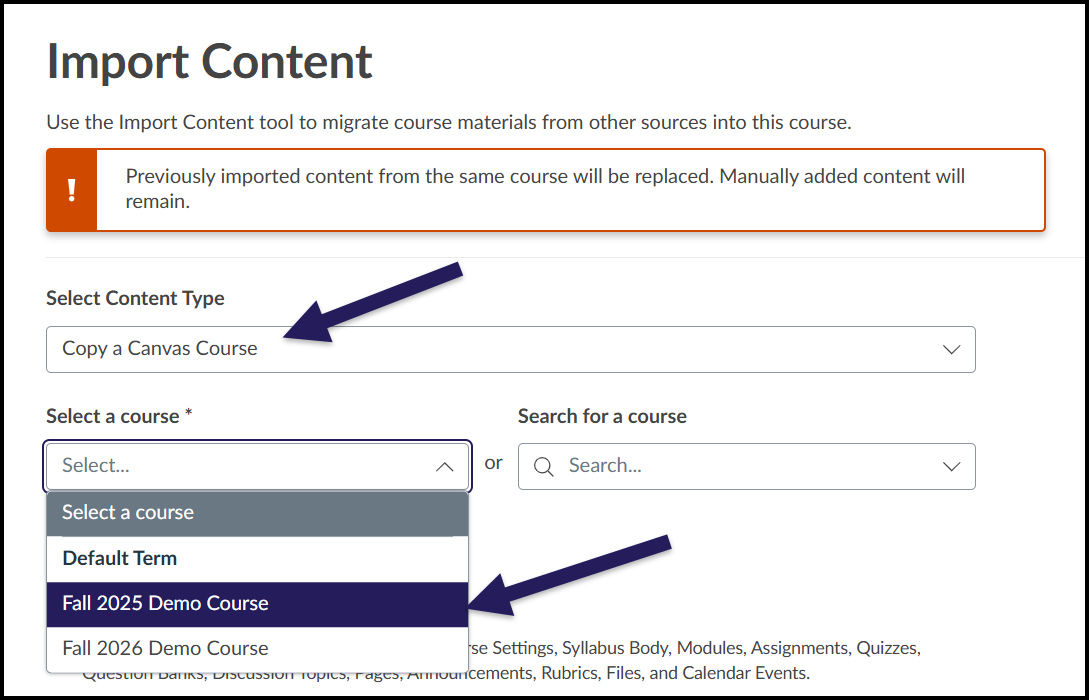
Click into the dropdown menu under Select Content Type, and click Copy a Canvas Course.
Select the course you will import content from under Select a course, or search for the course in the search bar.
Selecting Specific Content (Suggested Method)
Why would you use this method?
- If you want to import content from multiple past courses into your new course
- If your department uses a course template that is automatically populated into course shells
- If you want to exclude content from an import (such as unused Assignments, old Announcements, old Calendar items)
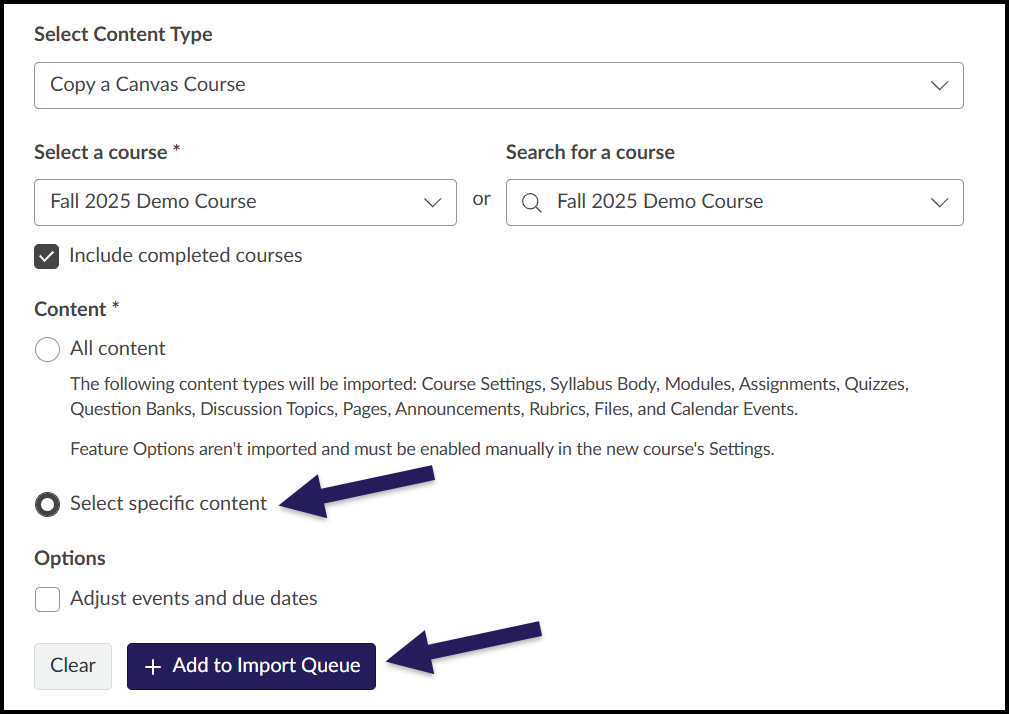
Select the Select specific content radio button under Content, and click + Add to Import Queue.
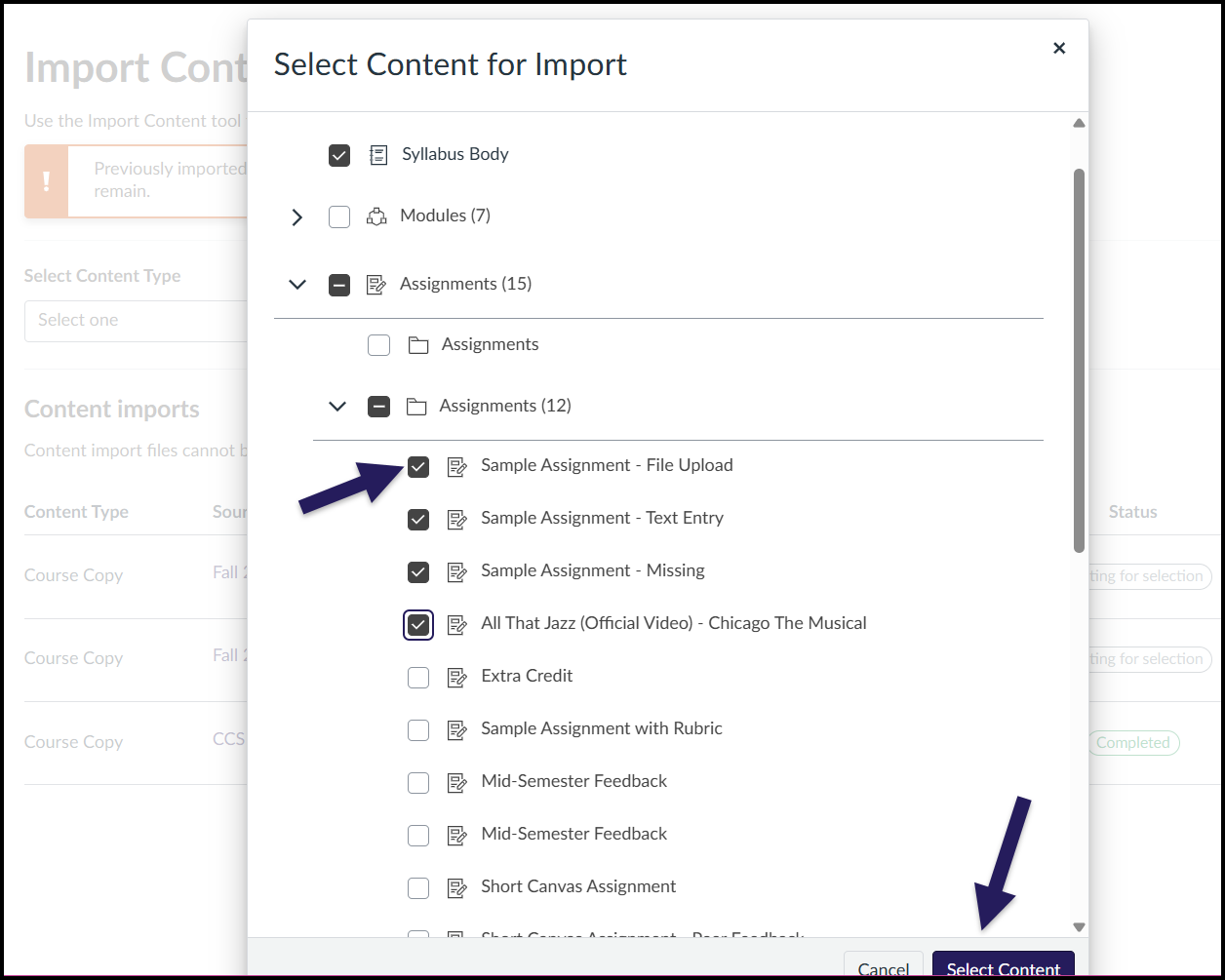
Under Content imports, click Select content next to the course from which you are importing.

In the popup window, select all of the content that you want to import into your course. You will likely not want to select things like Announcements and Calendar items from the previous course, as these will be out of date. Note that if you import specific Modules, every item in those modules will be imported into your course (Assignments, Pages, Files, etc.).
When you are done making selections, click the Select content button. The import will take up to a few minutes to run, and you can leave this page while it runs. When the import’s status is marked as Complete, the import is finished.
To import content from multiple courses, repeat the process above for each course you are importing from.
Importing All Content
Why would you use this method?
- If you want to import the full content from a previous course into your current course
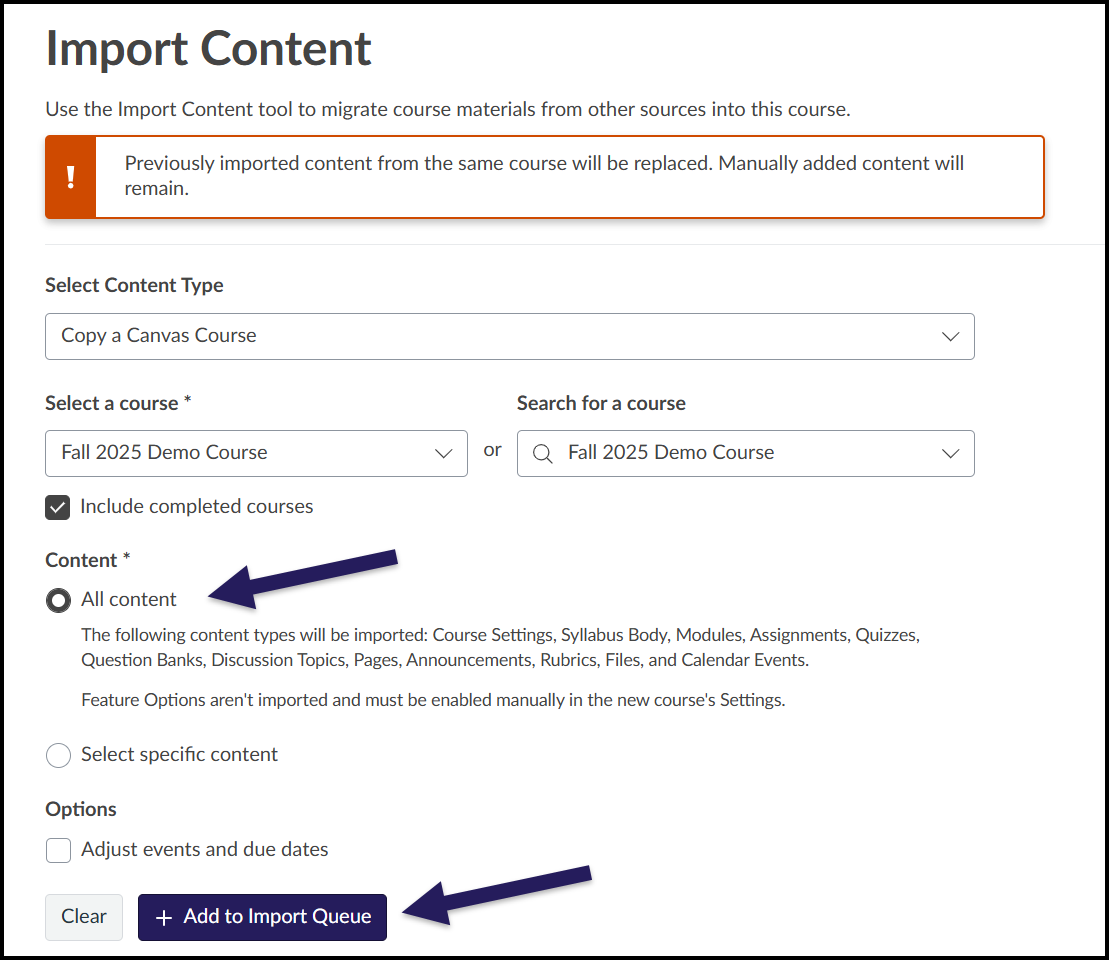
Select the All content radio button under Content, and click + Add to Import Queue. The import will take up to a few minutes to run, and you can leave this page while it runs. When the import’s status is marked as Complete, the import is finished.
Once your content is imported, remove any unnecessary or duplicative content, such as unused Modules, old Announcements, and old Calendar items.
Reviewing Your Course Content
After importing your course content, you will need to check your course for accuracy. Check the following:
- All necessary Assignments have been imported
- Assignment Groups add up to 100%
- Modules have been imported correctly, with no duplications
- Adjust any Assignment due dates
- Check for broken links in your course using the Link Validator tool