The Order Items tool allows you to add ungraded, interactive learning checks directly to any Canvas content page. Similar to an “Ordering” question in Canvas New Quizzes, it presents a prompt and asks students to place the given items in order. These options can be text-based, image-based, or a combination of both.
Note
Because these are intended as informal self-checks, Order Items activities have no connection to the Canvas Gradebook. However, anonymous usage data can be tracked. Review the DesignPLUS Interactive Data guide for more information.
Example Uses:
- Art History Timelines: Arranging historical art movements (e.g., Renaissance, Baroque, Impressionism, Cubism) or the specific evolutionary periods of a single artist’s career (like Picasso’s Blue Period transitioning into his Rose Period and then Cubism).
- Story Sequencing Cards: Looking at 3 to 5 picture cards that tell a simple story (e.g., a seed, a sprout, a plant, a flower) and placing them in the correct “first, next, then, last” order.
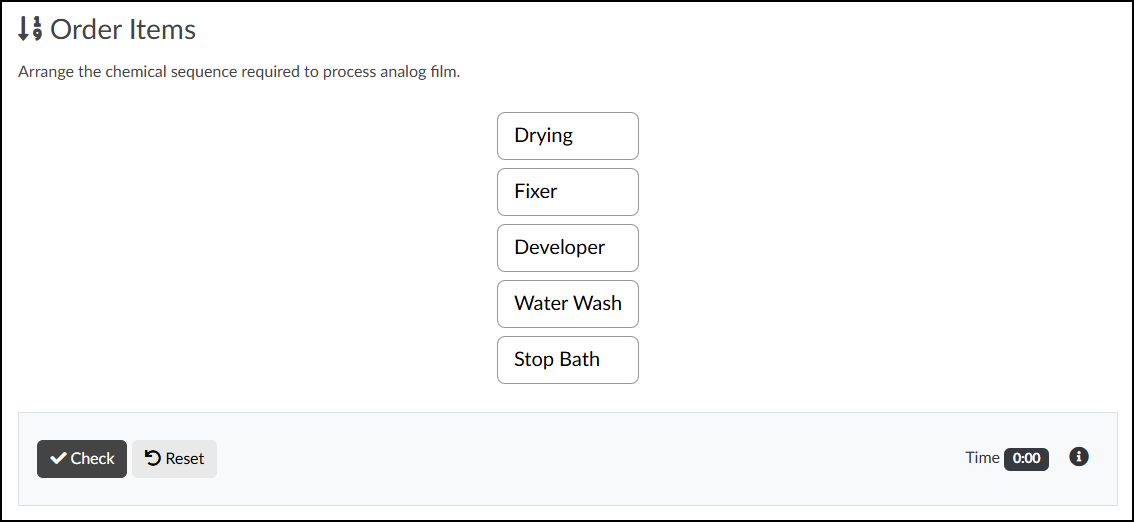
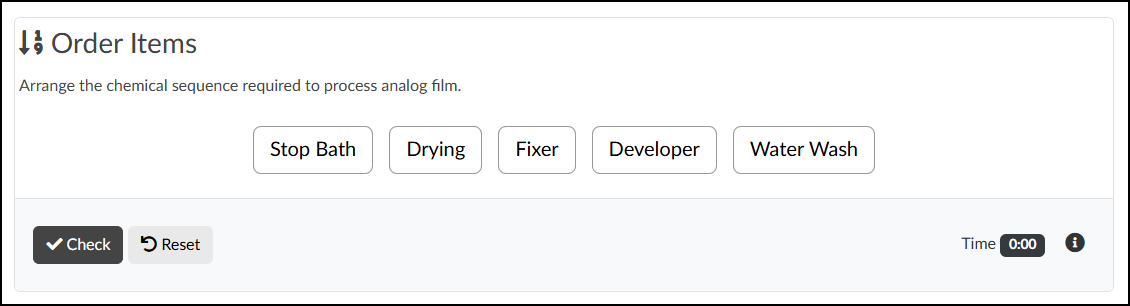
- The Darkroom Sequence: Giving students cards labeled with steps (Developer, Stop Bath, Fixer, Water Wash, Drying) and having them arrange the chemical sequence required to process analog film.
View two examples of ordering activity layouts by interacting with the image slider below. You can navigate between the examples using the arrows on either side, or by selecting the dots at the bottom.
- Adding an Order Items Activity to a Content Page
- Content Panel
- Style Panel
- Advanced Panel
- Additional Resources
Adding an Order Items Activity to a Content Page
While editing content in your Canvas course, launch the DesignPLUS Sidebar by clicking on the 🚀 rocket ship icon at the top right corner of the screen.
- Alternatively, press Alt/Option + Shift + D on your keyboard.
Place your cursor in the RCE (Rich Content Editor) where you want to add the Order Items interface.
In the DesignPLUS Sidebar, click on the ➕ Add New Elements tab.
Click the Order Items button (found under the Interactive Exercises or Recently Used Tools headings).
- Alternatively, use the Search textbox to search for Order Items. DesignPLUS will show results in real-time. Click the ✖️ icon to clear your search.
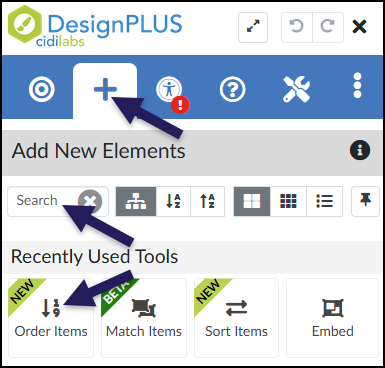
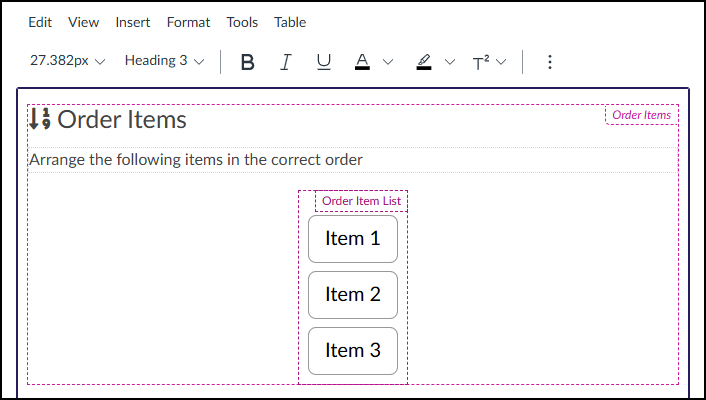
After clicking on the Order Items button, that interface will be added to the RCE.
Keep in mind the following as you make edits:
- The Order Items interface may not look exactly like what you and your students will see after the page is saved. This is by design.
- The Order Items and Arrange the following items in the correct order text shown below can be edited directly in the RCE.
Content Panel
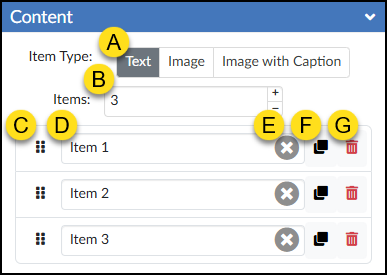
Use the Content panel to set up your answer choices, enable the option to add images, and determine which options are correct.
- Item Type: Choose whether your answer options will display as Text, Image, or Image with Caption.
- Note on Images: If you select “Image” or “Image with Caption,” use the Canvas Rich Content Editor (RCE) toolbar to replace the placeholder images. The text you enter into the Answer Text Box will automatically become the alternative text (alt text) for that image, which is essential for screen reader accessibility.
- Items: Set the total number of options displayed to students. Use the ➕ and ➖ buttons to quickly add or remove answer rows.
- ⋮⋮ Reorder: Click and drag the six-dot handle up or down to rearrange the order of your answer options.
- Answer Text Box: Type in the text for each item to include in the Order Items activity.
- ✖️ Clear Text: Click this icon to quickly delete all text from that specific Answer Text Box.
- Duplicate Item: Create an exact copy of the selected answer row.
- 🗑️ Delete Item: Remove the selected answer option from your question entirely.
Style Panel
Use the Style panel to customize the appearance of your Order Items activity on the Canvas page. The specific formatting options available here will change depending on the Item Type you selected in the Content panel.
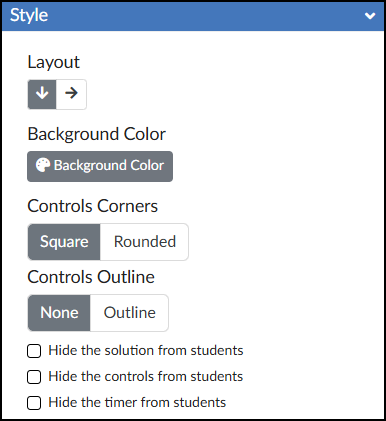
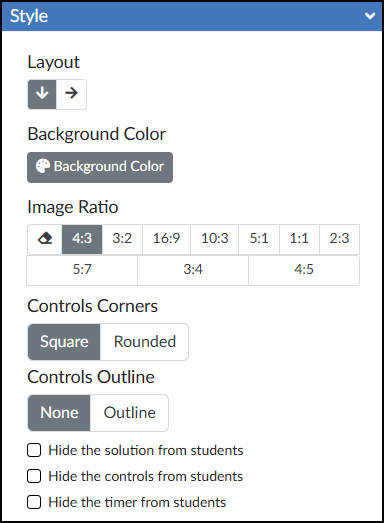
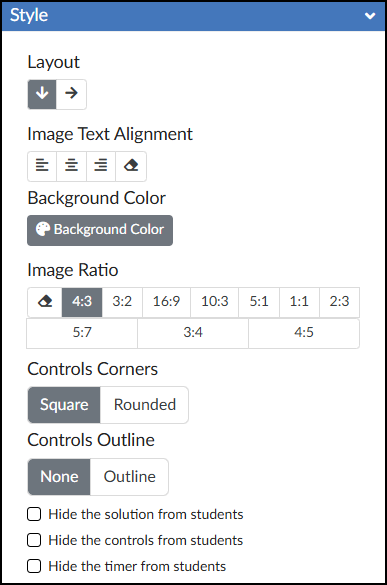
- Layout: Select between Vertical Layout and Horizontal Layout.
- Image Text Alignment: Choose to align your text to the Left, Center, Right, or revert to the Default alignment.
- 🎨 Background Color: Set the background color displayed behind the possible answers in your Order Items activity.
- Image Ratio: Define the aspect ratio for all images used within the activity.
- Controls Corners: Choose Square or Rounded corners for the control bar at the bottom of the activity (which houses the ✔️ Check button, Reset button, and timer).
- Controls Outline: Select Outline to add a border around the entire Order Items interface and the bottom control bar, or select None to leave it borderless.
- ☑️ Hide the solution from students: Check this box to prevent the “Solution” button from appearing after students check their answers.
- ☑️ Hide the controls from students: Check this box to hide the ✔️ Check button, Reset button, and timer entirely.
- ☑️ Hide the timer from students: Check this box to hide only the timer in the bottom right corner of the activity.
Advanced Panel
The Advanced panel contains additional settings for your Order Items activity that can modify the way it functions for your students.
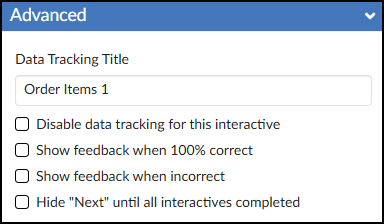
- Data Tracking Title: Enter a custom name to track anonymous usage data for this specific activity. (Review the DesignPLUS Interactive Data guide for more information.)
- ☑️ Disable data tracking for this interactive: Check this box to opt out of collecting anonymous usage data for this specific tool.
- ☑️ Show feedback when 100% correct: Check this box to provide a custom success message. Selecting this adds a green placeholder box in the Rich Content Editor (RCE) where you can type your feedback.
- ☑️ Show feedback when incorrect: Check this box to provide a custom “try again” message. Selecting this adds a red placeholder box in the RCE where you can type your feedback.
- ☑️ Hide “Next” until all interactives completed: Check this box to hide the Canvas “Next” button at the bottom of the page until the student successfully completes the activity.
Additional Resources
Portions of this guide were created in collaboration with generative AI to brainstorm and refine ideas and grammar.