DesignPLUS Flip Cards

Flip Cards provide an engaging, interactive way to present information on your Canvas pages. You can add text, images, or other content to both sides of the card. A circular arrows icon (🔄️) naturally prompts students to click and “flip” the card to reveal the information on the back.

Example Uses:

  • Art & Humanities: A portrait of an artist on the front, with a short biography on the back.
  • STEM: A chemical compound’s name on one side, and its corresponding formula on the other.
  • Geography & History: A photo of a historical site on the front, revealing its global location and significance on the back.
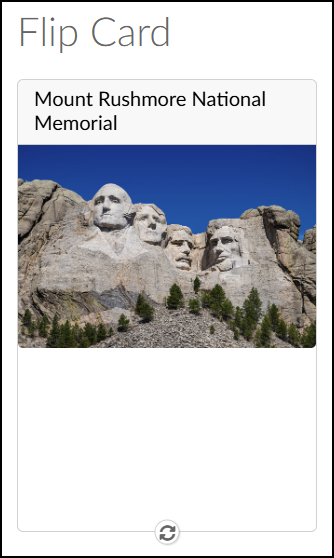
A screenshot of the DesignPLUS "Flip Cards" tool in use on a Canvas LMS course page, displaying the front side of a single flip card. Above the card, the large, light grey text heading reads "Flip Card". The card itself, outlined in light grey, features the bold text "Mount Rushmore National Memorial" at the top. Below this text is a clear photograph of the four presidential faces carved into the mountain rock against a vivid blue sky, with a dark green pine forest visible at the base of the carvings. At the bottom center of the card, a circular icon containing two counter-rotating arrows is displayed, indicating the card can be flipped.
Front side of a DesignPLUS Flip Card
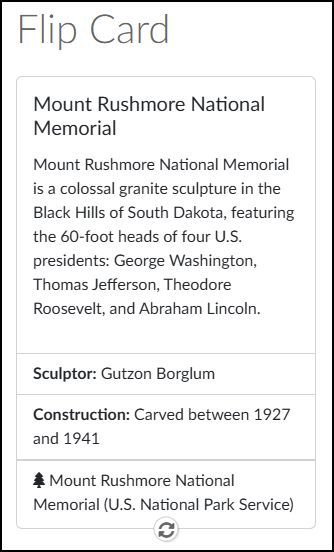
A screenshot shows the back side of a DesignPLUS Flip Card within a Canvas LMS course. At the top of the image is the large grey text heading "Flip Card". Below it, the card itself is within a light grey bordered box. This card features the bold title "Mount Rushmore National Memorial" followed by a detailed descriptive paragraph: "Mount Rushmore National Memorial is a colossal granite sculpture in the Black Hills of South Dakota, featuring the 60-foot heads of four U.S. presidents: George Washington, Thomas Jefferson, Theodore Roosevelt, and Abraham Lincoln." Below the paragraph are two sections: "Sculptor: Gutzon Borglum" and "Construction: Carved between 1927 and 1941". A final line near the bottom shows a pine tree icon followed by the text: "Mount Rushmore National Memorial (U.S. National Park Service)". At the very bottom center of the card is a circular icon with counter-rotating arrows, indicating it can be flipped.
Back side of a DesignPLUS Flip Card

Adding Flip Cards to a Content Page

While editing content in your Canvas course, launch the DesignPLUS Sidebar by clicking on the 🚀 rocket ship icon at the top right corner of the screen.

  • Alternatively, press Alt/Option + Shift + D on your keyboard.

Place your cursor in the RCE (Rich Content Editor) where you want to add the Flip Card interface.

In the DesignPLUS Sidebar, click on the ➕ Add New Elements tab.

Click the Flip Card button (found under the Page Layout, Interactive Content, or Recently Used Tools headings).

  • Alternatively, use the Search textbox to search for Flip Cards. DesignPLUS will show results in real-time. Click the ✖️ icon to clear your search.
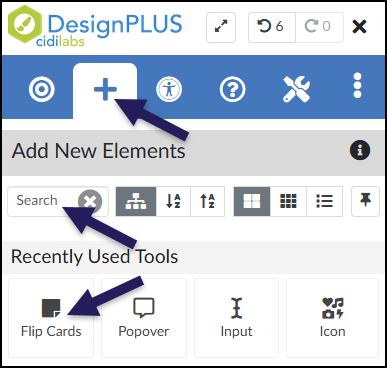
A screenshot of the DesignPLUS Sidebar demonstrates accessing the 'Flip Cards' tool. An initial arrow points to the 'Add New Elements' tab in the top navigation bar, which features a large plus sign and is the currently active view. Within the 'Add New Elements' panel, two other arrows highlight the primary methods for finding the tool: one points to the 'Search' input field, and the other points directly to the 'Flip Cards' button, which features an icon of a square with a folded bottom-right corner and is located in the 'Recently Used Tools' list. Other un-highlighted tools like 'Popover', 'Input', and 'Icon' are also visible nearby.

After clicking on the Flip Cards button, that interface will be added to the RCE.

  • While editing your content page, the Flip Cards interface may not look exactly like what you and your students will see after the page is saved. This is by design.

The Front Card/Back Card and Card Body Text shown below can be edited directly in the RCE.
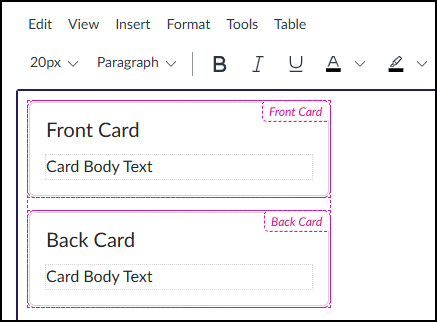
A screenshot displays the DesignPLUS 'Flip Cards' tool interface within a Canvas LMS Rich Content Editor. At the top, a standard content editor menu bar reads 'Edit View Insert Format Tools Table', and a formatting toolbar below it includes a '20px' font size selector, a 'Paragraph' style selector, and icons for bold, italic, underline, font color, and text highlight. The main content area below shows the visual design structure for a single flip card element, presented as vertically stacked blocks within magenta dashed borders. The upper block, labeled 'Front Card' in its upper-right corner, features a large bold heading 'Front Card' and a smaller text placeholder below it reading 'Card Body Text'. Directly below it, the lower block, labeled 'Back Card' in its upper-right corner, mirrors this structure with a large bold heading 'Back Card' and a 'Card Body Text' placeholder. This configuration allows an editor to input content for both sides of the interactive flip card.

Content Panel

A new Flip Card automatically includes editable default text. To create richer content, you can easily add other components to the front and back of the card.

  1. Editor Visibility: Use the Front, Back, or Both buttons to control which part of the Flip Card you see while editing in the RCE. This allows you to tuck one side out of the way so you can concentrate entirely on building the other.
  2. Add Components: Six components are available to add to each side of your Flip Card.
    • Header
    • Image
    • Body
    • List
    • Link List
    • Footer
  3. Front Card Contents / Back Card Contents: These areas show the order of components added to the front/back of your Flip Card. They also include the following icons:
    • Rearrange (six vertical dots): Use this icon to drag components up/down within the front/back of the Flip Card.
    • Duplicate Contents: Make a copy of the chosen component.
    • 🗑️ Delete Contents: Delete the component from the front/back of the Flip Card.
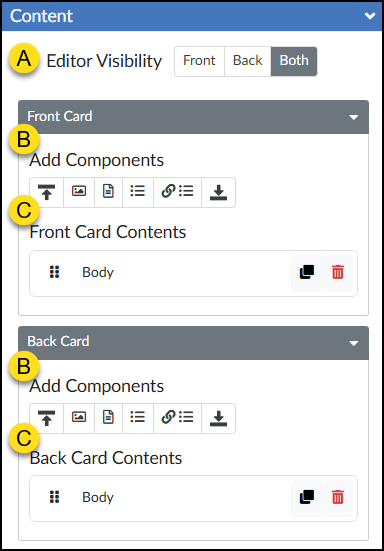
A screenshot displays the Content panel for the DesignPLUS "Flip Cards" tool. A control at the top, indicated by a yellow callout 'A', is labeled "Editor Visibility" and contains a segmented button group with options: "Front", "Back", and "Both", where "Both" is selected. Below this control are two expandable grey header sections, "Front Card" and "Back Card". Labeled with callout 'B' inside both the Front and Back Card sections is the text "Add Components" followed by a toolbar with six distinct icons for selecting new content elements. Labeled with callout 'C' below the toolbar in both card sections are areas titled "Front Card Contents" and "Back Card Contents", each featuring an editable "Body" component block that includes a drag handle, a duplicate icon, and a delete icon.

In the below example, additional components have been added under the Content panel of the DesignPLUS Sidebar. Each of those components are reflected in the same order within the RCE.
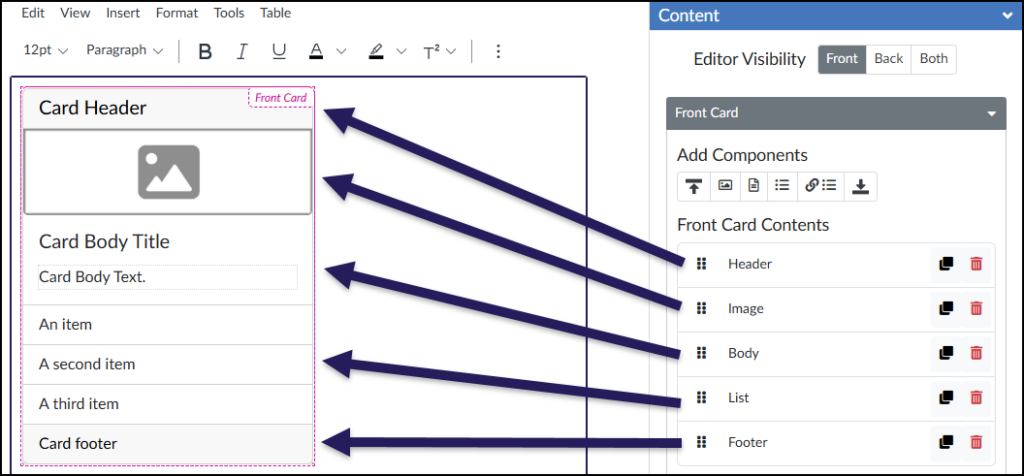
A screenshot of the DesignPLUS "Flip Cards" tool's Content panel in Canvas LMS shows the front of a flip card being edited. The right sidebar, labeled "Content," displays the current "Editor Visibility" as "Front." Beneath this, under "Front Card Contents," there is an ordered list of components, each with drag and drop, duplicate, and delete icons, listing "Header," "Image," "Body," "List," and "Footer" from top to bottom. On the left, the main rich content editor displays the visual front card within a purple dotted border, with a magenta "Front Card" tab in the corner. Multiple dark purple arrows connect each item in the "Front Card Contents" list to its visual counterpart in the editor, from the editable "Card Header" text and image placeholder down to the list of items and the "Card footer" text. Above the editor, standard Canvas text formatting tools are visible.

Style Panel

The Style panel provides additional options to configure the look of your Flip Card.

  1. The Overall Card Style sub-panel includes options to set the Width, Height, Position, Border Radius, and Card Shadow.
  2. The Front Card Style/Back Card Style sub-panel include the same set of icons for Front/Back Background Color, Text Align, and Body Align.
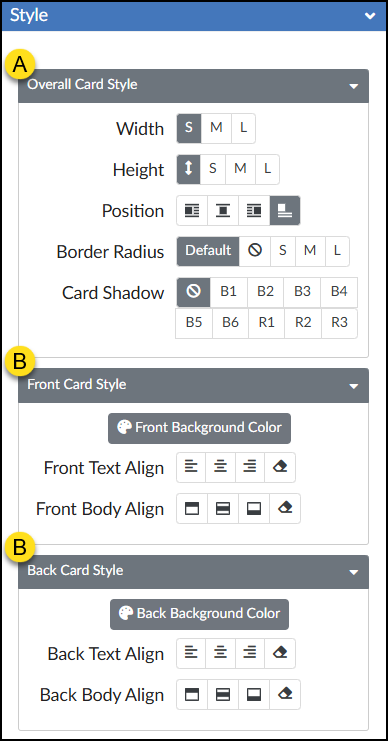
A detailed screenshot displays the configuration 'Style' panel for the DesignPLUS 'Flip Cards' tool within a Canvas LMS course page. The panel is divided into three collapsible sections with dark grey headers. Section A, 'Overall Card Style', uses multi-button segmented controls for general card appearance, including Width, Height, Position, Border Radius, and Card Shadow. It shows options for small, medium, and large sizes (with small width currently selected), alignment positions, various radius settings (with default selected), and a grid of B1-B6 and R1-R3 shadow types (with none currently selected). Below this, section B is repeated for both 'Front Card Style' and 'Back Card Style', offering identical sets of controls for each face of the card: a large button to select background color (with a palette icon), a four-button control for text alignment (left, center, right, justify), and a four-button control for vertical body content alignment (top, middle, bottom, baseline). Currently, all text is left-aligned and body content is top-aligned. The top blue bar has a dropdown arrow.

Additional Resources