Department Chairs and Program Managers at CCS can add additional users to their Teams within the Cidiscape interface. However, if the user you want to add to your Team is not currently listed in Cidiscape, please reach out to the Educational Technology + Innovation (ET+I) team at CCS, and we will help get the user added so that you can complete the steps below.
Accessing Cidiscape within Canvas
- Log in to your Canvas account via the CCS Access Manager.
- From the Canvas Dashboard, click on the Admin icon on the left-hand global navigation menu.
- From the slide-out menu that appears on the left side of your screen, select a sub-account (Example: FILM, LIBERAL ARTS, TRANSPORTATION DESIGN, etc.)
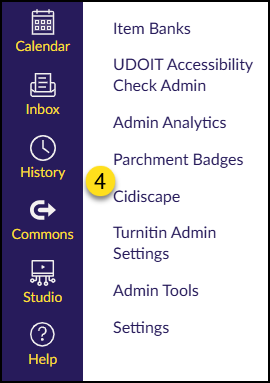
- Find and click on the Cidiscape link on the left side of your screen.
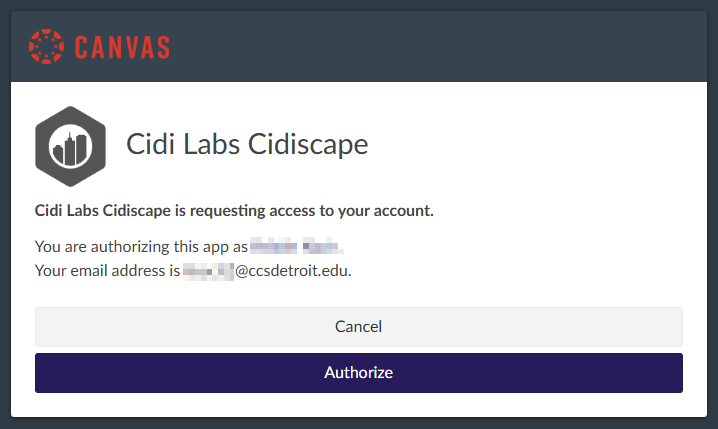
If this is your first time accessing Cidiscape, you will see a screen asking you to authorize your account. Click the Authorize button to continue.
Adding Users to a Team in Cidiscape
- From the Cidiscape Welcome splash page or from the Dashboard, Courses, or Reports tab, click on the ⚙️ Manage link at the top right corner of the screen.
- On the screen that appears, click on the People menu option. Confirm that the user(s) you are looking for is/are listed on this page. If you cannot find the user(s), please contact the Educational Technology + Innovation team at CCS.
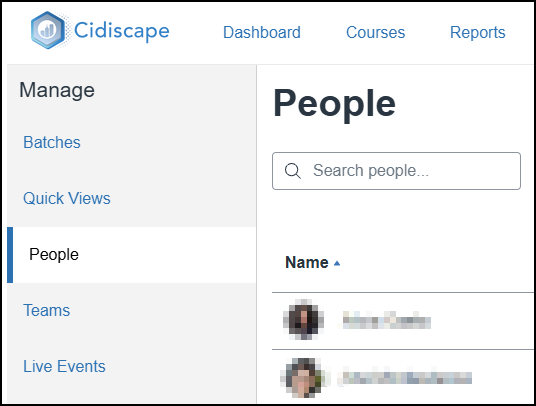
- Once you have confirmed that the user(s) is/are listed on the People page, click on the Teams menu option.
- On the Teams screen, click on either the name of a Team (Example: Film), or click on the ✏️ pencil icon under the Actions column.
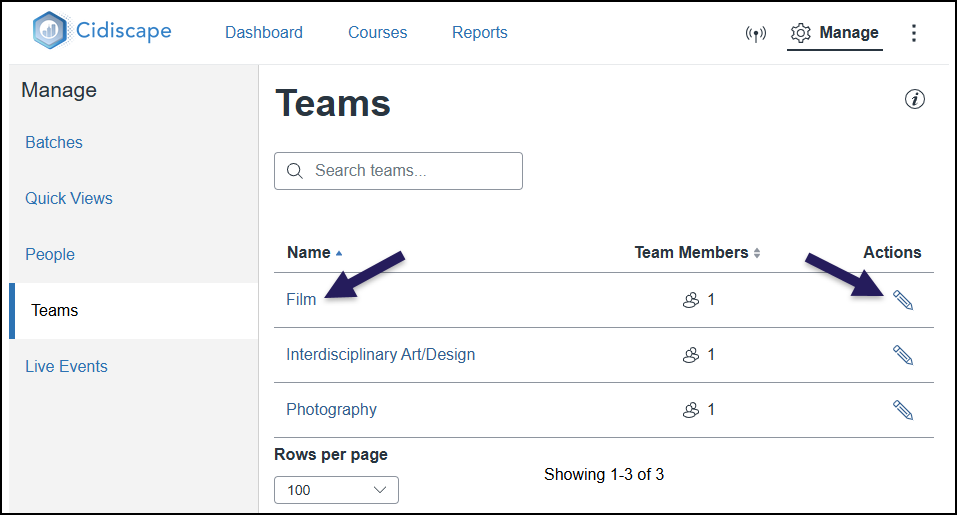
A slide-out window will appear on the right side of your screen. The name of the Team (Example: Film) is displayed along with any Members assigned to the Team. The Role of the Member is also shown.
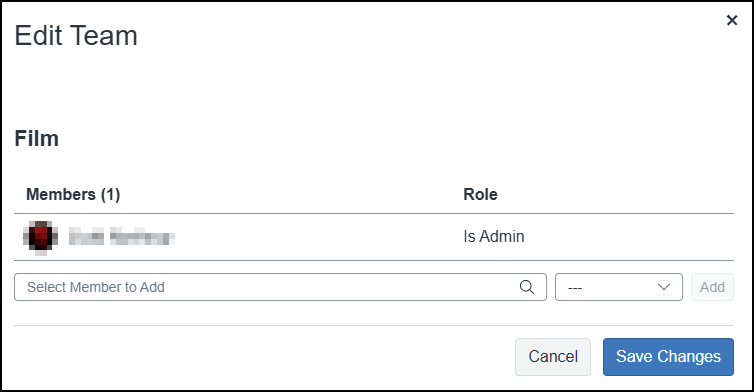
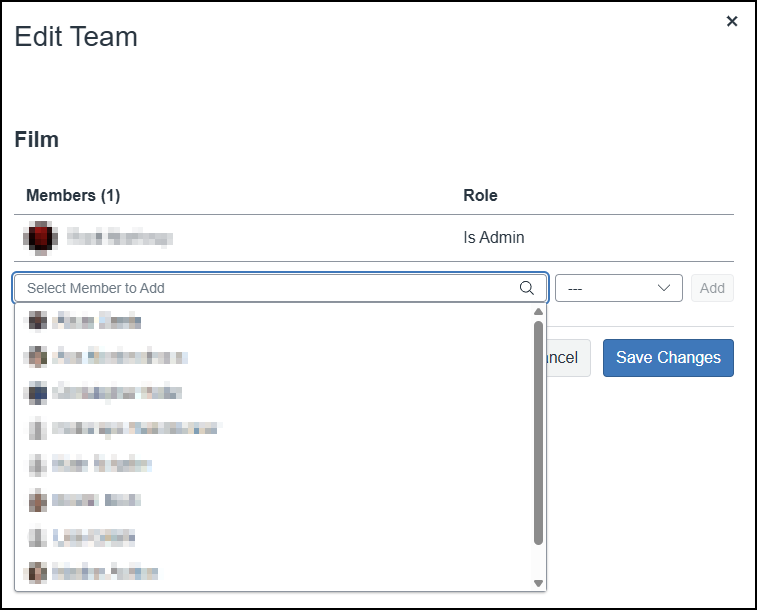
- To add a member to the Team, click within the Select Member to Add drop-down list.
- If you need to delete a member from your Team, please contact the Educational Technology + Innovation (ET+I) team at CCS.
- Click on the name of the user from the drop-down list.
- From the Role drop-down list (defaulted to —), select either Can edit or Read Only.
- Further information on what the Can Edit and Read Only permissions mean can be found at: Roles & User Permissions: Cidiscape User Guide. (Look under the Role Types >> Team Member accordion.)
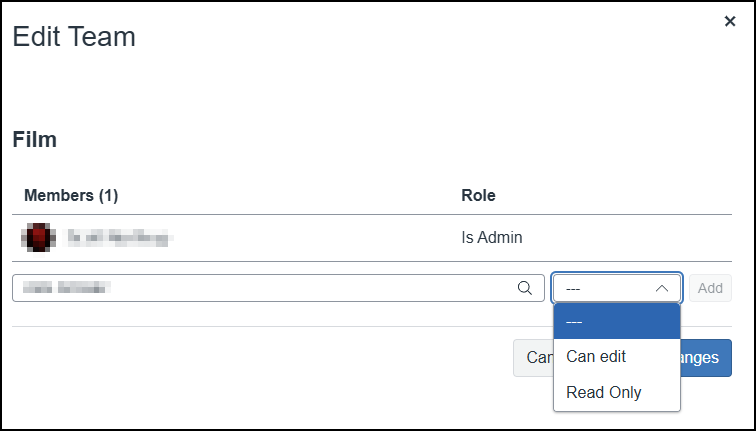
- Click the Add button to add the member to your Team.
- Repeat steps 5-8 to add additional members to your team.
- Click on the Save Changes button to save your changes.