This guide will show how Department Chairs and Program Managers at CCS can use the UDOIT Advantage Admin to view all course accessibility scores within their subaccount.
To run an individual course accessibility check, refer to the UDOIT Accessibility Checker guide.
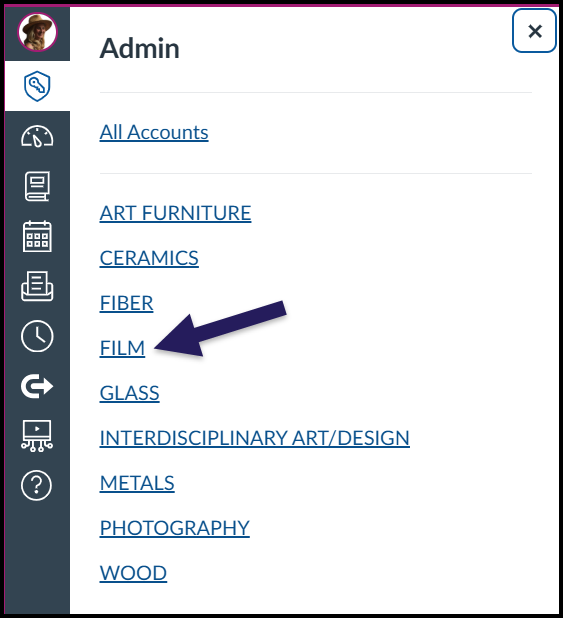
Click on the Admin tab in the global navigation menu. Click on your subaccount. (You may be an admin for multiple subaccounts.)
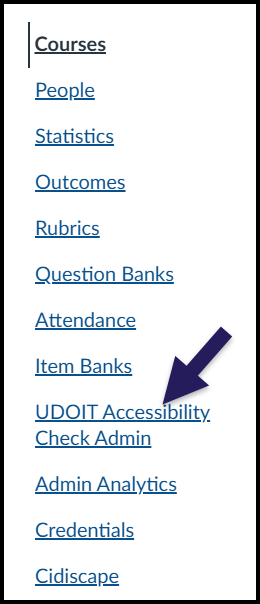
Click on UDOIT Accessibility Check Admin in the subaccount navigation menu.
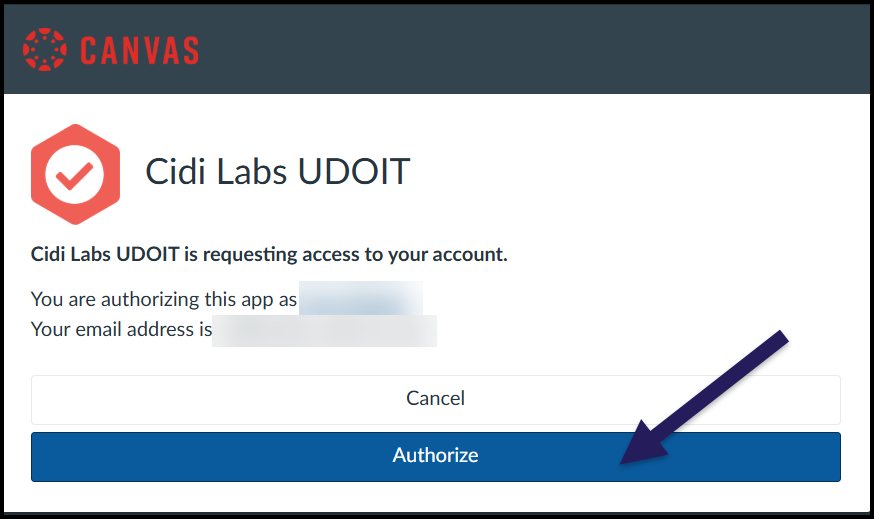
If this is your first time using the tool, you will need to authorize it.
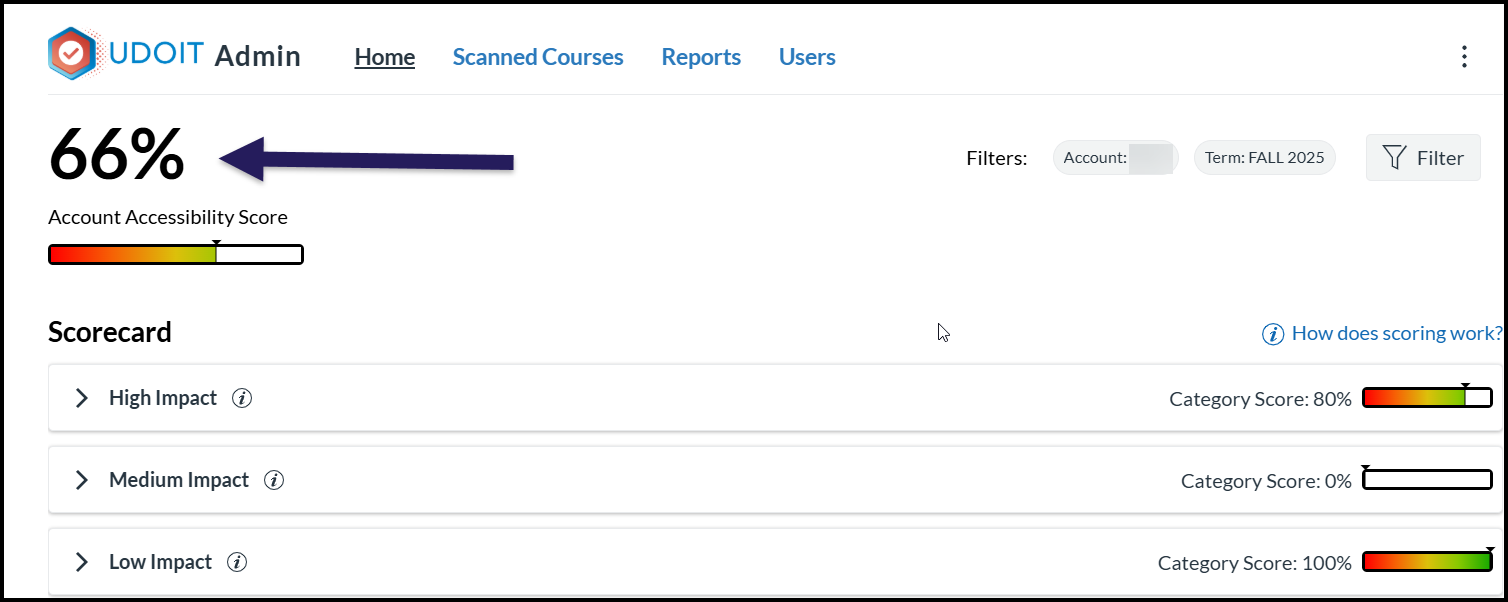
On the Home screen, you will see your subaccount’s mean accessibility score given as a percentage.
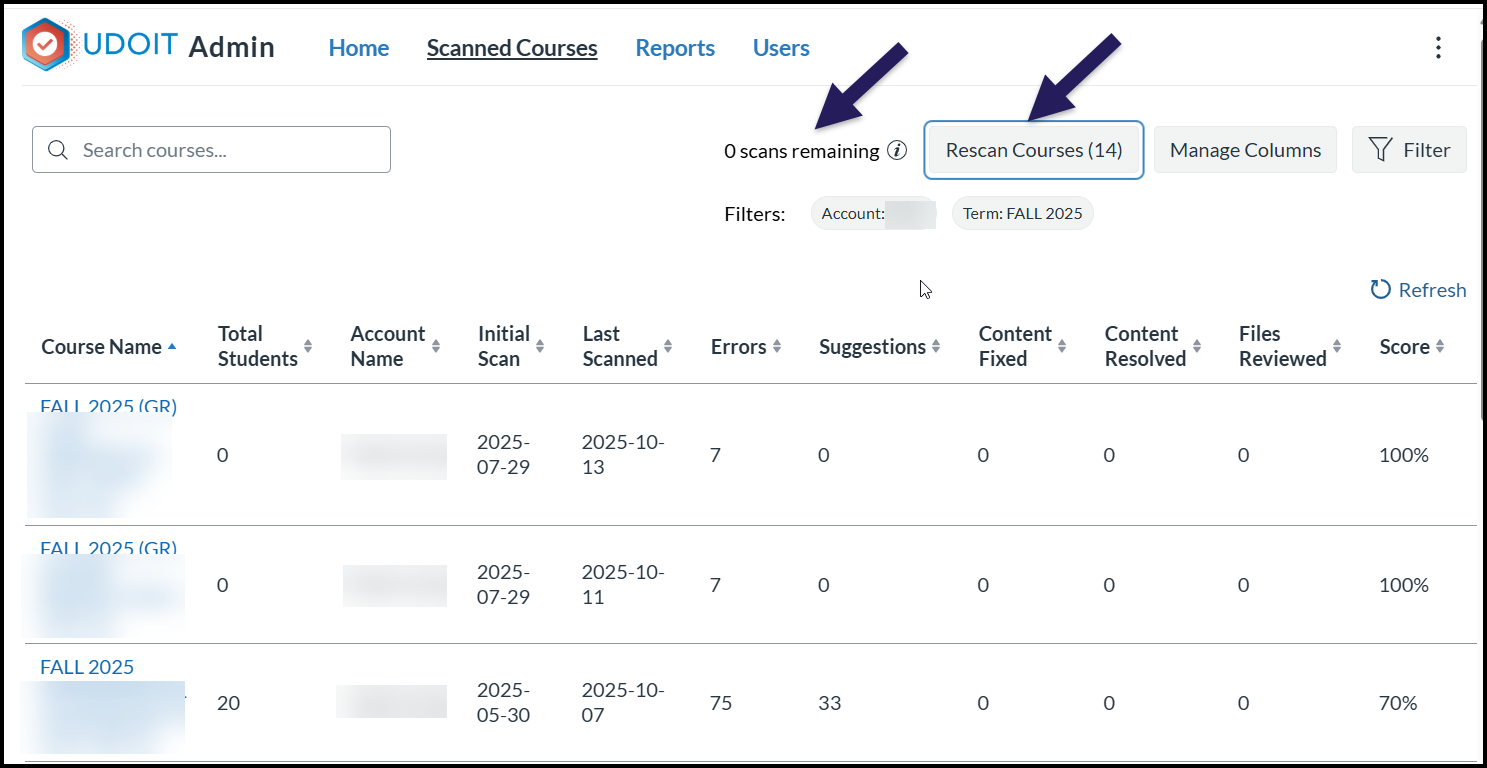
Click on Scanned Courses in the top menu, and click the Rescan Courses button. You will know this is complete when you see “0 scans remaining” next to the button.
When the scan has finished, click on the Score heading and sort accessibility scores from highest to lowest.
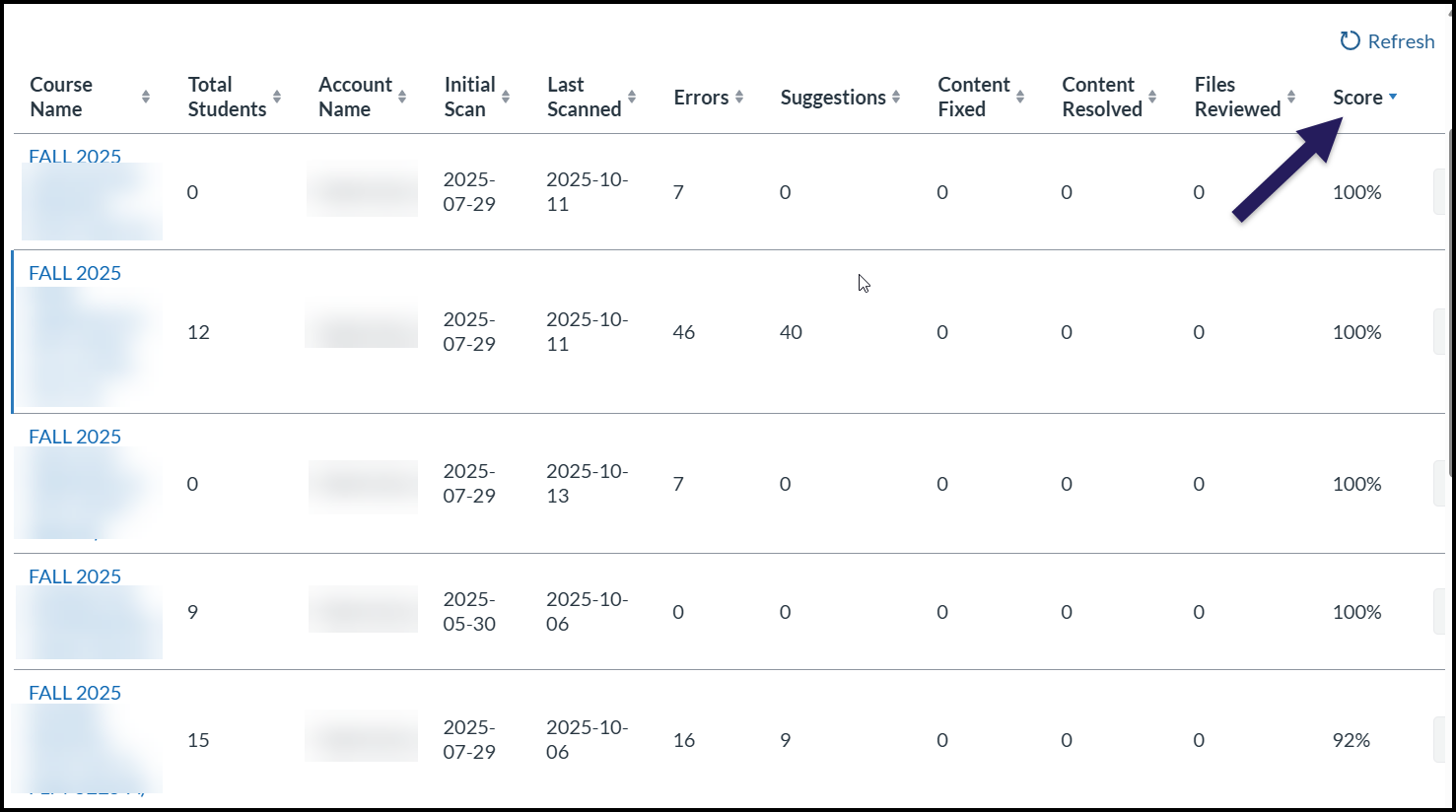
Note: UDOIT currently has an error where some courses’ accessibility scores appear as 100%, even though they have accessibility issues. To ensure the scores are correct, go to these individual courses and run an accessibility check using the UDOIT Accessibility Checker guide.
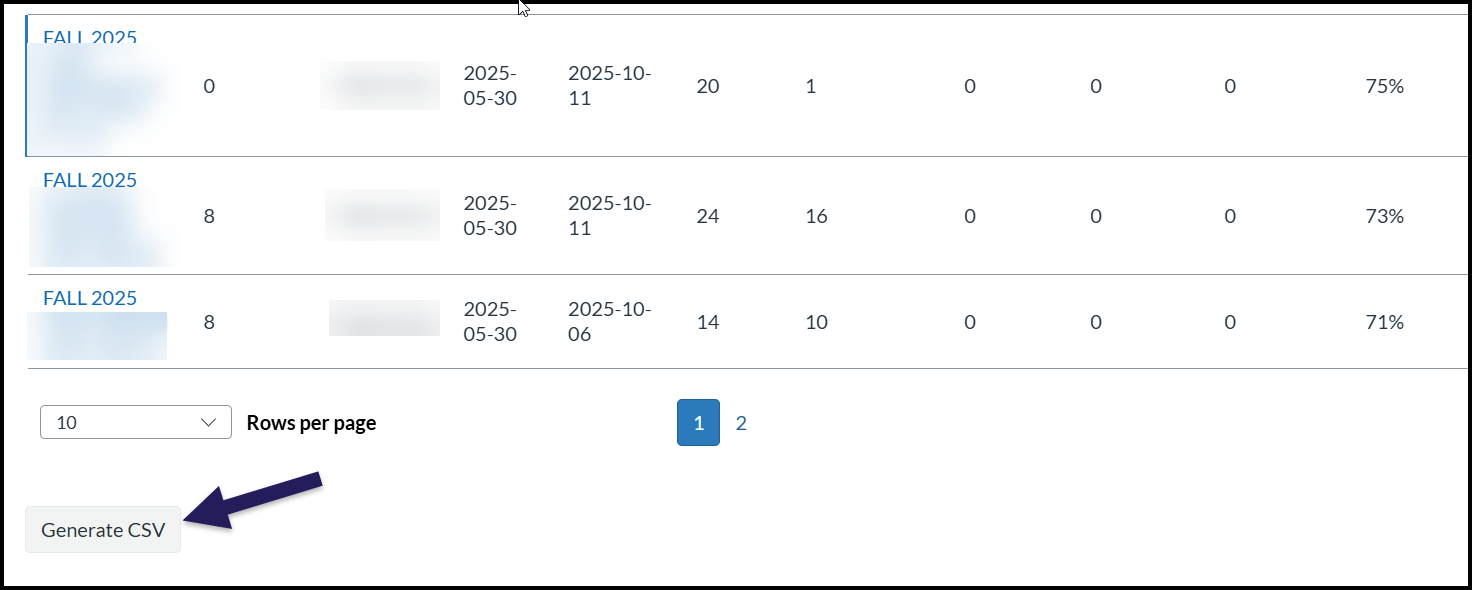
To generate a CSV file of all the courses in your subaccount and their accessibility scores, scroll to the bottom of the Scanned Courses page and click the Generate CSV button. You can save this file and share it with your department.
If you have questions about how to improve accessibility scores, reach out to the Educational Technology + Innovation team by emailing edtech@ccsdetroit.edu, submitting an EdTech Support Ticket, or by stopping by Taubman 622. Please refer to the Professional Development/Training calendar for Accessibility training opportunities. We are also available to attend departmental meetings to provide direct accessibility training to your instructors.