As of Friday, October 3, 2025, any existing or new YouTube videos added to Canvas courses may display ads. To prevent ads from displaying, Instructure has released their YouTube Migration tool which will provide a distraction-free and uninterrupted learning experience. YouTube videos are migrated to the Canvas Studio video player interface and placed in a Collection folder within your Canvas Studio Library.
Beginning on Friday, October 3, 2025, YouTube videos that have not been migrated to Canvas Studio will display an overlay message similar to:
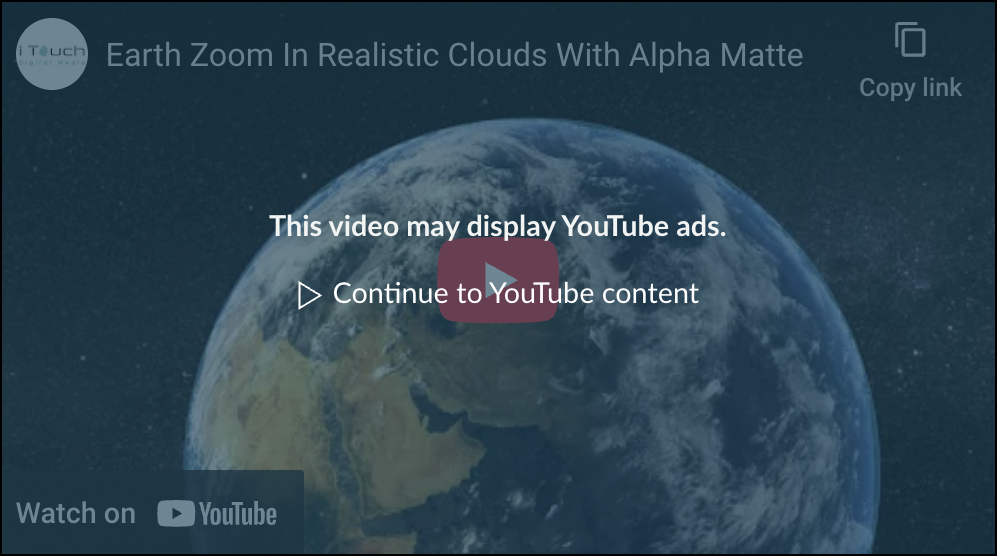
On the Canvas mobile apps, the message will be displayed at the top of the page where the YouTube video is located.
Navigate this Guide
- Closed Captions
- What Will My Migrated Video Look Like?
- Using the YouTube Migration Tool
- Finding Migrated Videos in Canvas Studio
- Disabling the YouTube Migration Tool
- Additional Resources
Closed Captions
Captions from YouTube will carry over to your migrated videos in Canvas Studio. However, these captions cannot be edited. All YouTube content added on or after January 1, 2023, will have captions carried over into Canvas Studio by September 1, 2025. Content added before January 1, 2023, will display captions by October 31, 2025.
With respect to unlisted YouTube videos that are embedded in Canvas courses, captions will not be carried over from YouTube, even if the video later becomes public. In order to access the captions, you will need to re-add it to your Studio library.
What Will My Migrated Video Look Like?
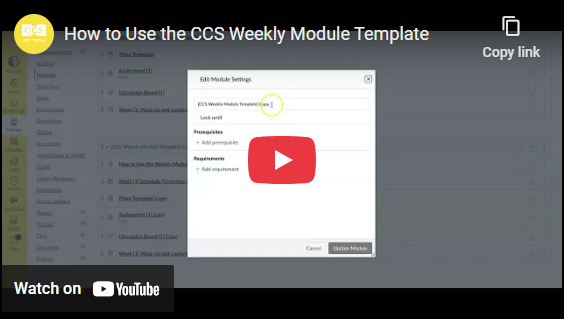
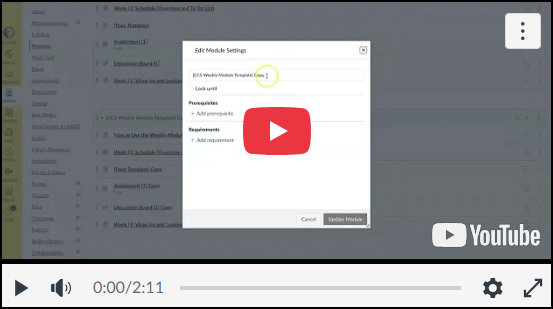
Using the YouTube Migration Tool
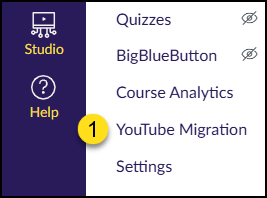
The YouTube Migration tool can be found on your Canvas course navigation menu on the left side of your screen.
- Click on the YouTube Migration course navigation link in your course.
- If you do not see the YouTube Migration course navigation link in your course, refer to Configuring Course Navigation for more information.
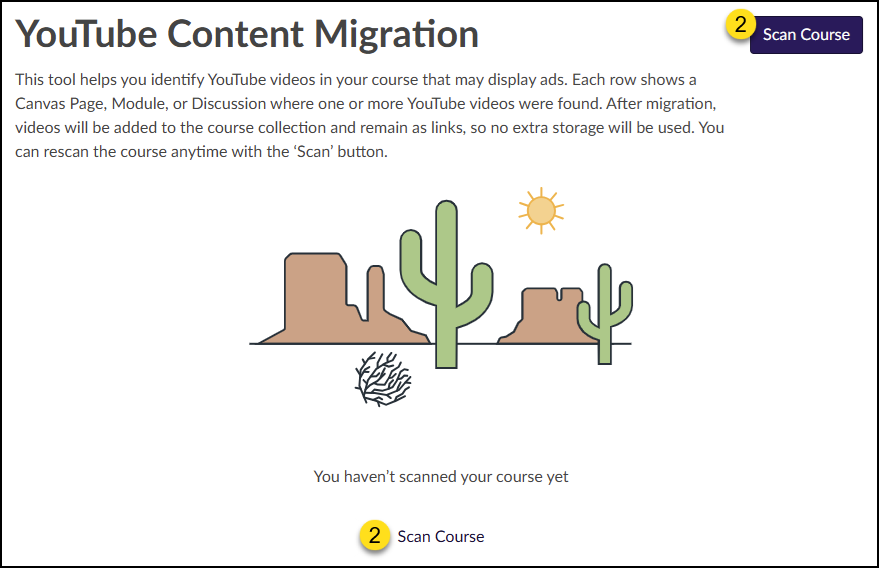
- On the YouTube Content Migration screen, click either the Scan Course button on the top right corner of the screen or the Scan Course link on the bottom of the screen.
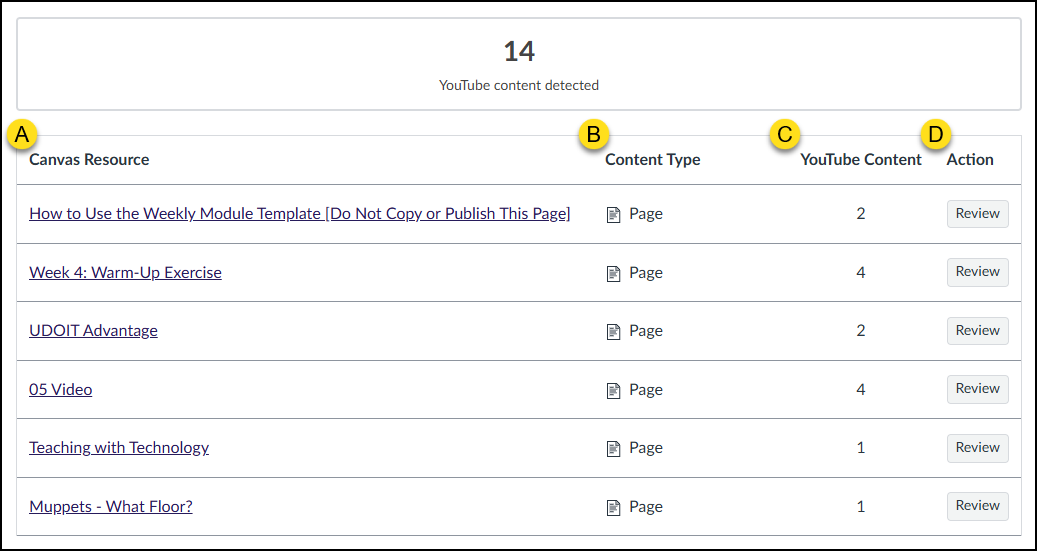
When the scan has been completed, Canvas will display a list of content pages in your course where it has found YouTube media. A total count of YouTube content displays at the top of the screen.
- The following columns are shown:
- Canvas Resource: A link to the resource in your course. Click on the link to view the content.
- Content Type: The type of content (Page, Discussion, Assignment, Quiz, etc.).
- YouTube Content: Displays the number of YouTube videos identified on the given page.
- Action: Click the Review button to review the YouTube videos for the given resource.
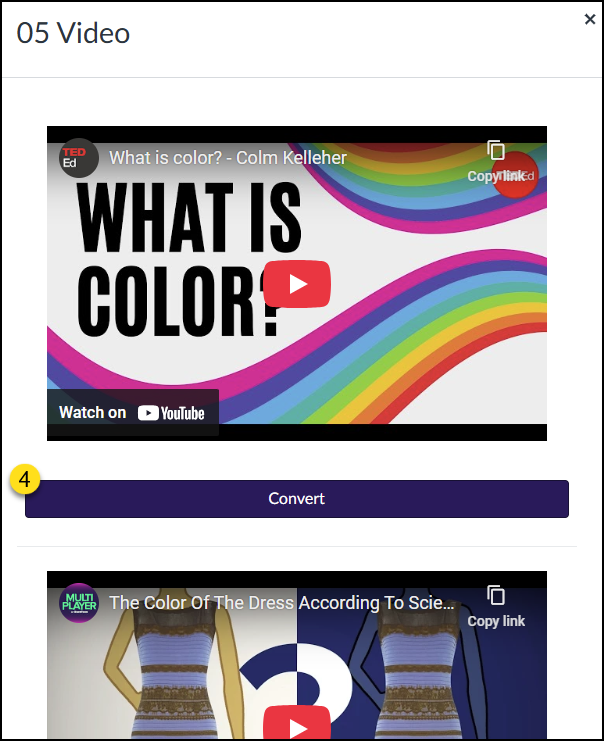
- After clicking on the Review button (above), click on the Convert button to convert a YouTube video Canvas Studio. When all videos for a given resource page have been converted, click on the Close button at the bottom of the window to return to the YouTube Content Migration screen.
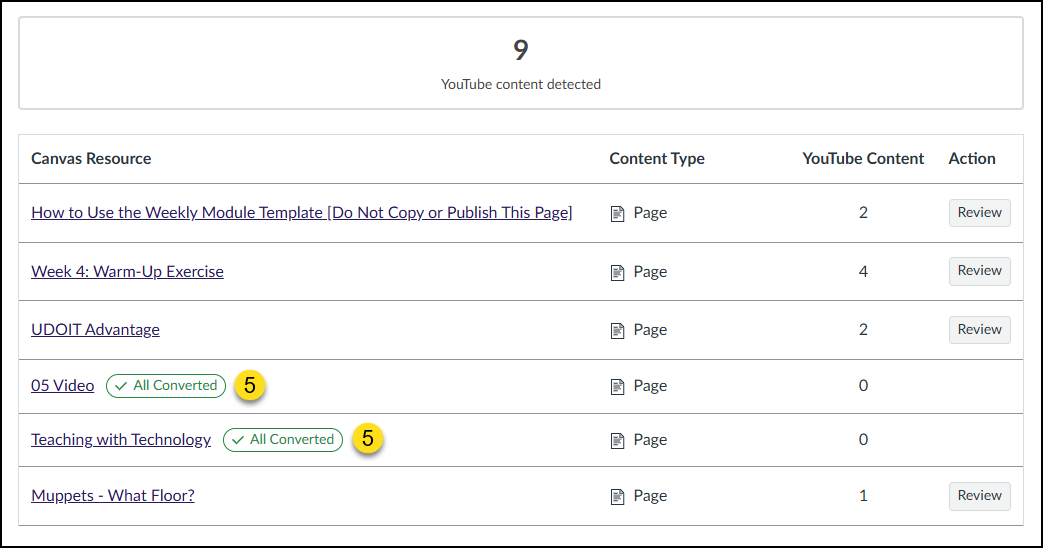
- An ✔️All Converted label will display indicating all YouTube videos for a given Canvas Resource have been migrated successfully. The YouTube content detected number at the top of the screen will update according.
Finding Migrated Videos in Canvas Studio
Your migrated YouTube videos are located in Canvas Studio, but not exactly where you might expect to see them.
- In Canvas, click on the Studio icon on the far left-hand global navigation menu.
- If this is your first time accessing Canvas Studio, you may be prompted to authenticate your CCS e-mail address.
- On the My Library screen of Studio, click on the Course Collections folder on the left side of the screen.
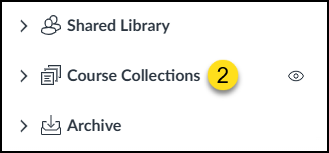
The Course Collections folder will open.
- Find and click on the name of your course where you had just migrated YouTube videos.
Your migrated videos will display on the screen. Click on the name of a video to:
- Edit details of the YouTube video.
- Upload captions via a *.vtt or *.srt file, or create from scratch.
Disabling the YouTube Migration Tool
The YouTube Migration tool is not visible to students in your left-hand Canvas course navigation menu (even though it does not have the crossed-out eye icon next to it). However, if you do not have YouTube videos in your course, you may not want to see the YouTube Migration link visible in your course. To disable the link in your Canvas course:
- Click on the Settings link on the left-hand course navigation menu.
- Click on the Feature Options tab at the top of the screen.
- Look for the YouTube to Studio content migration row. Click the ✅ green checkmark, and select Disabled. This will change the icon to a red ❌. Changes are immediate. There is no Save button.
- You may need to refresh your menu so that the YouTube Migration course navigation menu link disappears. You can do this by, for example, clicking on your course Home link, or by pressing F5 on your keyboard.