
It is important to verify that hyperlinks are working correctly in your Canvas course(s). Canvas includes a tool to scan your course content and check for invalid or unresponsive links in both published and unpublished course content. The link validator also includes deleted links. Deleted links are links that are still in the course, but their linked content has been deleted (such as a course file or page). Finally, the link validator can find links that are pointing to other courses where students would not be able to access that content.
In addition, a link checker tool is included in the DesignPLUS sidebar that lets you know of broken links in real time.
Using the Canvas Link Validator
- Log in to your Canvas course.
- In Course Navigation, click the Settings link.
- Click on Validate Links in Content on the right side of the screen.
- One of two buttons will be visible. If you are scanning your course for the first time, click on the Start Link Validation button. If you have scanned your course before, click on the Restart Link Validation button. Depending on the amount of content in your course, it may take a few minutes for Canvas to scan your course for potential issues with hyperlinks.
When Canvas finishes scanning your course, you will see a listing of course content with links that may need your attention. For example, you may see something like this:
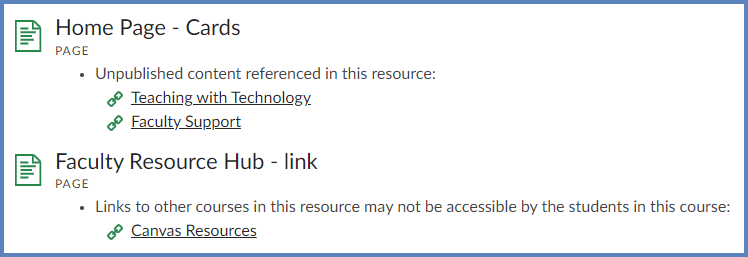
In the above example:
- The Home Page – Cards page contains several links. However, Canvas found that two of the links on that page, Teaching with Technology and Faculty Support, are pointing to Canvas content pages that have not yet been published in the course. Therefore, students would not be able to access those two resources in the course.
- The Faculty Resource Hub – link page includes a link to a page called Canvas Resources. However, the instructor had copied and pasted the Canvas Resources link from a past semester course to a current semester course. Even though the link appears to work properly for the instructor, it will not work properly for students. This is because the instructor has access to both the past course semester and the current semester course. Students, on the other hand, are not enrolled in both of these courses. When students click on the Canvas Resource link, they will get an error message because the link points to the instructor’s past course. In order to fix links like this, it is recommended to follow the instructions in this Guide vs. copying and pasting links from course to course:
- Similarly, if the Link Validator tool were to find broken images in a course, you can use the following Guides to ensure the images are properly linked in the course:
DesignPLUS Link Checker
Alternatively, if you are comfortable using the DesignPLUS sidebar in your Canvas course(s), you can use their Link Checker in a similar manner.
NOTE: Compared to the Canvas Link Validator, the DesignPLUS Link Checker only scans one page at a time.
- Edit a content page in your Canvas course.
- If the DesignPLUS sidebar is not visible on the right side of your screen, click the 🚀 rocketship icon in the upper right corner of the screen.
- Alternatively, press the keyboard combination Alt/Option + Shift + D.
- Click on the Accessibility / Usability tab at the top of the DesignPLUS sidebar.
- Under the Accessibility heading, click on the 🔗 Link Checker button.