Translations for the Canvas Inbox

translate

Feature Preview

Translations for the Canvas Inbox is currently a Feature Preview. This means that there may be ongoing updates outside of the regular release schedule.

The Canvas Inbox includes an option to translate your message to another language for one or more users in your course using IgniteAI. This feature can help non-native English speakers understand your messages at a higher level, providing equal access and opportunity for all learners.

Using Translations in the Canvas Inbox

  1. In Canvas, click on the Inbox icon on the far left-hand global navigation menu.
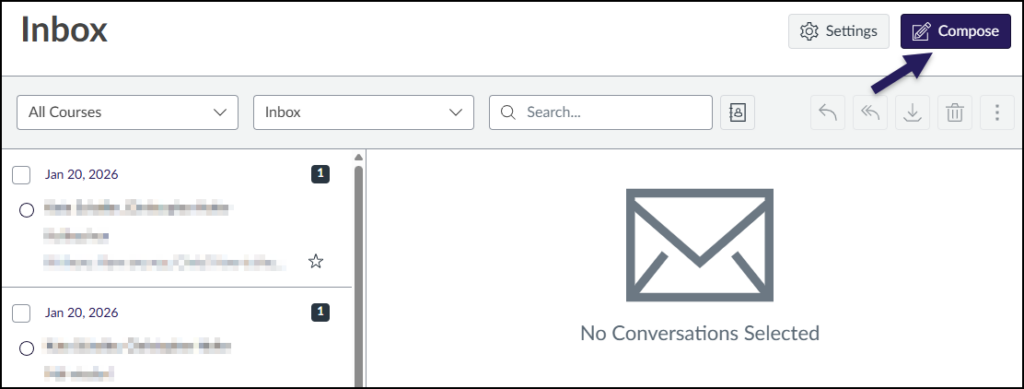
  2. Click the 📝 Compose button at the top right corner of the Inbox.
  3. Fill in the details of your message including:
    • Course: Select a course you are enrolled in
    • To: The name(s) of the individual(s) you want to send the message to
    • Subject: The subject line of your message
    • Message: The body of your message to the individual(s)
  4. Click the toggle switch for Include translated version of this message to reveal additional options.
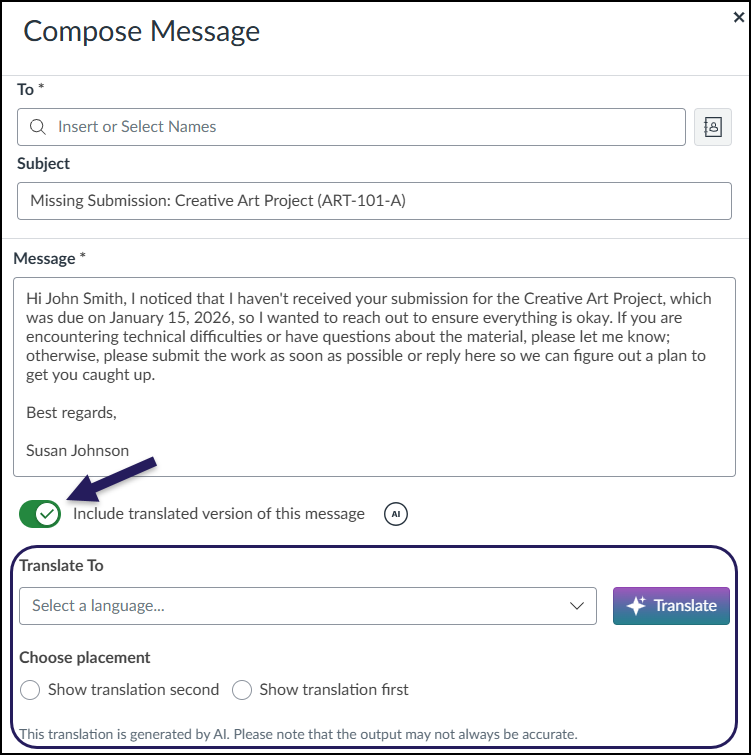
A screenshot of the "Compose Message" window in the Canvas Inbox. The fields for "To," "Subject," and the main "Message" body are filled with text regarding a missing assignment for student John Smith. Below the message body, the green toggle switch labeled "Include translated version of this message" is enabled, with a purple arrow pointing to it. Enabling this toggle reveals a translation interface outlined in purple below, which includes a "Translate To" dropdown menu currently showing "Select a language...", a purple "Translate" button, radio buttons to "Choose placement" of the translation, and a disclaimer footer regarding AI accuracy.
  1. Optional: Click the AI icon (circle with “AI”) to reveal additional information about Permission Levels and AI Nutrition Facts. Links are included in these descriptions which provide more information for those that are curious.
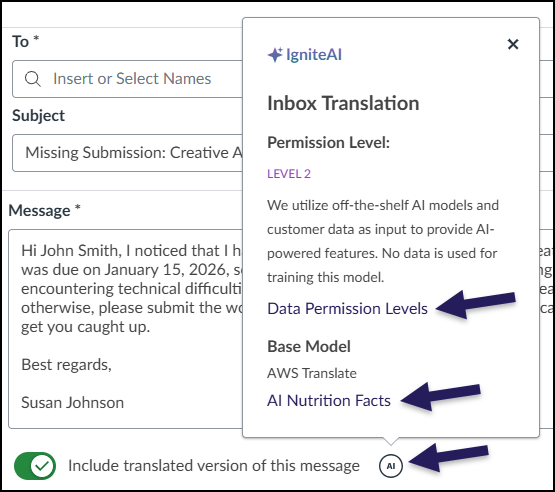
A screenshot of the Canvas Inbox showing the IgniteAI pop-up. The pop-up appears when the small "AI" icon next to the "Include translated version of this message" toggle is clicked. Inside the pop-up, the title "IgniteAI Inbox Translation" is displayed, along with information about the "Permission Level" (LEVEL 2) and "Base Model" (AWS Translate). It also explains that off-the-shelf AI models are used and no data is used for training. There are links for "Data Permission Levels" and "AI Nutrition Facts." A purple arrow points to the "AI" icon, and two more arrows point to the "Data Permission Levels" and "AI Nutrition Facts" links within the pop-up.
  1. In the Translate To drop-down list, select a language from the available choices.
  2. Click the Translate button. Your translated message will appear below your message.
beenhere

AI Accuracy

Keep in mind the following text displayed in gray at the bottom of your message:

This translation is generated by AI. Please note that the output may not always be accurate.
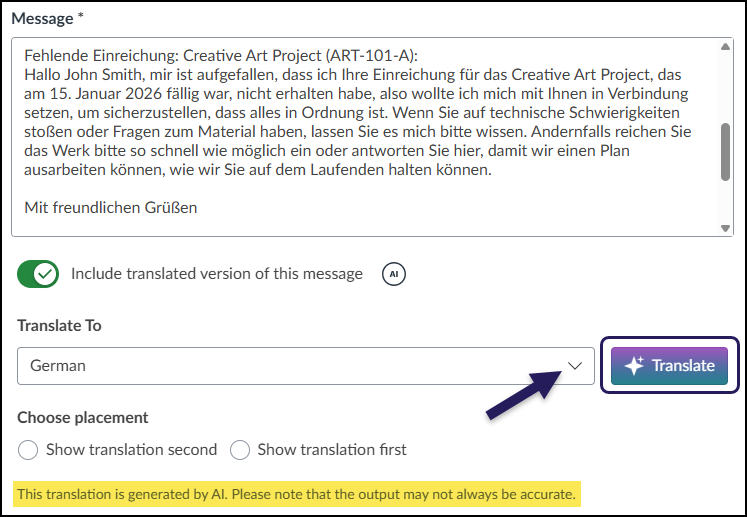
A screenshot of the Canvas Inbox message composition window showing the IgniteAI translation feature. The main text field displays a message translated into German regarding a missing "Creative Art Project" submission. Below the message body, the "Include translated version of this message" toggle is active. A purple arrow points to the "Translate To" dropdown menu set to "German," and a purple box outlines the "Translate" button. At the bottom of the window, a disclaimer text states: "This translation is generated by AI. Please note that the output may not always be accurate."
  1. Under the Choose placement heading, select either Show translation second or Show translation first to place the translated text above or below your original text.
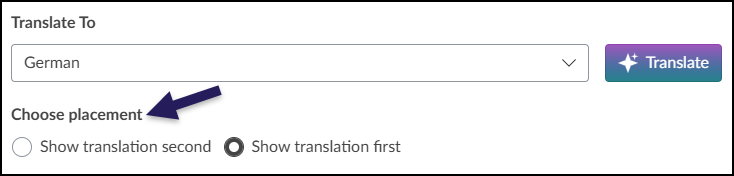
A screenshot from the Canvas Inbox translation interface. It shows the "Translate To" dropdown menu with "German" selected and the purple "Translate" button. Below this, a purple arrow points to the "Choose placement" label. Underneath are two radio buttons: "Show translation second" is unselected, and "Show translation first" is selected.
  1. Optional: Add an Attachment and/or Audio/Video comment.
  2. Click the Send button.

Additional Resources