Feature Preview
Translations for Canvas Discussions is currently a Feature Preview. This means there may be ongoing updates outside of the regular release schedule.
Enabling this feature in your Canvas course(s) will also enable Translations for Canvas Announcements.
Canvas Discussions allow users to view posted messages in another language using IgniteAI. This feature can help non-native English speakers understand your messages at a higher level, providing equal access and opportunity for all learners.
Enabling Translations for Discussions
In order to utilize Translations for Discussions:
- Navigate to your Canvas course.
- Click on the Settings course navigation link on the bottom left-hand side of your screen.
- Click on the Feature Options tab at the top of the screen.
- Find the IgniteAI Translations for Discussions & Announcements Feature Option row.
- Optional: Click on the > icon to expand and read the description.
- Click on the red ❌ icon, and select Enabled. A green ✅ checkmark icon will display indicating that the Feature Option has been enabled.
- There is no Save button on this screen. Any Feature Options you enable or disable here are updated immediately.

Viewing Translated Discussions
These instructions assume that you have at least one discussion topic posted in your Canvas course and have replies from your students. If you do not have any discussion topics posted in your course, refer to How do I create a discussion as an instructor? or How do I create a graded discussion?.
- In your Canvas course, click on the Discussions course navigation link on the left-hand side of your screen.
- Click on a discussion topic in your course.
There are two places where an announcement can be translated:
- ✨ Enable Translation button
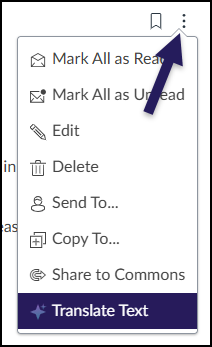
- ✨ Translate Text option within the Options (three vertical dots) menu
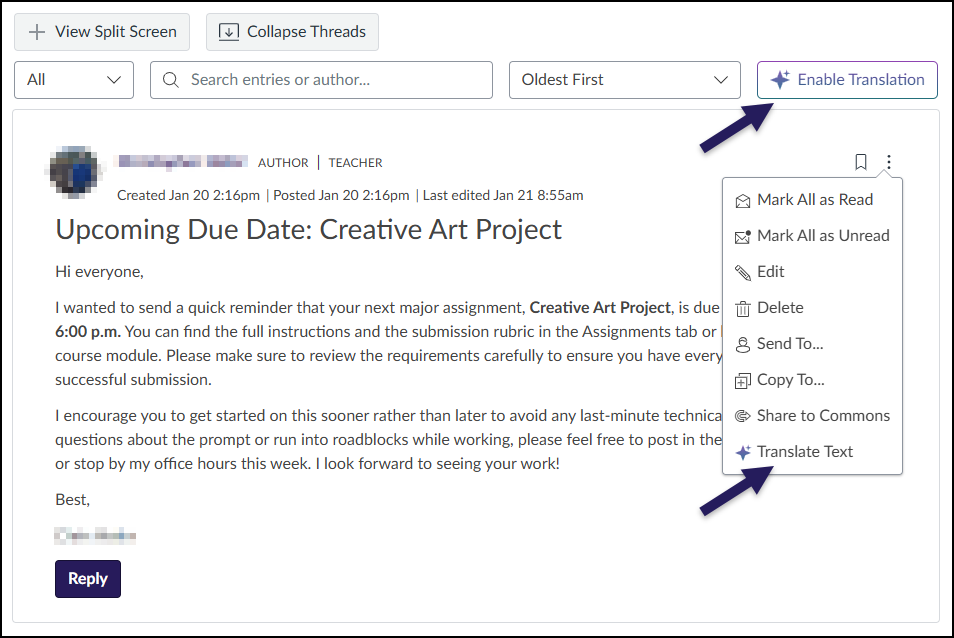
Enable Translation
Clicking on the ✨ Enable Translation button reveals the Translate Announcement interface above the announcement.
AI Accuracy
Keep in mind the translation is generated by AI. Please note that the output may not always be accurate.
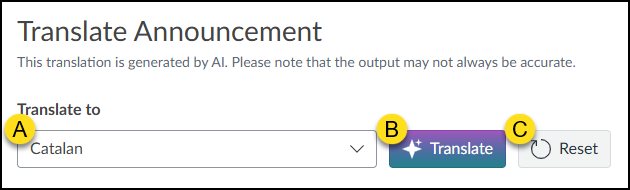
- From the Translate to drop-down list, select a language from the available choices.
- Click the ✨ Translate button after selecting a language.
- Click the Reset button to clear the translation and select a different language.
The translation of your discussion prompt and any replies will appear immediately below the original text. In the below example, the announcement has been translated to Swedish.
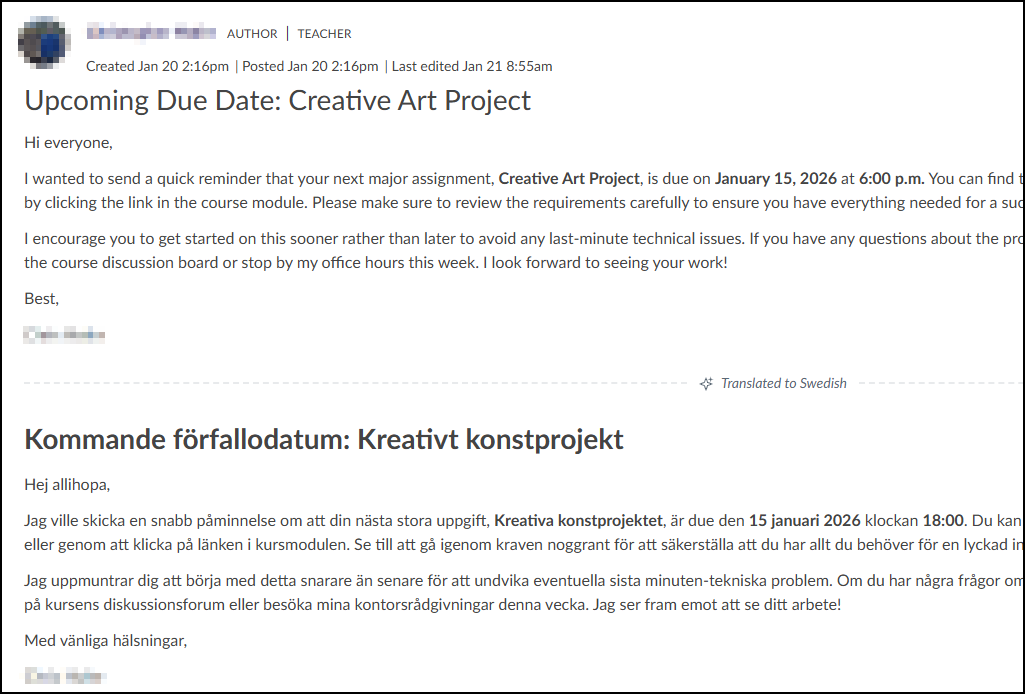
To translate your announcement into another language, use the Translate to drop-down list as described above (Enable Translation).
Translate Text
Alternatively, if you would like to translate only your discussion prompt or a specific reply to your discussion prompt, select the Options (three vertical dots) icon next to any response, and then select ✨ Translate Text.
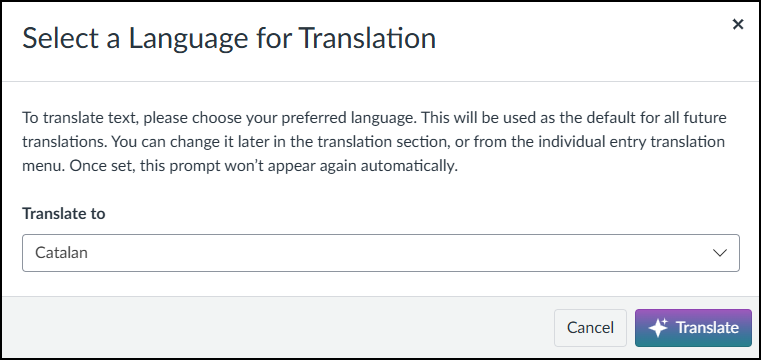
If this is your first time selecting a language for translation, the Select a Language for Translation pop-up window will appear. Select a language from the Translate to drop-down list, and click the ✨ Translate button.
If you’ve used this pop-up window before, IgniteAI will translate your announcement using the most recent language that was selected. This is indicated by the last sentence, “Once set, this prompt won’t appear again automatically.”
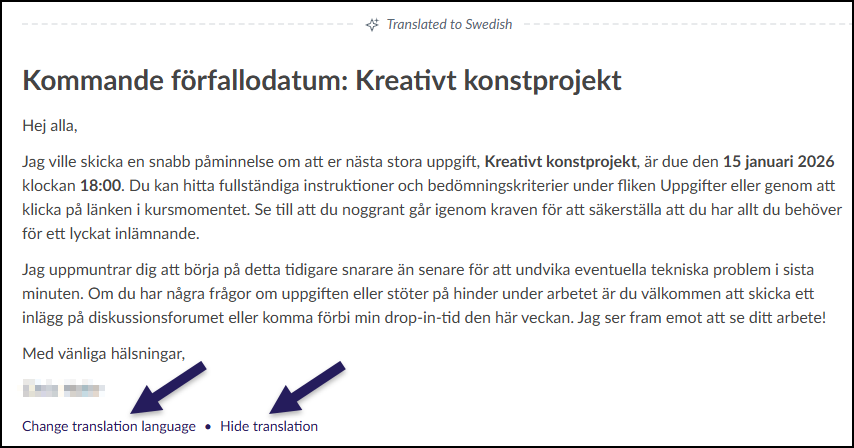
Change and Hide Translation
If you used the Translate Text option (above), users can Change translation language and Hide translation links below the translated announcement to switch and remove translations respectively.