
Totals in Student Grades Summary

Totals in Student Grades Summary

Your students may ask you why they cannot see the totals of their assignments within the Canvas Gradebook. Students may see a screen similar to this with a crossed-out eye icon next to the assignment group name:
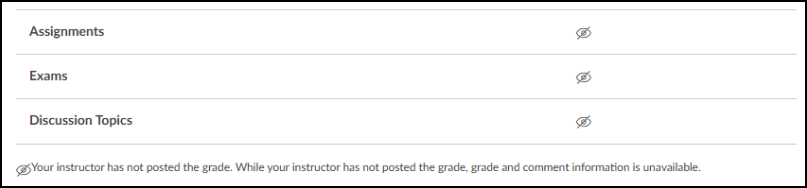
A list of grade categories in the Canvas student gradebook, specifically "Assignments," "Exams," and "Discussion Topics." Each category row displays an icon of an eye with a slash through it, indicating that the grades are currently hidden from view. A notification banner at the bottom explains the status with the text: "Your instructor has not posted the grade. While your instructor has not posted grade, grade and comment information is unavailable."

If this applies to one or more of your Canvas courses, follow these steps:

  1. In Course Navigation, click the Settings link.
  2. Ensure that the Course Details tab is selected.
  3. Scroll to the bottom of the page.
  4. Remove the checkmark next to Hide totals in student grades summary.
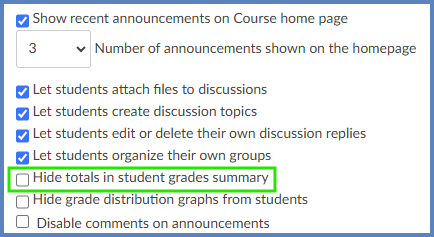
A configuration list in the Canvas Course Settings where a large arrow points to the unchecked checkbox labeled "Hide totals in student grades summary," indicating this option should be disabled. The surrounding settings include a checked option to "Show recent announcements on Course home page" set to 3 announcements, followed by checked permissions allowing students to attach files to discussions, create discussion topics, edit or delete their own replies, and organize their own groups. Below the target, unchecked options include hiding grade distribution graphs, hiding sections on the People page, and disabling comments on announcements. At the bottom, a dropdown setting specifies that "Only Teachers" can create, rename, and edit course pages by default.
  1. Click the Update Course Details button to save your changes.

Additional Resources