Student Engagement Reports in Simple Syllabus

Instructors can view student engagement reports to see which students have viewed your Simple Syllabus document(s) in your Canvas course(s).

  1. Sign in to your Canvas course.
  2. In Course Navigation, click the Simple Syllabus link.
  3. At the top of your Simple Syllabus document, click the View Report link click or anywhere on the purple bar.
    • The purple portion of the bar (left arrow) represents the number of students who have viewed the syllabus. The white portion (right arrow) is representative of the number of students who have not viewed the syllabus. By hovering over the bar the number will display.
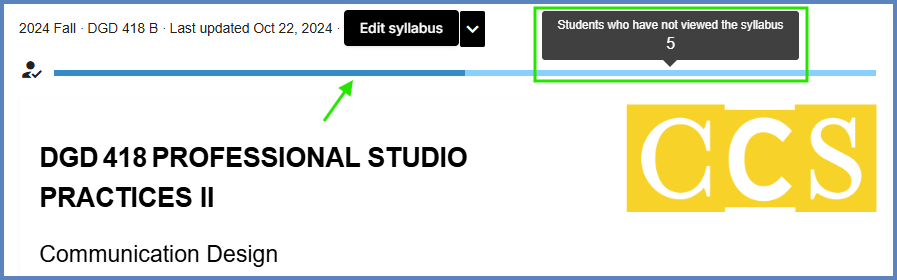
A section of the Simple Syllabus interface displaying information for '2024 Fall DGD 418 B', last updated Aug 21, 2025. It shows 'Student Engagement: 6 students viewed' with a progress bar. An overlay or tooltip indicates 'Students who have not viewed the syllabus: 4' with a 'View Report' link. The course title 'DGD 418 PROFESSIONAL STUDIO PRACTICES II' is prominently displayed with 'Communication Design' below it, alongside a large yellow 'CCS' logo. Two purple arrows point to the student engagement data of who has and has not viewed the Simple Syllabus document.

A list of your students will appear along with columns for Count, Percent Read, and Last viewed. A green icon next to the percentage indicates the student has acknowledged reading your Simple Syllabus document.

Click the Export button to download a *.csv file to your computer.
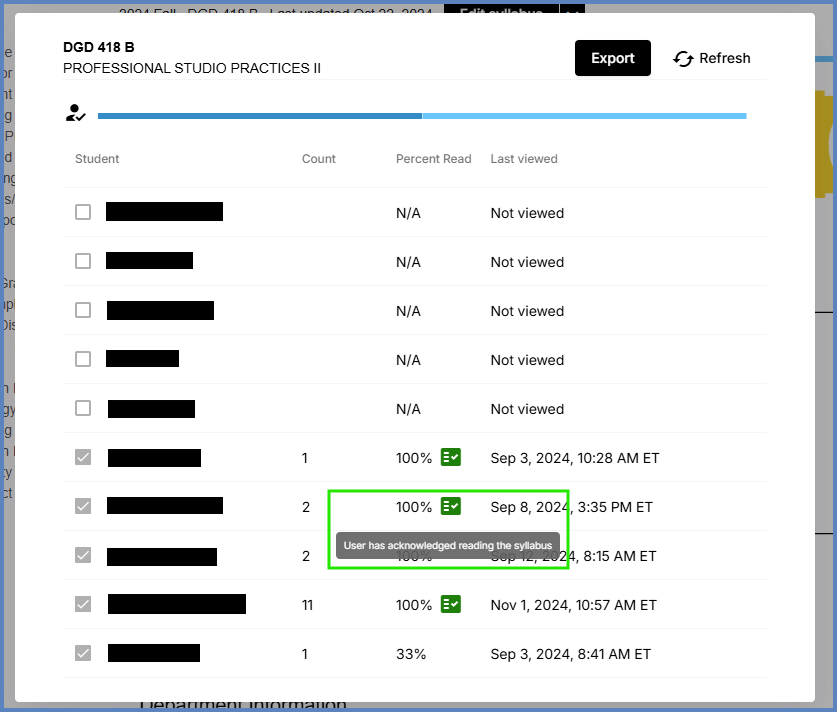
The Simple Syllabus student engagement report for 'DGD 418 PROFESSIONAL STUDIO PRACTICES II', showing '6 students viewed' on a progress bar. The interface includes an 'Export' button (highlighted by a purple arrow), 'Refresh', and 'Close' buttons. A table below lists students, their view 'Count', 'Percent Read', and 'Last viewed' time. The list includes students who have 'Not viewed' and those who have, with one student's '100%' status showing a tooltip: 'User has acknowledged reading the syllabus'.