Target Audience
This “how to” guide is designed for CCS Program Chairs and Program Managers. Instructors do not have access to Prep Step.
All Canvas courses include a Course Readiness Check (Simple Prep built by Simple Higher Ed) course navigation link on the left-hand side of the screen for instructors to ensure their courses meet CCS Canvas Course standards.
For CCS Program Chairs and Program Managers, Prep Step is an additional tool within the Simple Prep interface that acts as a bridge between Canvas and a course’s final published course/syllabus. Think of it as a “health check dashboard” for courses. Prep Step pulls in data from a Canvas course such as announcements, discussion topics, content pages, and assignments. It organizes this content into an easy-to-use tabbed interface so that you can identify potential issues in a course before students begin to access the content. Tasks might include:
- View content that is published vs. what is unpublished
- Ensure start/end/due dates are correct
- Review rating scales for rubrics
- Ensure that the course meets institutional standards before it goes “live” to students
Accessing Prep Step
Log in to the Simple Syllabus dashboard.
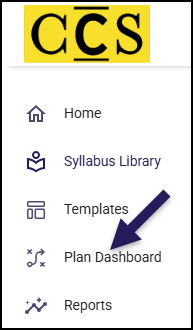
Find and click on the Plan Dashboard menu item on the left-hand side of the screen.
- Note 1: Depending on your role, your list of menu items may look different than those shown here.
- Note 2: Your menu items may only show icons without the accompanying text. Click on the triangle icon near the Home icon to view the text.
On the next screen, filter your search results to see the Simple Prep interface.
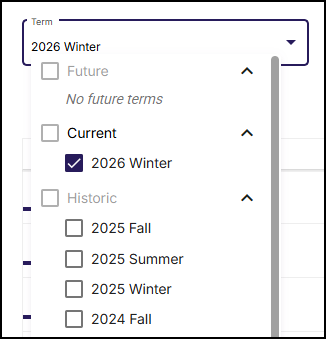
From the Term drop-down list, select the term name that you’d like to get more information about, keeping in mind the term may be located under Future, Current, or Historic.
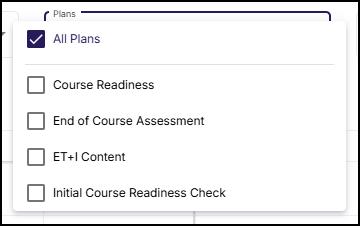
From the Plans drop-down list, select the plan name.
- For the 2026 Winter term, CCS will use Initial Course Readiness Check. In future semesters, CCS will use Course Readiness. The ET+I team will also be exploring and using other plans in the future to help clean up course content.
Select one or more courses by placing a ☑️ checkmark to the left of the Status column. Then, click the Prep Step button near the top right corner of the screen. Prep Step will display information for each course you selected.
- If no courses are selected, Prep Step will show information for all courses. In the below example, Prep Step would show information for all 77 courses in the 2026 Winter term.
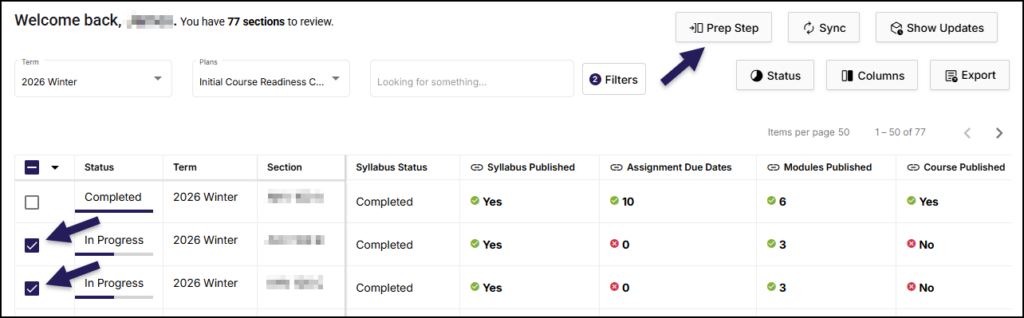
Prep Step Interface
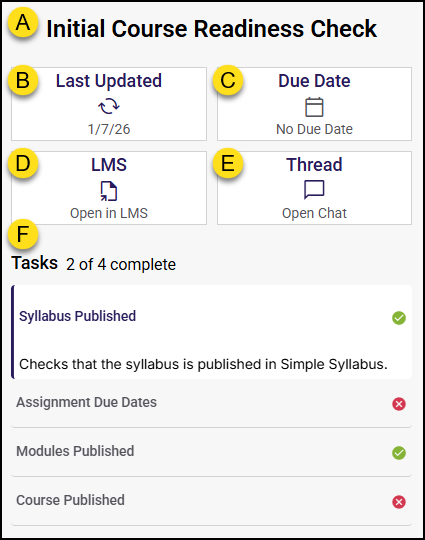
The Prep Step interface has two main sections. The first section, shown below, is displayed on the left-hand side of the screen, and it includes the following:
- Plan Name: The name of the chosen plan. (Example: Initial Course Readiness Check)
- Last Updated: The date data was last updated for the selected course. Click the 🔃 Sync icon to refresh and ensure the information you’re looking for is up-to-date. Once the icon has stopped spinning and the date has refreshed to the current date, you will know the sync has completed.
- Due Date: This date will be filled in by the Educational Technology + Innovation (ET+I) team.
- LMS: Click to open the course in Canvas.
- Thread: Click to open a chat interface panel on the right side of the screen. This interface allows you to have a conversation between you and the instructor of the course via the Public Reply button or to write an Internal Note.
- Tasks: Indicates how many of the tasks assigned to the Plan Name are complete. Click on each item in the list to get more details about the task.
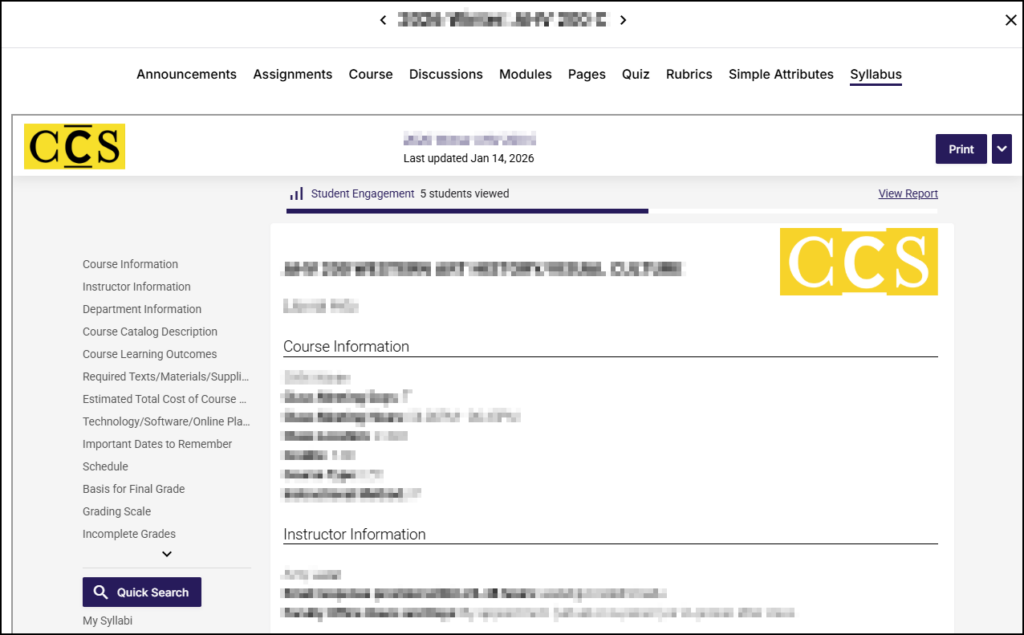
The second section of Prep Step displays immediately to the right of the section described above. The term name and the course number (Example: 2026 Winter AHV 100 B) will display at the top of this section. If you selected two or more courses to view, arrow icons (< and >) will appear next to the name so you can move from course to course.
This section contains ten (10) tabs of information:
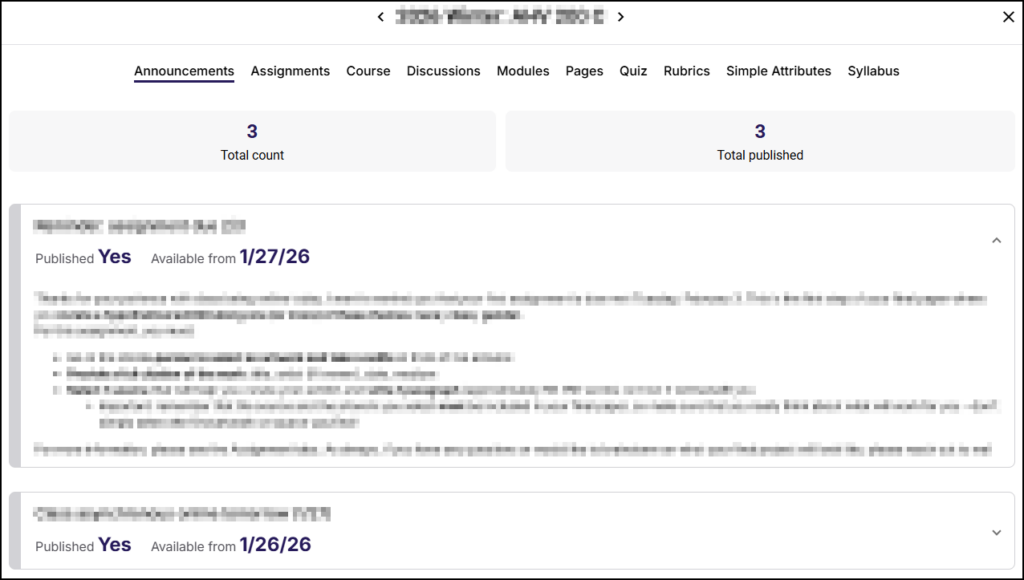
Announcements
The Announcements tab displays the Total count and Total published announcements in the selected course. Below these numbers, click on an individual announcement to expand and view the details.
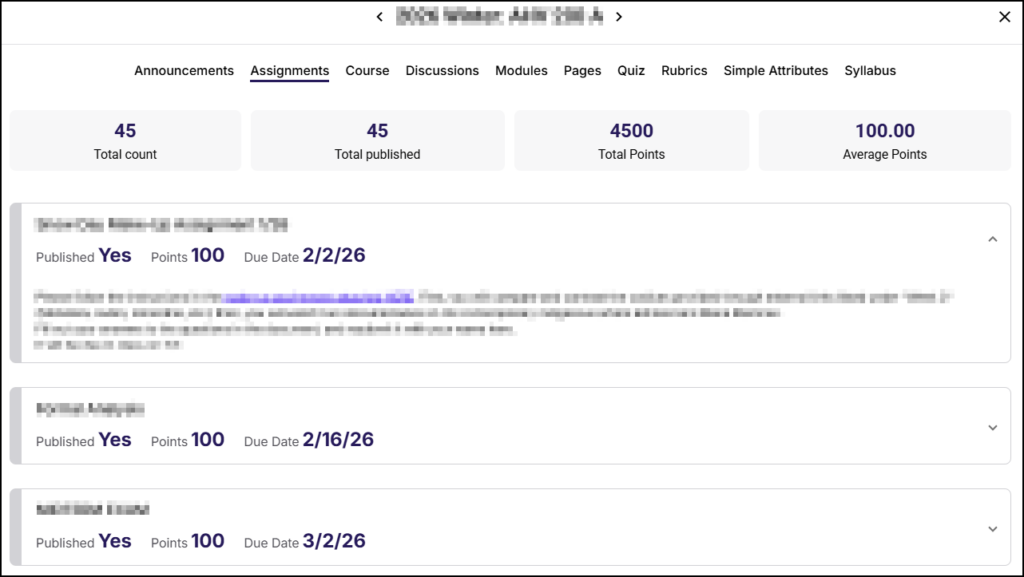
Assignments
The Assignments tab displays the Total count, Total published, Total Points, and Average Points for all assignments in the selected course. Below these numbers, click on an individual assignment name to expand and view the details.
Course
The Course tab displays general information about the selected course: Is published, Start date, End date, Student count, Most recent enrollment, Is cross-listed, and Has instructor assigned.

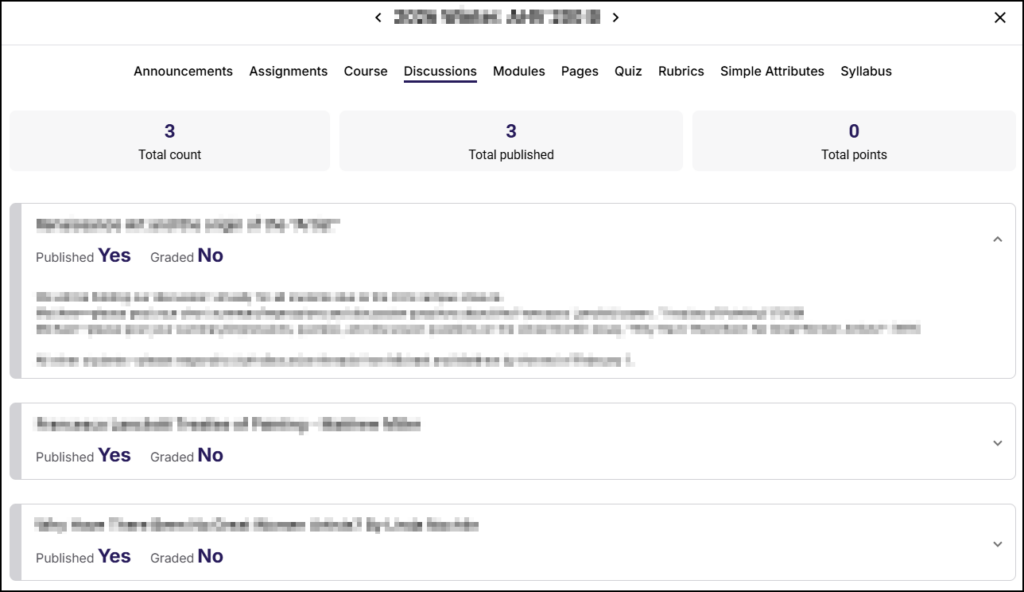
Discussions
The Discussions tab displays the Total count, Total published, and Total points for the selected course. Below these numbers, click on an individual discussion topic name to expand and view the details.
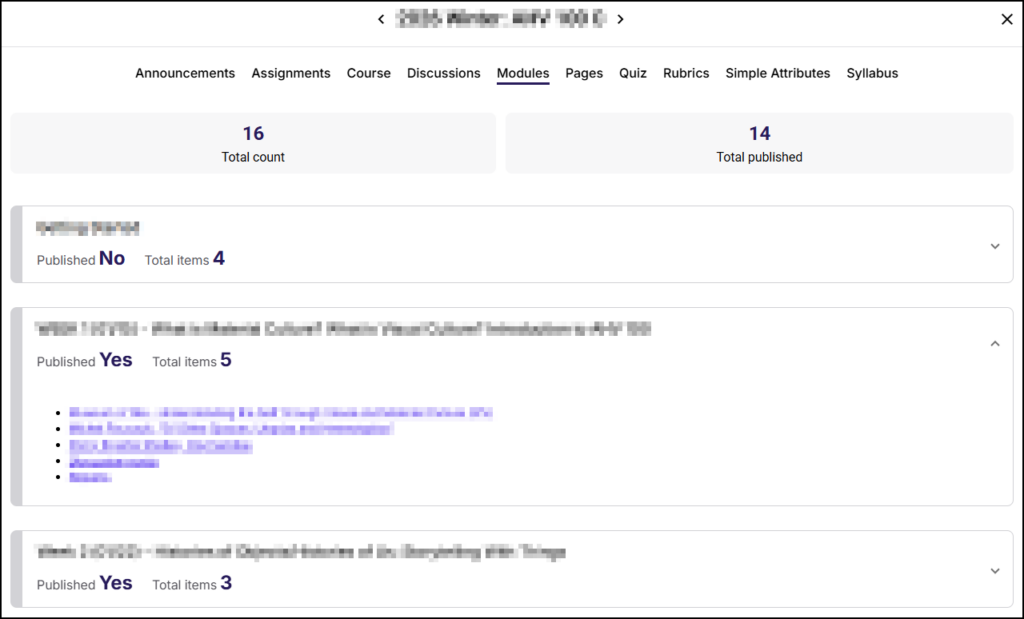
Modules
The Modules tab displays the Total count and Total published modules in the selected course. Below these numbers, click on an individual module to expand and view the details. Each content item (Page, Discussion, Quiz, Assignment) is listed as a separate bullet point with a link to it in Canvas.
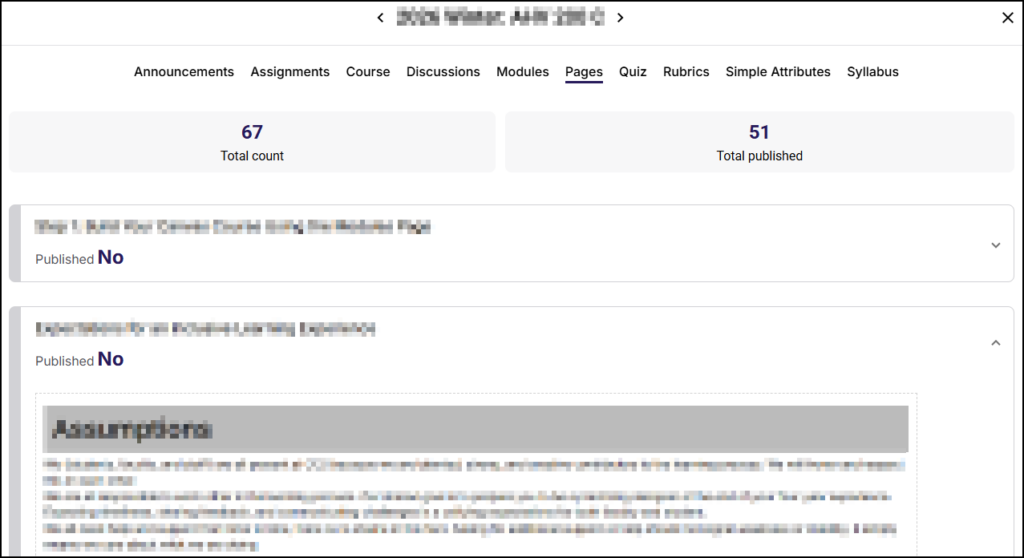
Pages
The Pages tab displays the Total count and Total published pages in the selected course. Below these numbers, click on an individual page to expand and view the details.
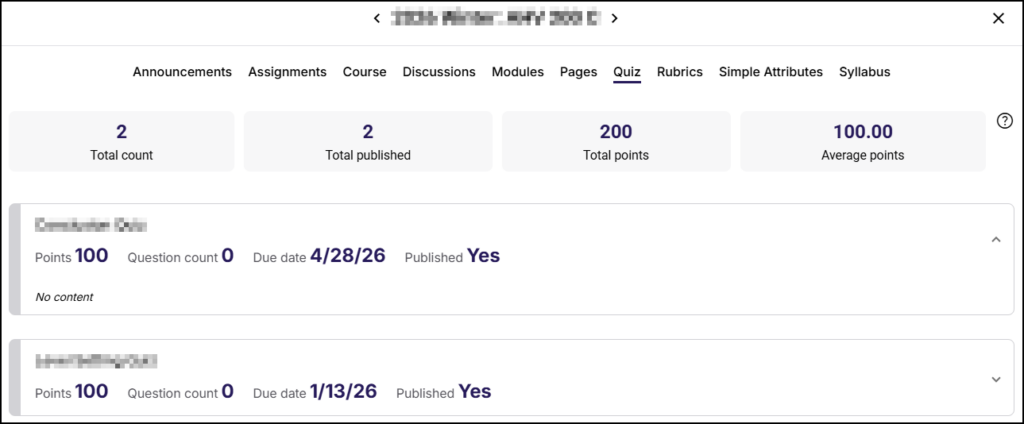
Quiz
The Quiz tab displays the Total count, Total published, Total points, and Average points for all quizzes in the selected course. Below these numbers, click on an individual quiz name to expand and view the details.
- New Quizzes will display No content.
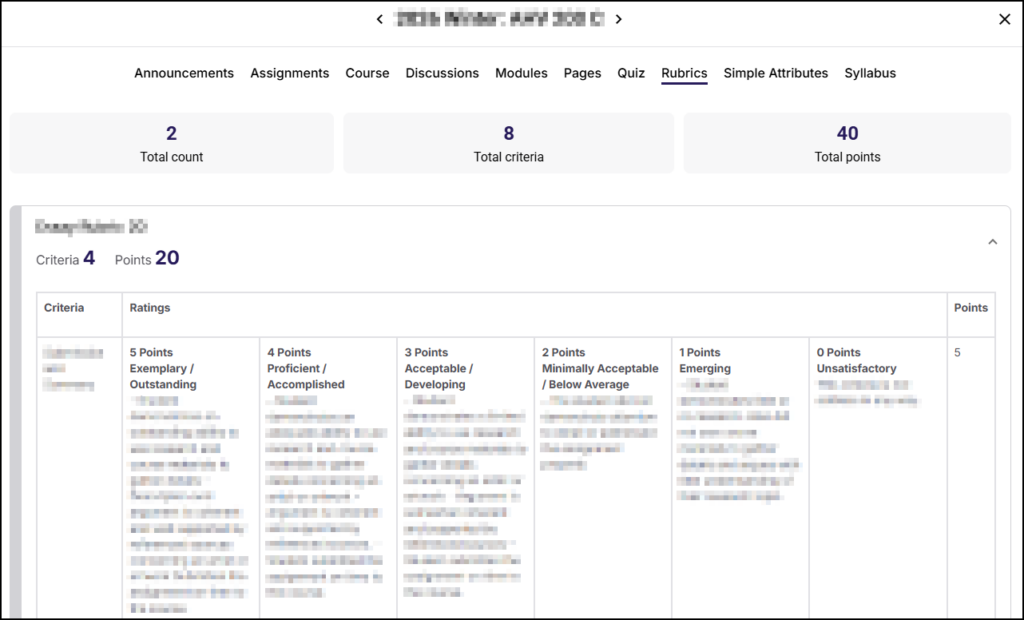
Rubrics
The Rubrics tab displays the Total count, Total criteria, and Total points for all rubrics in the selected course. Below these numbers, click on an individual rubric name to expand and view the details.
Simple Attributes
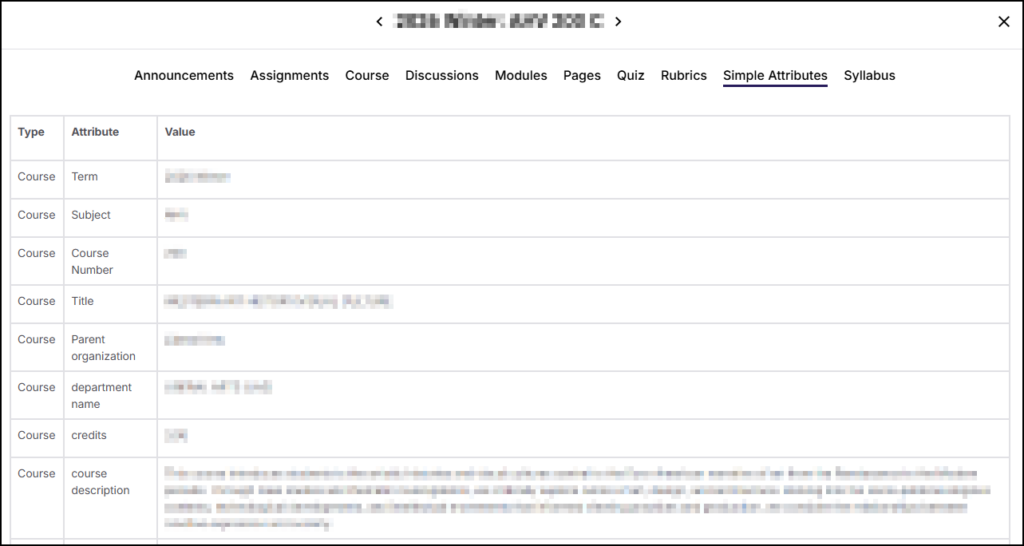
The Simple Attributes tab displays a table of attributes about the selected course. Data in this table includes (but is not limited to): Term, Subject, Course Number, Title, course description, CLOs (Course Learning Outcomes), and class location.
Syllabus
The Syllabus tab displays the Simple Syllabus document for the selected course.