When you view your Simple Syllabus document for the first time within a Canvas course, the Simple Syllabus interface will try to automatically find and copy from the last time you taught the course (provided that you are the assigned instructor for both the previous course and the current course). However, there may be a scenario where Simple Syllabus has a harder time finding a previous course to copy into the current course. For example, if your course code changes from DEN-### to WRT-###, Simple Syllabus may have difficulties copying content.
After reviewing your Simple Syllabus document, if you find the contents is not correct, you can easily select a different Simple Syllabus document to copy from instead (again, assuming you have been assigned to the previous and current course).
Example
In this example, we will intentionally copy DEN 102 C into WRT 102 D due to a recent change in course codes.
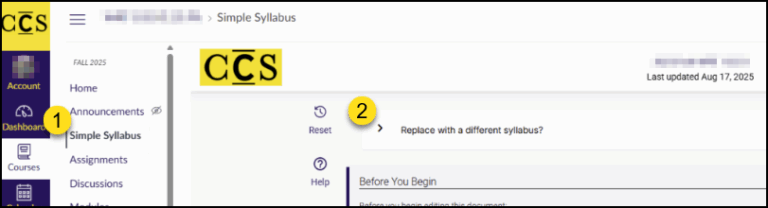
- In your Canvas course, click on the Simple Syllabus link in the left-hand course navigation.
- Click Replace with a different syllabus?.
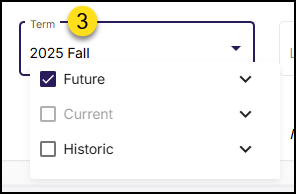
- From the Term drop-down list, find and select the appropriate semester from the Future, Current, or Historic categories.
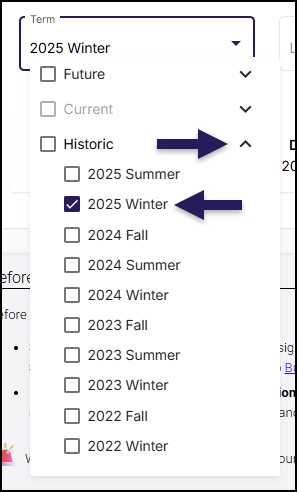
For example, if an instructor was looking for 2025 Winter, it would be found by clicking the chevron arrow next to Historic.
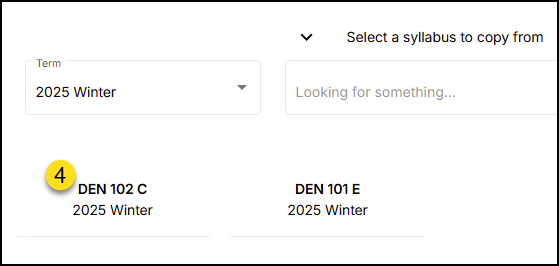
- Courses that you’ve previous taught will appear below the drop-down list. Find and select the course number to begin the copy process.