You can integrate Zoom into your Canvas course(s) so your students can easily locate Zoom meeting links.
- Enabling the Zoom Course Navigation Button in Your Course(s)
- Scheduling a Zoom Meeting via Your Canvas Course
- Viewing Scheduled Zoom Meetings
- Additional Resources
Enabling the Zoom Course Navigation Button in Your Course(s)
Follow these steps for each Canvas course that you want to use Zoom in:
- Log in to your Canvas course.
- In Course Navigation, click the Settings link.
- Click on the Navigation tab at the top of the screen.
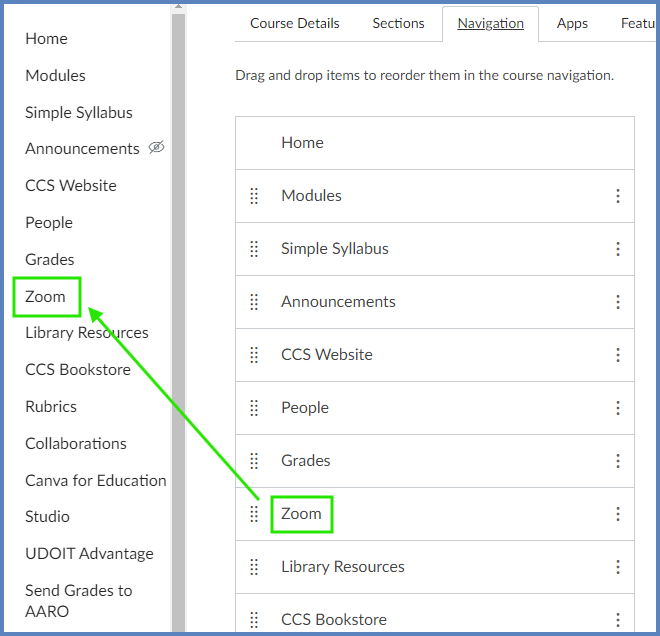
- On the Navigation tab, you will see two lists: active items (top list) and inactive items (bottom list). If the Zoom button is listed in the inactive items list, click and drag it to the active items list.
- Alternatively, click the Edit Course Navigation (three vertical dots) icon, and select + Enable.
- Scroll to the bottom of the screen, and click the Save button.
The Zoom course navigation menu item will appear on the left side of your screen where you placed it.
Scheduling a Zoom Meeting via Your Canvas Course
Once you’ve enabled the Zoom course navigation menu item, you can begin to schedule Zoom meetings with your students.
Note: If this is your first time using the Zoom interface in Canvas, you may need to verify your CCS e-mail address. This is a one-time step.
- In Course Navigation, click the Zoom link.
- Click on the Schedule a New Meeting button.
- Fill out the details of your meeting, and click the Save button at the bottom of the screen.
- On the screen that follows, you can:
- Click on the Google Calendar button to add the Zoom meeting to your own Google Calendar.
- Click on the Copy Meeting Invitation link to copy/paste the invitation information into a Canvas course announcement and/or e-mail it to your students.
Viewing Scheduled Zoom Meetings
You and your students can view scheduled Zoom meetings within your Canvas course. Simply click on the Zoom course navigation menu item.
Instructor View
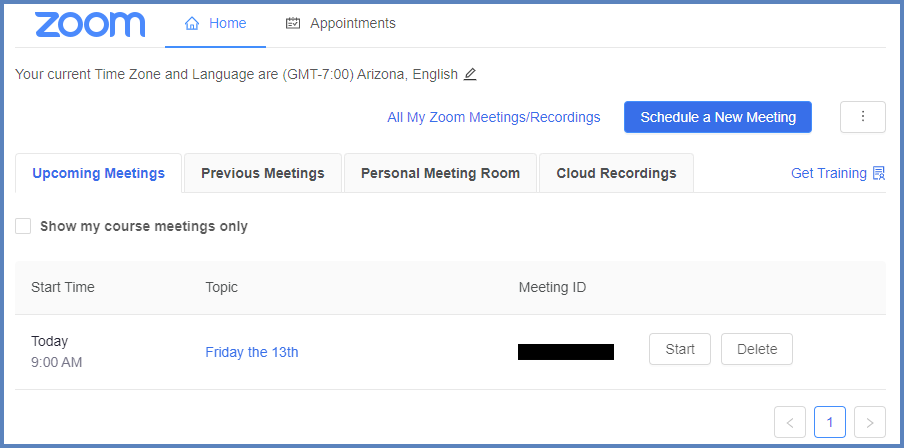
The Zoom interface only shows scheduled meetings for the Canvas course you are currently logged into. However, to view all your Zoom meetings for in your Zoom account, click the All My Zoom Meetings/Recordings link.
- The Upcoming Meetings tab displays any scheduled meetings for your course.
- The Previous Meetings tab displays past meetings that have ended.
- The Personal Meeting Room tab includes information on your personal Zoom room including a personal Zoom URL you can choose to share with others.
- The Cloud Recordings tab displays any recent meetings you’ve recorded to the cloud.
Click the Start button to being the Zoom meeting.
Student View
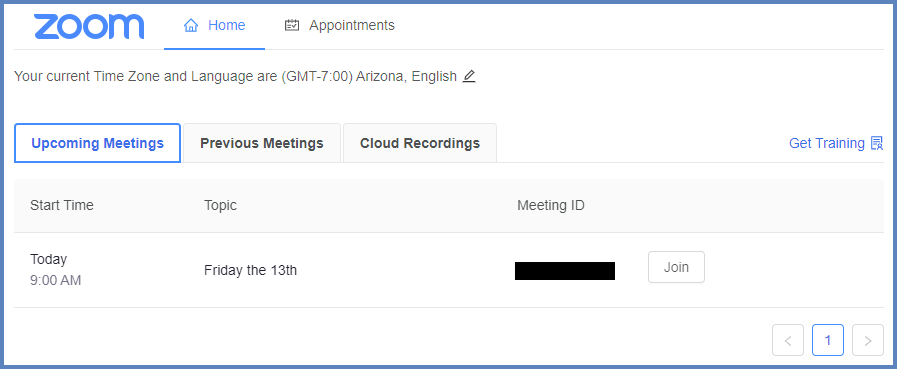
- The Upcoming Meetings tab displays any scheduled meetings for your course.
- The Previous Meetings tab displays past meetings that have ended.
- The Cloud Recordings tab displays any recent meetings that have been recorded to the cloud.
Students can click on the Join button to join the Zoom meeting at the scheduled time.