The Canvas Gradebook allows you to view the details of a single student and a single assignment submission on one screen. However, some information such as late policies, posting policies, and some sorting/filtering options are not currently available in this view.
- Accessing the Individual Gradebook View
- Global Settings
- Content Selection
- Grading
- Student Information
- Assignment Information
- Additional Resources
Accessing the Individual Gradebook View
- Within Canvas, click on the Grades link on the left-hand course navigation menu.
- At the top left corner of the screen, click on the Gradebook drop-down menu.
- Click on the Individual Gradebook option.
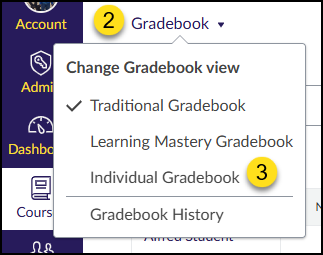
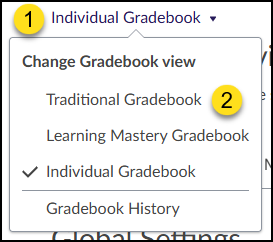
To return to the Traditional Gradebook:
- Click on the Individual Gradebook drop-down menu at the top left corner of the screen.
- Click on the Traditional Gradebook option.
Global Settings
The first set of steps is to select your course section and the name of the assignment you want to review. You will select the name of a specific student in a later step.
- From the Select a section drop-down menu, select a section of your course. Please note that you may have multiple sections listed in this drop-down menu. This may be true if you have two or more courses that have been cross-listed together.
- From the Sort Assignments drop-down menu, select how you want information to be sorted (By Assignment Group and Position, Alphabetically, or By Due Date).
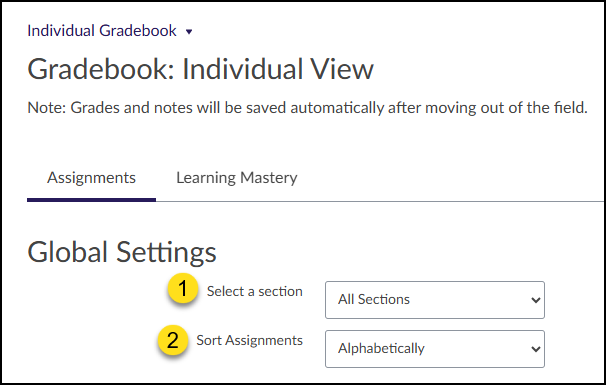
Other options in this section include:
- View Ungraded as 0
- Hide Student Names
- Show Concluded Enrollments
- Show Notes in Student Info
- Downloading current scores to a CSV file
- Uploading Scores as a CSV file
Content Selection
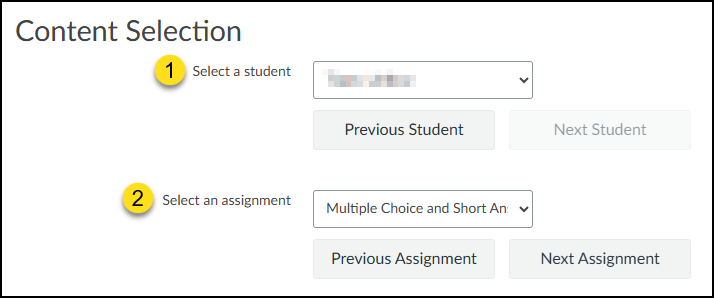
It is now time to select the name of an individual student and a specific assignment.
- From the Select a student drop-down list, select the name of a student in your course. You may also use the Previous Student and Next Student buttons to cycle through the students within your course section (selected from an earlier step above).
- From the Select an assignment drop-down list, select the name of an assignment in your course. You may also use the Previous Assignment and Next Assignment buttons to cycle through the assignment names within your course.
Grading
In the Grading section, the name of the student and the assignment name will be displayed along with details of the submission. You may optionally Excuse This Assignment for the Selected Student.
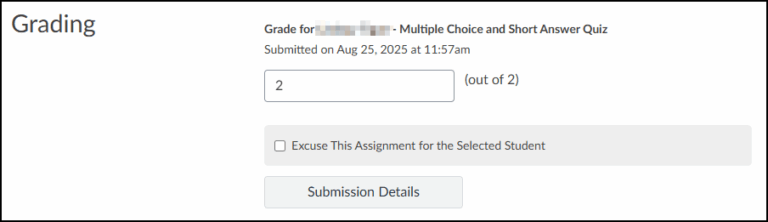
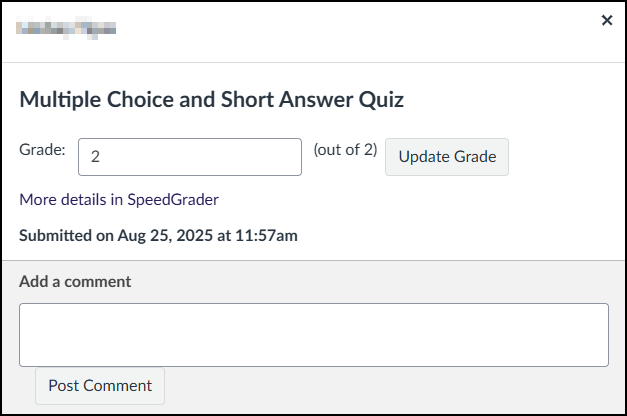
By clicking on the Submission Details button (above), a pop-up window will appear that includes the student’s name, the assignment name, and details of submission. In the Grade: text box, you may modify the total points received for the assignment. Be sure to click on the Update Grade button to confirm the new total. You may also Add a comment for the student using the provided text box. Click the Post Comment button to send your feedback to the student.
Student Information
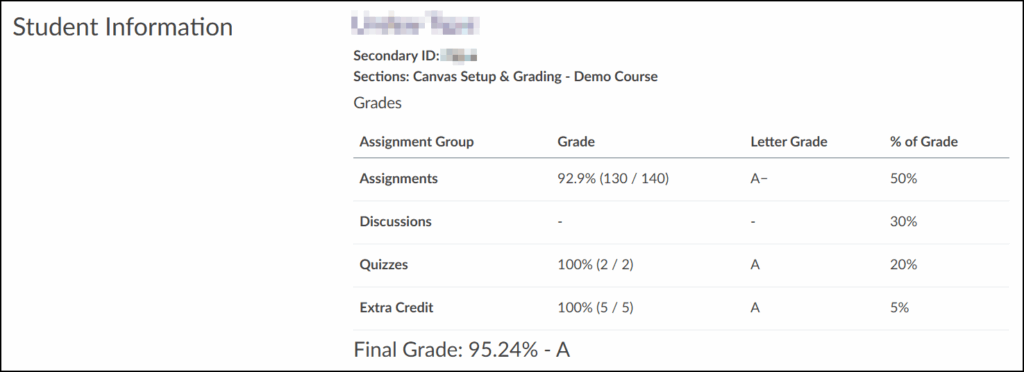
In the Student Information section, the student’s name, Secondary ID, and course Section name are displayed along with the details of each Assignment Group in your course.
Depending on options that you selected in the Global Settings settings (above), you may see additional information in the Student Information section (below). For example, if you select the checkbox for Show Notes in Student Info, a Notes textbox will appear underneath the student’s name, Secondary ID, and course Section information.
Assignment Information
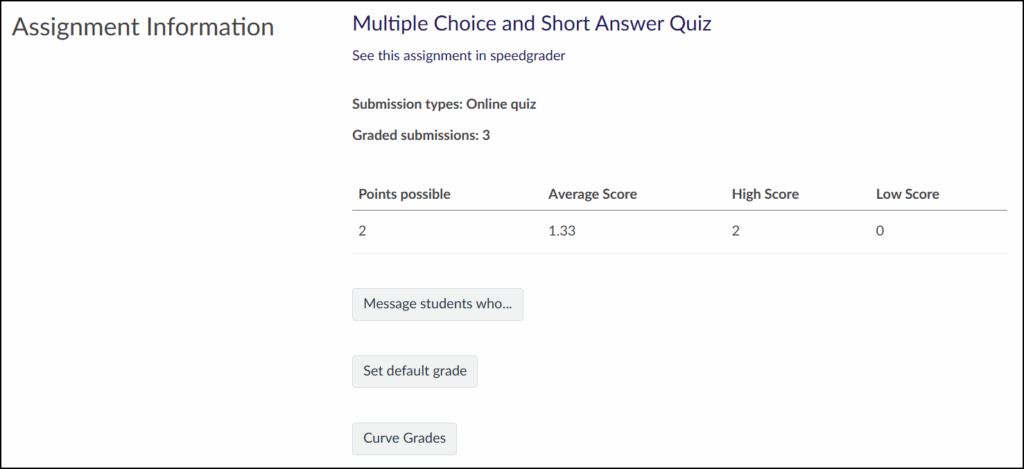
The Assignment Information section displays the name of the assignment, and it allows you to manage settings and view information for the entire assignment.
Below the assignment name, you can See the assignment in speedgrader.
Additionally, you can: Message students who…, Set default grade, and Curve Grades.
Depending on options that you selected in the Global Settings settings (above), options may or may not be visible within the Assignment Information section. For example, if you select the checkbox for Hide Student Names, the Message students who… button is not available.
Additional Resources
- How do I view assignments or students individually in the Gradebook?
- How do I view grades for inactive or concluded student enrollments in the Gradebook?
- How do I use the Notes column in the Gradebook?
- How do I use the Total column in the Gradebook?
- How do I upload all student submissions for an assignment in the Gradebook?
- How do I view the history of all grading changes in the Gradebook?
- How do I enter and edit grades in the Gradebook?
- How do I change the status of a submission in the Gradebook?
- How do I send a message to students from the Gradebook?
- How do I set a default grade for an assignment in the Gradebook?
- How do I curve grades in the Gradebook?