The Gradebook Settings panel allows instructors to configure Late Policies (including missing submissions), Grade Posting Policies, and several View Options to display your Gradebook exactly how you want.
Access the Gradebook Settings
Click on the ⚙️ Settings (gear/cog wheel) icon in the top right hand corner of the Gradebook to view the Gradebook Settings slide-out menu.

Late Policies
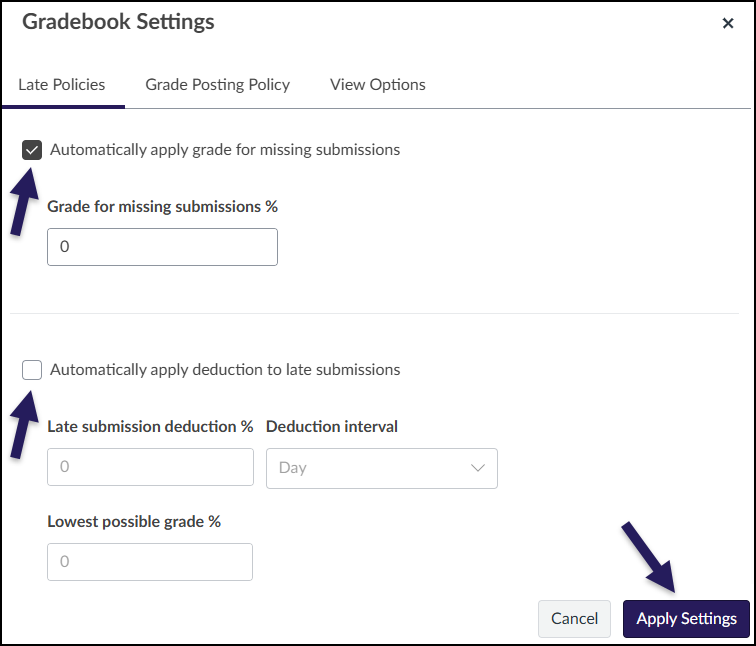
Under the Late Policies tab:
- Optional: Check the box next to Automatically apply grade for missing submissions.
- In the Grade for missing submissions % textbox, enter a percentage grade that all missing submissions should receive.
- Example: Entering in a 0 will mean that all students who have not submitted the assignment will receive a 0 grade. If students turn in their assignment after the deadline, you can still enter in a grade for it.
- In the Grade for missing submissions % textbox, enter a percentage grade that all missing submissions should receive.
- Optional: Check the box next to Automatically apply deduction to late submissions.
- In the Late submission deduction % textbox, set the percentage you want late submissions to be deducted
- In the Deduction interval drop-down list, set the interval for which you would like Canvas to deduct points (Day or Hour).
- In the Lowest possible grade % textbox, set the lowest possible grade threshold for the late policy. Per official documentation, “The lowest possible grade percentage is the lowest score a student can receive when late policy deductions are applied to grades entered above that percentage. Any grade awarded equal to or below that percentage will not receive late policy deductions.”
Click the Apply Settings button when you are finished.
Grade Posting Policy
Grade Posting Policy for the Course
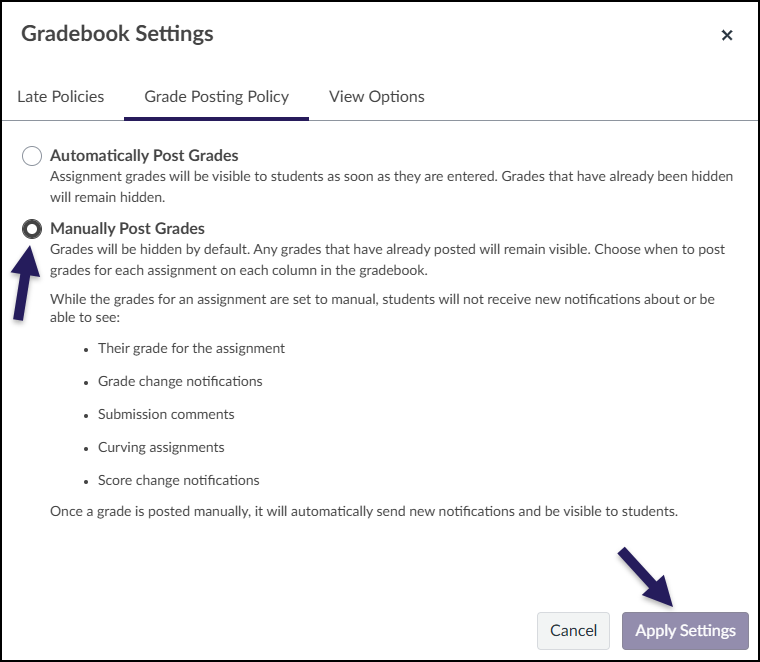
Under the Grade Posting Policy tab, you will likely see Automatically Post Grades selected. The default setting in Canvas is for assignment grades and feedback to automatically post, or be released, to each student once you enter them, meaning some students will receive their grade and feedback before others.
If you want to keep grades for an assignment hidden from students until you choose to release them, select Manually Post Grades. Click the Apply Settings button if you make a change to your grade posting policy. When Manually Post Grades is applied, all assignments will have MANUAL next to their names in the instructor’s view of the Gradebook.
Grade Posting Policy for an Assignment
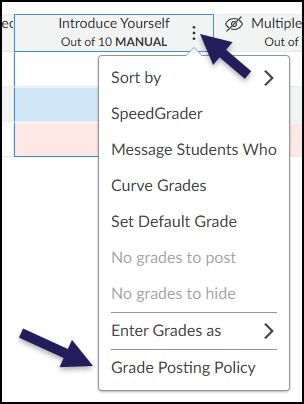
You can also set a Grade Posting Policy for individual assignments. From the Grades tab in the course navigation, hover over an assignment name and click on the three vertical dots that appear. Click on Grade Posting Policy in the dropdown menu.
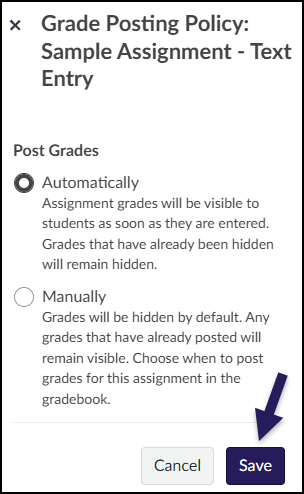
Select a grade posting policy, and click Save to save your changes.
Tips for Gradebook Settings
It is best to set any Gradebook Settings (Late Policies, Grade Posting Policy) at the beginning of the semester. Changing these settings during the semester may cause Gradebook inconsistencies. Make sure that you communicate the Gradebook Settings to the entire teaching team.
Scheduled Feedback Release
On December 13, 2025, Instructure pushed out a new feature to the Canvas Gradebook called Scheduled Feedback. Prior to this date, scores and comments were released together. This is still the default, but scores and comments can now be released on different timetables.
Change Benefit
“This feature gives instructors greater flexibility and control over feedback timing, allowing them to align the release of rubric scores and comments with grading workflows, review sessions, or instructional pacing. It helps ensure students receive feedback when it is most meaningful and actionable.”
Quoted from: Canvas Release Notes (2025-12-13)
How it Helps
- Coordinate your grading process: Schedule release dates to match department review cycles or feedback sessions.
- Support fair assessment: Hold rubric scores until all submissions are graded to ensure consistency.
- Enhance student experience: Deliver feedback at the most impactful time for learning.
Quoted from: Scheduled Feedback Release in Canvas is Here!
More Details
- Manual override: Instructors can still manually post grades early if needed.
- Copied courses: Scheduled feedback settings can copy over with your course, but you’ll be reminded to adjust them, just like due dates.
- API support: Feedback scheduling will also be available via API for programmatic control.
Quoted from: Scheduled Feedback Release in Canvas is Here!
To use Scheduled Feedback:
- For an assignment in your course, access the Grade Posting Policy option as described above in Grade Posting Policy for an Assignment.
- Select the Manual radio button option.
- Place a ✅ checkmark in the Schedule Release Dates checkbox.
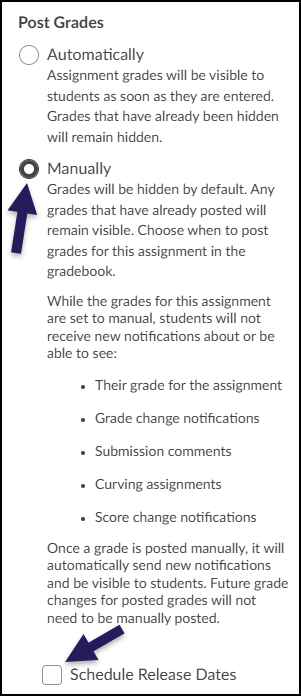
Select one of the following options:
Grades & Comments Together
- Select the Grades & Comments Together radio button option.
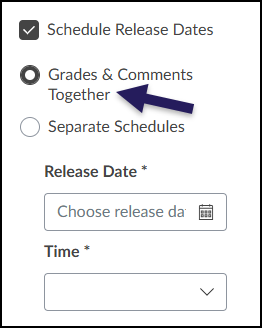
- Set a Release Date and Time you wish to make both available to your students. (These fields are required.)
Separate Schedules
- Select the Separate Schedules radio button option.
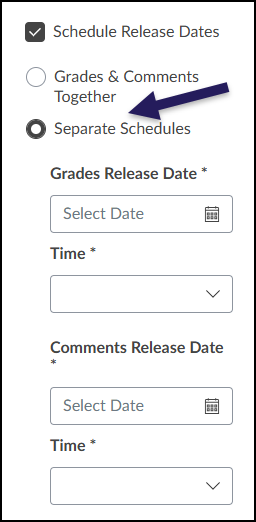
- Set Grades Release Date, Time, Comments Release Date, and Time fields based on when you want that type of feedback made available to your students for the assignment. (These fields are required.)
- Click the Save button to finalize your selection.
- Repeat Steps 1-6 for other assignments in your Canvas course.
View Options
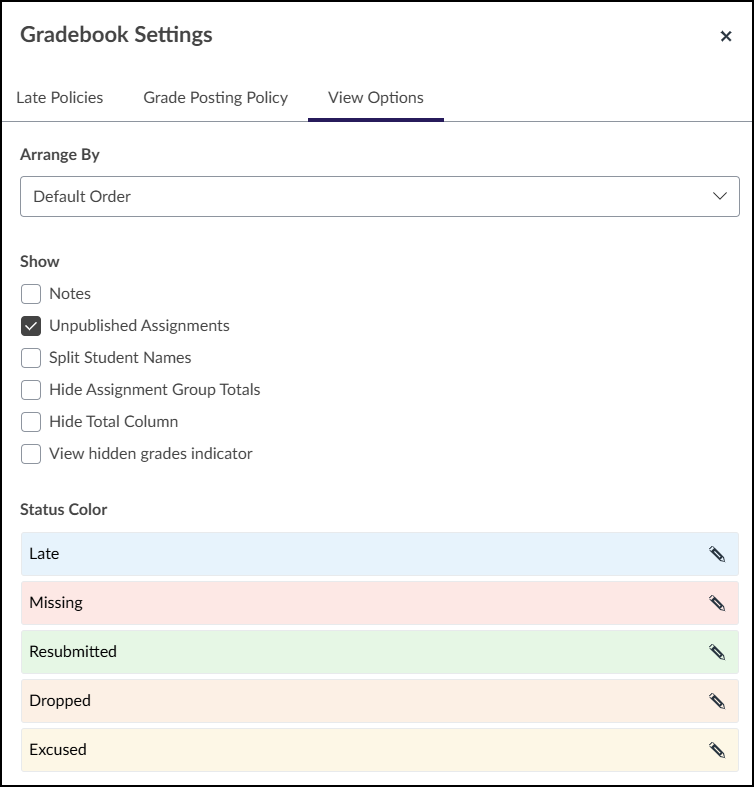
You can configure additional options via the View Options tab.
- The Arrange By drop-down list allows you to choose how you want to arrange the columns in your Gradebook (Assignment Name, Due Date, Points, or by Module).
- The Show section allows you to turn on/off elements such as a Notes column, Unpublished Assignments, Split Student Names, and more.
- The Status Color section allows you to select alternative colors for labels such as Late, Missing, Resubmitted, and more.
Caution!
Modifications to Status Colors are account-wide. For example, changing the ‘Late’ color updates that label across all your courses simultaneously.
Additional Resources
- How do I apply a Missing Submission policy in the Gradebook?
- How do I apply a Late Submission policy in the Gradebook?
- How do I use posting policies in a course?
- How do I select a grade posting policy for a course in the Gradebook?
- How do I select a grade posting policy for an assignment in the Gradebook?
- How do I use the Notes column in the Gradebook?
- How do I view the Unpublished Assignments column in the Gradebook?
- How do I view the Split Student Names column in the Gradebook?
- How do I change the color for a grading status in the Gradebook?