Use the following links to jump to specific sections in this guide:
Accessing the Gradebook
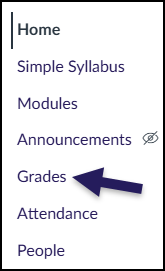
To access the Canvas Gradebook, visit the desired course, and click on Grades in the left-hand course navigation.
Navigating the Gradebook
Search the Gradebook
You can search for individual students and assignments in the Student Names and Assignment Names search bars.

Filter the Gradebook
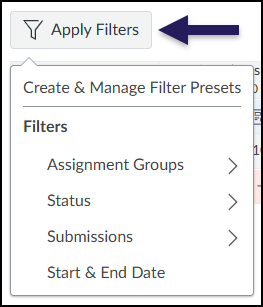
You can use gradebook filters to find specific gradebook items. Click Apply Filters and filter the gradebook for Assignment Groups, the Status of assignments, and more.
Importing and Exporting Grades
You can import and export grades from the Canvas Gradebook. Upload (import) changes to existing assignments in Canvas using a CSV file from your computer, or you can use that same file to create new, published assignments in your course. Similarly, you can export your course Gradebook to a CSV file that can be saved to your computer.

To Import Grades
- Click on the Import button to select a CSV file you’ve saved to your computer.
- On the next screen, click the Choose File button to select your CSV file that you want to upload to your Canvas course.
- A link to download the CSV is included in the Create CSV File section of the Canvas Guide: How do I import grades in the Gradebook?
- Click on the Upload Data button.
Help with CSV Formatting
If you need assistance with the formatting of your CSV file, please reach out to the ET+I team via our Support page.
To Export Grades
- Click on the Export button.
- Select Export Current Gradebook View.
- If you were using grading periods and want them all included in your file, select Export Entire Gradebook instead.
Canvas will create a CSV file for you to download to your computer.