
Enabling the “Send Grades to AARO” Course Navigation Menu in Canvas

Enabling the "Send Grades to AARO" Course Navigation Menu in Canvas

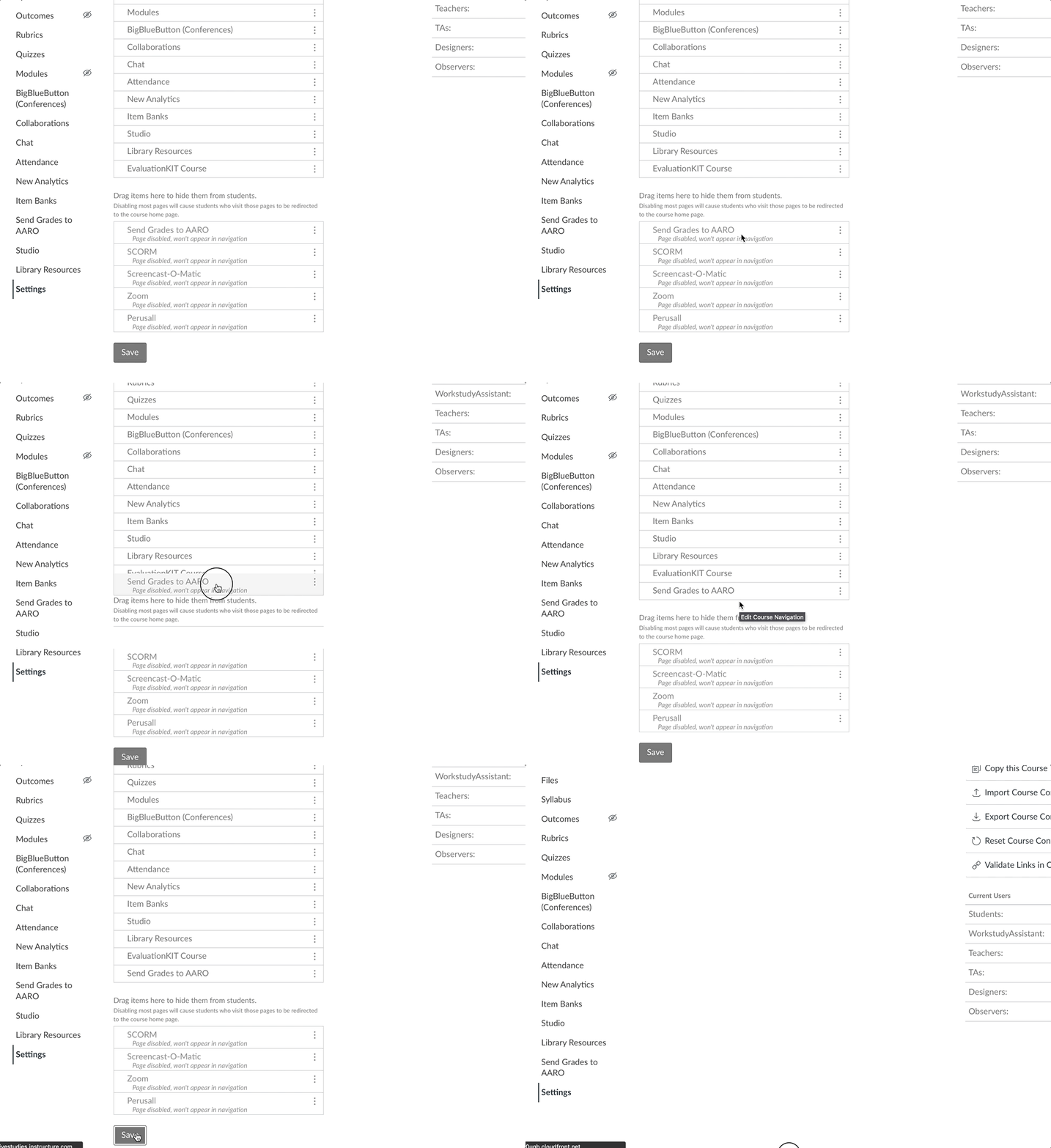
If you do not see the Send Grades to AARO course navigation menu on the left-hand side of your Canvas course(s), it may be hidden in your disabled navigation items. In your course:

  1. In Course Navigation, click the Settings link.
  2. Select the Navigation tab at the top of the screen.
  3. You will see two lists. The top list contains course navigation menu items that are visible to your students. The bottom list contains course navigation items that are hidden from your students.
    • Hidden course navigation items will have a crossed-out eye icon next to them within your course.
remove_red_eye

An Exception to the Rule

The Send Grades to AARO course navigation menu item is an exception to the rule. When you enable this course navigation menu item in your course, students will not see it in their own course navigation. Only instructors and Canvas administrators can see it.

  1. Click and drag the Send Grades to AARO from the lower hidden items to the active navigation items.
    • Alternatively, click on the Edit Course Navigation (three vertical dots) icon next to Send Grades to AARO, and then select Enable.
  2. Click the Save button at the bottom of the screen.

Video Demonstration
Additional Resources

Manage Course Navigation links

How do I manage Course Navigation links?

00:07: How do I manage course? Navigation links. 00:10: In course, navigation, click the settings link 00:14: Click the navigation tab. 00:16: Navigation, links that are visible to all users display in the top of the page. 00:21: The order they display in the list is the order in which they display in course, navigation. 00:27: Navigation links that are hidden from students display in the drag items here to hide 00:31: them from student section. 00:34: To reorder navigation, links, click the navigation link. 00:37: You would like to move. Drag and drop the navigation link to the desired 00:41: location. 00:43: You can also use the move option to reorder a navigation link within its current section 00:47: either visible or hidden. Click the options icon. 00:52: And then click the moving. 00:55: In the move navigation, item sidebar, click the place, drop down menu. 01:01: Select the placement of the navigation link. 01:03: You are moving, you can move the link so it is located at the top of the list 01:07: before a specific navigation link after a specific navigation link 01:11: or at the bottom of the list. 01:15: If you selected the before, or after option, click the second drop down 01:19: menu. 01:21: Select the navigation link that should be before or after the link. 01:24: You are moving as indicated by the option selected in the previous menu. 01:28: If you want to move the navigation link to another location. 01:31: Change, the sidebar placement options as needed. 01:36: Click the move button. 01:38: To hide a navigation link from students, click the link options icon. 01:43: And then select the disable option, the navigation link moves to the drag 01:48: items here to hide them from students section. 01:50: You can also drag and drop the link to the drag items here to hide them 01:54: from student section. 01:56: To enable a link in the hidden section, click the options icon. 02:01: And then select the enable option. You can also drag and drop the link 02:05: out of the Hidden section. 02:08: Click the save button. 02:10: View the course, navigation, menu, navigation, links display in the same 02:14: order that you have designated in course settings. 02:18: Any course, navigation, link that is hidden from students displays the visibility icon. 02:24: A link may be hidden to students because the feature area has no content. 02:30: Or because the link is disabled. 02:33: Links, that are manually disabled by a course, instructor display at the bottom of the 02:37: course, navigation menu, above the settings link. 02:40: If you disable or hide a course navigation link to an external tool, its 02:45: link does not display in course, navigation, and is hidden to all courses including 02:49: instructors. 02:52: This guide covered how to manage course navigation links.

Configuring Course Navigation