You can enable early-access beta tools from Cidi Labs in the DesignPLUS Sidebar. If you enjoy testing new tools and sharing feedback, follow the steps below to get started. Please keep in mind:
- Expect bugs: These features are still in active development.
- Limited documentation: Help guides may be incomplete until the final release.
Enabling Beta Tools
NOTE
This is a one-time procedure. You do not have to enable this setting each time you want to use beta tools in DesignPLUS. The beta tools option can be enabled/disabled at any time.
- Log in to any Canvas course.
- Click on the Assignments course navigation link on the left-hand side of the screen.
- Click on the ➕ Assignments button at the top right corner of the screen.
- This new assignment will not be saved. It is only being used to enable the DesignPLUS beta tools.
- Click on the 🚀 rocket ship icon at the top right corner of the screen to launch the DesignPLUS Sidebar.
- Alternatively, press the keyboard combination: Alt/Option + Shift + D.
- At the top of the DesignPLUS Sidebar, click on the three vertical dots icon, and select User Settings from the available menu choices.
- Several ☑️ checkbox options will appear on the screen. Find and select the ☑️ checkbox for Enable Beta Tools.
- There is no Save button to confirm your selection. Any selections made here are immediate.
- Exit out of the assignment and/or course. There is no need to save the assignment.
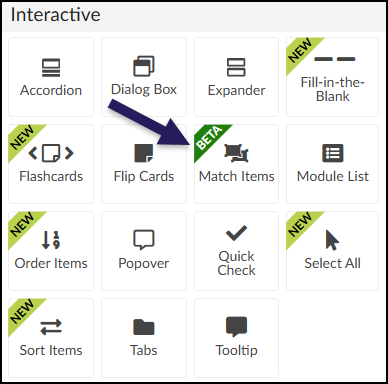
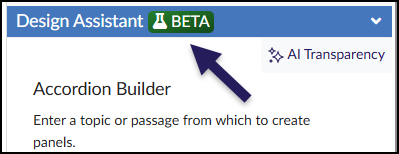
These screenshots from the DesignPLUS Sidebar show examples of where you might see a BETA label after enabling the beta tools.
Providing Feedback to Cidi Labs
If you would like to provide feedback to Cidi Labs on any beta tool in the DesignPLUS Sidebar, you can contact them via their support form or via their Slack channel.