Use the following links to jump to specific sections in this guide:
Discussion Checkpoints Overview
Discussion Checkpoints allow instructors to set multiple due dates or checkpoints for graded discussions to accommodate different stages of the discussion process, such as the initial post and follow-up replies. This feature allows for more structured participation, ensuring students meet deadlines for each required step in the discussion.
Discussion Checkpoints can be used in brand new discussion topics, or it may be possible to use them in existing discussion topics. Please note the following:
- The Discussion Checkpoints option (referred to as Assign graded checkpoints in Canvas) may only be available once you’ve indicated that your Discussion topic will be marked as Graded.
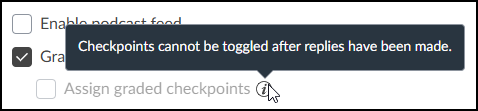
- If you have an ungraded Discussion topic in your course that has student replies/responses and you later want to make the topic graded, you will not be able to use the Assign graded checkpoints option, as it will be grayed out and not selectable.
Using Discussion Checkpoints
- In Course Navigation, click the Discussions link.
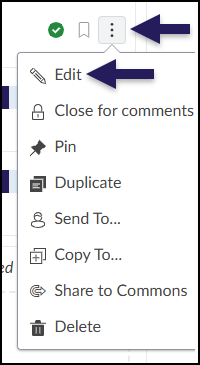
- Select one of the tabs below depending on if you are adding a new discussion topic or editing an existing one:
Click on the ➕ Add Discussion button to create a new discussion topic.

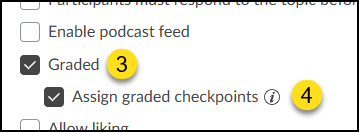
- Below the Rich Content Editor (RCE) of your discussion topic, within the Options section, click the Graded checkbox. A new checkbox will appear.
- Click the Assign graded checkpoints checkbox (if available and not grayed out).
- Continue to scroll down the screen, and look for the new Checkpoint Settings section. There are three areas to fill out:
- Points Possible: Reply to Topic (Points possible for the initial reply to topic.)
- Additional Replies Required (The number of additional replies required must be between 1 and 10.)
- Points Possible: Additional Replies (Possible points for additional replies.)
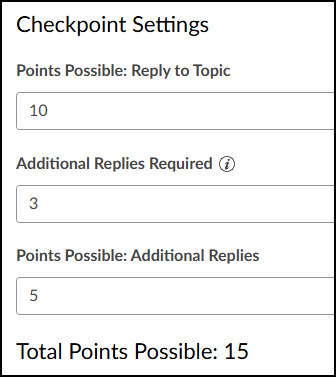
Based on the numbers you input into these fields, Canvas will calculate the Total Points Possible and display that number for you. In the above example:
10 (Points Possible: Reply to Topic) + 5 (Points Possible: Additional Replies) = 15 (Total Points Possible)
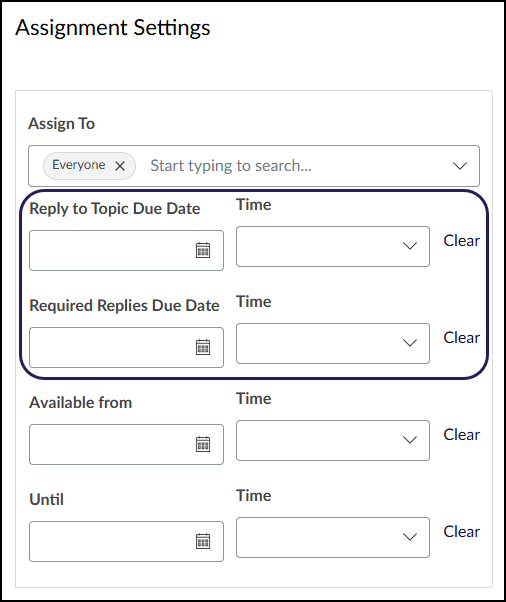
- The final section of the Discussion topic details is Assignment Settings. Notice there are two new fields, Reply to Topic Due Date and Required Replies Due Date. (These fields replace the regular Due Date field had Assign graded checkpoints not been selected.) Add dates and times for both of these fields.
- Click either the Save and Publish or the Save button.