DesignPLUS Quick Checks

The DesignPLUS Quick Check tool allows students to self-assess their knowledge directly on your Canvas content pages. Key features include:

  • Ungraded Practice: Creates quiz-style questions completely separate from the Canvas Gradebook.
  • Flexible Formats: Supports multiple choice, true/false, yes/no, and more.
  • AI Integration: Features an optional AI Design Assistant to automatically generate questions and answers based on a topic you provide.
warning

NOTE

Quick Checks are strictly for self-assessment and do not integrate with the Canvas Gradebook.


Adding a Quick Check to a Content Page

While editing content in your Canvas course, launch the DesignPLUS Sidebar by clicking on the 🚀 rocket ship icon at the top right corner of the screen.

  • Alternatively, press Alt/Option + Shift + D on your keyboard.

Place your cursor in the RCE (Rich Content Editor) where you want to add the Quick Check interface.

In the DesignPLUS Sidebar, click on the ➕ Add New Elements tab.

Click the Quick Check button (found under the Interactive Exercises, Page Information, or Recently Used Tools headings).

  • Alternatively, use the Search textbox to search for Quick Check. DesignPLUS will show results in real-time. Click the ✖️ icon to clear your search.
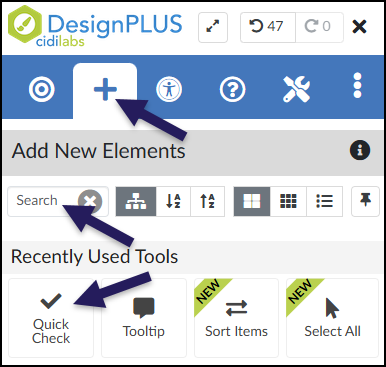
This screenshot of the DesignPLUS Sidebar visually demonstrates multiple ways to access the "Quick Check" tool. A top arrow indicates that the user should first select the "Add New Elements" (plus sign) tab in the main blue navigation bar. A middle arrow highlights the "Search" box under "Add New Elements" as a method to find the tool by name. A final arrow points directly to the "Quick Check" tool itself (represented by a checkmark icon) located within the "Recently Used Tools" section.

After clicking on the Quick Check button, that interface will be added to the RCE.

Keep in mind the following as you make edits:

  • The Quick Check interface may not look exactly like what you and your students will see after the page is saved. This is by design.
  • The Content Panel in the DesignPLUS Sidebar provides tools to fully manage the answers below your question. You can use it to:
    • Add or remove answer choices
    • Reorder the list of answers
    • Mark a specific answer as correct
  • All text shown below can be edited directly in the RCE.
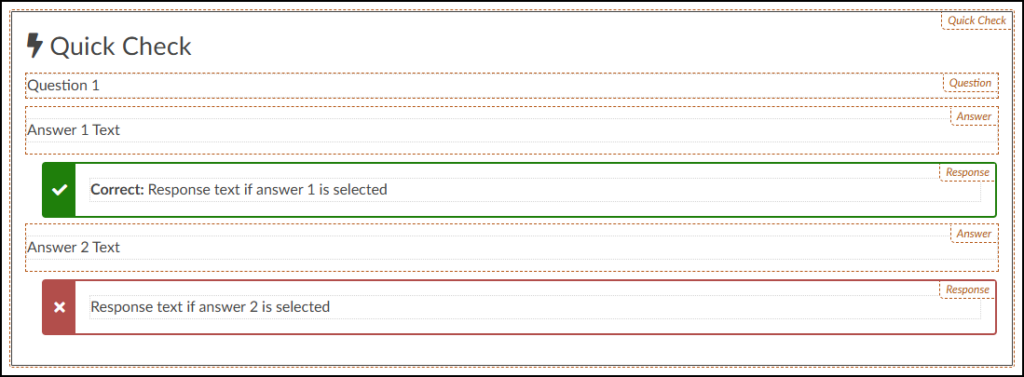
A screenshot of the "Quick Check" tool interaction element in its editing state within a Canvas page. The entire interaction is enclosed within a dotted orange border labeled "Quick Check" at the top right, and the main title features a lightning bolt icon and the bold text "Quick Check." Below this, the templated structure is visible, showing a field for "Question 1" (labeled Question), followed by a field for "Answer 1 Text" (labeled Answer). Beneath the first answer is a conditional response field with a solid green border and a checkmark icon, containing the placeholder text "Correct: Response text if answer 1 is selected" (labeled Response). This is followed by a field for "Answer 2 Text" (labeled Answer) and a subsequent conditional response field with a solid red border and an 'X' icon, containing the placeholder text "Response text if answer 2 is selected" (labeled Response). All individual fields also feature dotted orange borders and right-aligned labels.

Design Assistant Panel

The Design Assistant is currently a beta tool in the DesignPLUS Sidebar. It uses AI (Artificial Intelligence) to generate content that can be inserted into Quick Check interactions. An ✨ AI Transparency link provides additional details and a link to How is Cidi Labs approaching the use of AI?.

After adding a Quick Check to your content page, if you do not see the Design Assistant panel within the DesignPLUS Sidebar, you will need to enable beta tools in your Sidebar.

In the Design Assistant panel, enter a topic or passage from which to create a Quick Check question. (Example: Daily life of a giant panda bear)

  • Click the ✨ Generate button to generate a Quick Check question and possible answers.
  • Click the History button to see previous AI-generated content (date and time stamped).
  • Click the Options button to see additional options: ☑️ Replace content in the editor, Number of answers, Grade level, and Output language.
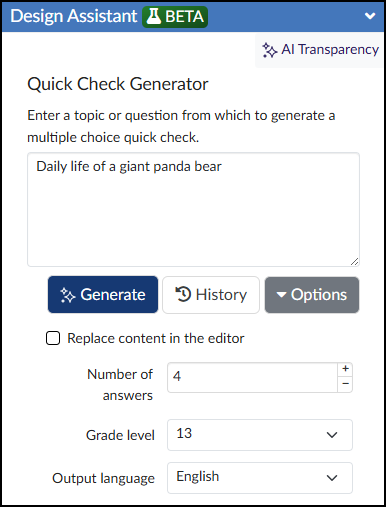
A screenshot of the "Quick Check Generator" interface. At the top right, a cluster of stars icon and the text "AI Transparency" are visible. The main content area features the title "Quick Check Generator" and instructions to "Enter a topic or question from which to generate a multiple choice quick check." Below this prompt, a text input field contains the text, "Daily life of a giant panda bear." Underneath the text box are three buttons: a blue button with a cluster of stars icon labeled "Generate", a gray button with a clock icon labeled "History", and a gray button with a dropdown arrow labeled "Options". Further down, there is an unchecked checkbox labeled "Replace content in the editor." The interface concludes with three configuration fields: "Number of answers" with the value "4", "Grade level" with the dropdown value "13", and "Output language" with the value "English".

Once you click ✨ Generate, the Design Assistant will provide a question and answer choices. Review the options by scrolling down, then pick the answers you want to include using the ☑️ checkboxes (or just select ☑️ Select all from this response).
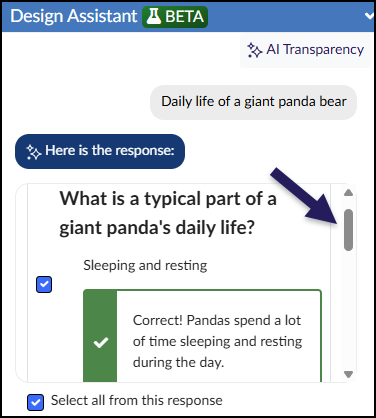
A screenshot of the DesignPLUS Sidebar shows an AI-generated response from the Design Assistant tool within the Canvas LMS, introduced by the prompt "Daily life of a giant panda bear" in a gray text bubble. The generated response is presented on a central card featuring a vertical scrollbar on the right. The card displays the question, "What is a typical part of a giant panda's daily life?". Below the question, the checkbox for the correct answer, "Sleeping and resting," is selected and is accompanied by a green feedback block stating, "Correct! Pandas spend a lot of time sleeping and resting during the day.". At the bottom, a checked checkbox is labeled "Select all from this response," providing an action to add this content to a Canvas content page. The banner at the top includes "Design Assistant" with a "BETA" tag and an "AI Transparency" link.

Once your question is generated, you have three options:

  • Add Quick Check: Inserts the generated content directly into the RCE.
  • Start Over: Clears the current results so you can begin again.
  • Refine results: If you want to adjust the question or answers, type your feedback into the text box, and click ✨ Refine to generate updated text.
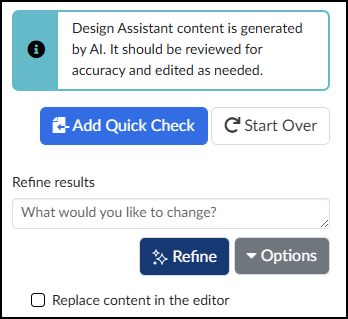
A screenshot of the refinement panel in the DesignPLUS Sidebar's Quick Check Generator, following an AI-generated question. At the top, a light blue banner with an informational 'i' icon gives an important message: 'Design Assistant content is generated by AI. It should be reviewed for accuracy and edited as needed.' Directly below this banner, a blue button is labeled 'Add Quick Check', and a white button is labeled 'Start Over'. The panel then presents options under the heading 'Refine results', featuring a large text area with the placeholder text 'What would you like to change?', which is followed by a dark blue 'Refine' button and a gray 'Options' button with a dropdown arrow. At the bottom, an unchecked checkbox is labeled 'Replace content in the editor'.

After clicking on the Add Quick Check button, the AI-generated question and possible answers are added to the RCE. You may make any edits to these questions directly in the RCE.
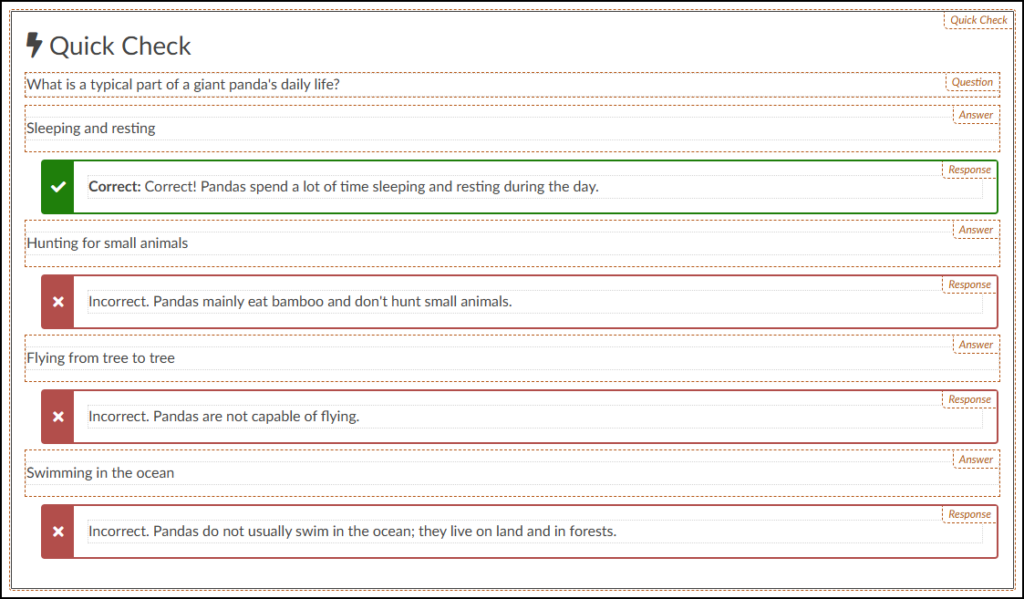
A screenshot displays the editing interface for a DesignPLUS-created Quick Check within Canvas LMS, containing a multiple-choice question about panda bear behavior. The section is introduced by a "Question" label followed by the text, "What is a typical part of a giant panda's daily life?". This is followed by four distinct pairs of "Answer" and "Response" blocks. The first block pair contains the answer text "Sleeping and resting" and the response block text "Correct: Correct! Pandas spend a lot of time sleeping and resting during the day." The remaining three incorrect answers and their associated responses follow: the answer "Hunting for small animals" with the response "Incorrect. Pandas mainly eat bamboo and don't hunt small animals."; the answer "Flying from tree to tree" with the response "Incorrect. Pandas are not capable of flying."; and the final answer "Swimming in the ocean" with the response "Incorrect. Pandas do not usually swim in the ocean; they live on land and in forests."

After saving the page, the question will appear as shown below. Students can interact with it in two ways:

  • Select an answer and click ✔️ Check to verify their response.
  • Click Reset to clear their selection and try again.
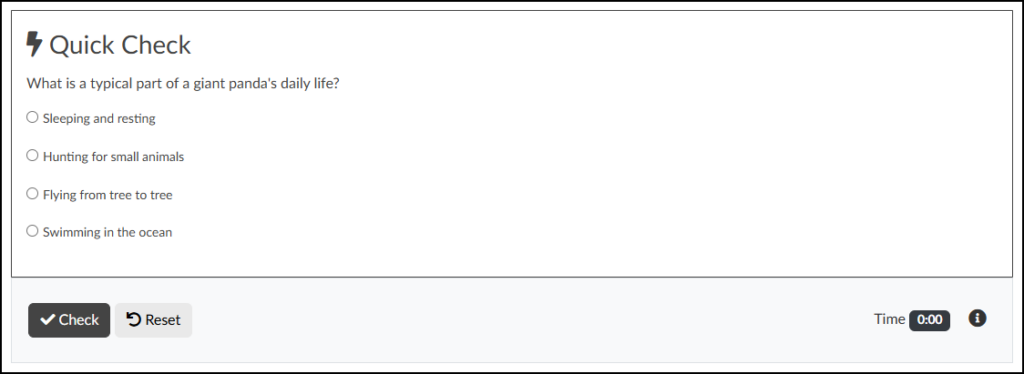
A screenshot of a completed Quick Check multiple-choice question, created with the DesignPLUS Sidebar on a Canvas LMS content page, is presented. The question, titled 'Quick Check,' asks, 'What is a typical part of a giant panda's daily life?'. The four radio-button-selectable answer options are 'Sleeping and resting,' 'Hunting for small animals,' 'Flying from tree to tree,' and 'Swimming in the ocean'. Below these choices are action buttons to 'Check' and 'Reset' the question. At the bottom right, a status bar shows 'Time 0:00' next to a clock icon, along with an information icon.

Content Panel

The Content panel for the Quick Check tool has the following options:

  1. Set the number of possible answers for the Quick Check question. Type in a number, or use the ➕ or ➖ icons.
  2. Set the heading level (H2 through H6).
  3. Click and drag the six vertical dots up or down to reorder the possible answers.
  4. Click the ☑️ checkmark icon to select one or more correct answers. (Refer to the Advanced Panel section of this guide for an additional setting that must be selected for multiple correct answers.)
  5. Click the 🗑️ trashcan icon to delete a possible answer from the Quick Check question.
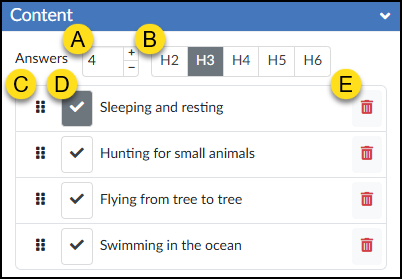
This screenshot displays the "Content" panel of the DesignPLUS Sidebar Quick Check tool, featuring five distinct areas highlighted by yellow circle labels A through E. At the top, label A indicates an input field set to "4" next to the text "Answers," allowing users to adjust the number of response options. Label B highlights a row of heading level buttons (H2 through H6) used to style the question text, with the H3 button currently selected. The main section lists four specific answer choices in a structured table. Label C identifies the vertical six-dot drag handle on the far left of each choice used for reordering the list. Label D marks the large checkmark button with a dark background to the right of the drag handle, signifying that "Sleeping and resting" is selected as the correct answer. This is followed by the unchecked options: "Hunting for small animals," "Flying from tree to tree," and "Swimming in the ocean." Finally, on the far right of each answer row, label E points to a red trash can icon for deleting that specific choice.

Advanced Panel

The Advanced panel for the Quick Check tool has the following options:

  • Data Tracking Title: A custom label created by you so that you can see anonymous data about the Quick Check interactive in your course.
  • ☑️ Disable data tracking for this interactive: This option works in conjunction with the DesignPLUS Interactive Data.
  • ☑️ Enable checkboxes for multiple answers: This option needs to be checked if you have two or more correct answers for a question. (Refer to the Content Panel section of this guide for an additional information.)
  • ☑️ Enable interactive controls: This option enables the ✔️ Check and Reset buttons available to students which display under a Quick Check question. The timer and information icon are also included in these interactive controls.
  • ☑️ Shuffle answers: This option shuffles all answer options.
  • ☑️ Hide the timer from students: This option is only available if Enable interactive controls is also checked. The timer will not display on the screen for students.
  • ☑️ Hide “Next” until all completed: This option hides the “Next” button that normally appears at the bottom right corner of a Canvas page. The “Next” button appears once the Quick Check has been answered.
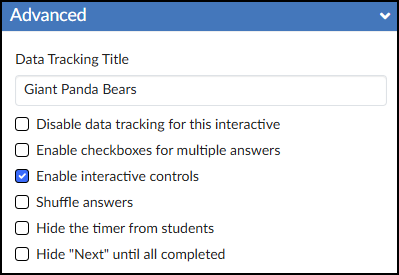
A screenshot displays the 'Advanced' settings panel for the Quick Check tool within the DesignPLUS Sidebar in the Canvas LMS. At the top, the 'Data Tracking Title' text field is populated with the text 'Giant Panda Bears'. Below this title field, a list of six configuration checkboxes is shown, with only 'Enable interactive controls' selected. The remaining five unchecked options are: 'Disable data tracking for this interactive', 'Enable checkboxes for multiple answers', 'Shuffle answers', 'Hide the timer from students', and 'Hide 'Next' until all completed'.

Additional Resources