DesignPLUS Interactive Data

A select number of interactive/engaging tools in the DesignPLUS Sidebar can provide instructors with additional, anonymous data that can be used to see how students are understanding content within a Canvas course.

info

Items of Note

Personal identifiable information (PII) is never linked to the interactive data. All participants remain anonymous. The information is encrypted and displayed as aggregated data.

Furthermore, if students complete interactives via the mobile app, data is not stored in the database. Interactives only work when using a web browser.

Accessing Interactive Data

The Interactive Data tool within the DesignPLUS Sidebar can only be accessed through a Canvas course Settings page.

  1. Log in to a Canvas course.
  2. Click on the Settings link on bottom left-hand corner of the course navigation menu.
  3. Click on the 🚀 rocket ship icon at the top right corner of the screen to launch the DesignPLUS Sidebar.
    • Alternatively, press the keyboard combination: Alt/Option + Shift + D.
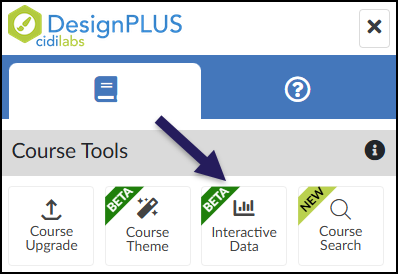
  4. Click on the Interactive Data button.
A screenshot of the DesignPLUS Sidebar, specifically as it appears when viewed from the Canvas "Settings" page. The top of the image shows the DesignPLUS logo and two navigation tabs, with the left tab active. Below this, a panel titled "Course Tools" displays four square buttons in a row: Course Upgrade, Course Theme (with a green Beta ribbon), Interactive Data (also with a green Beta ribbon and a bar chart icon), and Course Search (with a chartreuse New ribbon). A prominent, dark purple arrow points to the "Interactive Data" button, highlighting that this specific tool is only visible when the sidebar is accessed from the "Settings" page.

View Interactive Data Results

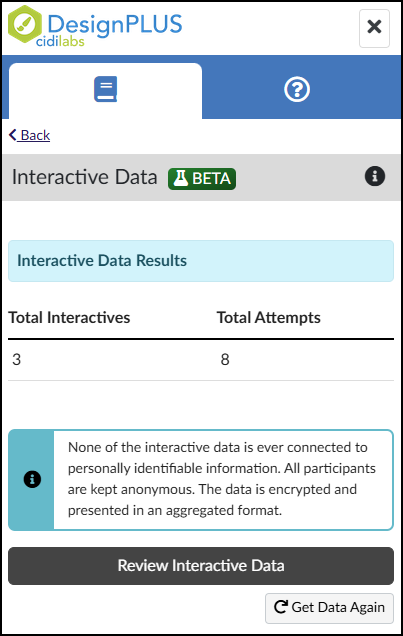
After clicking on the Interactive Data button in the DesignPLUS Sidebar, a summary screen will display on the screen. Click on the Review Interactive Data button to review more details about all interactive data used in your course. Click on the Get Data Again button to refresh the numbers in the Total Interactives / Total Attempts table if the numbers do not look correct.

A single screenshot of the DesignPLUS Sidebar displaying the 'Interactive Data Results' screen. The standard DesignPLUS header and navigation tabs are visible at the top, along with a 'Back' link. The main content area features a light blue banner titled 'Interactive Data Results.' Below this banner, a simple table displays two metrics: 'Total Interactives,' showing a value of 3, and 'Total Attempts,' showing a value of 8. Following the table is an information box with a teal left border and an 'i' icon, containing text that reads: 'None of the interactive data is ever connected to personally identifiable information. All participants are kept anonymous. The data is encrypted and presented in an aggregated format.' At the bottom, there is a dark grey 'Review Interactive Data' button and a smaller 'Get Data Again' button with a refresh icon.

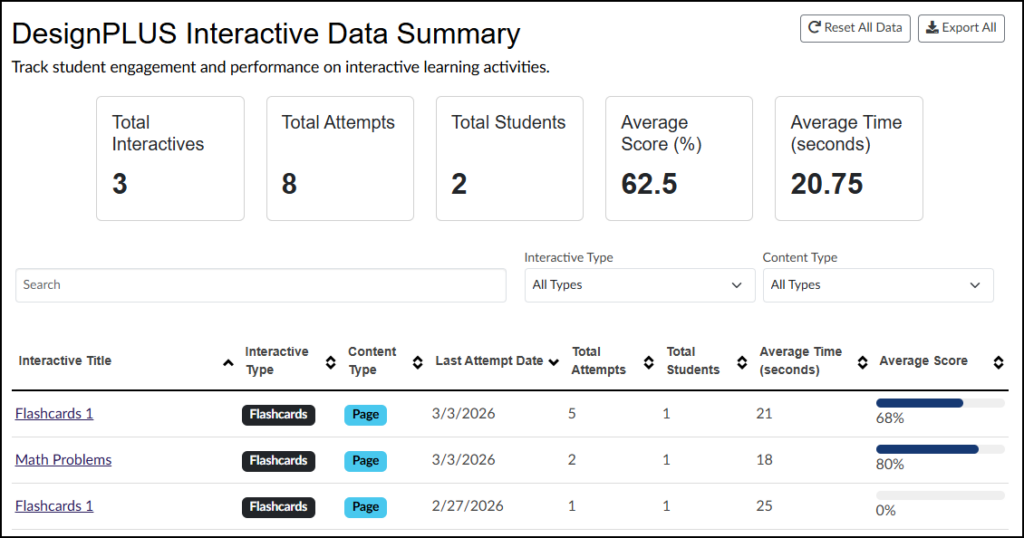
After clicking on the Review Interactive Data button, a screen similar to what is shown below will display on your screen.

At the top right corner of the screen, the Reset All Data button will reset data across all interactive tools used in your course. This cannot be undone. The Export All button exports data to a CSV file. The CSV file includes all columns of the table shown below except the Average Score column.

You may use the Search box to search for specific Interactive Title names. Use the Interactive Type and Content Type drop-down lists to refine your search results.

Within the table, the name in the first column (Interactive Title) is clickable. (NOTE: These are not the names of the content pages in your course. Rather, these are the custom names you gave your interactive elements in the Advanced panel of the DesignPLUS Sidebar.)

A screenshot from the DesignPLUS Sidebar in the Canvas LMS showing the "DesignPLUS Interactive Data Summary" screen. Below the title is the description: "Track student engagement and performance on interactive learning activities." Top-right buttons are "Reset All Data" and "Export All." A row of five key performance indicator tiles shows large numbers for metrics: Total Interactives (3), Total Attempts (8), Total Students (2), Average Score (62.5%), and Average Time (20.75 seconds). Search and filtering options follow, with dropdowns for "Interactive Type" and "Content Type" both set to "All Types." The main content is a detailed data table with column headers for sortable data including interactive titles, type, content type, last attempt date, attempts, students, average time, and average score. The table lists detailed data for specific items: a "Flashcards 1" interactive with a 68% average score, a "Math Problems" interactive with an 80% average score, and another "Flashcards 1" interactive with a 0% average score. Average scores are visually represented by progress bars.

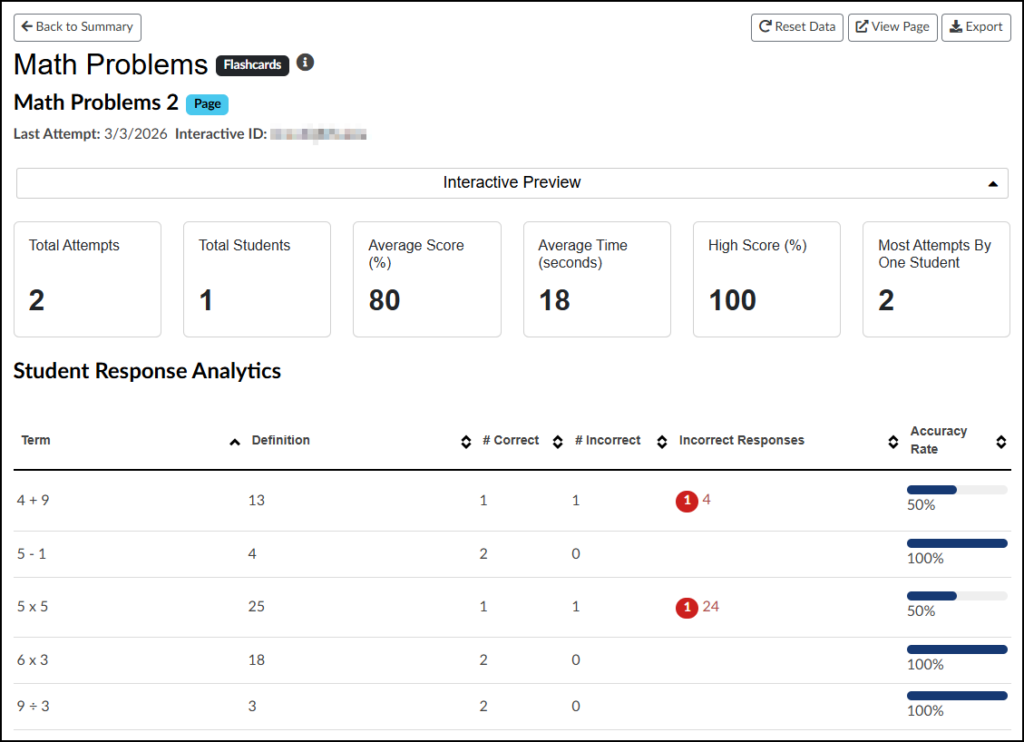
In this example, we will explore the data for the Math Problems (Flashcards) interactive tool.

The custom interactive name you chose along with the content page name displays at the top left corner of the screen.

At the top right corner of the screen, the Reset Data button will reset data for this interactive tool used in your course. This cannot be undone. The View Page button opens the content page in your course where the interactive tool is being used. The Export button exports data to a CSV file.

The Interactive Preview drop-down list allows you to view the interactive element on the content page of your course.

The Student Response Analytics table shows data about the specific interactive being used. In this example, the Flashcards tool was used to create five flashcards where students type in the correct answer. The table shows the questions (Term) and answers (Definition), the number of Correct and Incorrect, the Incorrect Responses from students, and the Accuracy Rate.

A screenshot from the DesignPLUS Sidebar in the Canvas LMS displaying detailed interactive data for a specific 'Flashcards' tool named 'Math Problems' and specifically page item 'Math Problems 2'. The interface includes navigation and control buttons at the top, along with aggregate data cards showing two total attempts by one student, an 80% average score, an 18-second average time, and a high score of 100%. The main body features a detailed 'Student Response Analytics' table with columns for Term, Definition, # Correct, # Incorrect, Incorrect Responses, and Accuracy Rate, listing data for five distinct math operations. For instance, for the term '4 + 9', there is 1 correct attempt and 1 incorrect attempt (response '4') with a 50% accuracy rate, while for '5 - 1', there are 2 correct and 0 incorrect attempts, achieving a 100% accuracy rate. Other terms like '5 x 5' show similar variations in performance data.

Bar charts will display additional information about the interactive tool such as Time Distribution, Score Distribution, and Attempts Distribution. Hover your mouse cursor over any part of these charts to see more details about the data.
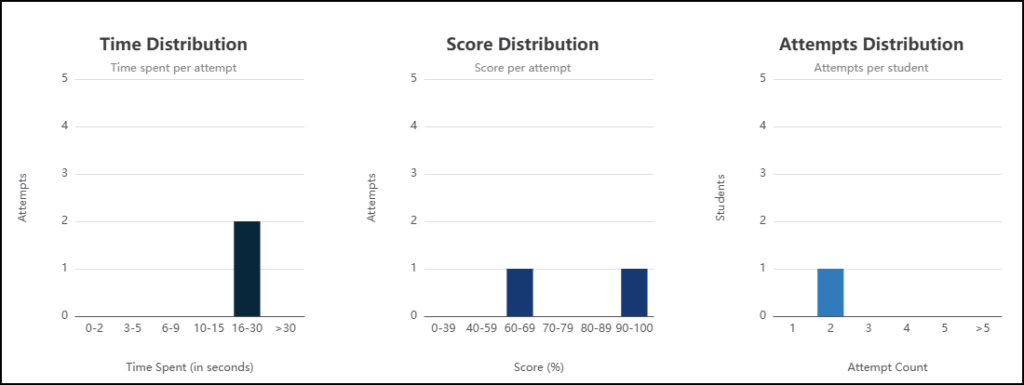
A continuation of the interactive Flashcards data, this image presents three distinct bar charts side-by-side. The leftmost chart, titled 'Time Distribution' and subtitled 'Time spent per attempt,' visualizes attempt frequencies across different time bins in seconds: 0-2, 3-5, 6-9, 10-15, 16-30, and >30, with a single dark bar showing two attempts in the 16-30 second range and zero attempts in all other categories. The middle chart, titled 'Score Distribution' and subtitled 'Score per attempt,' displays attempt counts for percentage score bins: 0-39, 40-59, 60-69, 70-79, 80-89, and 90-100, featuring a dark bar for 60-69% and another for 90-100%, each with a frequency of one attempt. The rightmost chart, titled 'Attempts Distribution' and subtitled 'Attempts per student,' illustrates the number of students associated with specific attempt counts: 1, 2, 3, 4, 5, and >5, indicating with a single light blue bar that one student made exactly two attempts.

Additional Resources