Turnitin is a tool integrated with Canvas assignments to check for plagiarism. Students submit documents electronically through Canvas, and Turnitin returns a similarity score indicating how much of the submitted document may contain plagiarized work. As the instructor, you have the opportunity to review the submissions and possible plagiarism issues.
- Create an Assignment with a Turnitin Plagiarism Check
- Review Plagiarism of an Assignment Submission
- Additional Resources
Create an Assignment with a Turnitin Plagiarism Check
- In Canvas, click on the Assignments course navigation link on the left side of the screen.
- Click on the ➕ Assignment button on the top right corner of the screen.
- On the next screen, add details to your assignment such as Assignment Name, a description of the assignment using the Rich Content Editor (RCE), Points, Assignment Group, and Display Grade as.
- For the Submission Type option, select Online from the drop-down list, and then check the box(es) for Text Entry and/or File Uploads. These are the only two options that will enable the Turnitin options on your screen.
- Text Entry: Students type or copy/paste text into a Rich Content Editor (RCE) of the Canvas assignment.
- File Uploads: Students attach a file for submission such as a PDF, DOC, DOCX, PPTX, etc.
- You can further restrict file types that can be submitted to you using the Restrict Upload File Types checkbox.
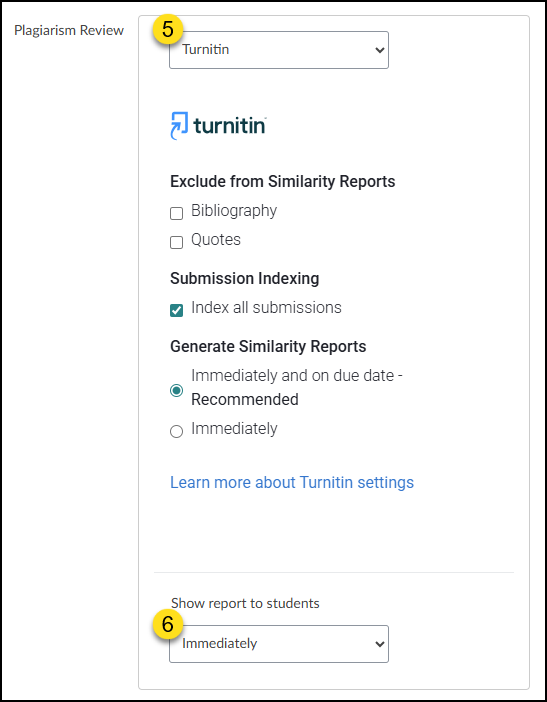
- The Plagiarism Review section will appear on the screen. Select the Turnitin option from the drop-down menu. Once selected, additional Turnitin options will display on your screen.
- For further descriptions of the Turnitin items available, such as Exclude from Similarity Reports, Submission Indexing, and Generate Similarity Reports, refer to Creating an assignment in Originality, Similarity and SimCheck using Canvas.
- From the Show report to students drop-down list, select from Immediately, After the assignment is graded, After the due date, or Never.
- Set any other properties for the assignment as needed, and then click either the Save & Publish button or the Save button.
Review Plagiarism of an Assignment Submission
After an assignment has been submitted, there are two places in your Canvas course where a Turnitin indicator appears:
Grades
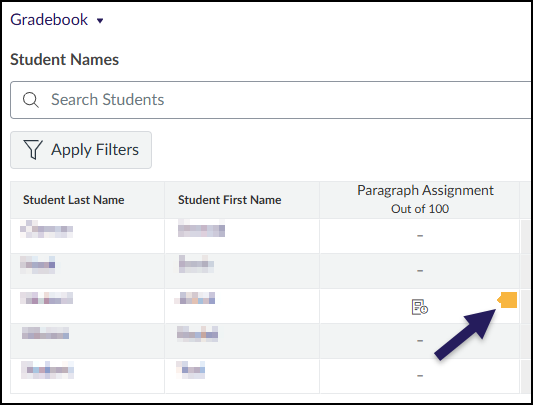
Click on Grades on the left-hand Canvas course navigation menu. A Turnitin similarity score icon will appear next to a student’s submission. The color of the icon will depend on the percentage score of the student’s submission.
- Blue – No matching text
- Green – One (1) word to 24% matching text
- Yellow – 25% to 49% matching text
- Orange – 50% to 74% matching text
- Red – 75% to 100% matching text
Click within the cell, and select the ➡️ right arrow icon. A slide-out tray will appear on the right side of your screen. Click on the SpeedGrader button.
SpeedGrader
Another way to access the SpeedGrader in Canvas is to click on the name of an assignment on the Assignments index page. Then click on the SpeedGrader button on the right-hand side of the screen.
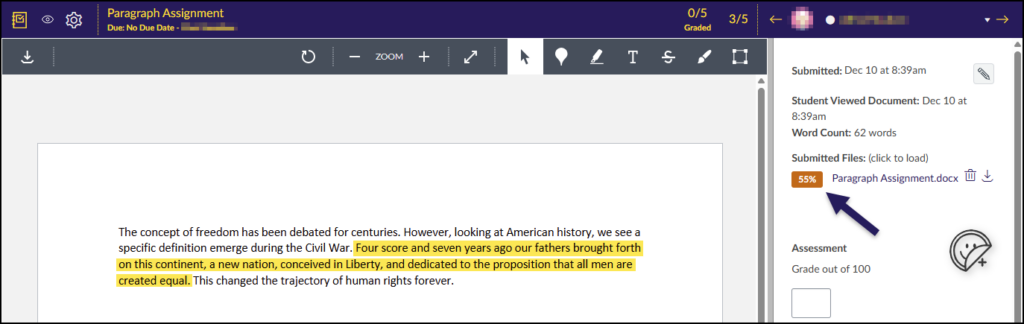
In the Canvas SpeedGrader, a student’s submission is displayed on the left side screen. For the purposes of this example:
- The student included a portion of Abraham Lincoln’s Gettysburg Address in his paragraph submission. Canvas would not normally highlight this text, but we’ve manually highlighted it in yellow to show you where the text has been inserted.
- An orange Turnitin similarity score of 55% is displayed next to the submitted file name. Click on the percentage icon to get further details from Turnitin about the plagiarism issue(s).
After clicking on the percentage score, you will see the Turnitin Plagiarism Framework Dashboard. Three tabs are displayed at the top of the screen: Similarity (with a percentage), Flags, and AI Writing (with a percentage). An Overall Similarity percentage score summary box appears on the right side of the screen.
Turnitin will highlight any issues that it finds with the student’s submission. In the below example, Turnitin has identified a portion of text that may have been copied from another source. Click on the pink icon either to the left of the highlighted area or under the Overall Similarity box.
- NOTE: Depending on the types of issues Turnitin finds, your interface may not look exactly like what is shown below.
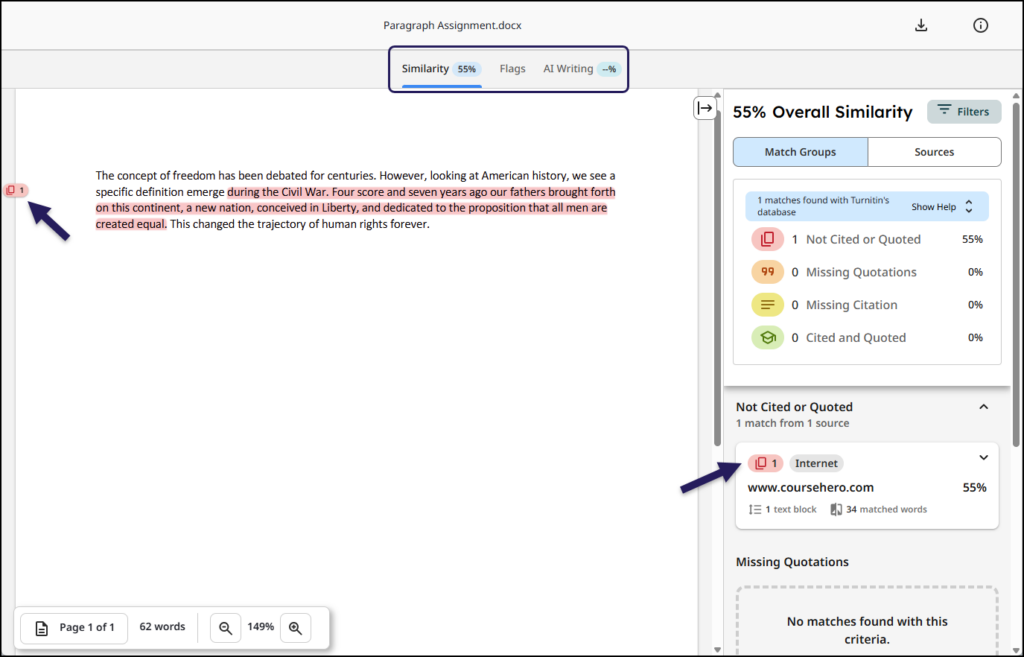
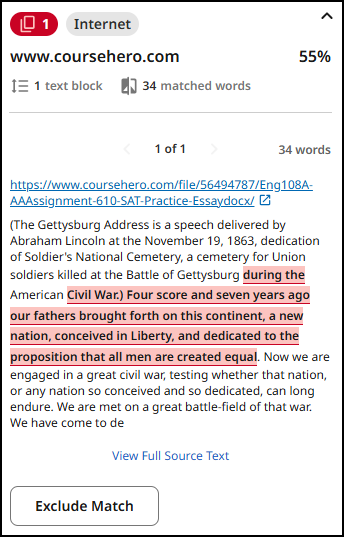
Clicking on the www.coursehero.com item on the right side of the screen (shown above) will bring display additional details on where similar text was found (shown below).
A Note on Artificial Intelligence (AI)
Please be aware that Turnitin may give false positives related to AI. If Turnitin finds positive AI use, start a conversation with your student following the information provided in Using AI Detection at CCS before taking any automatic disciplinary action. Grades cannot automatically be changed due to AI detection software results.