Simple Prep is a centralized, course readiness tool built by Simple Higher Ed, that enables Instructors, Department Chairs, Program Managers, Canvas administrators, and others to quickly review Canvas course content. Simple Prep allows users to quickly see what might be missing from the course, what updates still need to be made, and ensure the course meets CCS Canvas Course standards.
Accessing the Simple Prep Dashboard
- Log in to the Simple Syllabus dashboard.
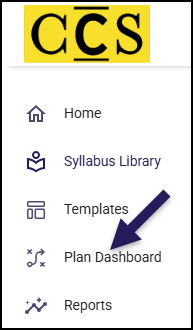
- Find and click on the Plan Dashboard menu item on the left-hand side of the screen.
- Note 1: Depending on your role, your list of menu items may look different than those shown here.
- Note 2: Your menu items may only show icons without the accompanying text. Click on the triangle icon near the Home icon to view the text.
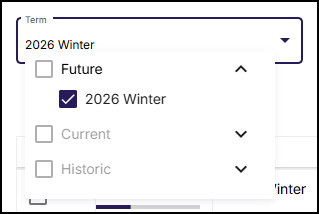
- On the next screen, filter your search results to see the Simple Prep interface.
- In this example, the 2026 Winter term (currently located under Future) is selected from the Term drop-down list.
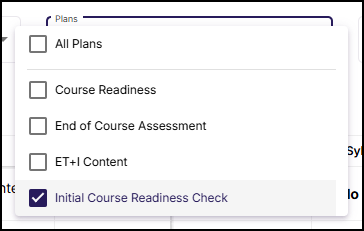
- Next to the Term drop-down list is the Plans drop-down list.
- In 2026 Winter we will use the Initial Course Readiness Check. In future semesters, we will use Course Readiness. The ET+I team will also be exploring and using other plans in the future to help clean up course content.
Simple Prep Dashboard Interface
Once you have selected your term and plan from the Term and Plans drop-down lists, you will see an interface similar to the following:
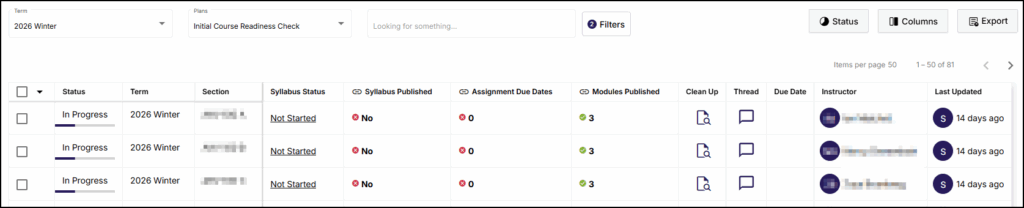
There are several columns in this screenshot, and you can add/remove columns by clicking on the Columns button at the top right corner of the screen. Click on any of the tabs below to learn more about a column displayed in the above screenshot.
Checkbox
Select from Sync, Not Started, Completed, and In Progress.
Status
Displays the status of the course.
Term
Displays the term for the course.
Example: 2026 Winter
Section
Displays the full course number.
Example: AHV 100 A
Syllabus Status
Displays if the Simple Syllabus has been started or not.
Syllabus Published
Checks that the syllabus is published in Simple Syllabus.
Displays ✅ Yes or❌ No.
Override by selecting either ✅ Complete or ❌ Reject.
Assignment Due Dates
Checks that all assignments have due dates.
Displays ✅ ## or❌ 0.
Override by selecting either ✅ Complete or ❌ Reject.
Modules Published
Provides total count of published modules.
Displays ✅ ## or❌ 0.
Override by selecting either ✅ Complete or ❌ Reject.
Clean Up
Click the document and magnifying glass icon to review and delete unused content (course pages and files) in a course.
Thread
An interface where you can communicate directly with the instructor for the given course. Click on the speech bubble icon to start a conversation.
Due Date
Displays the due date for the course.
Instructor
Displays the instructor(s) for the course.
Last Updated
Displays the date the course was last updated.
Thread Tool
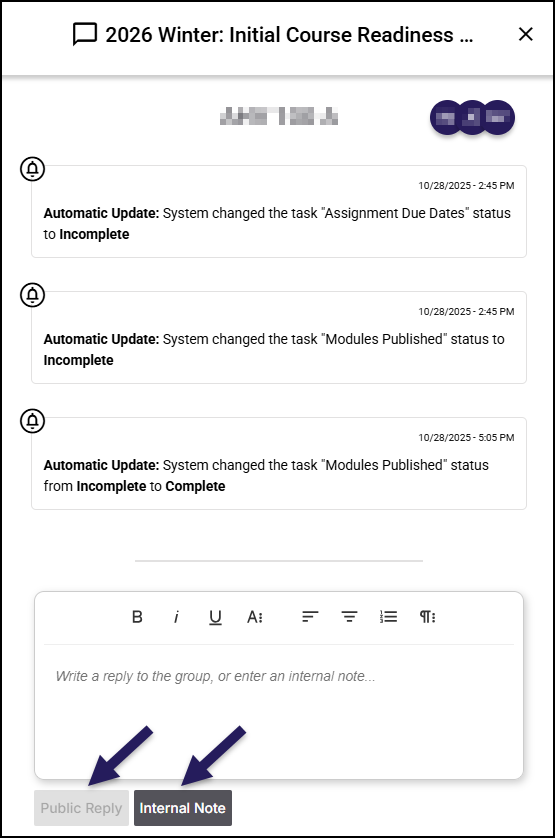
The Thread tool allows you to communicate back and forth with the instructor about a specific course. You can send your comments as a Public Reply or as an Internal Note just for your team. Once you click on the speech bubble icon for a given course, the an interface similar to what is shown below will appear on the right side of your screen. The course name will appear near the top of this interface, along with the initials of other people associated with this course.
At the bottom of the course is a Rich Content Editor with some basic text formatting options. After typing your message, the Public Reply and Internal Note buttons become active for you to click on. Instructors receive e-mail notifications of messages you send via this interface.