Canvas Gradebook: Navigation, Settings, and Best Practices

Use the following links to jump to specific sections in this guide:

Accessing the Gradebook

To get to the Canvas Gradebook, click on the Grades tab in the course navigation.
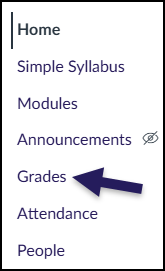
A screenshot of the Canvas course navigation menu displaying a vertical list of links including Home, Simple Syllabus, Modules, Announcements, Grades, Attendance, and People. The "Announcements" link features a crossed-out eye icon next to it. A prominent dark purple arrow points specifically to the "Grades" link, indicating where to access course grades.

Search the Gradebook

You can search for individual students and assignments in the Student Names and Assignment Names search bars.

A partial screenshot of the Canvas Gradebook interface displaying two search fields side-by-side. On the left, a "Student Names" label sits above a drop-down search box containing the placeholder text "Search Students," indicated by a dark purple arrow. On the right, an "Assignment Names" label sits above a similar drop-down search box containing the placeholder text "Search Assignments," also highlighted by a dark purple arrow.

Filter the Gradebook

You can use gradebook filters to find specific gradebook items. Click Apply Filters and filter the gradebook for Assignment Groups, the Status of assignments, and more.
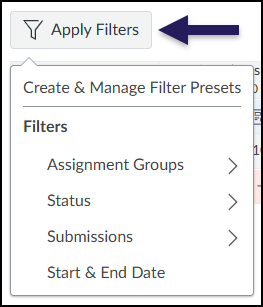
A screenshot of the Canvas Gradebook interface featuring the "Apply Filters" button, indicated by a dark purple arrow. The button is expanded to show a dropdown menu with the option to "Create & Manage Filter Presets" at the top. Below a divider line, the "Filters" section lists available categories: "Assignment Groups," "Status," "Submissions," and "Start & End Date".

Gradebook Settings

Click on the gear icon in the top right hand corner of the Gradebook to view Gradebook Settings.

A screenshot of a toolbar within the Canvas LMS Gradebook. The toolbar contains buttons for "Import" and "Export" (which has a dropdown arrow). An arrow points to the settings cog icon, located on the far right of the toolbar.

Late Policies

If desired, under Late Policies, check the box next to Automatically apply grade for missing submissions. Enter a percentage grade that all missing submissions should receive. For example, entering in a 0 will mean that all students who have not submitted the assignment will receive a 0 grade. If the student turns in their assignment after the deadline, you can still enter in a grade for it.

If desired, you can also check the box next to Automatically apply deduction to late submissions. Enter in the percentage of the grade that should be deducted at each interval (day or hour).

Click the Apply Settings button when you are finished.
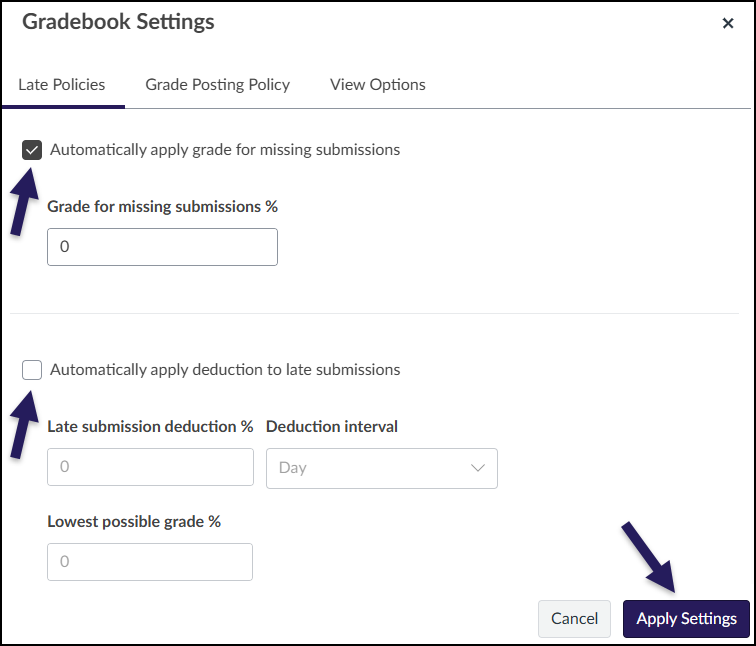
A screenshot of the Canvas LMS "Gradebook Settings" pop-up window. The "Late Policies" tab is currently selected, highlighting options for setting missing and late submission grade rules. The first checkbox, "Automatically apply grade for missing submissions," is checked and pointed to by a dark purple arrow, with the "Grade for missing submissions %" field set to 0. The second checkbox, "Automatically apply deduction to late submissions," is unchecked and also indicated by a dark purple arrow; its associated numerical and interval fields are empty. Below these, there is an empty field for "Lowest possible grade %". A final dark purple arrow points to the dark purple "Apply Settings" button in the bottom right corner, adjacent to a "Cancel" button.

Grade Posting Policy

Under Grade Posting Policy, you will likely see Automatically Post Grades selected. The default setting in Canvas is for assignment grades and feedback to automatically post, or be released, to each student once you enter them, meaning some students will receive their grade and feedback before others.

If you want to keep grades for an assignment hidden from students until you choose to release them, select Manually Post Grades. Click Apply Settings if you make a change to your grade posting policy. When Manually Post Grades is applied, all assignments will have MANUAL next to their names in the instructor’s view of the gradebook.
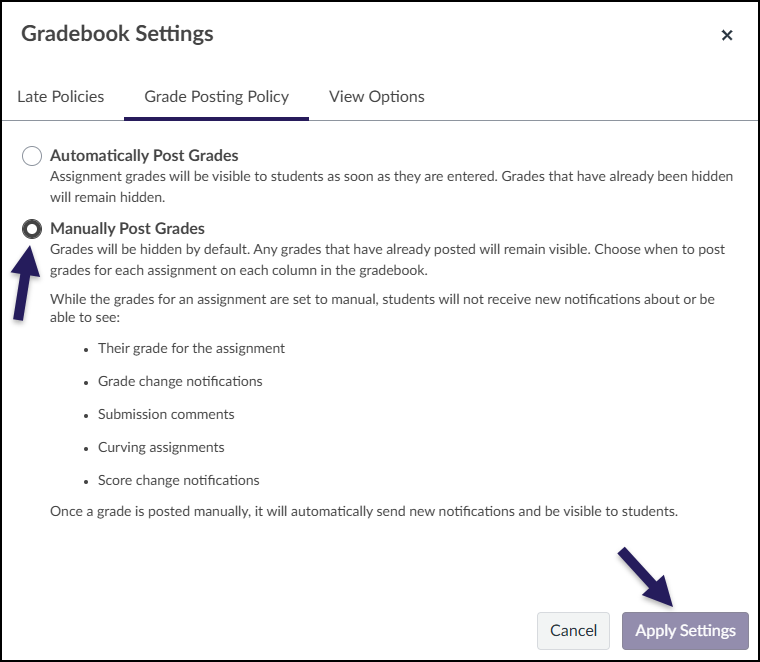
A screenshot of the Canvas LMS "Gradebook Settings" window with the "Grade Posting Policy" tab active. A dark purple arrow points to the selected radio button for "Manually Post Grades," which notes that grades will be hidden by default. The option for "Automatically Post Grades" is unselected above it. Below the description of what students cannot see while grades are manual, a second dark purple arrow indicates the "Apply Settings" button in the bottom right corner.

You can also set a grade posting policy for individual assignments. From the Grades tab in the course navigation, hover over an assignment name and click on the three vertical dots that appear. Click on Grade Posting Policy in the dropdown menu.
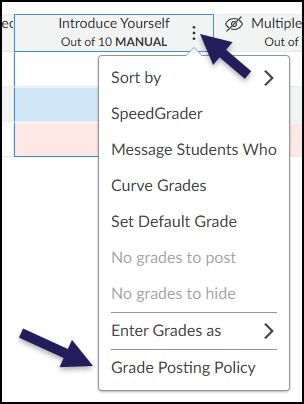
A screenshot from the Canvas Gradebook showing the options menu for an assignment column titled "Introduce Yourself, Out of 10 MANUAL". A dark purple arrow points to the three-dots icon in the column header, which is highlighted in blue, indicating the menu is open. The resulting dropdown list includes active options: "Sort by," "SpeedGrader," "Message Students Who," "Curve Grades," "Set Default Grade," and "Enter Grades as". The options "No grades to post" and "No grades to hide" are grayed out. A second dark purple arrow indicates the final option in the list, "Grade Posting Policy".

Select a grade posting policy, and click Save to save your changes.
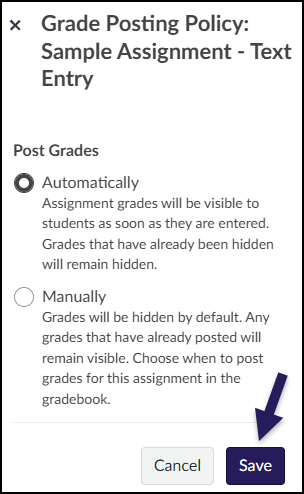
A screenshot of a Canvas LMS Gradebook pop-up window titled "Grade Posting Policy: Sample Assignment - Text Entry". The "Post Grades" section has two options: "Automatically" and "Manually". The radio button for "Automatically" is selected. Explanatory text below it reads, "Assignment grades will be visible to students as soon as they are entered. Grades that have already been hidden will remain hidden.". Below the unselected "Manually" option, the text says, "Grades will be hidden by default. Any grades that have already posted will remain visible. Choose when to post grades for this assignment in the gradebook.". A dark purple arrow in the bottom right points to the dark blue "Save" button, next to a "Cancel" button.

Tips for Gradebook Settings

It is best to set any gradebook settings (late policies, grade posting policy) at the beginning of the semester. Changing these settings during the semester may cause gradebook inconsistencies. Make sure that you communicate the gradebook settings to the entire teaching team.

Hiding and Posting Grades

If you have set grades to be manually posted, assignment grades are hidden from students until you choose to post them. Hidden grades are indicated with a crossed out eye icon next to the assignment name in the gradebook.
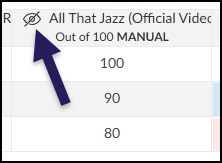
A screenshot of the Canvas Gradebook showing an assignment column titled "All That Jazz (Official Video)" with "Out of 100 MANUAL" listed underneath. A large, dark blue arrow points to a visibility icon—depicted as an eye with a slash through it—located to the left of the assignment title, indicating that grades for this column are hidden from students. Below the header, three rows of sample student scores are visible: 100, 90, and 80.

To post grades for an assignment so they are visible to students, hover over the assignment name and click the three vertical dots that appear. In the drop-down menu, select Post grades.
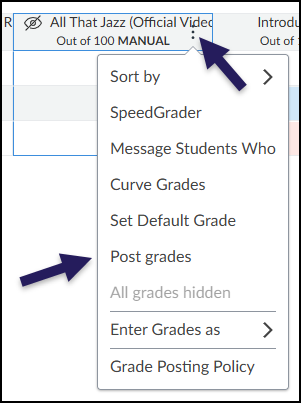
In the Canvas LMS interface, a screenshot shows the expanded options menu for a gradebook column titled "All That Jazz (Official Video)." A dark purple arrow points to the vertical ellipsis (three dots) in the header used to open the menu, while a second dark purple arrow highlights the "Post grades" option. The menu contains several items, including Sort by, SpeedGrader, Message Students Who, Curve Grades, and Set Default Grade. Below "Post grades," the text "All grades hidden" appears in a grayed-out, unclickable format, followed by "Enter Grades as" and "Grade Posting Policy" at the bottom of the list.

The popup menu on the right hand side will indicate how many grades are hidden from students. For instance, if you have graded 16 out of 17 students, it will indicate that 16 grades are hidden. Choose whether to post everyone’s grades or just the graded submissions (if you have graded every student’s assignment, both of these options will post all grades for that assignment). Click Post to post the grades. Grades will take a moment to post, and can take a minute or so if you have a large class.
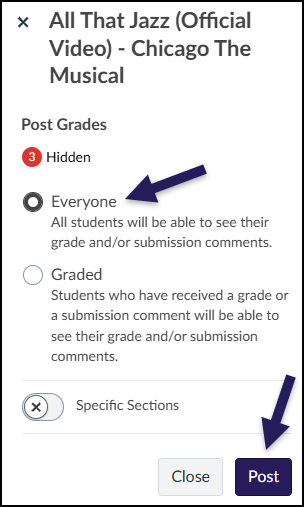
A screenshot of the "Post Grades" sidebar in Canvas for the assignment "All That Jazz (Official Video) - Chicago The Musical." At the top, a red circle with the number 3 is next to the status "Hidden." A dark purple arrow points to the selected "Everyone" radio button, which is described as allowing all students to see their grade and/or submission comments. An unselected "Graded" option is visible below. A "Specific Sections" toggle is shown as inactive. At the bottom, a dark purple arrow points to the "Post" button, located next to a "Close" button.

Grading Best Practices

Before submitting midterm and final grades, you should ensure that:

  • All assignment groups are weighted correctly, and assignments are in their correct assignment groups
  • Any hidden grades are posted
  • All gradebook items have a grade entered

If you have hidden grades, students cannot see their total grade for the class. Additionally, if you have not entered a student’s grade for an assignment, Canvas does not take that assignment into account when calculating the total grade, which may inflate a student’s grade.

Additional Resources

Use the Gradebook
Filter Columns and Rows in the Gradebook