In this guide:
Host Controls
The person who creates a Google Meet is the meeting host, unless they transfer ownership of the event to someone else. The Meet creator or owner has additional permissions that allow them to manage meeting access and how participants can interact during the meeting. The host can also assign co-hosts to assist with managing the meeting.
There are two ways you can update host controls:
- When scheduling a Google Meet through Google Calendar, click the Video call options (gear icon) next to the Join with Google Meet button in your Google Calendar event. Once your settings are in place, click Save.
- After launching a Google Meet, click the Host controls icon along the bottom right of the screen.
You can toggle the following settings on or off depending on your meeting needs. Many of these settings can also be updated during a meeting, so you can choose to allow participants to use the chat, share their screens, or turn on their microphones during only a portion of your meeting.
Meeting Moderation
- Host management – When turned on, meeting management permissions, such as admitting or removing participants, muting participants, and recording the meeting, are limited to hosts and co-hosts. This setting also allows hosts to restrict how participants can interact during the meeting. We only recommend turning Host management off when you trust other CCS participants to help manage the meeting responsibly.
- Share their screen – Allows participants to share their screens. Hosts and co-hosts can continue to share their screens even when this setting is turned off.
- Send reactions – Allows participants to send emoji reactions. If turned off, hosts and co-hosts will also be unable to send reactions.
- Turn on their microphone – Allows participants to turn on their microphones. Turning this setting off will mute participants and prevent them from turning their microphones back on. Hosts and co-hosts can continue to use their microphones.
- Turn on their video – Allows participants to turn on their cameras. Turning this setting off will disable participants’ cameras and prevent them from turning their cameras back on. Hosts and co-hosts can continue to use their cameras.
Tip: For larger meetings or webinar-style events, you may want to prevent participants from sharing their screens or turning on their microphones and cameras. You can adjust these settings during the meeting to allow participation as needed.
Chat Moderation
- Let participants send messages – Allows participants to send messages in the meeting chat. Hosts and co-hosts can continue to send messages even when this setting is turned off.
Tip: For larger meetings or webinar-style events, you may want to turn off the chat and use the Q&A feature instead to manage questions from participants.
Meeting Access
Meeting access settings determine who can join your Google Meet without requesting permission.
- Open – Anyone with the meeting link can join without asking, whether or not they are using a CCS Google account.
- Trusted – Anyone using a CCS Google account, invited through the Google Calendar event, or invited directly into the meeting by a host can join without asking. All other participants must request permission to join.
- Restricted – Only those invited through the Google Calendar event or invited directly into the meeting by a host can join without asking. All other participants, including those using a CCS Google account, must request permission to join.
When you select Trusted or Restricted, an additional checkbox will appear allowing you to determine whether other participants can request permission to join your meeting.
- Trusted – Anyone with the meeting link can ask to join
- Restricted – Anyone can ask to join, including people who dial in
If you uncheck the corresponding box, participants who do not already have permission to join will automatically be denied access.
- Attendance Tracking – If toggled on, the host will receive an email at the end of the meeting with an attendance report indicating who attended the meeting and for how long. Co-hosts can also receive this report if meeting artifact sharing is enabled.

Note: Users logged into multiple Google accounts at once (e.g., a personal Gmail account and their CCS account) may experience meeting access or permissions issues. Make sure you are accessing the meeting using your CCS Google account. If you continue to experience issues, log out of your personal or secondary Google account before accessing the meeting.
Meeting Activities
- Q&A – Allows the host to turn on a dedicated Q&A pane where participants can ask questions, as well as upvote questions they want to see answered. Hosts can organize questions in multiple ways, delete questions, or mark them as answered. The host can also adjust various settings related to Q&A.
- Let contributors share add-on activities – If toggled on, any participant in the meeting can start an add-on activity from the Meeting tools > Add-ons pane. These add-ons may include collaborative whiteboards or other shared applications. When toggled off, only the meeting host and co-hosts can start add-on activities.
Best Practices for Host Controls
Host controls are set up per meeting. Recurring meetings with the same Google Meet link will maintain their meeting settings and host controls.
Since these settings need to be configured for each new Google Meet link, we recommend the following:
- Set up recurring meetings when possible using the same Google Meet link. This allows you to maintain the same settings across all recurring meetings and is an ideal setup for online class meetings.
- When scheduling a Google Meet for an event or major webinar, be sure to adjust your host controls to align with the needs of the event before sharing the meeting link. You can do this when scheduling the meeting through Google Calendar or by launching the meeting in advance.
Add Co-Hosts
You can make someone a co-host in Google Meet either before a meeting through Google Calendar or during an active meeting.
Add a Co-Host Before a Meeting (Google Calendar)
Adding a co-host through Google Calendar is recommended if you want them to receive meeting artifacts like recordings, transcripts, or attendance reports.
Open Google Calendar and create or edit an event with a Google Meet attached. Add the person as a guest on the event.
Click Video call options (gear icon) next to the Join with Google Meet button.
Turn on Host management.
Select Co-hosts, enter the participant’s name, and select them from the drop-down menu.
If you want your co-hosts to receive meeting artifacts, select the checkbox labeled Call artifacts are shared with the host and co-hosts you add here.
Click Save.
Click Save on the calendar event. If prompted, click Send to send the updated invitation.
Add a Co-Host During a Live Meeting
Start or join your Google Meet as the meeting host.
Make sure Host management is turned on in your host controls.
Click the People icon along the bottom right of the screen.
Find the participant (they must already be in the meeting) and click the three-dot menu next to their name.
Select Grant host controls.
Note: Co-hosts added during an active meeting will not automatically receive meeting artifacts. The host can share these with them after the meeting.
Manage Participants
Click the People icon (two people) in the bottom-right corner of your Google Meet to open the People pane and view a list of meeting participants.
Pin a Participant or Presentation for Everyone
Meeting hosts and co-hosts can pin a participant or presentation for everyone in the meeting.
- Locate the participant or presentation in the People pane.
- Click More actions (three dots) next to their name.
- Select Pin to the screen.
- Select For everyone.
Mute a Participant
- Locate the participant in the People pane.
- Click the microphone icon next to their name.
- Confirm that you would like to mute the participant, if prompted.
You cannot unmute another participant. They must unmute themselves.
Remove a Participant
- Locate the participant in the People pane.
- Click More actions (three dots) next to their name.
- Select Remove from the call.
- Confirm that you would like to remove the participant.
Meeting Tools
Google Meet offers several additional tools to support collaboration, participant engagement, and meeting management.
To access these tools, click the Meeting tools icon along the bottom right of the screen.
Record
Record your Google Meet to access and share after the meeting. Recordings are saved to Google Drive. Learn more about recording a Google Meet.
Transcribe
Generate a written transcript of the discussion during your Google Meet. Transcripts are saved to Google Drive and can be accessed and shared after the meeting. Learn more about transcripts.
Live Streaming
Allows viewers to watch your Google Meet without joining as active participants. This may be useful for larger campus events or presentations. Learn more about live streaming.
Breakout rooms
Divide participants into smaller groups for discussions or collaborative activities. Hosts can assign participants to rooms manually or randomly, move participants between rooms, and set a time limit for breakout room activities. Learn more about breakout rooms.
Polls
Create polls during your Google Meet to gather feedback, check participants’ understanding, or encourage participation. You can create and save multiple polls in advance during the meeting and launch them when you’re ready. Hosts can also choose whether to share poll results with participants. Learn more about polls
Q&A
Allows participants to ask questions through a dedicated Q&A pane, as well as upvote questions they would like to see answered. This may be particularly useful for larger meetings or webinars where you want to manage questions separately from the meeting chat. Learn more about Q&A.
Timer
Display a countdown timer during your Google Meet. This may be useful for timed discussions, presentations, or classroom activities.
Ending a Google Meet
When you are ready to leave your Google Meet, click the red Leave call button along the bottom of the screen.
As the meeting host, you can choose from two options:
- Just leave the call – Allows you to leave the meeting while other participants remain in the meeting.
- End the call for everyone – Ends the meeting for all participants.
Note: If the End the call for everyone option is grayed out, check whether recording or transcription is still running. Stop these activities from the Meeting tools pane before ending the meeting.
We recommend ending the call for everyone at the end of an online class or when you do not want participants to remain in the meeting after you leave.
Ending the call for everyone does not delete the Google Meet link or impact future occurrences of a recurring meeting.
Note: If you are alone in a Google Meet for an extended period of time, Google Meet will ask if you are still there. If you do not respond, you will be automatically disconnected from the meeting.
Meeting Wrap Up
Meeting Artifacts (Recordings, Attendance, etc.)
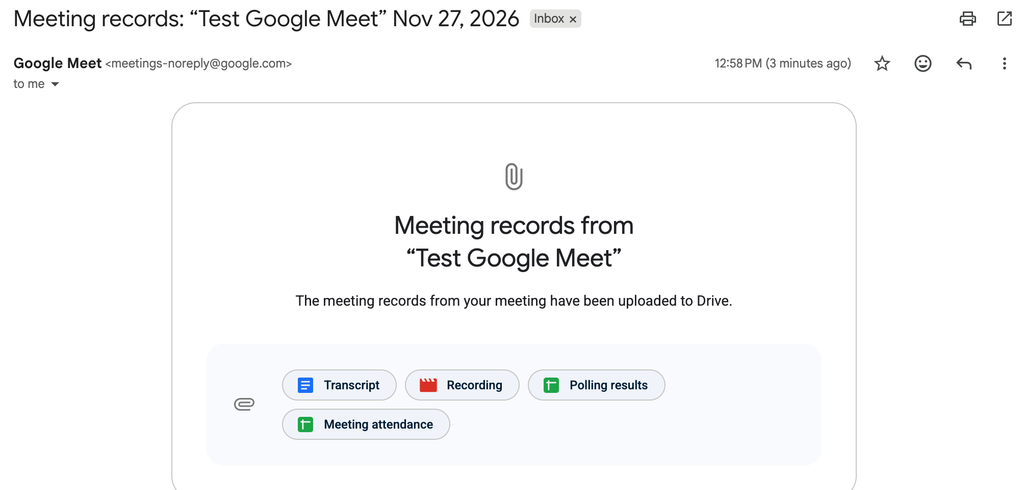
Depending on the settings and tools used during your Google Meet, you will receive emails with links to meeting artifacts after your meeting ends. These may include:
- Recordings – Video recordings of your Google Meet, including audio and shared content.
- Transcripts – Written transcripts of the discussion during your Google Meet.
- Attendance reports – A Google Sheets file indicating who attended your meeting, when they joined and left, and their total time in the meeting. If breakout rooms were used, the report will also include breakout room attendance.
- Polling reports – A report of polls conducted during your meeting and participant responses.
- Q&A reports – A report of questions submitted by participants during your meeting.
- Live streaming reports – A Google Sheets file that includes information on the number of viewers and viewership throughout your live stream.
Meeting artifacts are automatically shared with the meeting host via email. Co-hosts can also receive meeting artifacts if artifact sharing was enabled when they were added as co-hosts through Google Calendar.
Managing and Sharing Meeting Artifacts
Meeting recordings and transcripts are saved to the meeting host’s Google Drive in a folder called Google Meet, with subfolders for individual meetings.
You can manage and share meeting artifacts following the same procedures you use to manage and share other Google Drive files.
When sharing a meeting recording with students through Canvas, make sure your sharing permissions in Google Drive allow your students to view the recording before adding the link to your Canvas course.