Schedule or Create a Google Meet
- Google Calendar – Recommended for scheduling meetings in advance, including recurring meetings and online class sessions.
- Google Meet website (meet.google.com) – Great for creating last-minute or impromptu meetings or generating a meeting link to share later.
- Google Meet tab in a Canvas course – Allows you to create meetings directly within a Canvas course. However, meetings created here do not automatically appear in your Google Calendar. We recommend scheduling class meetings in Google Calendar first and then adding them to Canvas.
Google Calendar
Open your Google Calendar and create an event. Enter your event title, date, time, guests, and other event details.
To add a Google Meet, click Add Google Meet video conferencing.
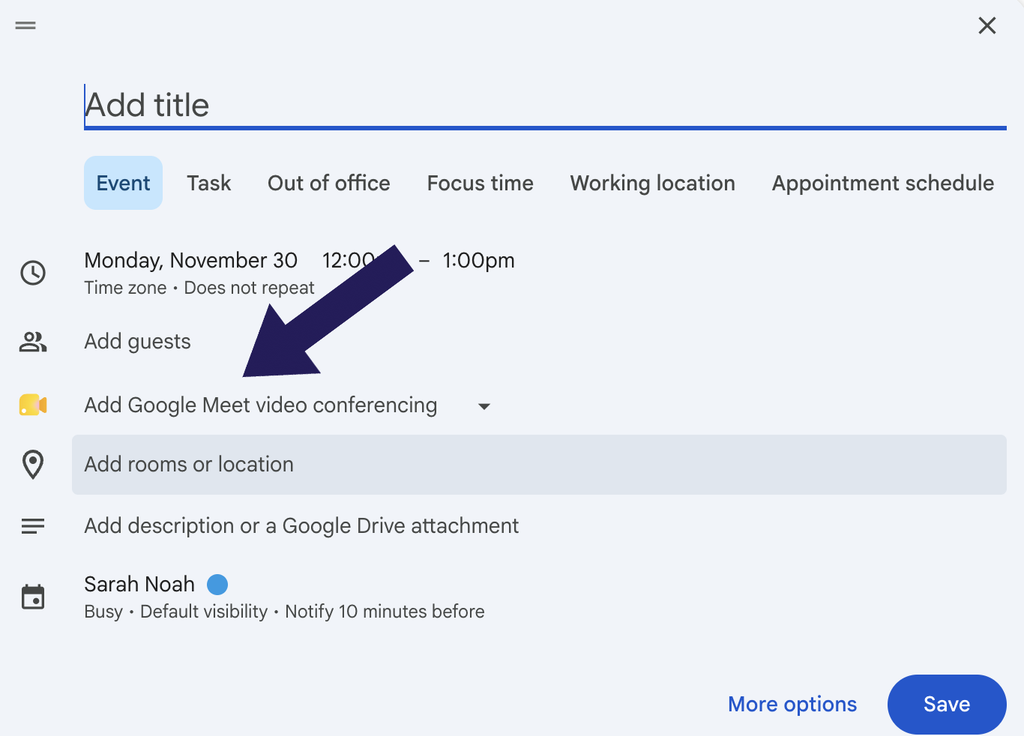
This will automatically generate a Google Meet link and attach it to your calendar event. You can invite participants by adding them as guests to your calendar event or by copying and sharing the Google Meet link. Depending on your meeting access settings, participants who receive only the link may need to request permission to join.
Once the Google Meet is added, click the Video call options (gear icon) next to the Join with Google Meet button.

This allows you to configure your meeting settings and host controls, including who can join the meeting and whether participants can share their screens, use the chat, and more. We recommend reviewing these settings before your meeting, particularly when preparing for a webinar or large event.
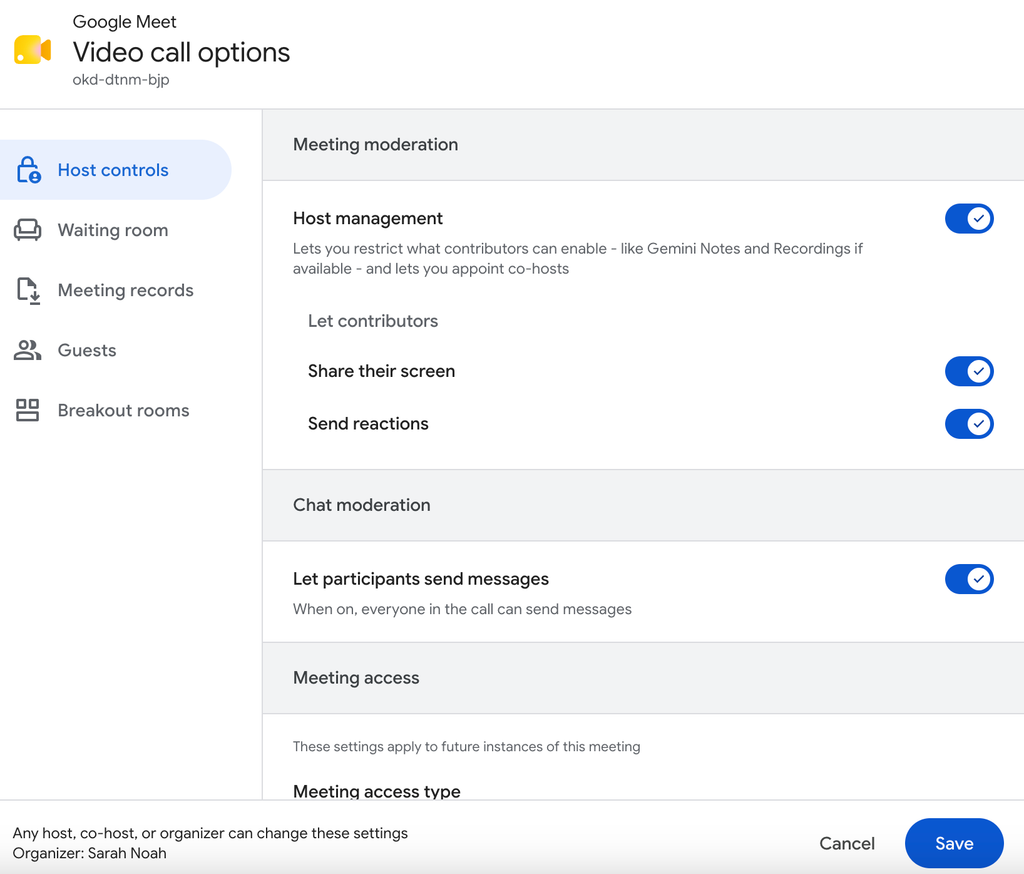
Once you have configured your meeting settings, click Save. Then click Save on your calendar event. If prompted, click Send to email the invitation to your guests.
Tip: Set up your calendar event as a recurring event for online classes or regularly scheduled meetings. This will schedule each occurrence on your calendar while maintaining the same Google Meet link, meeting settings, and host controls. This means you only need to configure your meeting settings once, rather than for each individual meeting.
Google Meet Website
Visit meet.google.com directly in your web browser, or open the Google Apps menu (nine-dot grid icon) from Gmail, Google Drive, or another Google application and select Meet.


Important: Make sure you are signed into your CCS Google account to access the Google Meet features available through our Google Workspace for Education license.
On this page, you’ll see a list of your scheduled Google Meet meetings for today. Select a different date to view meetings scheduled for another day. You can also select a meeting to join it.
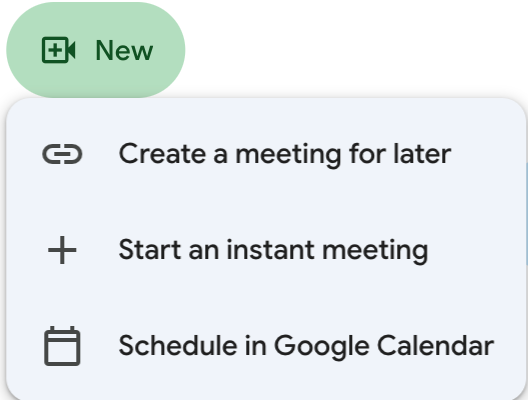
To create a new meeting, click New. From here, you will have three options:
- Create a meeting for later – Generates a Google Meet link without scheduling a calendar event. The meeting will not appear in your list of scheduled meetings on meet.google.com or in your Google Calendar. Copy and save the link so you can share it with participants and use it to start the meeting later.
- Start an instant meeting – Immediately starts a new Google Meet. Once in the meeting, a pop-up will appear with joining information. Copy and share the meeting link or click Add others to invite participants via email.
- Schedule in Google Calendar – Redirects you to Google Calendar and opens a new, unsaved calendar event with a Google Meet link already attached. Enter your event details and save the event to schedule your meeting.
Canvas
We recommend scheduling your online class meetings in Google Calendar first and then adding them through the Google Meet tab in your Canvas course. This allows you to access and manage your meetings through Google Calendar while providing students with a central location to access class meetings in Canvas.
Schedule in Google Calendar and Add to Canvas (Recommended)
Follow the directions in the Google Calendar section above to schedule your Google Meet and configure your meeting settings and host controls.
Once your calendar event is saved, open the event and copy the Google Meet link.
Open your Canvas course and select Google Meet from the course navigation menu. If prompted, sign into your CCS Google account.
From the Meetings tab, click New Meeting.
Enter your meeting title, date, time, and recurrence settings to match the event you created in Google Calendar.
Replace the automatically generated Google Meet link with the meeting link you copied from your Google Calendar event.
Once all your meeting details are in place, click Save.
Tip: For recurring online class meetings, use the same Google Meet link in Google Calendar and Canvas to maintain consistent meeting settings and host controls throughout the semester.
Schedule Directly in Canvas
You can also schedule a Google Meet directly through your Canvas course without first creating an event in Google Calendar.
Open your Canvas course and select Google Meet from the course navigation menu.
From the Meetings tab, click New Meeting.
Enter your meeting title and any additional meeting details. To schedule your meeting in advance, select Set date and time and enter your meeting date, time, and recurrence settings, if applicable.
Review and configure your meeting settings and host controls.
Once all your meeting settings are in place, click Save.
Note: Meetings scheduled directly through the Google Meet tab in Canvas do not automatically appear in your Google Calendar.
Start or Join a Google Meet
You can start or join a Google Meet in several ways:
- From your Google Calendar
- From the Google Meet website (meet.google.com)
- From the Google Meet tab in a Canvas course
- From a shared Google Meet link
- From Mobile Device or by Phone
Note: The process for starting a scheduled Google Meet as the meeting organizer is generally the same as joining a meeting as a participant.
Google Calendar
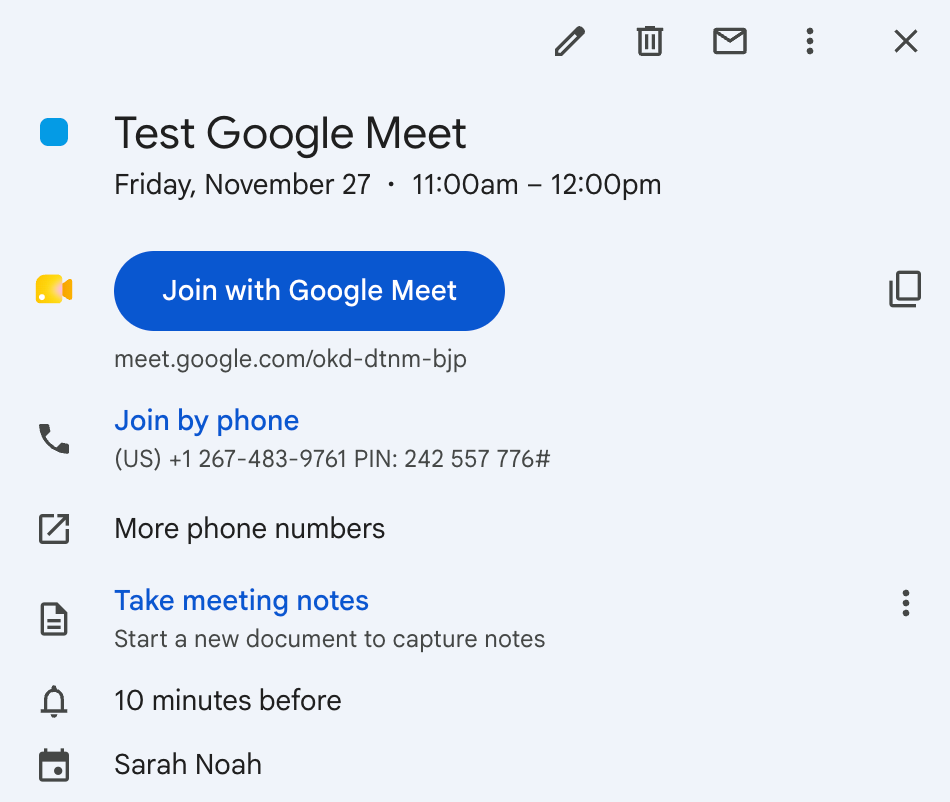
If you scheduled a Google Meet through Google Calendar or were invited to one through a calendar event, open your Google Calendar. Locate and select the event, then click Join with Google Meet.
Google Meet Website
If your meeting was scheduled through Google Calendar, visit meet.google.com or select Meet from the Google Apps menu.
Locate your scheduled meeting and click Join.

If your meeting is not listed but you have a meeting link or code, you can enter it into the meeting code or link field and click Join.


Canvas
Open your Canvas course and select Google Meet from the course navigation menu. If prompted, sign into your CCS Google account.
From the Meetings tab, locate the meeting you would like to start or join and click Join.
Note: For meetings created directly through the Google Meet tab in Canvas, students cannot join the meeting until an instructor has started it.
Shared Meeting Link
If someone shares a Google Meet link with you through email, a Canvas announcement, or another communication, simply click the link to open the meeting in your web browser.
You can also copy and paste the meeting link into your browser’s address bar.
Mobile Device or Phone
You can start or join a Google Meet from your mobile device using the Google Meet app. Make sure you are signed into your CCS Google account when accessing CCS meetings.
If dial-in information is available, you can join a Google Meet by calling the phone number provided and entering the PIN when prompted. You can also click Join by phone from a supported device while viewing the Google Calendar event.
Note: Callers can only participate via audio and will not be able to see other participants or shared visuals from the meeting.
Final Steps to Join a Google Meet
Before entering a Google Meet, you will typically see a meeting preview screen where you can check your camera, microphone, and other settings. You will also see meeting information and a button labeled Join now or Ask to join.
Note: If this is your first time using Google Meet, your browser may ask for permission to access your microphone and camera. Click Allow to enable these features.
You can click the microphone button to enter the meeting muted, or click the camera icon to turn off your camera. You can select the blur icon to blur your background.

Use the drop-down buttons beneath the video preview to check your connected microphone, audio, and camera settings, as well as choose a background or touch up your video appearance.

If joining by phone or another option, click Other ways to join for additional join details.
Once all your settings are in place, click either Join now or Ask to join.
- Join now – Allows you to proceed into the meeting without requesting permission.
- Ask to join – Sends a request to join the meeting. You will need to wait for someone with permission to admit you before you can enter.
Depending on the meeting’s access settings, you may be required to request permission to join if you were not invited through Google Calendar, are joining from outside CCS, or are not signed into your CCS Google account.