The Personalized Token tool in the DesignPLUS Sidebar allows you to add dynamic placeholders—such as the user’s name, current date, or time—directly into your Canvas content. For example, inserting the text ‘Welcome to Week 1, [Current User Full Name]!’ will automatically display the viewing student’s actual name.
Adding a Personalized Token to a Content Page
You can add as many Personalized Tokens as needed to a content page within your Canvas course.
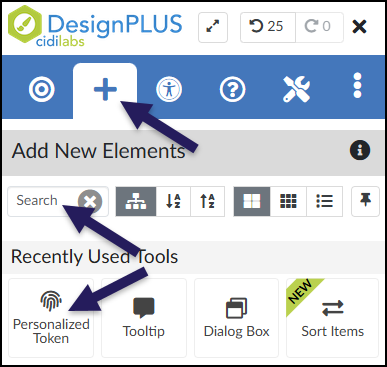
While editing content in your Canvas course, launch the DesignPLUS Sidebar by clicking on the 🚀 rocket ship icon at the top right corner of the screen.
- Alternatively, press Alt/Option + Shift + D on your keyboard.
Place your cursor in the RCE (Rich Content Editor) where you want to add the Personalized Token.
In the DesignPLUS Sidebar, click on the ➕ Add New Elements tab.
Click the Personalized Token button (found under the Custom Content, or Recently Used Tools headings).
- Alternatively, use the Search textbox to search for Personalized Token. DesignPLUS will show results in real-time. Click the ✖️ icon to clear your search.
Content Panel
The Content panel contains many placeholder options that you can include in your Canvas content.
- Current Date: Displays the current date (Example: 3/6/2026)
- Current Time: Displays the current time (Example: 8:55:18 AM)
- Current Date & Time: Displays the current date and time (Example: 3/6/2026, 9:01:33 AM)
- Last Updated: Displays the date and time the content page was last saved/updated (Example: Mar 6, 2026, 9:09 AM)
- Current User Full Name: Displays the user’s full first/last name (Example: John Smith)
- Current User Short Name: Displays the user’s full first/last name (Example: John Smith)
- Current Module Name: Displays the name of the current module the content is a part of (Example: Week 1)
- Current Course Name: Displays the current course name [Example: WINTER 2026 HISTORY OF VIDEO GAMES (AHV-216-A)]
- Current Course Code: Displays the current course code (Example: AHV-216-A.26/WI)
- Current Course SIS ID: Displays the current course SIS ID (Example: 08……-….-….-….-……….3b)
- Current Account Name: Displays the current name of the account or sub-account [Example: LIBERAL ARTS (LAS), ART HISTORY, ILLUSTRATION, etc.]
- Current Term: Displays the current term name (Example: WINTER 2026)
![A screenshot of the "Content" panel options within the Personalized Token tool of the DesignPLUS Sidebar, which provides a way to select dynamic placeholders for content pages. The panel features an informational callout box with a teal left-border and an information icon, containing the explanatory text: "The token placeholder will dynamically update with the context of the user viewing the content." Below this message is a grid of twelve selectable icon buttons, with the top-left button showing a calendar icon currently active. Other icons in the grid represent options for time, user details, and course-related locations. At the bottom, a text field with the label "Placeholder text" displays the example value: "[Current Date]".](http://campus.collegeforcreativestudies.edu/ed-tech/wp-content/uploads/sites/53/2026/03/DesignPLUS_PersonalizedToken_ContentPanel.png)