Simple Syllabus – Prep Step

clear_all

Target Audience

This “how to” guide is designed for CCS Program Chairs and Program Managers. Instructors do not have access to Prep Step.

All Canvas courses include a Course Readiness Check (Simple Prep built by Simple Higher Ed) course navigation link on the left-hand side of the screen for instructors to ensure their courses meet CCS Canvas Course standards.

For CCS Program Chairs and Program Managers, Prep Step is an additional tool within the Simple Prep interface that acts as a bridge between Canvas and a course’s final published course/syllabus. Think of it as a “health check dashboard” for courses. Prep Step pulls in data from a Canvas course such as announcements, discussion topics, content pages, and assignments. It organizes this content into an easy-to-use tabbed interface so that you can identify potential issues in a course before students begin to access the content. Tasks might include:

  • View content that is published vs. what is unpublished
  • Ensure start/end/due dates are correct
  • Review rating scales for rubrics
  • Ensure that the course meets institutional standards before it goes “live” to students

Accessing Prep Step

Log in to the Simple Syllabus dashboard.

Find and click on the Plan Dashboard menu item on the left-hand side of the screen.

  • Note 1: Depending on your role, your list of menu items may look different than those shown here.
  • Note 2: Your menu items may only show icons without the accompanying text. Click on the triangle icon near the Home icon to view the text.
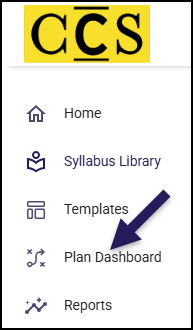
Screenshot of the Simple Syllabus navigation menu for the College for Creative Studies. A large purple arrow points to the 'Plan Dashboard' link, which has an icon of a diverging path. The full menu shown, in order from top to bottom, is 'Home,' 'Syllabus Library,' 'Templates,' 'Plan Dashboard,' and 'Reports.'

On the next screen, filter your search results to see the Simple Prep interface.

From the Term drop-down list, select the term name that you’d like to get more information about, keeping in mind the term may be located under Future, Current, or Historic.
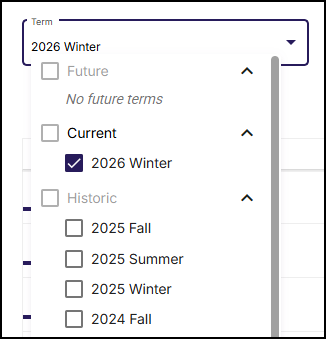
A screenshot of the expanded "Term" filter dropdown menu within the Simple Syllabus interface. The main input field displays "2026 Winter". The dropdown list is organized into three categories: "Future", "Current", and "Historic". The "Future" category shows "No future terms". Under the "Current" category, the "2026 Winter" option is selected with a checkmark. The "Historic" category contains unselected checkboxes for "2025 Fall", "2025 Summer", "2025 Winter", and "2024 Fall". A scrollbar is visible on the right side of the dropdown menu.

From the Plans drop-down list, select the plan name.

  • For the 2026 Winter term, CCS will use Initial Course Readiness Check. In future semesters, CCS will use Course Readiness. The ET+I team will also be exploring and using other plans in the future to help clean up course content.
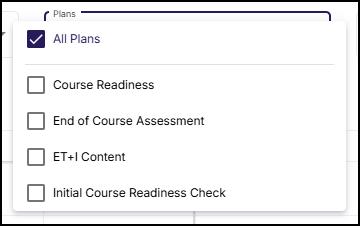
A screenshot of the expanded "Plans" filter dropdown menu within the Simple Syllabus interface. The option "All Plans" is currently selected, indicated by a checkbox with a checkmark. Below this, there is a list of unselected options with empty checkboxes, including "Course Readiness," "End of Course Assessment," "ET+I Content," and "Initial Course Readiness Check."

Select one or more courses by placing a ☑️ checkmark to the left of the Status column. Then, click the Prep Step button near the top right corner of the screen. Prep Step will display information for each course you selected.

  • If no courses are selected, Prep Step will show information for all courses. In the below example, Prep Step would show information for all 77 courses in the 2026 Winter term.
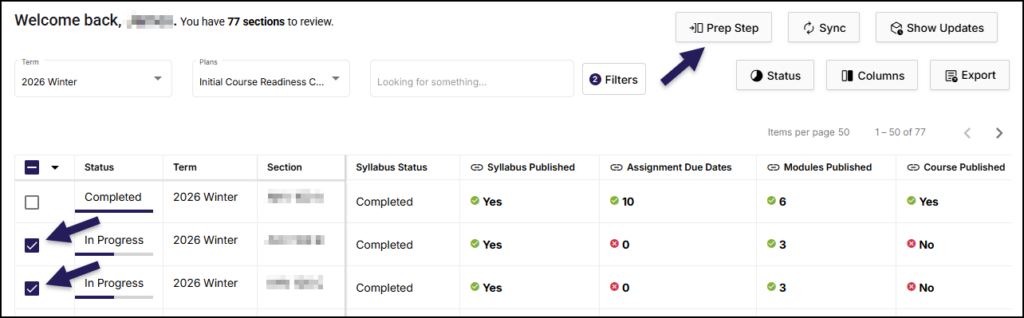
A screenshot of the Simple Syllabus dashboard highlighting the "Prep Step" feature. A purple arrow points to the "Prep Step" button located in the upper right toolbar, adjacent to the "Sync" and "Show Updates" buttons. Below the toolbar, a data table lists course sections filtered by "2026 Winter" and "Initial Course Readiness Check." Two additional purple arrows point to the selected checkboxes for two specific rows, both showing an "In Progress" status and a red "No" icon under the "Course Published" column, distinguishing them from an unselected "Completed" row above.

Prep Step Interface

The Prep Step interface has two main sections. The first section, shown below, is displayed on the left-hand side of the screen, and it includes the following:

  1. Plan Name: The name of the chosen plan. (Example: Initial Course Readiness Check)
  2. Last Updated: The date data was last updated for the selected course. Click the 🔃 Sync icon to refresh and ensure the information you’re looking for is up-to-date. Once the icon has stopped spinning and the date has refreshed to the current date, you will know the sync has completed.
  3. Due Date: This date will be filled in by the Educational Technology + Innovation (ET+I) team.
  4. LMS: Click to open the course in Canvas.
  5. Thread: Click to open a chat interface panel on the right side of the screen. This interface allows you to have a conversation between you and the instructor of the course via the Public Reply button or to write an Internal Note.
  6. Tasks: Indicates how many of the tasks assigned to the Plan Name are complete. Click on each item in the list to get more details about the task.
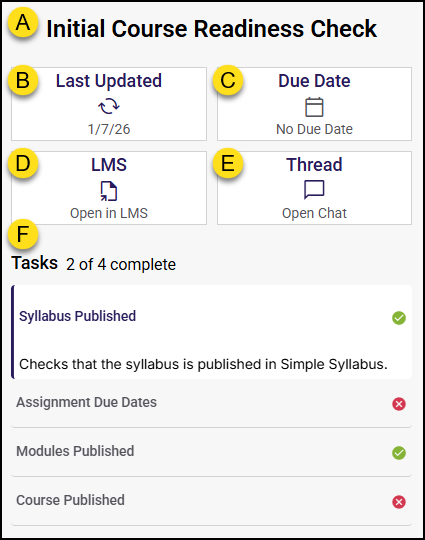
A screenshot of the "Initial Course Readiness Check" panel with sections labeled by yellow letters A through F. Letter A marks the main heading "Initial Course Readiness Check." Below are four status cards labeled B through E: B indicates "Last Updated 1/7/26," C shows "No Due Date," D provides a link to "Open in LMS," and E provides a link to "Open Chat." Letter F highlights the "Tasks" list showing "2 of 4 complete," where "Syllabus Published" and "Modules Published" are marked complete with green checkmarks, while "Assignment Due Dates" and "Course Published" are marked incomplete with red "X" icons.

The second section of Prep Step displays immediately to the right of the section described above. The term name and the course number (Example: 2026 Winter AHV 100 B) will display at the top of this section. If you selected two or more courses to view, arrow icons (< and >) will appear next to the name so you can move from course to course.

This section contains ten (10) tabs of information:

Announcements

The Announcements tab displays the Total count and Total published announcements in the selected course. Below these numbers, click on an individual announcement to expand and view the details.
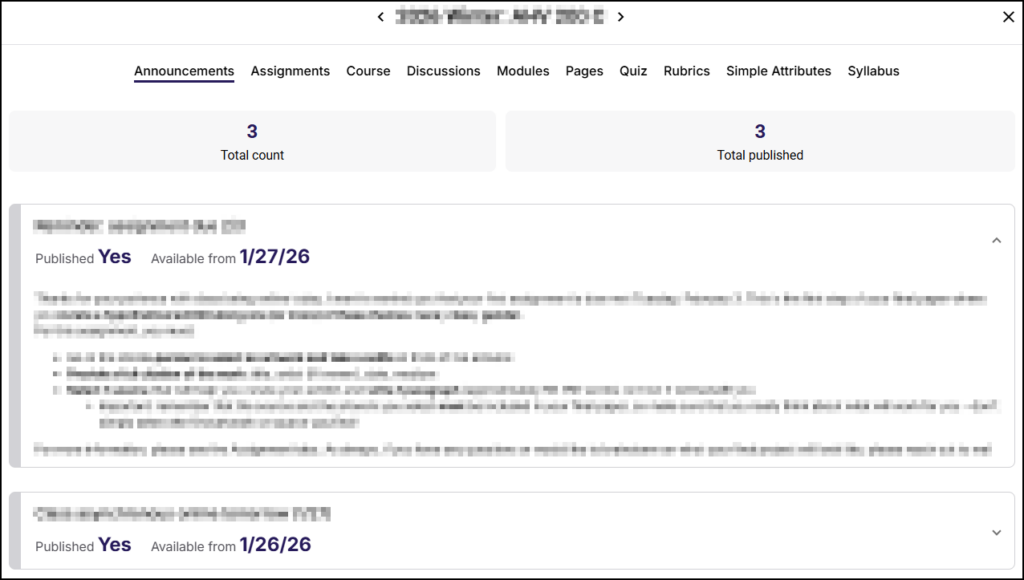
A screenshot of the "Announcements" tab within the Simple Syllabus Prep Step interface. The top navigation bar highlights "Announcements" alongside other tabs like Assignments, Course, and Discussions. Below the header, two summary cards display "3 Total count" and "3 Total published". The main content area lists announcements; the first item is expanded, showing a "Published Yes" status, an "Available from 1/27/26" date, and the body content of the announcement, while a second collapsed item below shows "Published Yes" with an availability date of "1/26/26".
Assignments

The Assignments tab displays the Total count, Total published, Total Points, and Average Points for all assignments in the selected course. Below these numbers, click on an individual assignment name to expand and view the details.
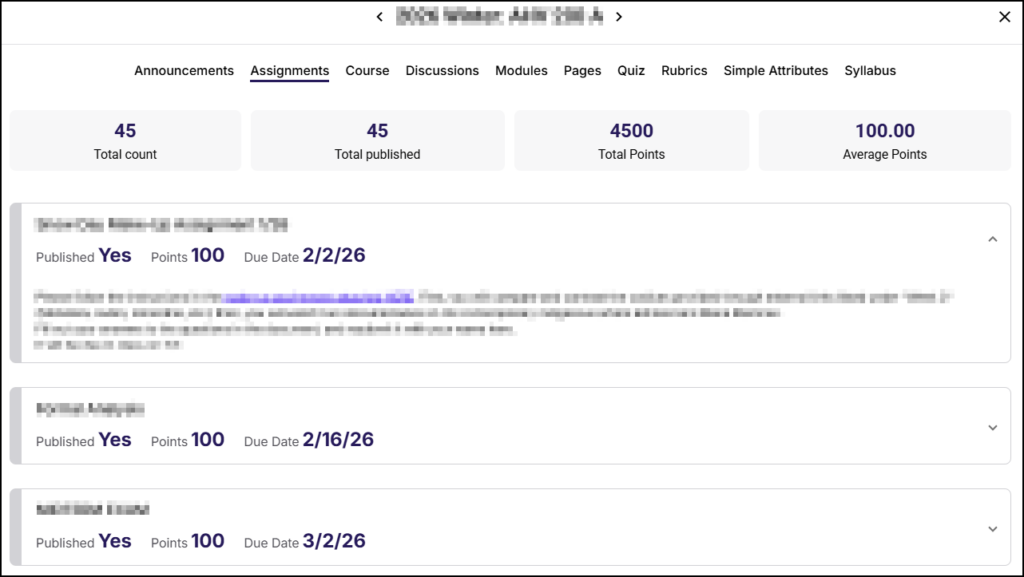
A screenshot of the "Assignments" tab within the Simple Syllabus Prep Step interface. The "Assignments" tab is highlighted in the top navigation bar among other course sections. Below the navigation, four summary statistics cards are displayed: "45 Total count," "45 Total published," "4500 Total Points," and "100.00 Average Points". A list of assignments follows underneath. The first assignment item is expanded, showing a blurred title, details reading "Published Yes," "Points 100," "Due Date 2/2/26," and a blurred description containing a link. Below it are two collapsed assignment items, both showing "Published Yes" and "Points 100," with due dates of "2/16/26" and "3/2/26" respectively.
Course

The Course tab displays general information about the selected course: Is published, Start date, End date, Student count, Most recent enrollment, Is cross-listed, and Has instructor assigned.

A screenshot of the "Course" tab within the Simple Syllabus Prep Step interface. The "Course" tab is selected from a horizontal list of navigation links including "Announcements," "Assignments," "Discussions," "Modules," "Pages," "Quiz," "Rubrics," "Simple Attributes," and "Syllabus". Below the tabs, six summary cards display key course information: "Yes" for "Is published," "Never" for "Start date," "Never" for "End date," "16" for "Student count," "1/20/26" for "Most recent enrollment," "No" for "Is cross-listed," and "Yes" for "Has instructor assigned".
Discussions

The Discussions tab displays the Total count, Total published, and Total points for the selected course. Below these numbers, click on an individual discussion topic name to expand and view the details.
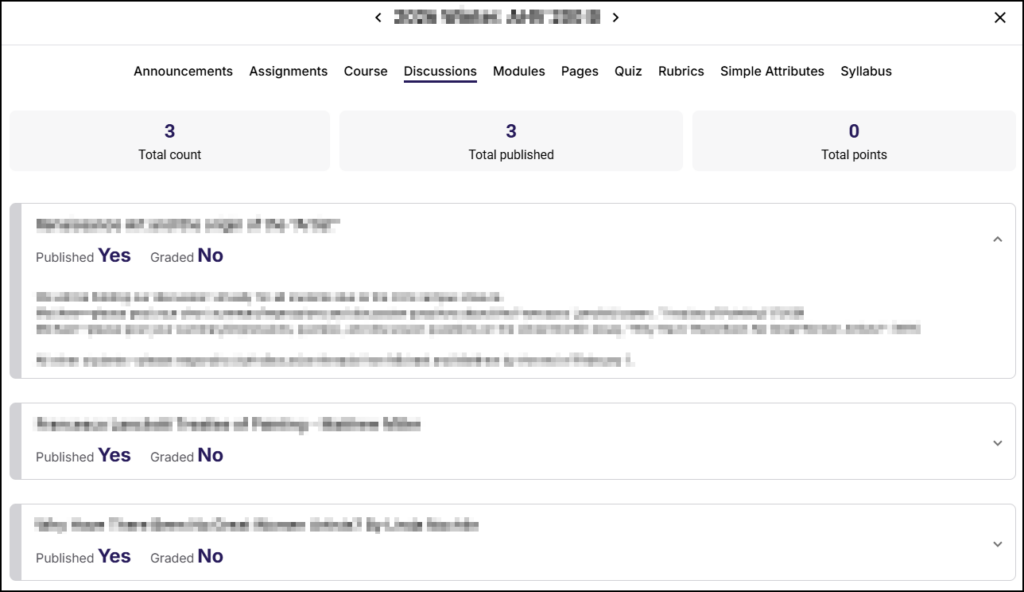
A screenshot of the "Discussions" tab within the Simple Syllabus Prep Step interface. The "Discussions" link is active in the top navigation menu. Three summary cards at the top display "3 Total count," "3 Total published," and "0 Total points". Below the summary, a list of discussion items is shown; the first item is expanded with a blurred title, status indicators reading "Published Yes" and "Graded No," and blurred body text, while two subsequent collapsed items also display "Published Yes" and "Graded No".
Modules

The Modules tab displays the Total count and Total published modules in the selected course. Below these numbers, click on an individual module to expand and view the details. Each content item (Page, Discussion, Quiz, Assignment) is listed as a separate bullet point with a link to it in Canvas.
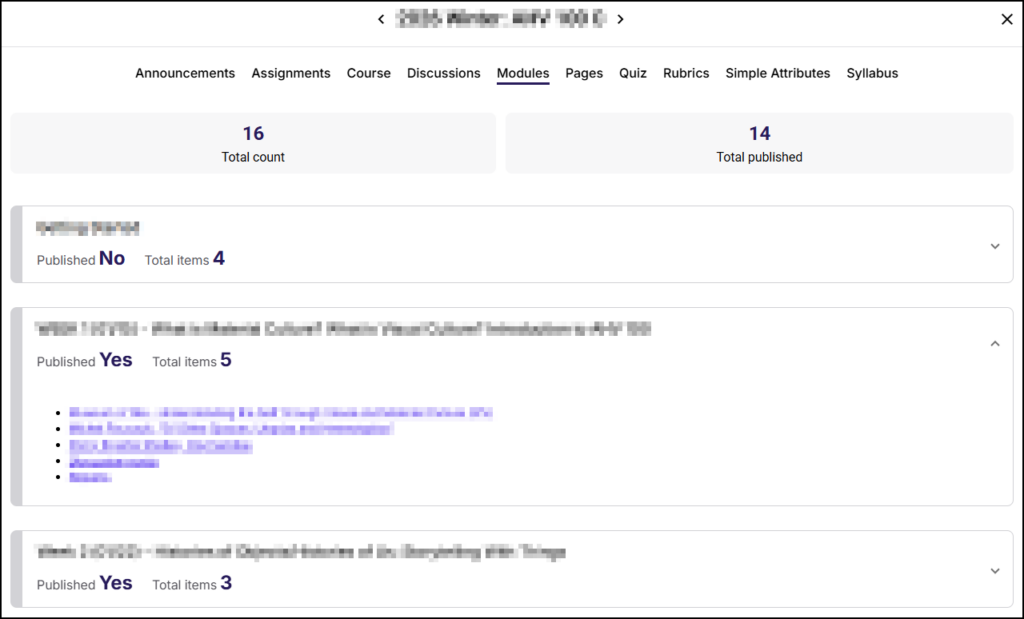
A screenshot of the "Modules" tab within the Simple Syllabus Prep Step interface, where the "Modules" link is active in the top navigation bar. Above the content list, two summary cards indicate "16 Total count" and "14 Total published". Below these cards is a list of module items: the first item is collapsed, showing a blurred title with status "Published No" and "Total items 4"; the second item is expanded, showing a blurred title with status "Published Yes," "Total items 5," followed by a bulleted list of five blurred content items; the third item is collapsed, showing a blurred title with status "Published Yes" and "Total items 3".
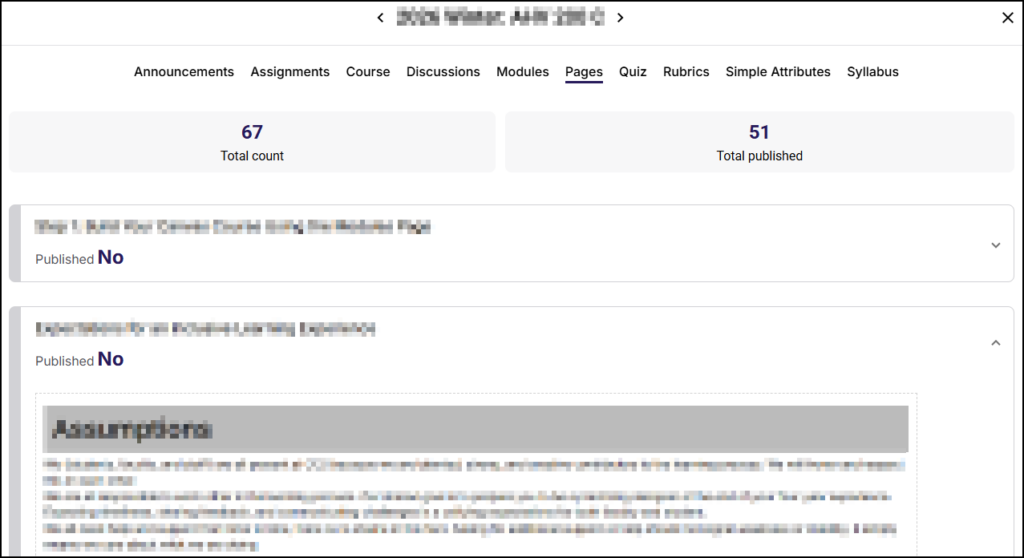
Pages

The Pages tab displays the Total count and Total published pages in the selected course. Below these numbers, click on an individual page to expand and view the details.
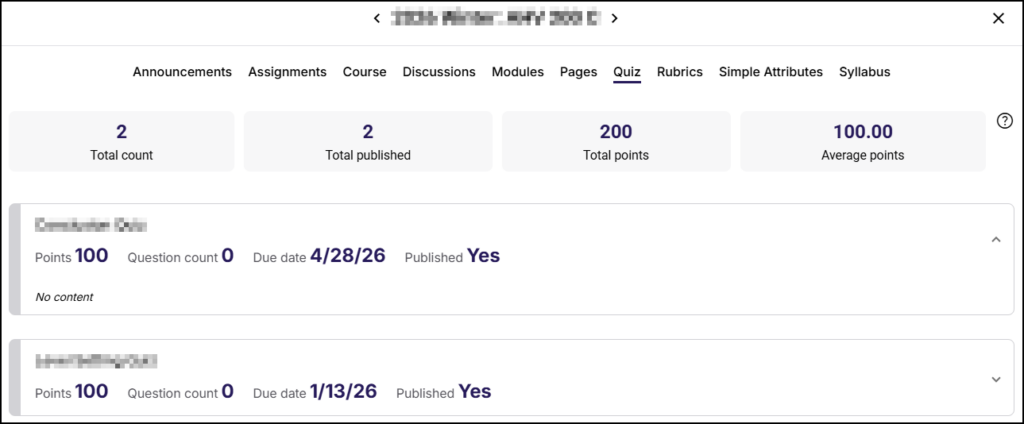
Quiz

The Quiz tab displays the Total count, Total published, Total points, and Average points for all quizzes in the selected course. Below these numbers, click on an individual quiz name to expand and view the details.

  • New Quizzes will display No content.
A screenshot of the "Quiz" tab within the Simple Syllabus Prep Step interface, where the "Quiz" link is active in the top navigation bar. Below the navigation, four summary statistics cards are displayed: "2 Total count," "2 Total published," "200 Total points," and "100.00 Average points". A list of quiz items follows underneath; the first item is expanded, showing a blurred title, details reading "Points 100," "Question count 0," "Due date 4/28/26," "Published Yes," and the body text "No content". Below it is a second, collapsed quiz item showing a blurred title with details "Points 100," "Question count 0," "Due date 1/13/26," and "Published Yes".
Rubrics

The Rubrics tab displays the Total count, Total criteria, and Total points for all rubrics in the selected course. Below these numbers, click on an individual rubric name to expand and view the details.
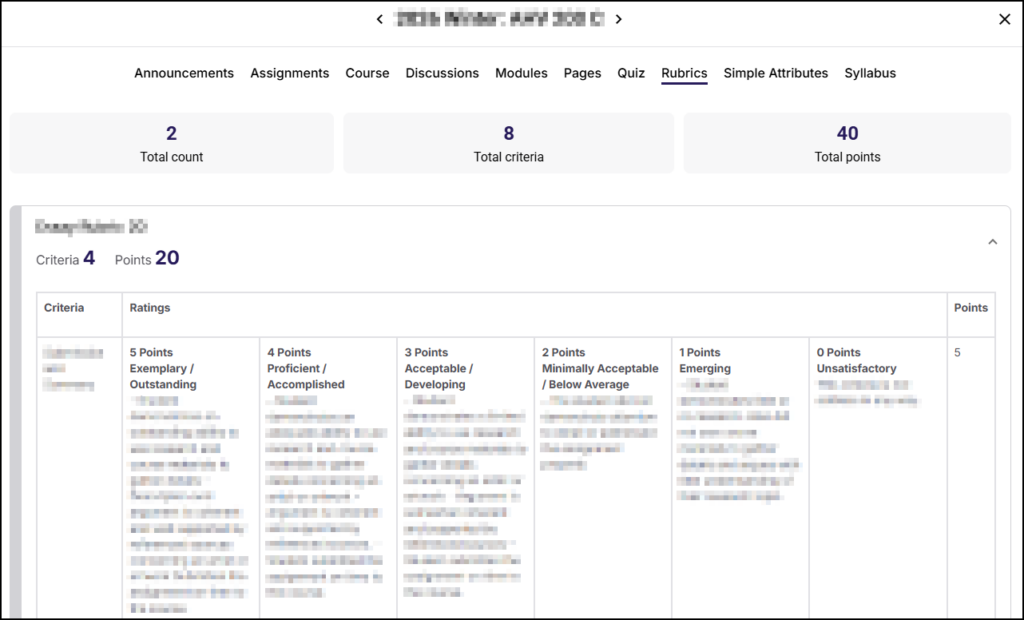
A screenshot of the "Rubrics" tab within the Simple Syllabus Prep Step interface. The "Rubrics" link is highlighted in the top navigation bar. Three summary cards display statistics: "2 Total count," "8 Total criteria," and "40 Total points". Below, a rubric item is expanded, displaying the details "Criteria 4" and "Points 20". The item contains a detailed rubric grid with columns for "Criteria," "Ratings," and "Points," where the "Ratings" section lists proficiency levels ranging from "5 Points Exemplary / Outstanding" down to "0 Points Unsatisfactory".
Simple Attributes

The Simple Attributes tab displays a table of attributes about the selected course. Data in this table includes (but is not limited to): Term, Subject, Course Number, Title, course description, CLOs (Course Learning Outcomes), and class location.
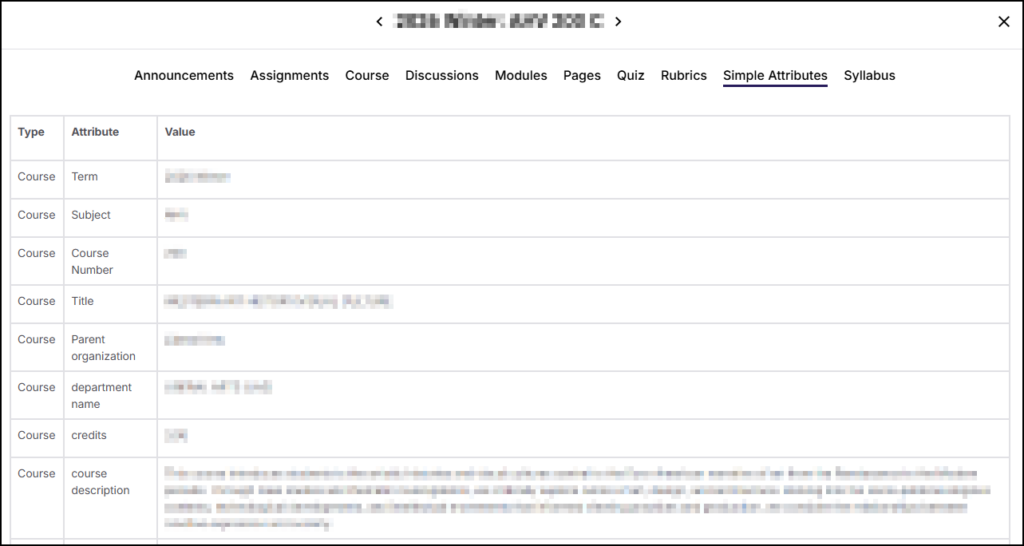
A screenshot of the "Simple Attributes" tab within the Simple Syllabus Prep Step interface. The "Simple Attributes" tab is selected in the top navigation menu. The content area displays a table with three columns labeled "Type," "Attribute," and "Value". The table lists rows for "Term," "Subject," "Course Number," "Title," "Parent organization," "department name," "credits," and "course description," but all specific data entries within the "Value" column are blurred out and illegible.
Syllabus

The Syllabus tab displays the Simple Syllabus document for the selected course.
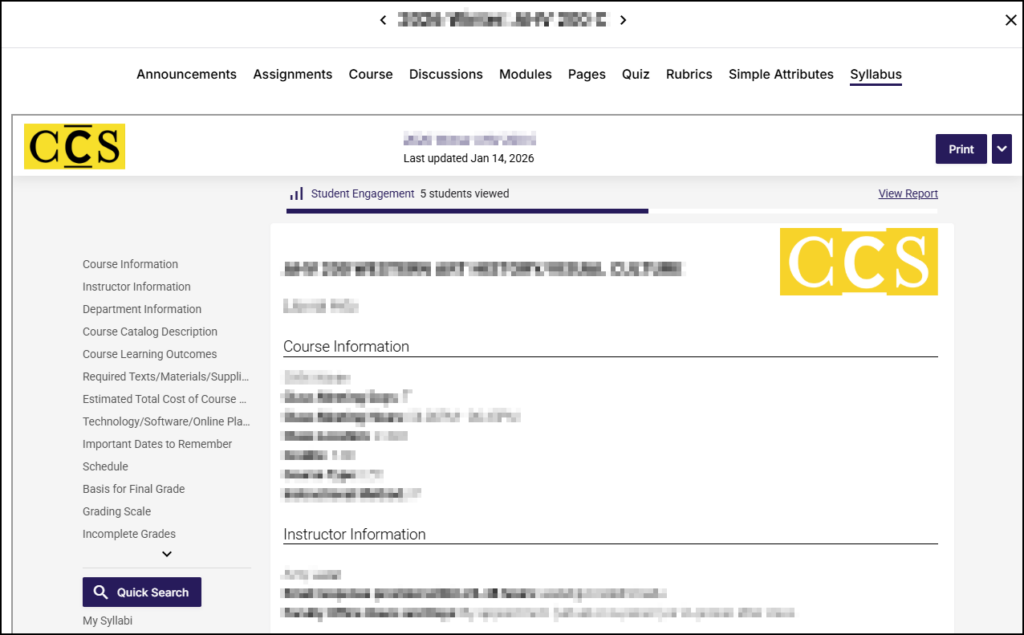
A screenshot of the "Syllabus" tab within the Simple Syllabus Prep Step interface, where the "Syllabus" link is active in the top navigation bar. The main content area displays the "CCS" logo and a "Last updated Jan 14, 2026" timestamp at the top, alongside a "Print" button. Below this is a "Student Engagement" bar showing "5 students viewed" and a "View Report" link. The left side features a navigation menu with links including "Course Information," "Instructor Information," and "Course Catalog Description," while the right side shows the syllabus content with a blurred course title, another "CCS" logo, and sections for "Course Information" and "Instructor Information" containing blurred text. A "Quick Search" button and "My Syllabi" link are located at the bottom left.