IgniteAI Question Authoring for Quizzes

help_outline

Feature Preview

IgniteAI Generator for Rubrics is currently a Feature Preview. This means there may be ongoing updates outside of the regular release schedule.

IgniteAI Question Authoring helps you generate questions and distractors for New Quizzes using your specific course content, text prompts, or uploaded files (PDF, DOCX, TXT).

Key constraints and requirements:

  • Platform: Available for New Quizzes only (not Classic Quizzes).
  • Format: Currently supports Multiple Choice questions only.
  • Review: AI can generate plausible-sounding but incorrect answers. You must review all content for accuracy.

Enabling IgniteAI Question Authoring for Quizzes

In order to utilize IgniteAI Question Authoring for Quizzes:

  1. Navigate to your Canvas course.
  2. Click on the Settings course navigation link on the bottom left-hand side of your screen.
  3. Click on the Feature Options tab at the top of the screen.
  4. Find the IgniteAI Question Authoring for Quizzes Feature Option row.
    • Optional: Click on the > icon to expand and read the descriptions.
  5. Click on the red ❌ icon, and select Enabled. A green βœ… checkmark icon will display indicating that the Feature Option has been enabled.
    • There is no Save button on this screen. Any Feature Options you enable or disable here are activated/inactivated immediately.
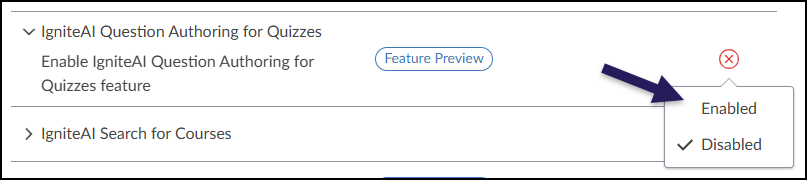
A screenshot of the Canvas Feature Options screen shows the "IgniteAI Question Authoring for Quizzes" feature. The feature is marked with a "Feature Preview" label. A dropdown menu is open, displaying two options: "Enabled" and "Disabled." Currently, the "Disabled" option has a checkmark next to it. An arrow points to the "Enabled" option, indicating the action to select it.

Creating / Editing a New Quiz

Multiple choice questions built with IgniteAI can be inserted into brand new or existing New Quizzes. Select one of the following:

Creating a New Quiz
  1. Navigate to a Canvas course.
  2. Click on the Quizzes course navigation menu item on the left-hand side of the screen.
  3. Click on the βž• Quiz/Survey button at the top right corner of the screen.
  4. From the Choose a Quiz Engine window that displays, select New Quizzes/Surveys, and then click the Submit button.
  5. Fill in the details about the quiz including Assignment Name, Quiz Type, Points, and Assign Access.
  6. Click the Build button at the bottom right corner of the screen.
Editing an Existing New Quiz
  1. Navigate to a Canvas course.
  2. Click on the Quizzes course navigation menu item on the left-hand side of the screen.
  3. Click on an existing New Quiz.
    • New Quizzes have a filled-in πŸš€ rocket ship icon to the left of the New Quiz name.
  4. Click the Build button at the bottom right corner of the screen.

Creating a Multiple Choice Question with IgniteAI

In the New Quizzes interface, click on the βž• icon to add a question to your brand new or existing quiz.
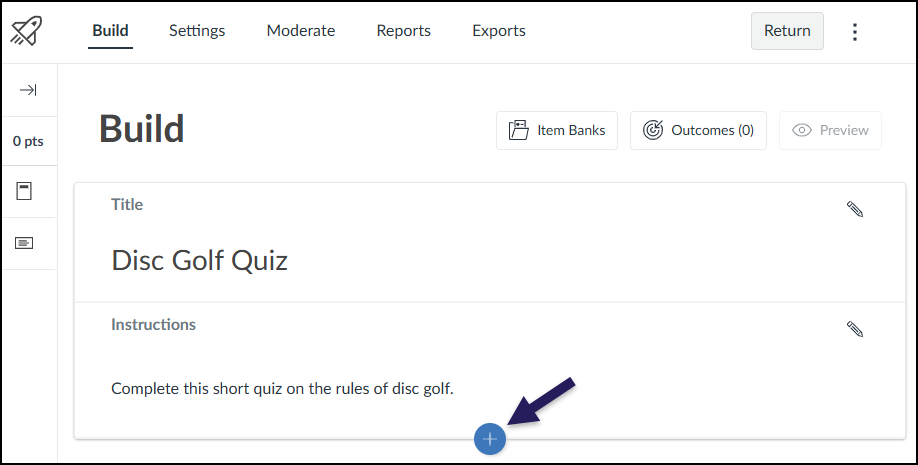
A screenshot of the New Quizzes interface in Canvas LMS shows the "Build" tab for a quiz titled "Disc Golf Quiz." The instructions read, "Complete this short quiz on the rules of disc golf." Below the instructions area, a large blue circular button with a white plus sign is highlighted by a dark purple arrow pointing to it. This button is used to add a new question to the quiz.

In the Insert Content window that displays, rather than selecting the βž• Multiple Choice button, instead select ✨ Generate with AI.
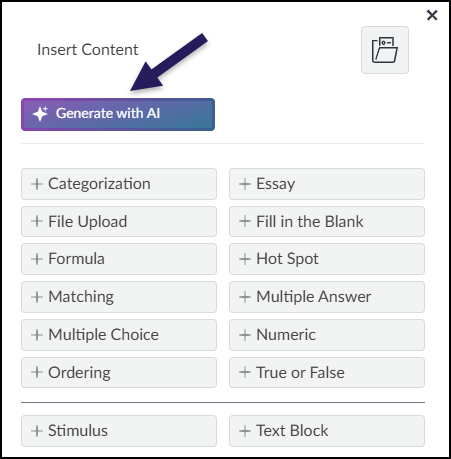
The "Insert Content" menu within the Canvas New Quizzes interface displays a grid of options for adding different question types, such as Categorization, File Upload, and Multiple Choice. At the top of the list, a button labeled "Generate with AI" features a purple gradient background and a white sparkle icon. A dark purple arrow points directly to this button, highlighting the option to use artificial intelligence for creating quiz questions.

The ✨ Question Authoring window displays. In order for IgniteAI to generate a multiple choice question, it needs content / source material. Add at least one Source Material to achieve optimal quality.

  1. Course Content: Select from existing content pages and files in your course.
  2. Text: Paste text (20,000 character limit) to generate questions from it.
  3. File Upload: Upload a PDF, DOCX, or TXT file that you’ve saved “offline”.
  4. Topic Focus (Optional): Describe what the question should focus on.
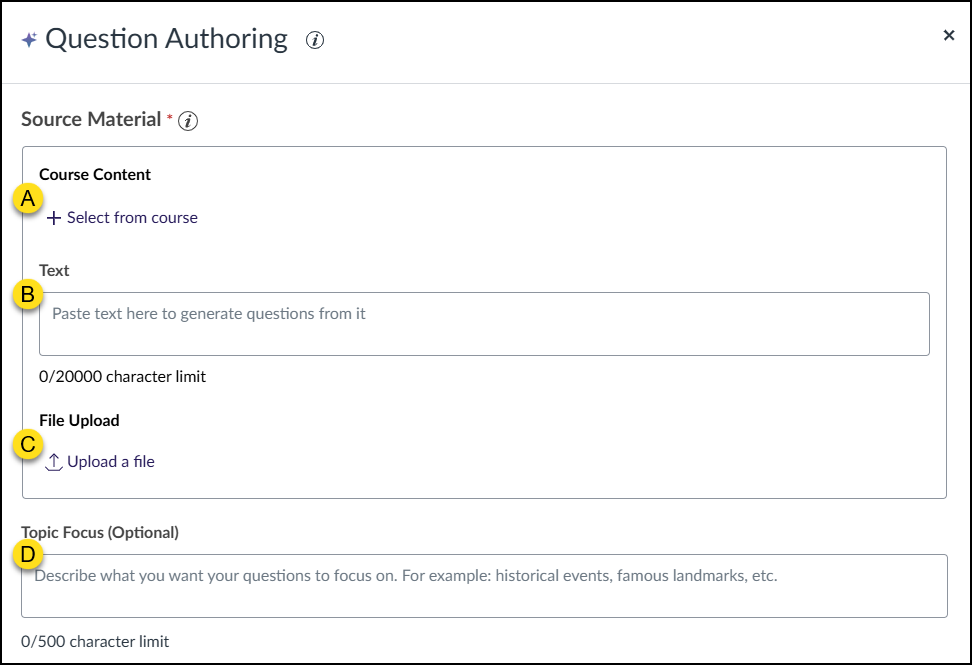
A screenshot of the "Question Authoring" window within the Canvas LMS shows options for generating questions using IgniteAI. Under the "Source Material" section, there are three choices: A, "Course Content" with a link to "Select from course"; B, "Text" with a text field to paste text and a 20,000 character limit; and C, "File Upload" with a link to "Upload a file". Below this, the "Topic Focus (Optional)" section, labeled D, contains a text field to describe the desired focus of the questions, with a 500 character limit.

Additional options are available to further help generate a multiple choice question for the New Quiz.

  1. More options
    • Learning Outcomes: If you had used the Canvas Outcomes tool to create any outcomes in your course, those would be listed here.
      • NOTE: Course Learning Outcomes (CLOs) displayed on your Simple Syllabus document are not included here.
    • Depth of Knowledge: Select from Recall and Reproduction, Skills and Concepts, Strategic Thinking, or Extended Thinking.
    • Bloom’s Taxonomy: Select from None, Knowledge, Comprehension, Application, Analysis, Evaluation, or Synthesis.
    • Language: Select the desired language.
  2. Question Type: Select Multiple Choice (the only option available at this time).
  3. Number of Questions: Set the number of question (Maximum: 5).
  4. Point Value: Set the point value of each question.
  5. ✨ Generate Questions: Click this button to allow IgniteAI to generate Multiple Choice questions based on the information you have provided.
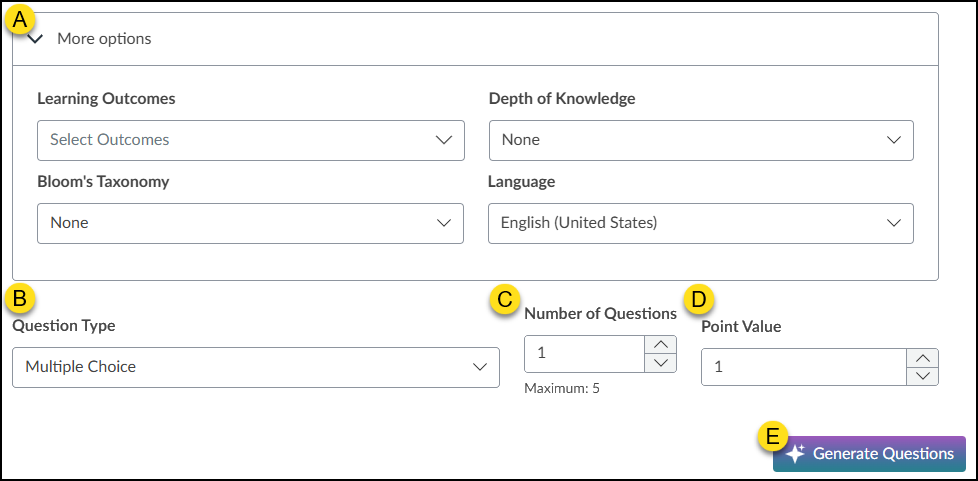
A screenshot shows the "More options" section of the IgniteAI Question Authoring tool, labeled A, which includes dropdown menus for Learning Outcomes, Depth of Knowledge, Bloom's Taxonomy, and Language. Below this, section B allows the user to select the "Question Type," currently set to "Multiple Choice." Section C provides a field to specify the "Number of Questions," set to 1, while section D sets the "Point Value," also at 1. Finally, section E highlights the "Generate Questions" button at the bottom right, which features a purple gradient background and a sparkle icon.

Select from course

After clicking on the Select from course link, place a checkmark next to one or more content pages or files. Multiple pages can be selected at once. Files are limited to one at a time. Modules (and their included content pages) are listed first, then files, then other content pages not used in modules.
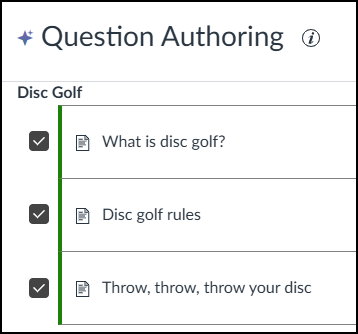
The "Question Authoring" window presents a list of available course content under the heading "Disc Golf." Three specific items are currently selected, indicated by checked boxes next to their titles: "What is disc golf?", "Disc golf rules", and "Throw, throw, throw your disc." A green vertical bar along the left side visually highlights these selected items.

Generated Question Preview

Once you have provided IgniteAI with content about your topic, click the ✨ Generate Questions button. After a short time, a Generated Questions Preview window will display on the screen.

  1. ✨ IgniteAI Icon: This icon indicates the question was generated using IgniteAI.
  2. πŸ—‘οΈ Delete: Remove a question from your quiz.
  3. Regenerate: Let IgniteAI regenerate quiz questions based on content you provide. This link takes you back to the Question Authoring window.
  4. ✏️ Edit & Review: Review each question one-by-one, and make any necessary revisions.
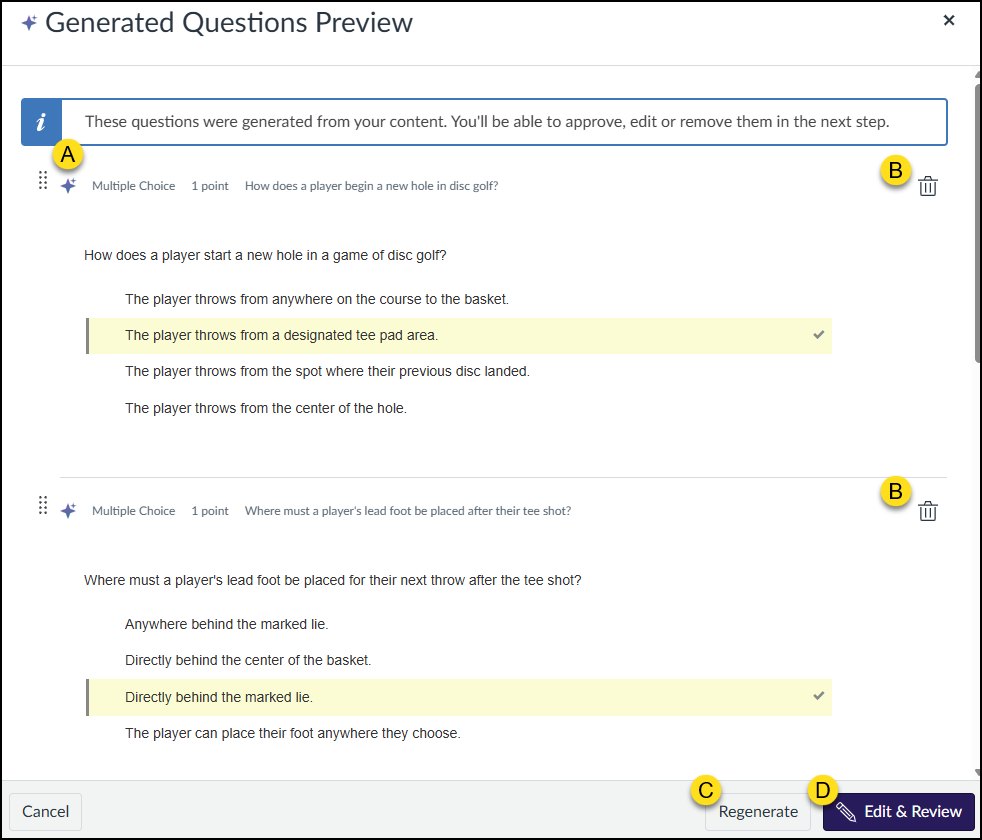
The "Generated Questions Preview" window displays a list of multiple-choice questions created by IgniteAI. Label A points to the purple sparkle icon next to the text "Multiple Choice," indicating the question was AI-generated. Label B highlights the trash can icon located on the far right of each question card, which allows the user to delete that specific question. At the bottom right of the window, Label C marks the "Regenerate" link, and Label D points to the "Edit & Review" button.

Within the Review question window, the following areas are editable:

  1. Title: Edit the title of question.
  2. Compose question: Edit the body of the question.
  3. Move: Re-order (drag and drop) answer choices up/down.
  4. Answer choice text box: Edit the text of answer choices.
  5. πŸ—‘οΈ Delete: Remove an answer choice from the question.
  6. βž• ADD: Add an additional answer choice to the quetion.
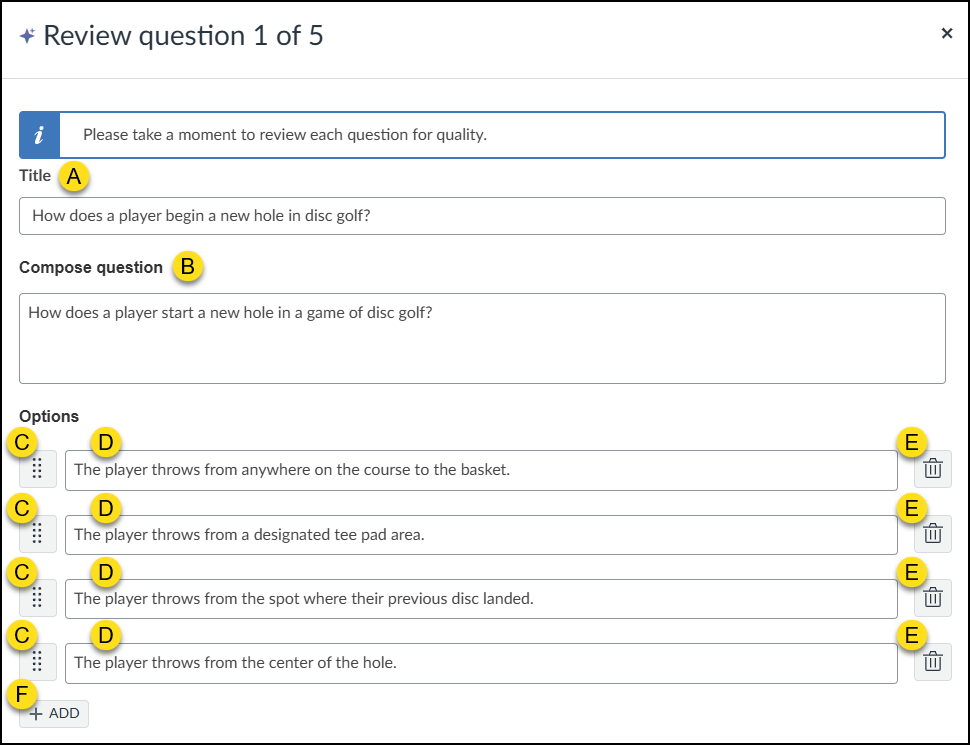
This screenshot displays the IgniteAI Question Authoring modal titled "Review question 1 of 5" with yellow lettered labels indicating specific interface elements. Label A points to the "Title" field, which reads "How does a player begin a new hole in disc golf?". Label B highlights the "Compose question" field containing "How does a player start a new hole in a game of disc golf?". In the "Options" section, Label C marks the drag-and-drop handles on the left of each row, Label D indicates the answer text inputs, and Label E points to the trash can delete icons on the right. The visible answer options are: "The player throws from anywhere on the course to the basket," "The player throws from a designated tee pad area," "The player throws from the spot where their previous disc landed," and "The player throws from the center of the hole." Finally, Label F points to the "+ ADD" button at the bottom left.

As you make any edits to items C, D, E, and/or F (above), the information displayed below will update in real-time. This is also where the correct answer can be changed.

Use the < Previous, Discard & Next, or > Save & Next buttons to move back and forth between questions.
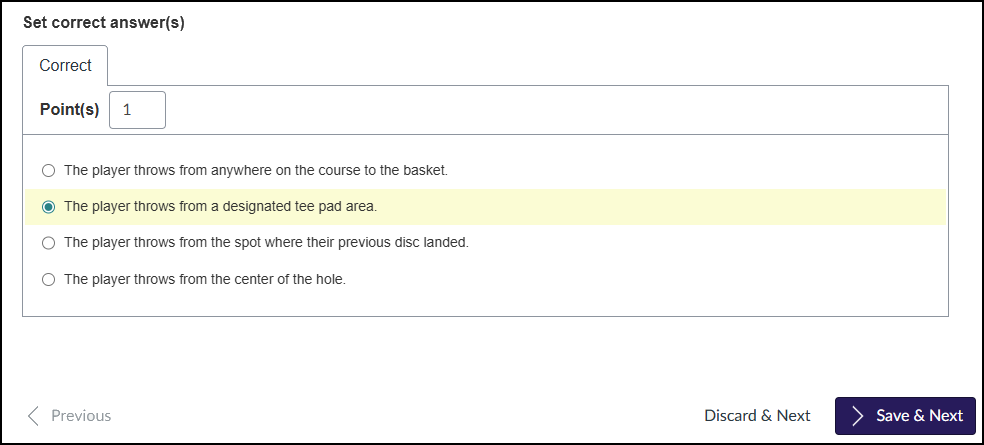
This screenshot shows the "Set correct answer(s)" screen in the Canvas LMS quiz authoring interface. Under the "Correct" tab, the "Point(s)" value is set to "1". Below this, a list of radio buttons presents the potential answers for the question. The option "The player throws from a designated tee pad area." is selected as the correct answer and is highlighted in yellow. The other options are "The player throws from anywhere on the course to the basket," "The player throws from the spot where their previous disc landed," and "The player throws from the center of the hole." At the bottom of the screen are navigation buttons: "Previous" on the left, and "Discard & Next" and a purple "Save & Next" button on the right.

After all questions have been reviewed, click the Add to Quiz button.
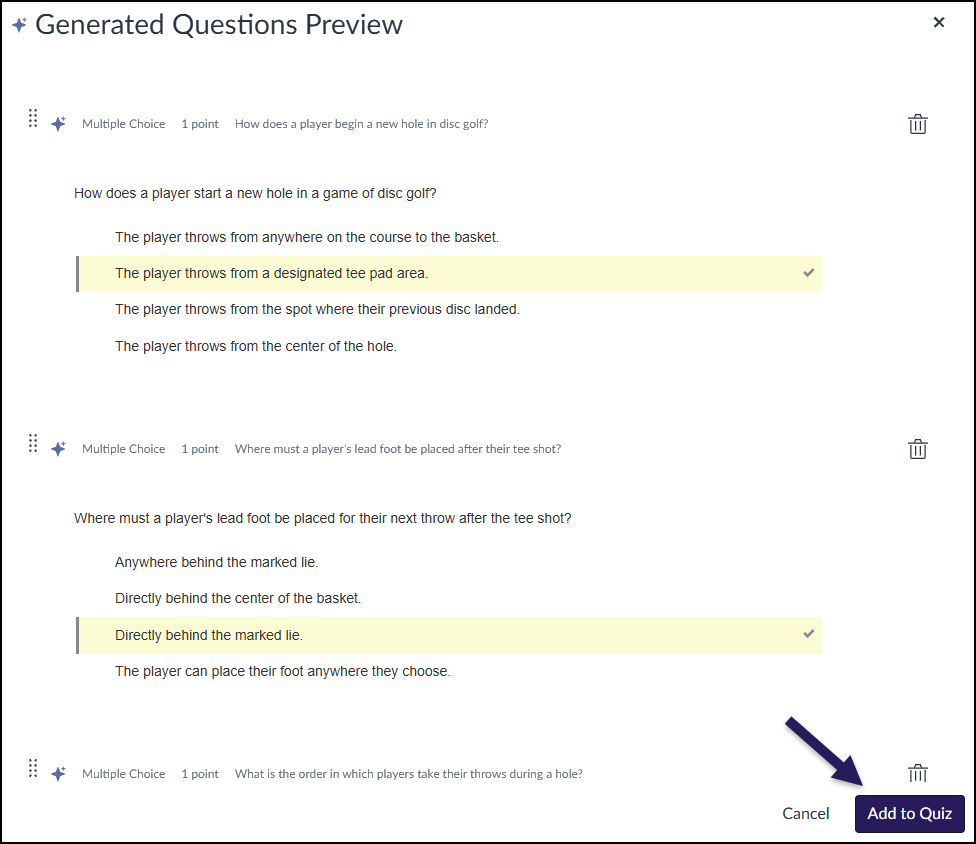
This screenshot shows the "Generated Questions Preview" modal window in the Canvas LMS. A list of generated multiple-choice questions is displayed, with the first two fully visible. The questions ask about starting a new hole in disc golf and foot placement after a tee shot. The correct answer for each questionβ€”"The player throws from a designated tee pad area" and "Directly behind the marked lie"β€”is highlighted in a yellow box with a checkmark on the right. Each question block has a trash can icon in the top right corner. At the bottom right of the window, a large, added dark purple arrow points specifically to the "Add to Quiz" button, which is located next to a "Cancel" link.

Questions with the ✨ spark icon indicate they were generated with IgniteAI. Students will not see this icon when taking the quiz in your course.
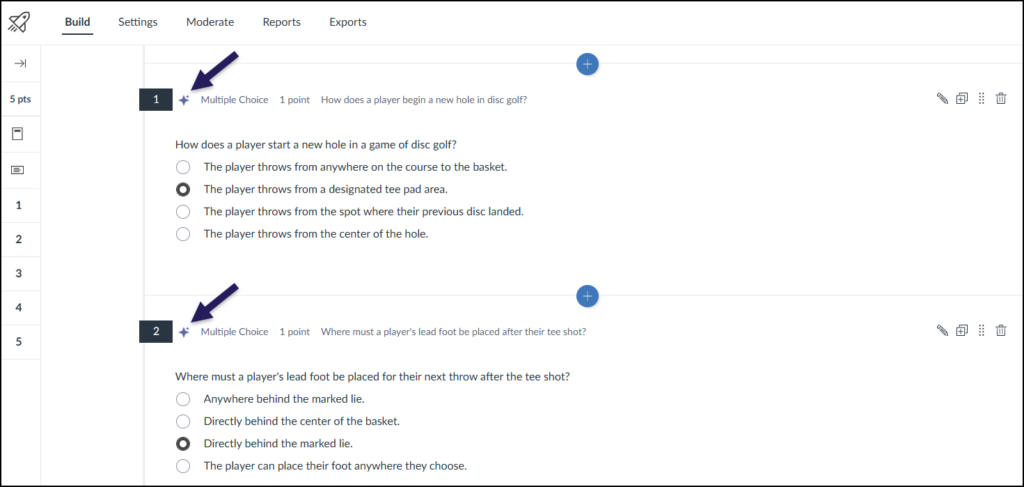
This screenshot displays the "Build" tab of a quiz in the Canvas LMS, showing a list of questions. Two multiple-choice questions are fully visible, numbered 1 and 2. A small, dark blue star or spark icon, indicated by a dark purple arrow, appears next to the "Multiple Choice" label for both questions, signifying that they were generated using the IgniteAI tool. Question 1 is titled "How does a player begin a new hole in disc golf?" and is worth 1 point. The question body asks, "How does a player start a new hole in a game of disc golf?" with four answer options below. The correct answer, "The player throws from a designated tee pad area," is selected with a filled radio button. Question 2 is titled "Where must a player's lead foot be placed after their tee shot?" and is also worth 1 point. Its question body reads, "Where must a player's lead foot be placed for their next throw after the tee shot?" with four answer options. The correct answer, "Directly behind the marked lie," is selected. Both question blocks have edit, duplicate, and delete icons on the far right. The left navigation pane lists numbers 1 through 5, corresponding to the questions.

Additional Resources