Feature Preview
IgniteAI Generator for Rubrics is currently a Feature Preview. This means there may be ongoing updates outside of the regular release schedule.
The IgniteAI Generator for Rubrics allows instructors to generate criteria for a rubric that you can be used as a starting point. Criteria generated from IgniteAI can be edited to fit the needs of the rubric and the assignment.
- Enabling IgniteAI Generator for Rubrics
- Using IgniteAI Generator for Rubrics
- Editing a Criterion Created by IgniteAI
- Saving the Rubric
- Additional Resources
Enabling IgniteAI Generator for Rubrics
In order to utilize IgniteAI Generator for Rubrics, two Feature Options need to be enabled within your Canvas course(s):
- Navigate to your Canvas course.
- Click on the Settings course navigation link on the bottom left-hand side of your screen.
- Click on the Feature Options tab at the top of the screen.
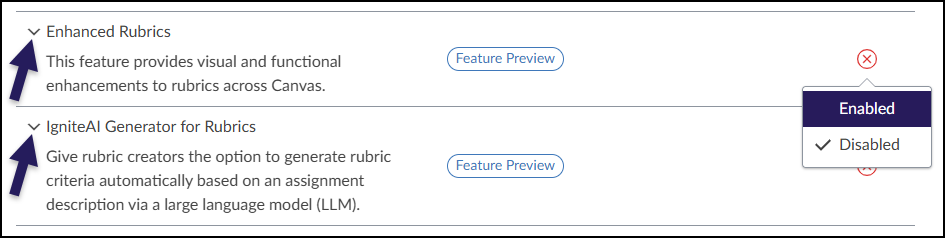
- Find the Enhanced Rubrics and IgniteAI Generator for Rubrics Feature Options rows.
- Optional: Click on the > icon to expand and read the descriptions.
- Click on the red ❌ icon, and select Enabled for both Feature Options. A green ✅ checkmark icon will display indicating that the Feature Option has been enabled.
- There is no Save button on this screen. Any Feature Options you enable or disable here are activated/inactivated immediately.
Using IgniteAI Generator for Rubrics
Although rubrics are stored on the Rubrics page of your Canvas course, IgniteAI Generator for Rubrics is used in conjunction with the Canvas Assignments page.
Create an assignment in your Canvas course following one of these Canvas guides:
- How do I create an assignment?
- How do I create an assignment shell in an assignment group?
- How do I create an online assignment?
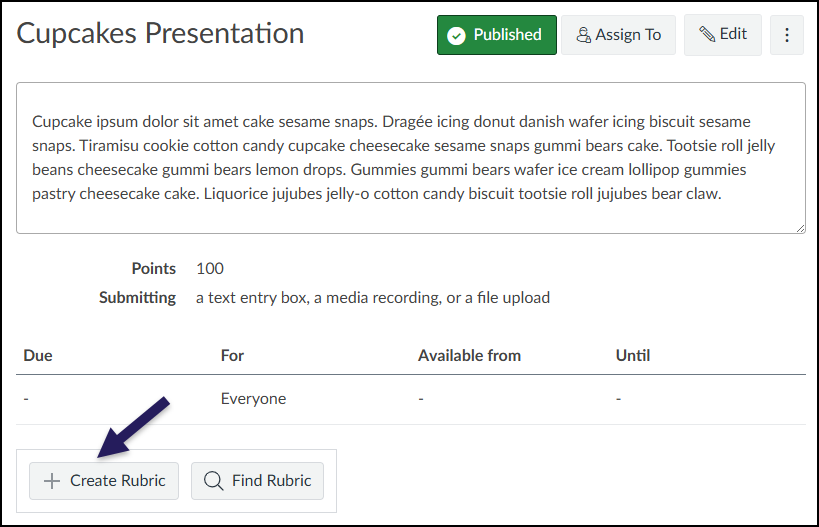
Click on the ➕ Create Rubric button at the bottom of the assignment.
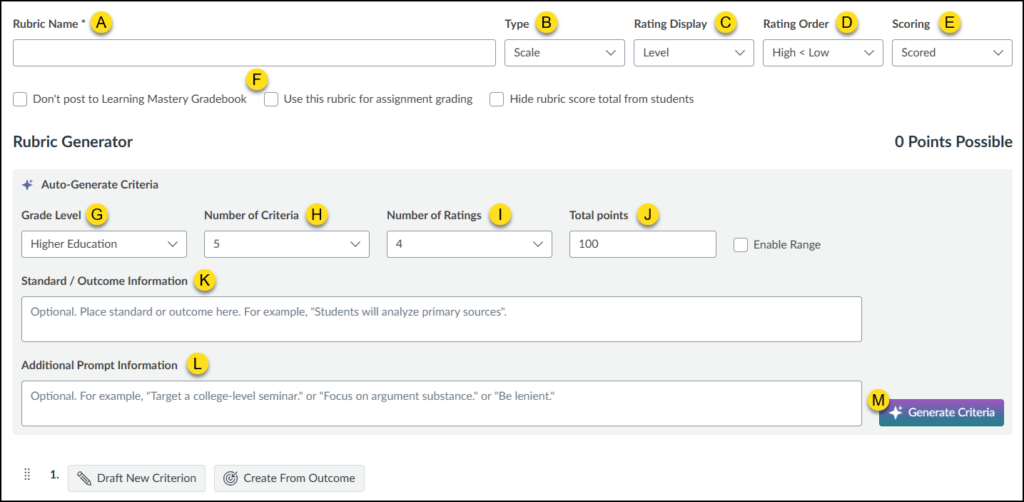
The Create Rubric interface with the IgniteAI Generator for Rubrics displays on the screen.
- Rubric Name (Required): Enter a name for the rubric.
- Type: Select from Scale or Written Feedback.
- Rating Display: Select from Level or Points.
- Rating Order: Select from High < Low or Low < High.
- Scoring: Select from Scored or Unscored.
- Use this rubric for assignment grading: Select this checkbox to ensure the rubric is used during grading.
- Grade Level: Select from Kindergarten through Higher Education.
- Number of Criteria: Select from 2-8.
- Number of Ratings: Select from 2-8.
- Total points: Enter total number of points for the rubric.
- Standard / Outcome Information: Enter standards / outcomes in this text box.
- Additional Prompt Information: Enter additional details as necessary.
- ✨ Generate Criteria: Click this button to have IgniteAI generate criteria for your rubric.
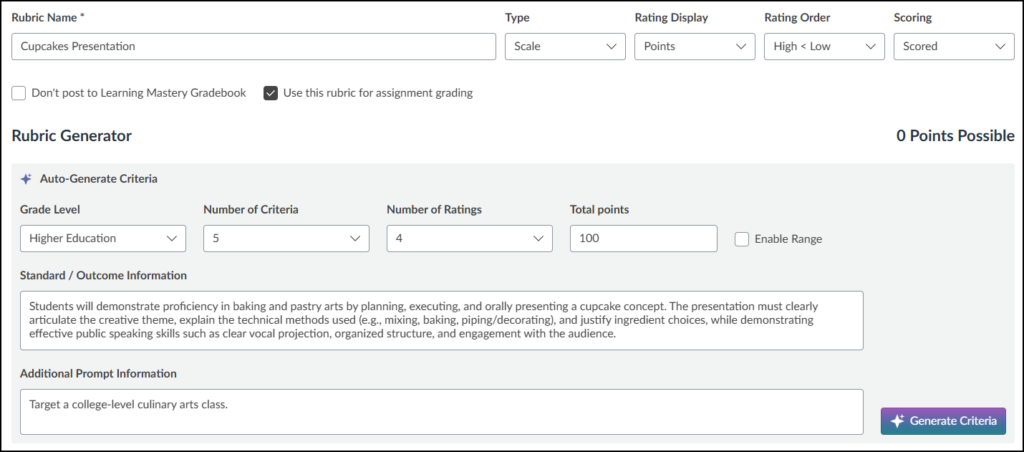
In the following example, a rubric for the Cupcakes Presentation assignment will be generated using IgniteAI.
After clicking on the Generate Criteria button, IgniteAI will begin to generate criteria for your rubric based on the options you selected. An example of a single criterion generated by IgniteAI is shown below:
- Give Feedback: A link to provide feedback about the IgniteAI tool.
- ✨ Regenerate: Refine the overall rubric generated by IgniteAI.
- Move (eight dot drag handle): Move a criterion up/down in the list.
- ✨ IgniteAI icon: Indicates the criterion has been generated by IgniteAI.
- ✏️ Edit: Edit all details of the criterion.
- 🗑️ Delete: Delete the criterion from the rubric.
- Duplicate: Make a copy of the criterion.
- ✨ Regenerate: Refine the specific criterion generated by IgniteAI.
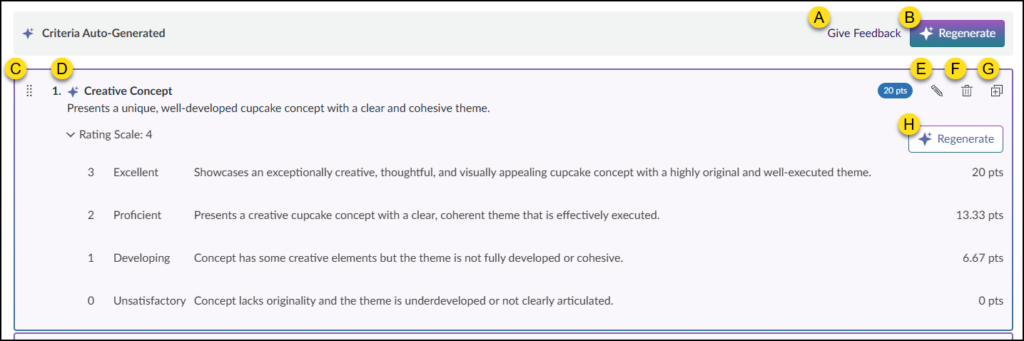
Depending on which Regenerate button (B) or (H) is selected, the Regenerate Criteria / Regenerate Criterion window will display on the screen.
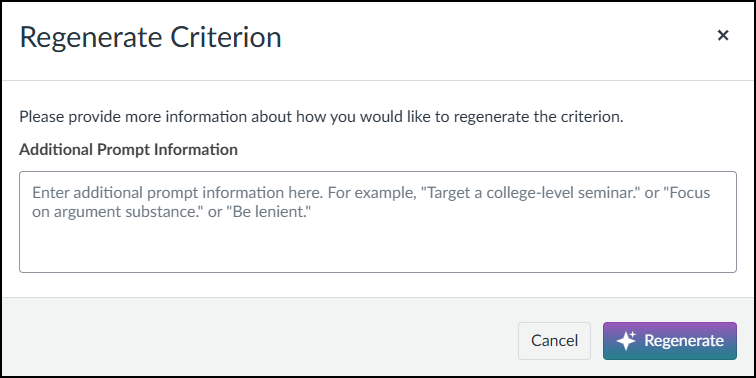
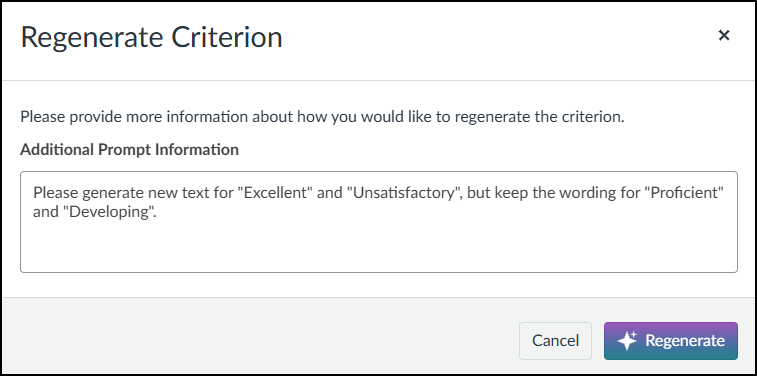
In the Additional Prompt Information textbox, enter additional information to refine the criteria or criterion.
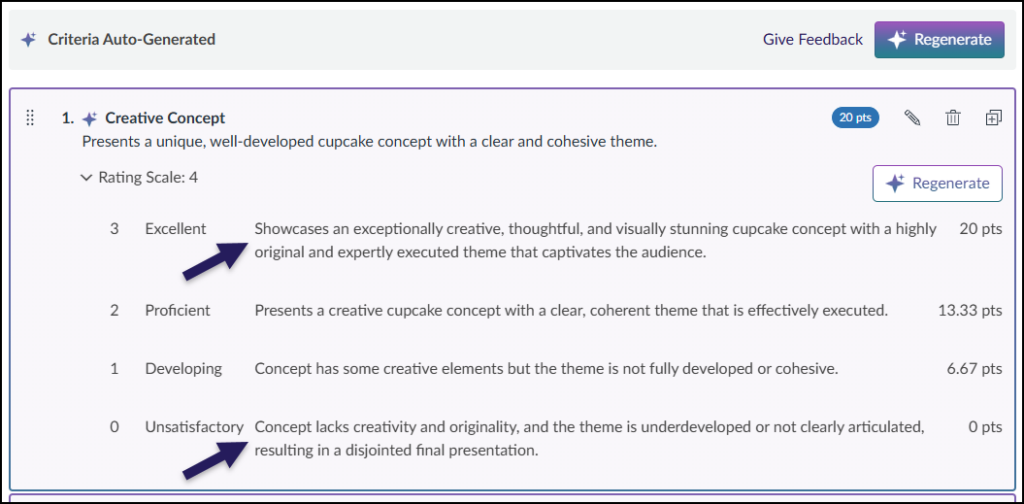
In the below example, the instructor asked IgniteAI to generate two new descriptions for Excellent and Unsatisfactory and not make edits to the descriptions for Proficient and Developing.
After clicking on the ✨ Regenerate button, IgniteAI will evaluate the additional information provided and display the results. In the below example, the descriptions for Excellent and Unsatisfactory were regenerated by IgniteAI.
Editing a Criterion Created by IgniteAI
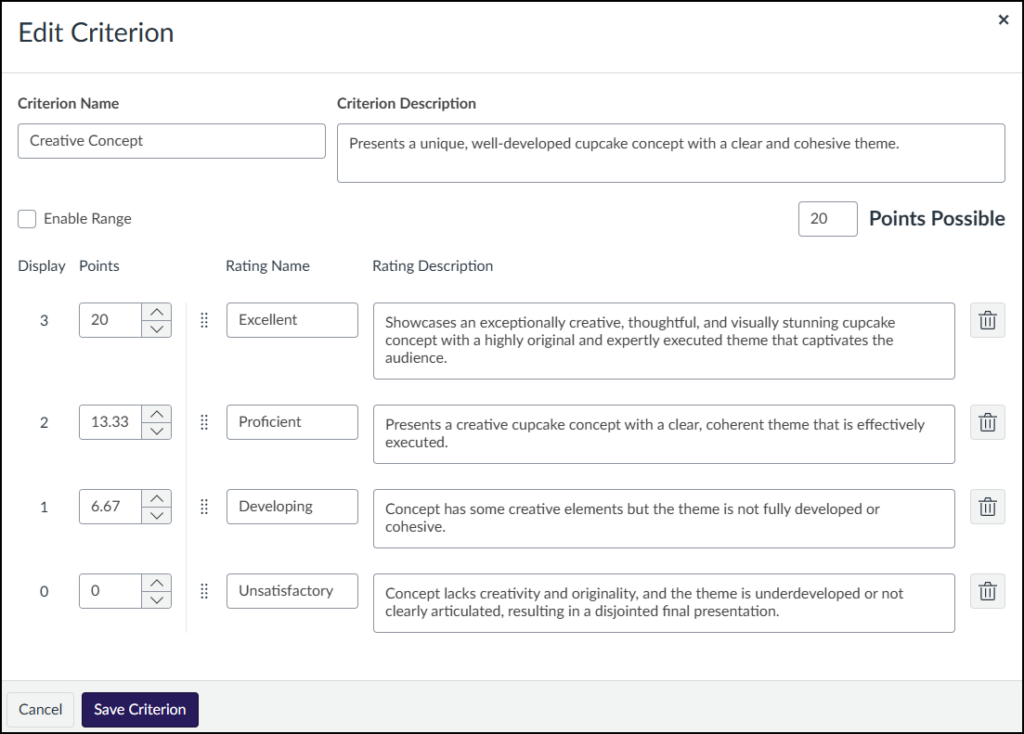
Edit any criterion that was generated by IgniteAI by clicking on the ✏️ Edit icon.
The Edit Criterion window will display on the screen. Make any modifications to the criterion that was generated by IgniteAI, and click on the Save Criterion button at the bottom of the screen.
Saving the Rubric
When you are satisfied with all details of the rubric (name, points, rating scales, etc.), click on the Create Rubric button at the bottom of the screen.
Canvas will attach the rubric to the assignment in your course.