Searching for Specific Content in Canvas Courses

Have you ever needed to quickly search your entire course for specific content or keywords? Have you ever needed to replace old terminology with new terminology that exists throughout your course? Instructors can search their entire Canvas course(s) for specific content via the Course Search tool within the DesignPLUS Sidebar. The Course Search tool returns results based on keywords you provide. Instructors can also use the Replace with option to search and replace text throughout the course (instructors have the opportunity to review each instance before replacing).

Accessing the Course Search Tool in the DesignPLUS Sidebar

The Course Search tool can only be accessed via your Canvas course Settings screen.

  1. Log in to your Canvas course.
  2. Click on the Settings course navigation link on the bottom left-hand side of your screen.
  3. Wait a few seconds, and then click on the 🚀 rocket ship icon that appears at the top right-hand corner of your screen. This will open the DesignPLUS Sidebar.
  4. Under the Course Tools heading, click the 🔍 Course Search button.
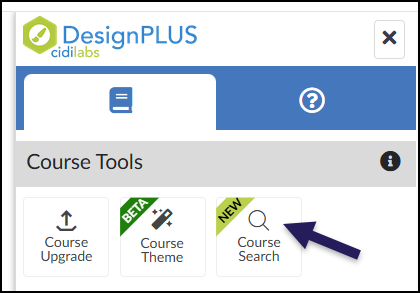
The DesignPLUS interface window displaying the "Course Tools" section, which lists three button options: Course Upgrade, Course Theme, and Course Search. A large, dark purple arrow overlays the menu and points specifically to the "Course Search" button, highlighting the option labeled with a magnifying glass icon and a green "NEW" badge.

Using the Course Search Interface

The Course Search interface includes the following areas:

  1. Search text to type in keywords
  2. Match Case button
  3. Whole Word button
  4. Click the Search button to begin the search.
  5. The Replace button expands the menu so that you can find and replace text throughout your course.
  6. Click the Information icon to display additional information about the Course Search tool, including a link to Cidi Labs official documentation.
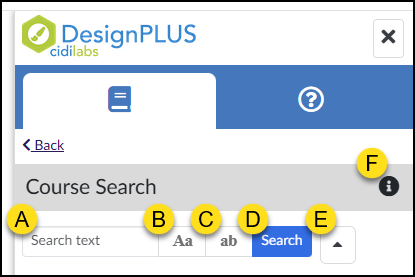
The DesignPLUS Sidebar Course Search panel is shown with six distinct interface components labeled with yellow letters A through F for identification. Letter A marks the main "Search text" input field for entering keywords, B indicates the "Aa" button for toggling case sensitivity, and C points to the "ab" button for toggling whole word search. Letter D highlights the blue "Search" button used to execute the query, E marks the arrow button typically used to collapse or expand the search options area, and F indicates the small information tooltip icon located next to the "Course Search" panel title.

Optional: Click on the Replace button. The Replace with interface displays beneath it.

  • In the below example, the instructor would like to replace the word rules with the word directions throughout the Canvas course.

Click the Search button to begin the search.
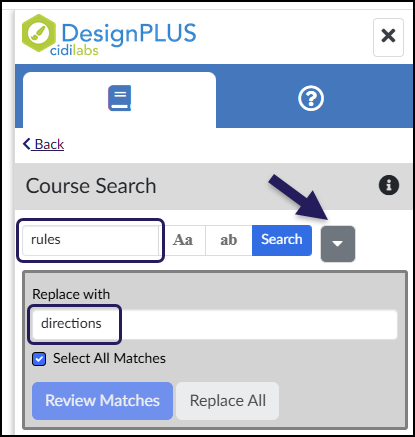
The DesignPLUS Course Search sidebar panel illustrating the steps for a find-and-replace action. The top search field contains the word "rules" outlined in purple, and a large arrow points to the adjacent dropdown button which has been clicked to reveal the replace options below. In the expanded "Replace with" section, the input field contains the word "directions" outlined in purple, followed by a checked "Select All Matches" checkbox and buttons for "Review Matches" and "Replace All."

In the example, the instructor has searched for the word rules, and the results have been displayed below it.

  • Optional:
    • Click the Type button to filter by Default (all results), Page, Assignment, Quiz, Discussion, or Announcement.
    • Click the State button to filter by Default (all results), Published, or Unpublished.

The Course Search tool will

  • highlight results in bold lettering.
  • include the appropriate Type label
  • indicate of the content is published or not
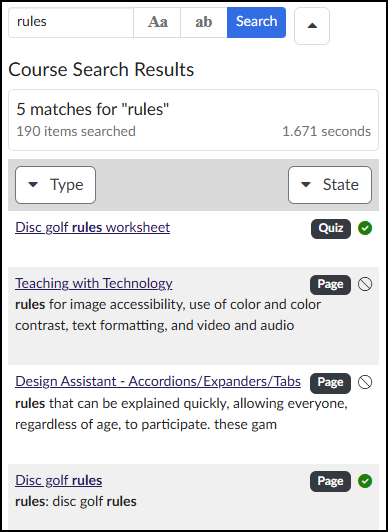
The DesignPLUS Course Search panel displaying results for the search query "rules". A summary indicates "5 matches for 'rules'" found from 190 items searched. Below dropdown filters for "Type" and "State", a list of results shows item titles like "Disc golf rules worksheet" and "Teaching with Technology," each accompanied by content type badges (e.g., Quiz, Page), status icons, and text snippets where the search term "rules" is highlighted in bold.

Find and Replace Text

If you would like to replace text throughout your course, click the Replace button. A checkbox display next to each search result.

  1. Optional: Remove the ✅ checkmark icon next to any content page if you would like to exclude it from your review.
  2. Click the Review Matches button to review each instance, or click the Replace All button to replace all instances throughout your course without review.
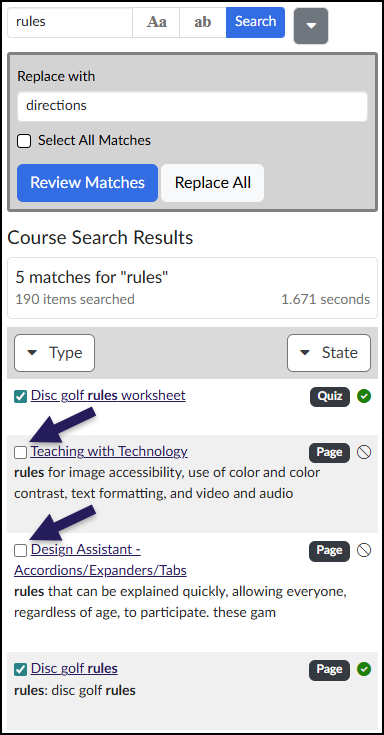
The DesignPLUS Course Search panel showing a find-and-replace operation in progress, where the term "rules" is set to be replaced with "directions". Under the "Course Search Results" heading, a list of five matched items is displayed with checkboxes next to each title. Two large purple arrows specifically point to the unchecked checkboxes adjacent to the pages named "Teaching with Technology" and "Design Assistant - Accordions/Expanders/Tabs," illustrating the action of deselecting specific content to exclude it from the replacement process, while other items like "Disc golf rules worksheet" remain checked for inclusion.

If you choose to Review Matches, the Course Search Results Preview window displays. Review the selected content items by clicking the << Previous and Next >> buttons. Click the green Replace matches button to confirm the text replacement.
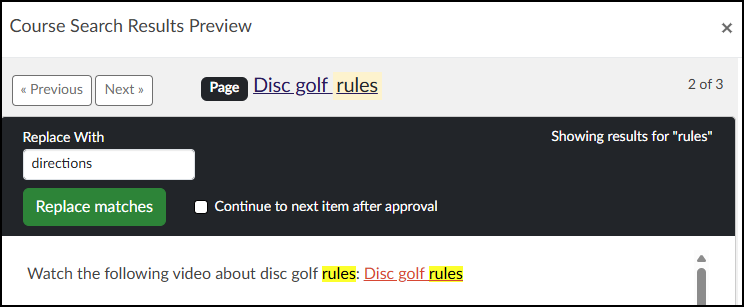
The DesignPLUS "Course Search Results Preview" window, showing the review process for replacing the search term "rules" with "directions" on a specific Canvas page. The preview displays the page titled "Disc golf rules" (indicated as item 2 of 3), with the word "rules" highlighted in the title. Below, a control panel shows "Replace With" set to "directions", a green "Replace matches" button, and an option to "Continue to next item after approval." The content preview area displays the text "Watch the following video about disc golf rules: Disc golf rules," where both instances of the word "rules" are highlighted in yellow, indicating the locations for the proposed replacement.

Additional Resources