Feature Preview
Summaries for Canvas Discussions is currently a Feature Preview. This means there may be ongoing updates outside of the regular release schedule.
This is an INSTRUCTOR ONLY feature. Students do not have access to this and cannot generate discussion summaries.
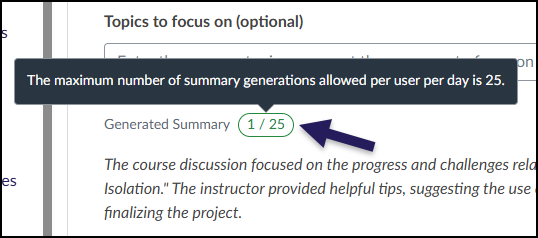
Canvas Discussions allow instructors to generate a summary of a given discussion topic using IgniteAI. Instructors can ask IgniteAI to focus on a specific area or topic within the discussion post. Instructors can also generate a more general summary without any focus on an area or topic. The maximum number of summary generations allowed per user per day is 25.
Enabling Summaries for Discussions
In order to utilize Summaries for Discussions:
- Navigate to your Canvas course.
- Click on the Settings course navigation link on the bottom left-hand side of your screen.
- Click on the Feature Options tab at the top of the screen.
- Find the IgniteAI Summaries for Discussions Feature Option row.
- Optional: Click on the > icon to expand and read the description.
- Click on the red ❌ icon, and select Enabled. A green ✅ checkmark icon will display indicating that the Feature Option has been enabled.
- There is no Save button on this screen. Any Feature Options you enable or disable here are updated immediately.

Viewing Summaries for Discussions
These instructions assume that you have at least one discussion topic created in your Canvas course and have replies from your students. If you do not have any discussion topics created in your course, refer to How do I create a discussion as an instructor? or How do I create a graded discussion?.
In your Canvas course, click on the Discussions course navigation link on the left-hand side of your screen.
Click on a discussion topic in your course.
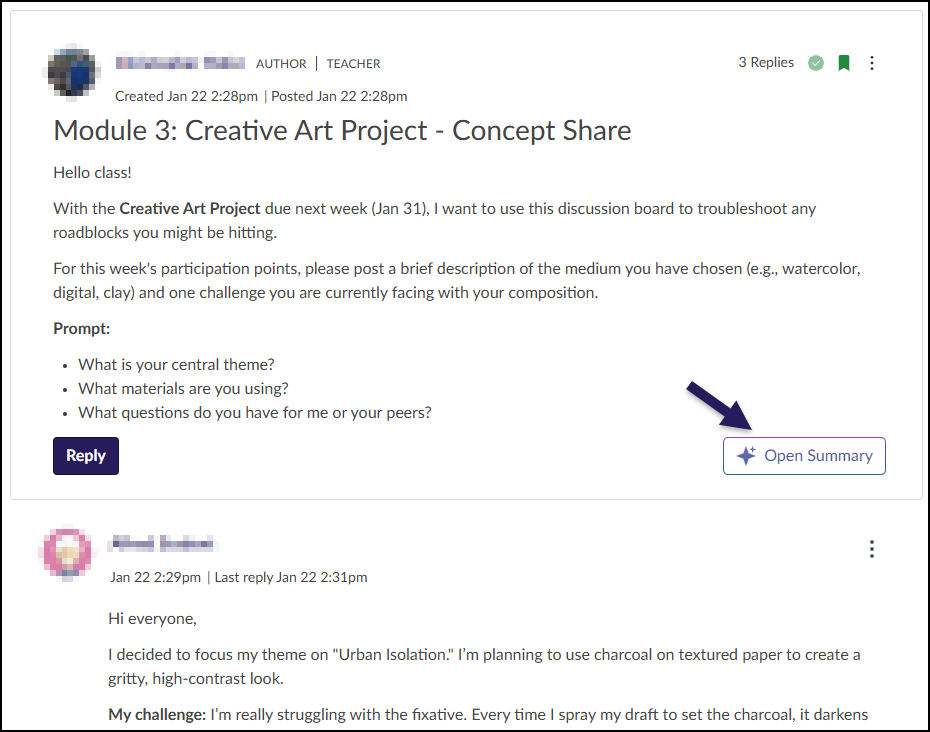
Click on the ✨ Open Summary button located at the bottom right-hand corner of your discussion prompt.
- The ✨ Go to Insights button (not shown) may also appear here if you have enabled IgniteAI Insights for Discussions.
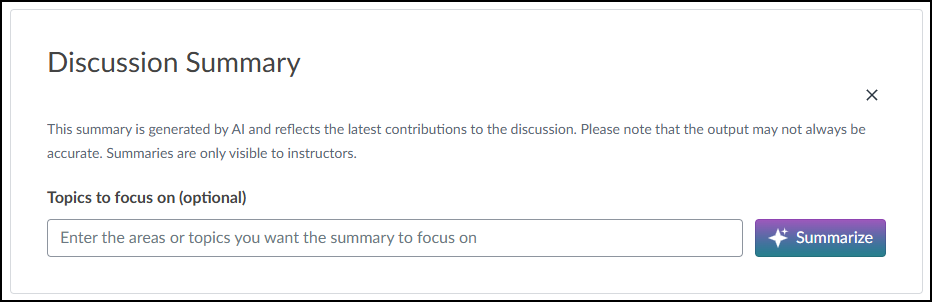
The Discussion Summary dialog box will appear.
Optional: In the Topics to focus on (optional) text box, add any areas or topics you would like IgniteAI to focus on.
Click on the ✨ Summarize button to generate a summary.
- Clicking on the ✨ Summarize button without any Topics to focus on will generate a more general summary of all replies for the topic.
AI Accuracy
Keep in mind the translation is generated by AI. Please note that the output may not always be accurate.
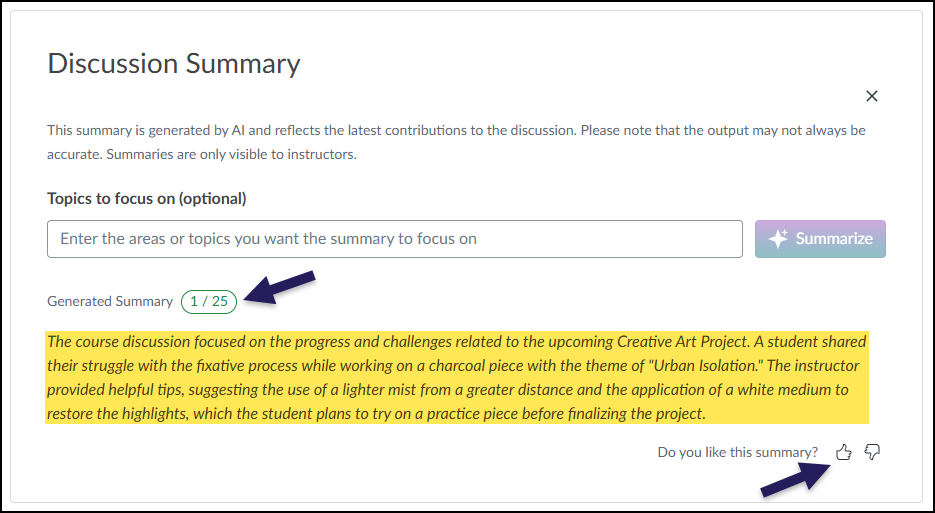
After a summary has been generated by IgniteAI, there are three areas of note:
- Generated Summary displays a green pill icon with a number (out of 25) indicating how many summaries can be generated per user per day. In the screenshot below, the instructor has used one of his/her allotted 25 (1/25) summary generations for the day.
- The generated summary in italicized text (highlighted in yellow in this guide to indicate where a summary will be shown)
- Click the 👍 Like (Thumbs Up) or 👎 Dislike (Thumbs Down) icons next to Do you like this summary? at the bottom right-hand corner of the summary to provide feedback to Instructure.
Hover your mouse over the green pill icon (Example: 1/25) to read a short description. As mentioned above, “The maximum number of summary generations allowed per user per day is 25.”