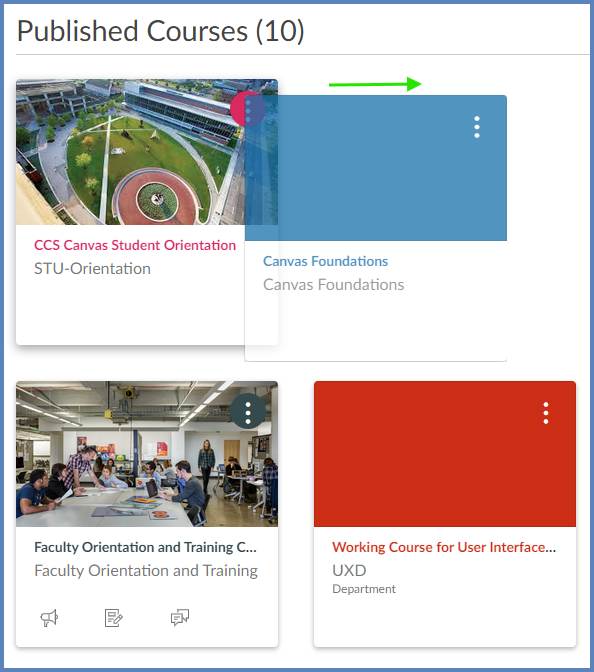
How do I view my favorite courses in the Card View Dashboard as an instructor?
00:07: How do I do my favorite courses in the card view dashboard as a student,
00:12: By default, active course cards are automatically added by canvas and
00:16: display up to 20 courses. Dashboard courses
00:20: are ordered alphabetically, by course name and your role in the course, nicknames,
00:24: and course codes do not apply to course, ordering courses with instructor
00:28: roles are listed first, followed by Thai rolls and student rolls.
00:33: Course, card, show an overview, of course information, including the course.
00:36: Name course, code and term.
00:40: Each card can include up to for tabs, which represent the four main Candace
00:44: features for student course activity assignments.
00:47: Announcements discussions and files.
00:50: These tabs mimic visibility and order in course navigation.
00:54: So, for instance, if an instructor hides, the announcements link the
00:58: announcements tab will not display on the course card.
01:02: An unread icon on the discussions or announcements tab indicates.
01:05: That there is a new discussion or announcement in the course.
01:08: The number in the icon indicates the number of new items.
01:13: If one of your courses include the long are confusing name, you can create a nickname
01:17: for your course, most courses are created using student Information
01:21: Systems. Sis that generate course names, based on terms,
01:25: departments and section numbers, and courses with similar names,
01:29: may be hard to distinguish.
01:32: Course nicknames appear in the dashboard course, navigation, menu.
01:35: Course, breadcrumbs and notification emails.
01:40: Of course, nickname does not affect the course name at the account.
01:43: Or course level it only changes the name of the course where the individual user,
01:47: who created the nickname
01:50: If you need to know the original name of the course, you can have her over the nickname.
01:53: And the original name will appear. Additionally, the course code
01:58: is not affected and always displays on the course card, for course reference
02:03: To add a nickname, click the options icon, then type the name
02:07: and then nickname field, click the apply button.
02:11: To remove a nickname open the card options and remove the nickname.
02:14: The nickname field will display.
02:17: The original name of the course,
02:20: Course cards can help you organize your courses by customizing the color.
02:23: Which is synced with the color shown for the course in the calendar to change
02:27: the color, click the cards options icon, then select a new color,
02:31: the check mark indicates, the selected color and a hex
02:35: color code displays in the text field.
02:38: If you want to use a color not shown in the window, you can enter
02:42: the colors hex code directly in the text filled.
02:44: The hex field will display a warning icon.
02:47: If the hex code is not valid, additionally, any variation
02:51: of white is not accepted as a course color.
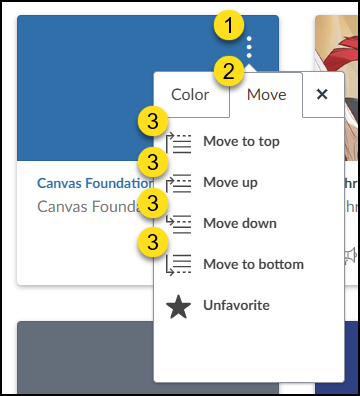
02:55: Click on move.
02:58: Click on color.
03:01: Click on move.
03:04: Click on color.
03:07: Click on color.
03:10: Click on move.
03:13: Click on color.
03:16: Click on move.
03:19: Click on color.
03:22: Select dashboard View.
03:25: Celexa course image.
03:28: This guy detailed, the specific actions required to view and customize favorite
03:32: courses in the card view dashboard. On, in structure for employee training,