Simple Prep, CCS’ Course Readiness Tool, was built by Simple Higher Ed, and enables Instructors, Department Chairs, Program Managers, Canvas administrators, and others to quickly review Canvas course content. Simple Prep allows users to quickly see what might be missing from the course, what updates still need to be made, and ensure the course meets CCS Canvas Course standards.
Accessing the Course Readiness Tool within Canvas
- Log in to your Canvas course.
- Note: The Simple Prep interface is only available for Winter 2026 Canvas courses and beyond.
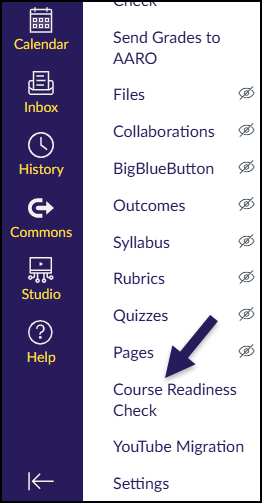
- Find and click on the Course Readiness Check course navigation link in your course.
- The location of the Course Readiness Check link may not be the same as what is shown in this screenshot.
- If you cannot find the Course Readiness Check link in your course navigation, refer to Configuring Course Navigation.
Course Readiness Tool – Instructor Interface
CCS Requirement
Ensure every semester that your Canvas course(s) meet(s) all established Course Readiness Check items by the first day of class, as this is a CCS requirement.
The Simple Prep interface will display within your Canvas course. The Simple Prep plan name (Example: Initial Course Readiness Check) is listed at the top left corner of the screen. There are three main sections within this interface (refer to the yellow lettered labels in the below screenshot):
- This section displays the term name and course number. It also displays the Overall Status, Plan Due Date, Last Updated date, Syllabus Status, and a link to the Clean Up tool. (Refer to Simple Prep Clean Up Tool for more information.)
- This section displays a table-like interface which includes the columns Editors (displays an individual’s initials), Status, Tasks, and Description.
- This section displays a communication interface where you can message others who are assigned to your course (Example: Department Chair and/or Program Manager). Your Department Chair and/or Program Manager may message you about any content that is missing or not completed by the Plan Due Date (displayed in section A in the below screenshot).
![A screenshot of the Simple Prep instructor dashboard in Canvas, organized into three sections. The first section, "Initial Course Readiness Check," shows the course "2026 Winter [blurred]" has an "Overall Status: In Progress" and "Syllabus Status: Not Started," and it includes a "Clean Up" section with a "Resource Tool" link. The middle section, is a table with columns for Editors, Status, Tasks, and Description. The table lists Tasks such as "Syllabus Published" (with a red "No" Status) and "Assignment Due Dates" (with a red "0" Status), indicating they are incomplete. "Modules Published" is also listed, showing a green "3" Status, indicating it is complete. The final "Thread" section displays a communication feed with "Automatic Update" messages and a "Reply" input field.](http://campus.collegeforcreativestudies.edu/ed-tech/wp-content/uploads/sites/53/2025/11/SimpleSyllabus_SimplePrep_InstructorDashboard-1024x543.png)