Grackle is an accessibility checker for Google products that will help users ensure they are creating and sharing accessible content.
Use these links to jump to specific sections within the document:
- Launching Grackle
- Reading and Understanding Scan Results
- Accessibility Errors and How to Fix Them
- Common Accessibility Flags in Grackle and What They Mean
Launching Grackle
Start by accessing a Google Document, Sheet, or Slide.
Note
You must be an owner or editor on the file for Grackle to run an accessibility check.
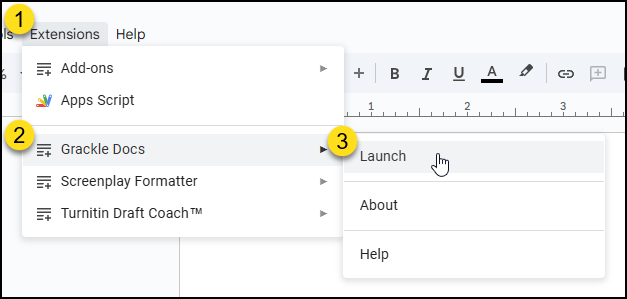
- In the ribbon, select Extensions.
- If you opened:
- a Google Doc, select Grackle Docs.
- a Google Sheet, select Grackle Sheets.
- Google Slides, select Grackle Slides.
- Select Launch.
The first time you use this program for each file type (Grackle Docs, Grackle Sheets, Grackle Slides), a pop-up will appear asking you to grant access to Grackle. Check the box next to Select All. Then click Continue.
This will launch a toolbar along the right-side of your screen.
Allow a few minutes for Grackle to check your document for accessibility. If you continue to make edits to the file or it is a large file, the check will take longer to complete.
There are two common issues you may encounter when trying to launch Grackle. Review the information below if you experience one of these issues:
If “Extensions” Doesn’t Appear In Your Menu…
If you do not see the Extensions tab in the menu, it is because you are looking at a Microsoft file that is stored in Google Drive. Google extensions can only be used on files created in Google Docs, Sheets, and Slides.
To check a Microsoft file for accessibility, you can:
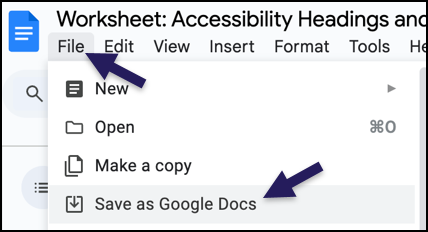
- Convert the file into a Google format.
- Click File and Save as Google Docs (or Sheets, or Slides)
- Open the file in Microsoft and run the Microsoft Accessibility Checker.
Important
You should use the accessibility checker that matches how you plan to share the document. If you plan to share a link to the file in the Google Drive, convert the file to a Google format and run the Grackle accessibility check. If you plan to share a Microsoft file attachment, run the Microsoft accessibility check.
When I Launch Grackle from the Extensions Menu, It Just Keeps Spinning
It is common for users to be logged into multiple Google accounts at once (e.g. a personal Gmail and a CCS email account). If this is the case, the Grackle extension may not work properly.
Log out of any personal Google accounts and only sign in to your CCS account. Visit Why is Grackle not finishing or responding when I run it? for more details.
Reading and Understanding Scan Results
The Grackle toolbar will display 3 possible accessibility results:
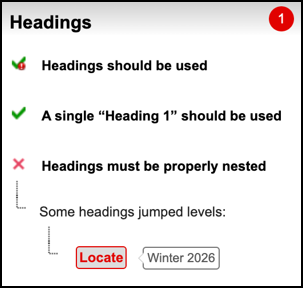
- Green check = the item passed the accessibility check.
- Green check with Exclamation Mark = the item passed the accessibility check, but may cause problems for those with accessibility needs. Resolving these issues enhances document accessibility. All users are highly encouraged to make these updates.
- Red X = the item failed the accessibility check.
Begin making the necessary changes to your file to make it accessible.
Reminder
While Grackle is an automated accessibility checker, it is not able to find or fix all accessibility errors. Be sure to check each item in the accessibility checker, make the needed updates to your file, and manually review your document for accessibility as well.
Accessibility Errors and How to Fix Them
- To start making your document accessible, go through the scan results for every error (red X) and warning (green check with exclamation point).
- You can click on Locate under items that do not pass the accessibility check to jump to that part of the document. It may take a moment, but will highlight the portion of the document that needs to be updated in gray.
![A partial screenshot of a Google Docs document. A grey box in the top left corner contains the text 'Winter 2026.' Below it, the salutation 'Dear Faculty,' is visible, followed by the sentence: 'You now have access to your [Semester] Canvas course(s) to begin developing your content!'](http://campus.collegeforcreativestudies.edu/ed-tech/wp-content/uploads/sites/53/2025/11/Grackle_Winter2026Example.png)
- Make the needed update. See details on how to fix each checked item in Grackle below if you’re unsure on how to fix the issue.
- Once you’ve updated your document, click the Re-Check button at the top of the Grackle panel to see if your document now passes all accessibility checks.
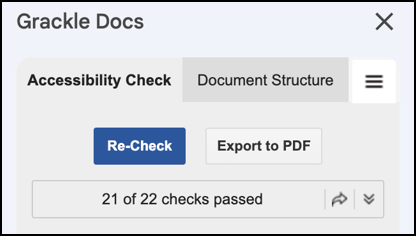
- Continue the process until all items in the Grackle panel pass the accessibility check.
- You can close the Grackle panel using the ✖️ in the top right corner.
Common Accessibility Flags in Grackle and What They Mean
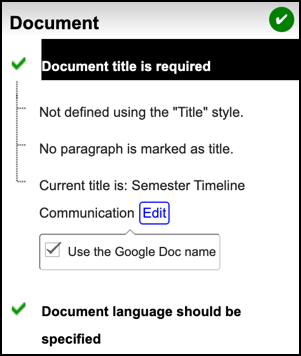
Document Title is Required
This Grackle check is often confusing because the term “title” can refer to three different items in Google Docs:
- File Name/Google Doc Name: The name that appears in Google Drive and in the top-left corner of the browser tab.

- Document Heading (Heading 1): The largest heading at the very top of your document content.
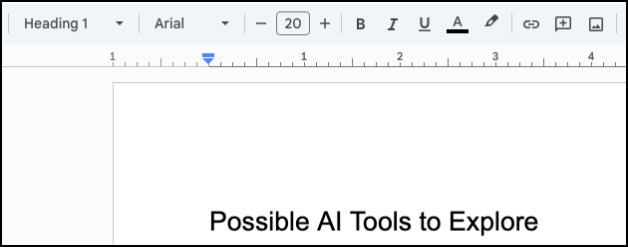
- Document Title (Metadata): The invisible metadata title that screen readers use to announce the document’s purpose. This is the title Grackle is checking for.
Even if you have a file name and a Heading 1, you may still see this flag if the metadata field is empty.
How to Fix
Click on the item from the Grackle pane. The system will then prompt you to enter a title. Enter a title and click Submit or check the box next to Use the Google Doc name. You now have a title in the metadata of your file.
Document Language Should be Specified
Your document’s language will most likely default to English (US). If it does not, you will need to set the document’s language.
How to Fix
- Select File in the menu.
- Select Language.
- Choose your desired language from the list.
Image Should Have Alternative Text or Mark as Artifact
All images within a document should have alternative text unless they are decorative.
How to Fix
- Click on the image that is being flagged to select it.
- Right click.
- Select Alt Text.
- Enter your alt text into the Description text field.
- If your image is decorative, enter closed quotation marks into the description text field (“”).
Drawings Should Have Alternative Text or Mark as Artifact
How to Fix
- Click on the image that is being flagged to select it.
- Right click.
- Select Alt Text.
- Enter your alt text into the Description text field.
- If your drawing is decorative, enter closed quotation marks into the description text field (“”).
Equations Should be Described
Mathematical equations in Google Docs are not fully accessible and need alternative text.
How to Fix
- Select Equations Should Be Described from the Grackle pane.
- Select TAG.
- Add accurate alternative text in the Description text box.
In most cases, it is recommended to use Accessible LATEX or MathML (markup language) to share mathematical equations. If you have questions about how to do this, please contact EdTech at EdTech@ccsdetroit.edu.
Headings Should Be Used
While it may look like you have headings and subheadings on your document, many users add these by adjusting font size and adding formatting like bold. To be accessible, documents must programmatically note these items as Headings.
To mark your Headings and Subheadings as programmatic Headings
- Highlight the text you want to make a heading with your cursor.
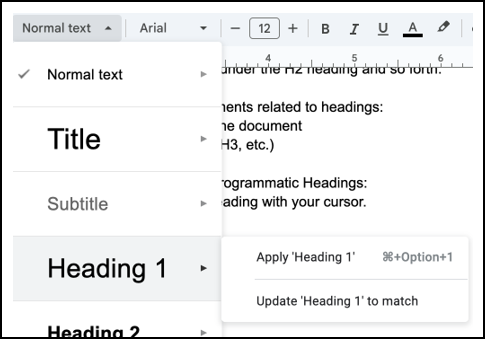
- Select the Styles drop-down along the top of the document.
- Hover over the desired heading level (H1, H2, H3) and select Apply ‘Heading #’.
To adjust the default styles of the Headings
- Enter text into the document, adjust the font size, bolding, color and other formatting so it looks how you want that heading to look throughout the document.
- Highlight the text with your cursor.
- Select the Styles drop-down along the top of the document.
- Hover over the desired heading level (H1, H2, H3) and select Update ‘Heading #’ to match. This will update all items with that same heading tag to the style you just created.
A Single ‘Heading 1’ Should Be Used
Because nesting of Headings is important, your document must have a Heading 1. This should be the title of the document and appear along the top of your document.
Note: Each document should only have one ‘Heading 1.’
To set a Heading 1
- Enter a title for the document into the document text.
- Highlight the title of your document with your cursor.
- Select the Styles drop-down along the top of the document.
- Hover over Heading 1 and select Apply ‘Heading 1’.
- Note: Do not choose Title as many screen readers do not read this programmatic tag the same as Heading 1.
Headings Must Be Properly Nested
Use heading levels in order and never skip a heading level (start with H1, then move to H2, H3, etc.).
Example of correct heading structure
- Heading 1: Document (Main) Title
- Heading 2: Subheading
- Heading 3: Sub Subheading
- Heading 3: Sub subheading
- Heading 2: Subheading
- Heading 2: Subheading
You will receive the “Headings must be properly nested” error if your headings are set to the wrong heading level.
To fix or change a heading tag
- Highlight the Heading or Subheading text with your cursor.
- Select the Styles drop-down along the top of the document.
- Hover over the desired heading level (H1, H2, H3) and select Apply ‘Heading #’.
Tables Must Be Tagged or Marked As Layout Tables
You should only use tables for data and not for page layout.
To tag a table
- In the Grackle pane, select Tables must be tagged or marked as layout tables.
- Select TAG.
- In the pop-up window, mark header and column rows appropriately, or mark the table as a layout table.
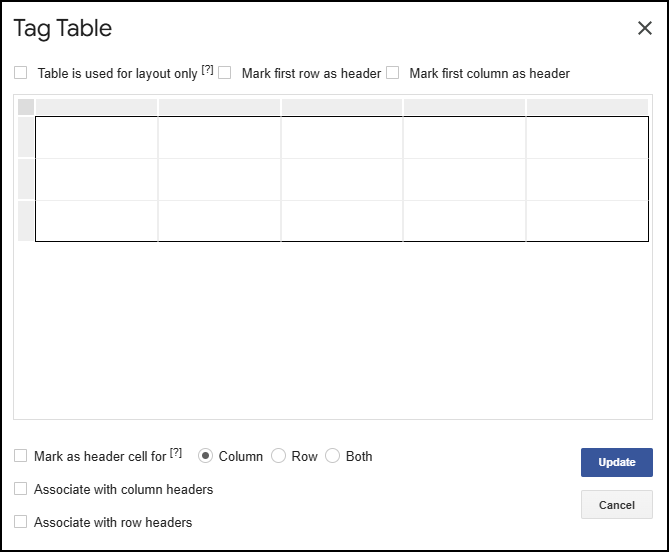
- Select Update.
The Use of Merged Cells Is Not Recommended
Ensure you do not have any merged cells in your table. Merged cells make it more difficult to interpret information, especially when it is read by a screen reader.
The Use of Empty Cells Is Not Recommended
Ensure all your table cells have content. Empty cells can make tables more difficult for those using assistive technology to navigate and can make it harder for viewers to interpret the data.
Headers and Footers Should Be Used
Headers and footers are not required to make a document fully accessible but you may see a “Pass with warning” in the Grackle interface.
How to Fix
- Avoid including important information in header and footer areas of a document. Instead, move this content to the body of the document.
- If you use either a header or a footer, add an item into the other element, so content appears in both the header and footer. This creates a balanced structure. Do not repeat the same information in both a header and footer.
- If you use page numbers, add this to the header or footer areas. This is the most common and accessible content for these areas.
- If the header or footer contains any images, ensure they have alternative text.
Lists Should Be Used Where Appropriate
Lists can help users with cognitive disabilities to better understand your content. When using lists, you must ensure you use programmatic lists rather than manually entered lined breaks and dashes.
How to Fix
- Where applicable, break down large chunks or dense paragraphs into lists for easier comprehension.
- In the toolbar, click on the
 Unordered List (bullet list) icon or the
  Ordered List (numbered list) icon when creating your lists.
 - Avoid manual formatting that breaks structure:
- Avoid typing manual hyphens or stars.
- Avoid using the space bar or the Tab key to manually indent text that is not already a list item.
- To create nested (sub) lists correctly:
- Click on the Unordered List or Ordered List icon.
- Enter an item next to the first bullet point or number 1.
- Start a new list item by pressing Enter.
- Use the Tab key to indent that list item one level deeper.
- Use Shift + Tab to move the list item back one level (outdent).
Troubleshooting Nested Lists
If you receive an error suggesting your lists are not properly nested, this means the system detected improper manual formatting (like extra spaces, enters, or manual tabs). To fix this: Select the items, remove the list formatting, and re-apply it. Then, use the Tab key to indent and Shift + Tab to outdent, ensuring the nested structure is correctly created by the built-in list tool.
Documents Should Not Contain Unsupported Contents
“Unsupported contents” are items within your document that Google Docs doesn’t understand or can’t show properly. Some examples of unsupported content could be custom fonts or specialized styling from other products (Microsoft, Canva).
How to Fix
- Remove these items from your document.
- Or recreate the items from scratch within the Google file.
High Color Contrast Should Be Used
Grackle will flag if you’re using a color combination that does not meet compliance standards.
How to Fix
- Click the Locate button next to the issue in the Grackle pane to find the text on the page with the color contrast issue.
- Adjust the color scheme of the item so it meets the follow Accessibility Guideline:
- Large text must have a 3:1 contrast (text to background)
- Small text must meet 4.5:1 contrast (text to background)
- Graphical Objects and User Interface Components must meet 3:1 contrast.
- If needed, use the WebAIM Color Contrast Checker to identify accessible color combinations.
- Watch our Creating Accessible Content: Choosing Color video tutorial
Fine Print Should Be Avoided
How to Fix
- Use easy to read sans serif fonts (Arial, Calibri, Verdana).
- Ensure your font is 12pts or larger.
All-Caps Styling Should Be Avoided
Content written in all capitalized letters can be hard for some people to read and interpret.
How to Fix
Rewrite any content that is in all capital letters to appropriately use both uppercase and lowercase letters.
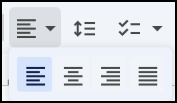
Adjusted Alignment Not Suggested for Non-Heading Text
It is best practice to keep body text left-aligned. This makes text easier to read and keeps the document looking neat and organized.
Center, justified, or right alignment should be reserved for headings or special sections.
How to Fix
- Highlight the text you want to realign with your cursor.
- In the toolbar, find the Alignment icon, and select the Left align icon.
Lengthy Paragraphs Should Be Avoided
Long paragraphs will look like a “wall of text” for readers. This content is harder to read and understand.
How to Fix
- Consider adding breaks in paragraphs.
- Find ways to make the language more concise.
- Use Unordered (bulleted) and Ordered (numbered) lists.
- Write in simple, plain language.
Links Should Be Informative
Informative, or descriptive, links make it very clear to users, especially those with a screen reader, what will happen if they select a link. It should clearly describe the destination of the link without requiring the user to read the surrounding sentence.
This means you should avoid linking generic phrases like “Click here,” “Read more,” or having a full, unreadable URL displayed as the link text.
Examples of Inaccessible Links
- To visit the Access Manager, click here.
- Want to learn more? Go to our guide: https://campus.collegeforcreativestudies.edu/ed-tech/editing-your-simple-syllabus-document/
Examples of Accessible Links
- Visit the Access Manager.
- Want to learn more? Visit our Editing Your Simple Syllabus guide.
How to Fix
- Replace generic text like “Click here,” “More,” or “Link” to descriptive text that accurately summarizes the destination (e.g. Download the Annual Report).
- If a full URL is displayed as link text, replace it with the name or title of the linked document or page (or other descriptive text), and then hyperlink that descriptive phrase instead.