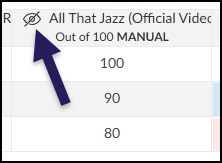
If you have set your grades to be manually posted, assignment grades are hidden from students until you choose to post them. Hidden grades are indicated with a crossed out eye icon next to the assignment name in the Gradebook. If you would like to turn on this feature, visit the Grade Posting Policy section of our Gradebook Settings guide.
To access the Canvas Gradebook, visit the desired course, and click on Grades in the left-hand course navigation.
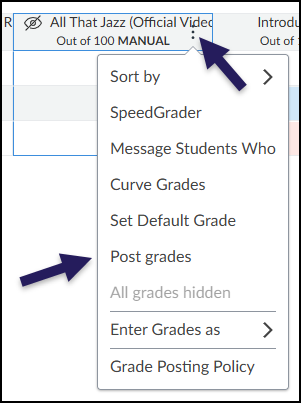
To post grades for an assignment so they are visible to students, hover over the assignment name and click the three vertical dots that appear. In the drop-down menu, select Post grades.
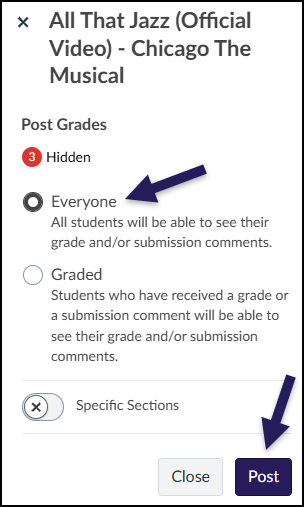
The slide-out menu on the right-hand side will indicate how many grades are hidden from students. For instance, if you have graded 16 out of 17 students, it will indicate that 16 grades are hidden. Choose whether to post everyone’s grades or just the graded submissions (if you have graded every student’s assignment, both of these options will post all grades for that assignment). Click the Post button to post the grades. Grades will take a moment to post. For large classes this can take a minute or more to post.