Canvas Gradebook: Navigation, Settings, and Best Practices

Use the following links to jump to specific sections in this guide:

Accessing the Gradebook

To get to the Canvas Gradebook, click on the Grades tab in the course navigation.
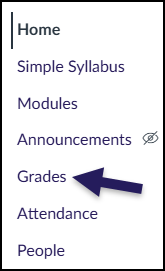
To get to the Canvas Gradebook, click on the "Grades" tab in the course navigation.

Search the Gradebook

You can search for individual students and assignments in the Student Names and Assignment Names search bars.

You can search for individual students and assignments in the "Student Names" and "Assignment Names" search bars.

Filter the Gradebook

You can use gradebook filters to find specific gradebook items. Click Apply Filters and filter the gradebook for Assignment Groups, the Status of assignments, and more.
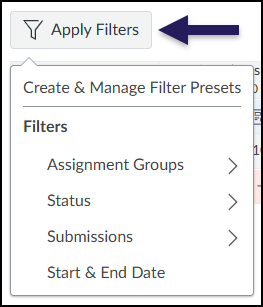
You can use gradebook filters to find specific gradebook items. Click Apply Filters and filter the gradebook for Assignment Groups, the Status of assignments, and more.

Gradebook Settings

Click on the gear icon in the top right hand corner of the Gradebook to view Gradebook Settings.

Select the "Settings" (cog wheel) icon at the top right corner of the Canvas Gradebook.

Late Policies

If desired, under Late Policies, check the box next to Automatically apply grade for missing submissions. Enter a percentage grade that all missing submissions should receive. For example, entering in a 0 will mean that all students who have not submitted the assignment will receive a 0 grade. If the student turns in their assignment after the deadline, you can still enter in a grade for it.

If desired, you can also check the box next to Automatically apply deduction to late submissions. Enter in the percentage of the grade that should be deducted at each interval (day or hour).

Click the Apply Settings button when you are finished.
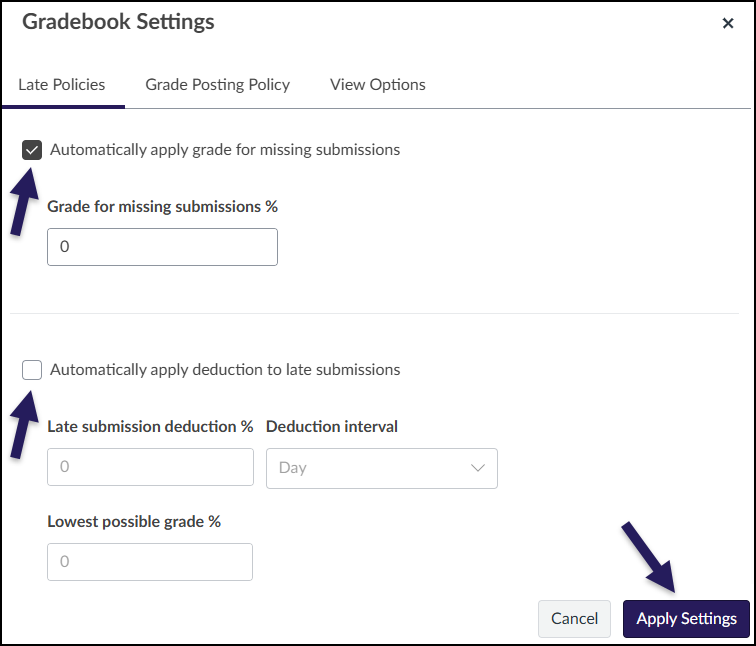
Gradebook "Late Policies" allow you to automatically apply a grade for missing submissions and/or automatically apply deductions to late submissions.

Grade Posting Policy

Under Grade Posting Policy, you will likely see Automatically Post Grades selected. The default setting in Canvas is for assignment grades and feedback to automatically post, or be released, to each student once you enter them, meaning some students will receive their grade and feedback before others.

If you want to keep grades for an assignment hidden from students until you choose to release them, select Manually Post Grades. Click Apply Settings if you make a change to your grade posting policy. When Manually Post Grades is applied, all assignments will have MANUAL next to their names in the instructor’s view of the gradebook.
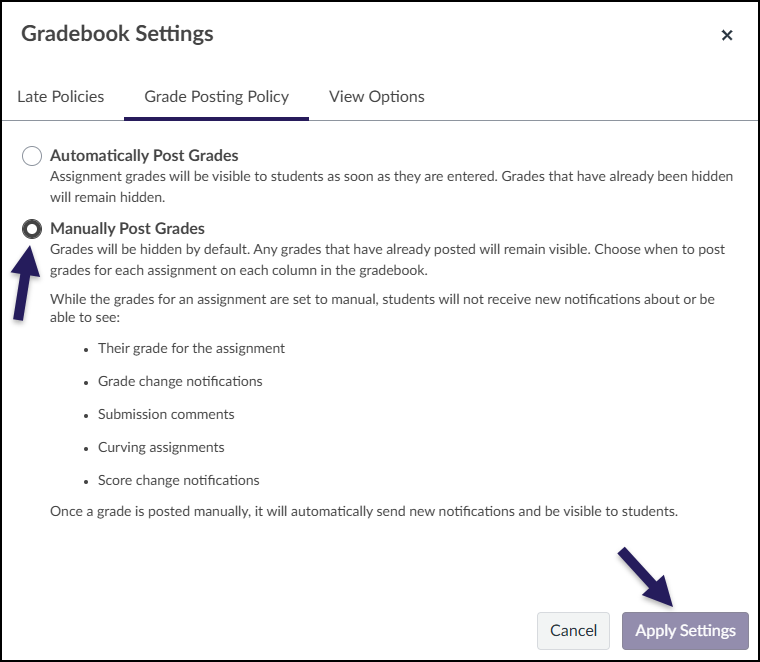
If you want to keep grades for an assignment hidden from students until you choose to release them, select "Manually Post Grades". Click "Apply Settings" if you make a change to your grade posting policy. When Manually Post Grades is applied, all assignments will have MANUAL next to their names in the instructor’s view of the gradebook.

You can also set a grade posting policy for individual assignments. From the Grades tab in the course navigation, hover over an assignment name and click on the three vertical dots that appear. Click on Grade Posting Policy in the dropdown menu.
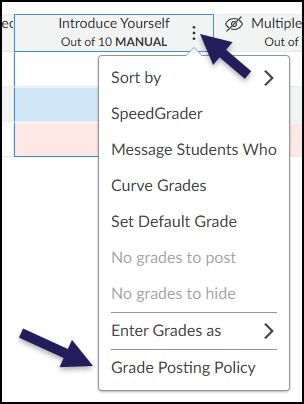
You can also set a grade posting policy for individual assignments. From the "Grades" tab in the course navigation, hover over an assignment name and click on the three vertical dots that appear. Click on "Grade Posting Policy" in the dropdown menu.

Select a grade posting policy, and click Save to save your changes.
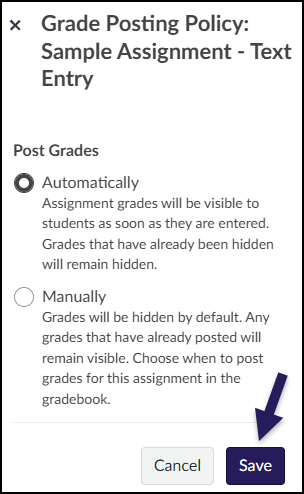
Select either to post grades "Automatically" or "Manually", and then click the "Save" button.

Tips for Gradebook Settings

It is best to set any gradebook settings (late policies, grade posting policy) at the beginning of the semester. Changing these settings during the semester may cause gradebook inconsistencies. Make sure that you communicate the gradebook settings to the entire teaching team.

Hiding and Posting Grades

If you have set grades to be manually posted, assignment grades are hidden from students until you choose to post them. Hidden grades are indicated with a crossed out eye icon next to the assignment name in the gradebook.
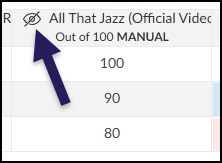
The crossed-out eye icon next to an assignment name in the Gradebook indicates grades are hidden from students for that assignment.

To post grades for an assignment so they are visible to students, hover over the assignment name and click the three vertical dots that appear. In the drop-down menu, select Post grades.
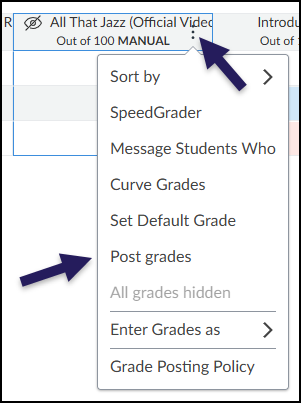
To post grades for an assignment so they are visible to students, hover over the assignment name and click the three vertical dots that appear. In the drop-down menu, select "Post grades".

The popup menu on the right hand side will indicate how many grades are hidden from students. For instance, if you have graded 16 out of 17 students, it will indicate that 16 grades are hidden. Choose whether to post everyone’s grades or just the graded submissions (if you have graded every student’s assignment, both of these options will post all grades for that assignment). Click Post to post the grades. Grades will take a moment to post, and can take a minute or so if you have a large class.
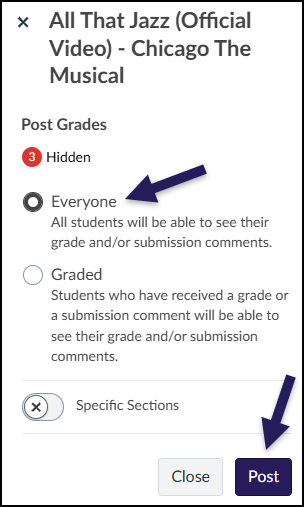
The popup menu on the right hand side will indicate how many grades are hidden from students. Choose whether to post everyone’s grades or just the graded submissions (if you have graded every student’s assignment, both of these options will post all grades for that assignment). Click Post to post the grades. Grades will take a moment to post, and can take a minute or so if you have a large class.

Grading Best Practices

Before submitting midterm and final grades, you should ensure that:

  • All assignment groups are weighted correctly, and assignments are in their correct assignment groups
  • Any hidden grades are posted
  • All gradebook items have a grade entered

If you have hidden grades, students cannot see their total grade for the class. Additionally, if you have not entered a student’s grade for an assignment, Canvas does not take that assignment into account when calculating the total grade, which may inflate a student’s grade.

Additional Resources

Use the Gradebook

How do I use the Gradebook?

00:06: How do I use the Gradebook? 00:09: In Course Navigation, click the Grades link. 00:12: The Gradebook includes global sorting options and settings you can use to organize your grade book, student data, and assignment data. The Gradebook supports keyboard shortcuts. To view the Keyboard Shortcuts menu, click the Keyboard icon or press the Shift+Question Mark keys simultaneously. 00:30: The Traditional Gradebook allows you to see all students, assignments, and grades. In the Gradebook menu, you also switch between several options as available. 00:40: Learning Mastery Gradebook displays the Learning Mastery Gradebook, which assesses outcome standards being used in Canvas courses. This gradebook is a course-level feature option. 00:51: Individual Gradebook allows you to assess one student and one assignment at a time and is fully accessible for screen readers. Individual View currently does not support settings and options from the Gradebook. 01:03: Gradebook History displays the Gradebook History page, which logs recent grade changes in the course according to student, grader, assignment, and date. 01:13: The Search Students field allows multiple student names to be filtered at the same time. 01:18: The Search Assignments field allows multiple assignment names to be filtered at the same time. 01:23: The Gradebook Settings allow you to apply Late Policies, a Grade Posting Policy, a Final Grade Override, and View Options in your course gradebook. 01:32: The Late Policies tab allows you to apply late policies in your course. 01:36: The Grade Posting Policy tab allows you to change grade posting policies for your course. 01:41: The View Options tab allows you to filter and sort the Gradebook according to several viewing options: arrange by, show, view ungraded as zero, and status color. 01:52: In the Apply Filters menu, you can create and manage filter presets or filter columns by type. 01:58: To bulk manage student grades in the Gradebook, you can also import grades and export grades. 02:04: The Student Name column displays each student’s name and may also include a student’s secondary ID, if enabled. 02:11: Each column in the Gradebook represents a published assignment in the Assignments page. Each column displays the assignment title, total points, and each student’s grade. 02:22: To enter grades, type the grade as supported by assignment type directly in the Gradebook cell. You can also enter grades and change the submission status by clicking the Grade Detail Tray icon. 02:33: The Grade Detail Tray allows you to enter or edit grades, change the status of a submission, and leave comments for the student. 02:41: The assignment groups shown in the Gradebook match the assignment groups created in the Assignments page. If your assignment groups are weighted, the weighted grade displays below the group title. Grade totals from assignment groups are calculated in the Total column of the Gradebook. 02:56: This guide covered how to use the Gradebook.

Filter Columns and Rows in the Gradebook