
Identifying Unused/Empty Assignment Groups
As described in Setting Up a Weighted Gradebook in Canvas, Assignment Groups in Canvas can be used as a way to organize and group similar assignments together. In addition, you can weight your Assignment Groups with percentages for grading purposes. For example, you may have the following weighted Assignment Groups:
- Assignments: 50%
- Exams: 35%
- Discussion Topics: 15%
- TOTAL: 100%
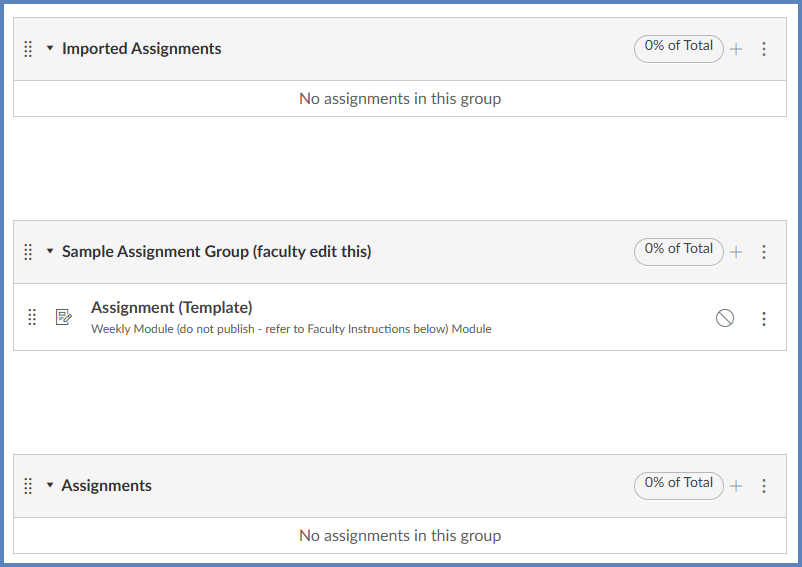
In your Canvas course(s), you may have Assignment Groups that are unused. In the following example, five Assignment Groups are displayed on the Assignments page of a Canvas course. The “Sample Assignment Group (faculty edit this)” Assignment Group has an unpublished assignment in it called “Assignment (Template)”. The “Imported Assignments” Assignment Group does not have any assignments in it. In this example, both of these Assignment Groups are weighted at 0% of the Total for the course.
Leaving unused Assignment Groups can confuse students. Even if these groups are empty or contain only unpublished items, they still appear in the student Gradebook. This creates unnecessary clutter, as students will see these group names listed alongside the active assignment categories in their grade summary.
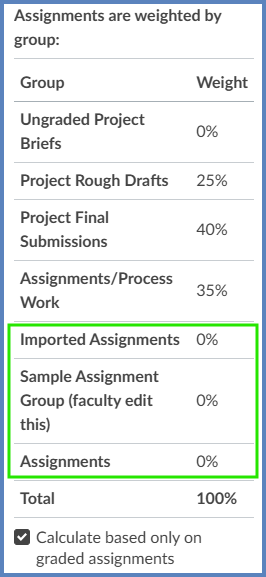
In the above example, the unused Assignment Groups are listed for students. They may not know why they are seeing “Sample Assignment Group (faculty edit this)” or they may not know what “Imported Assignments” means.
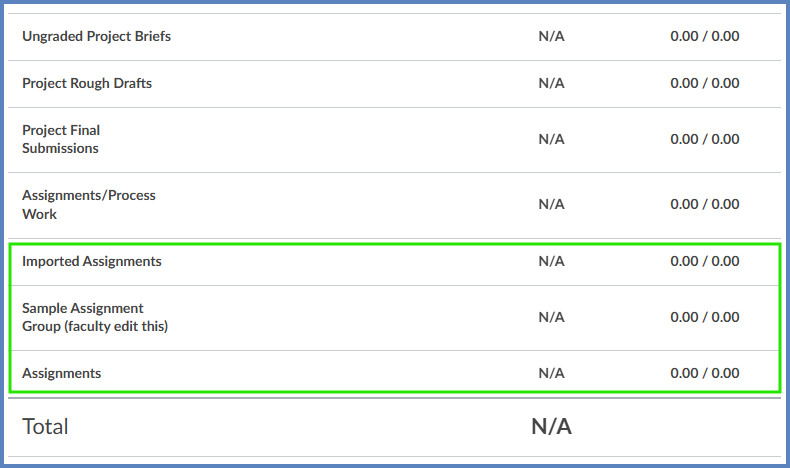
Similarly, still in a student’s view of the Gradebook, these same Assignment Group names are listed at the bottom of the screen above the “Total” row.
If you have Assignment Groups that are either empty or won’t be used in your Canvas course(s), it is safe to delete them. This will help:
- to keep your Assignments page clean and organized.
- to eliminate those unused Assignment Group columns at the end of your own Gradebook.
- your students to better understand how their grades are being assessed in your course(s).
Deleting Unused Assignment Groups
- Navigate to your Assignments index page of your course in Canvas.
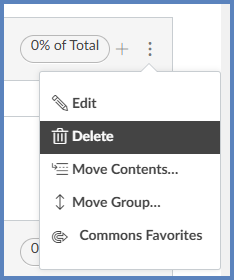
- Click click the Options (three vertical dots) icon to the right of an Assignment Group name.
- Select 🗑️ Delete to delete the Assignment Group from your course.
Additional Resources
How do I view my grades in a current course?
- This is a Student Guide. Refer to the sections on “View Assignment Groups” and “View Sidebar”.