The UDOIT accessibility checker is a tool that you can use to find and fix accessibility issues in your Canvas course. Unlike the Canvas built-in Accessibility Checker which only scans one page at a time, UDOIT scans your entire course at once, identifying issues and providing fixes.
Enabling UDOIT Accessibility Check
In the course navigation menu, select the UDOIT Accessibility Check link.
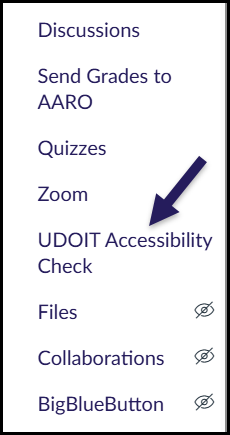
If you do not see the link, click on Settings in the course navigation menu, then click on Navigation to enable the link.
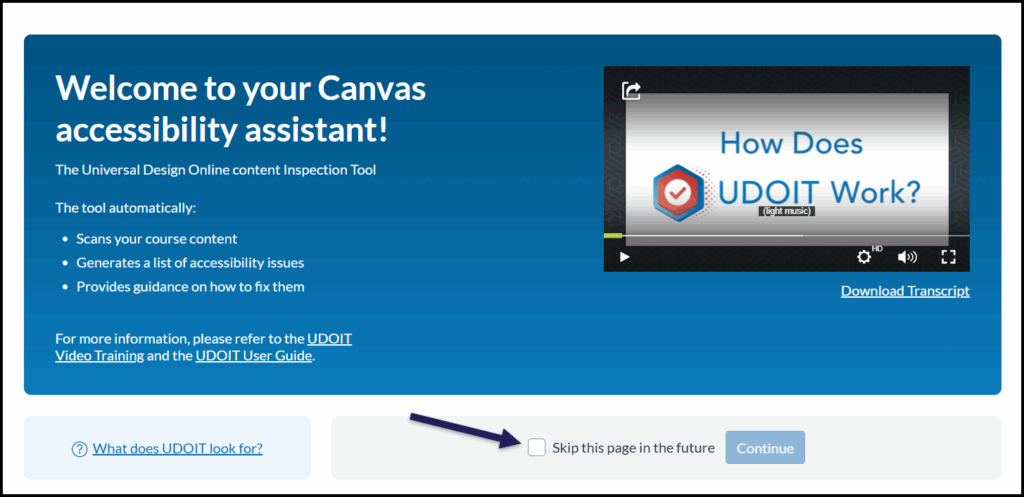
The first time you click on the UDOIT Accessibility Check link, a landing page will appear. You can check the box to Skip this page in the future.
Read and Interpret Your Accessibility Score
On the top of the UDOIT page, find and click Scan Now. Once the scan is complete it will display an accurate accessibility score, identify inaccessible items, and provide fixes.
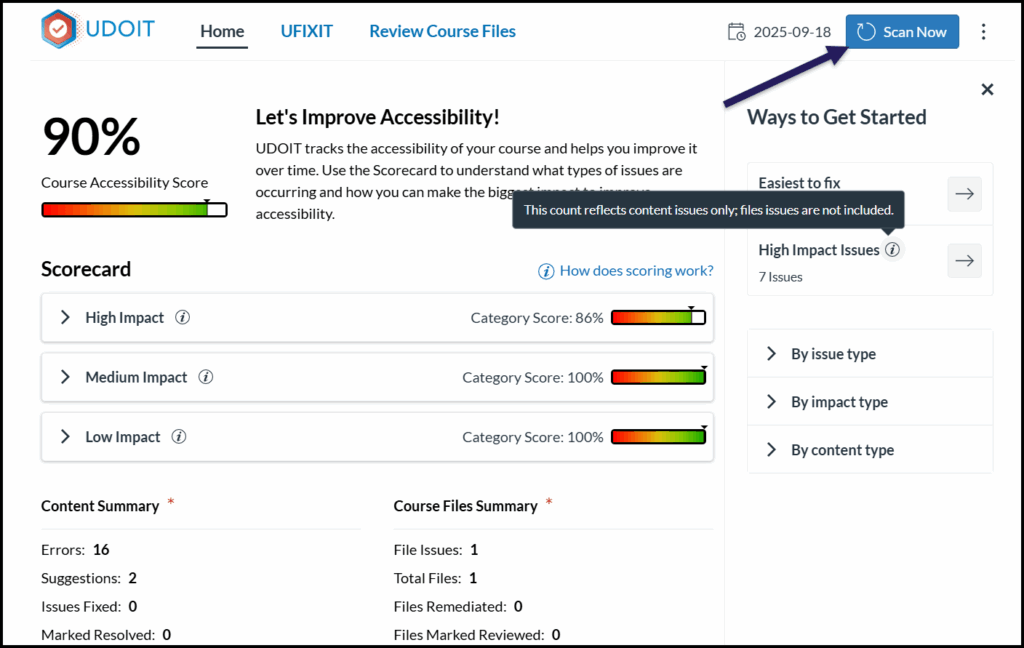
We recommend aiming for an accessibility score between 90-93%.
Below the accessibility score, you will see a scorecard containing High, Medium, and Low Impact items that will improve your accessibility score.
Some items that will significantly affect your accessibility score include:
- Inadequate color contrast
- Images without alt text
- Non-descriptive links
- Canvas Pages without headings or structure
- PDFs
- Tables without header rows
- Videos without captions
How to Fix Accessibility Issues
UDOIT provides two ways to view needed accessibility fixes: by clicking into the Scorecard, and by clicking the UFIXIT tab in the top menu. UFIXIT will provide more detail about the accessibility issues in your course, and will allow you to review individual issues and fix them.
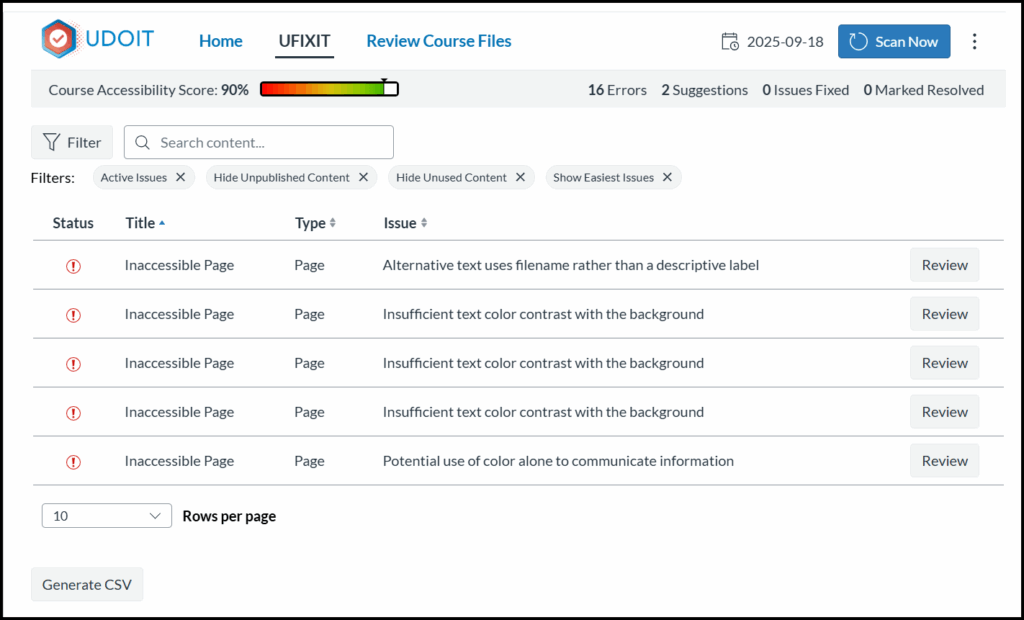
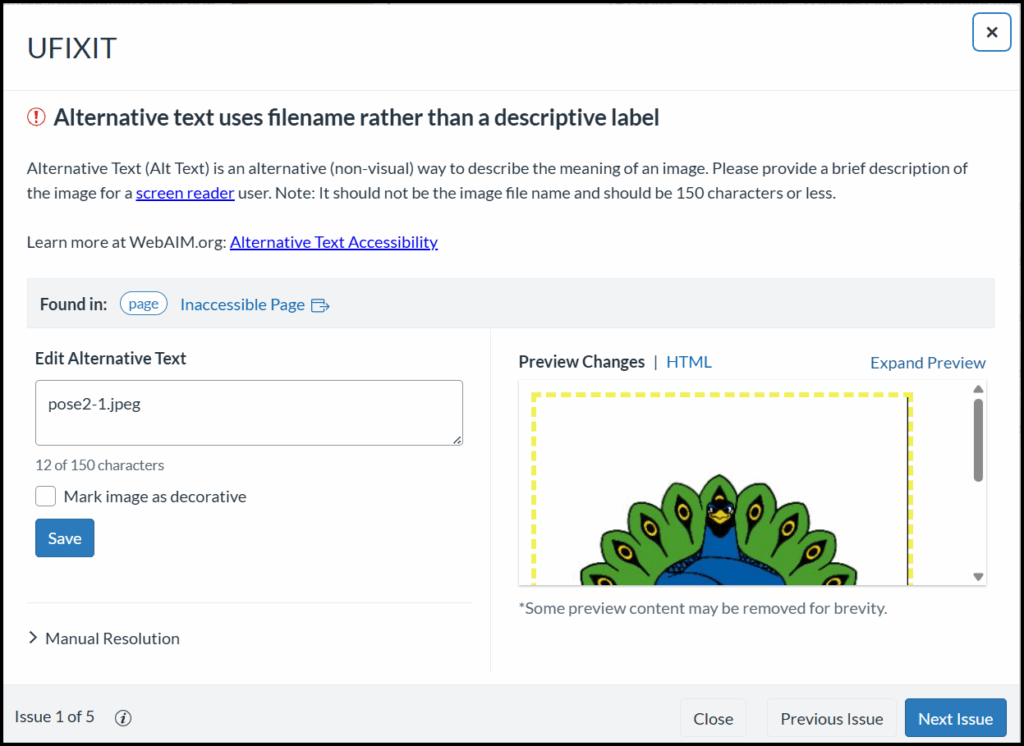
Click the Review button next to one of the accessibility issues. UFIXIT will give you a description of the issue as well as link to relevant accessibility resources. You will also be given options to remediate the issue (for instance, add alternative text to an image). Once you are finished, you can close the window or click Next Issue to move on.
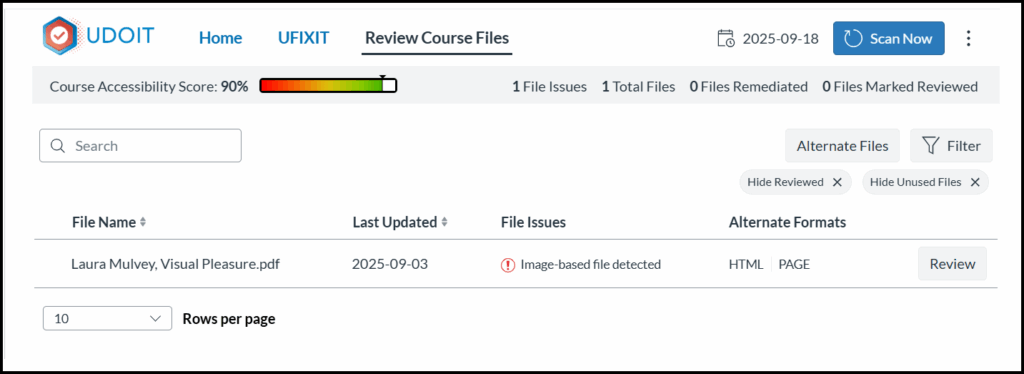
Click on the Review Course Files tab in the top menu to learn more about accessibility issues with the files in your course. Here you will see a list of files, a description of what the file issues are, as well as options to create alternate formats of those files, such as an HTML file or a Canvas page.
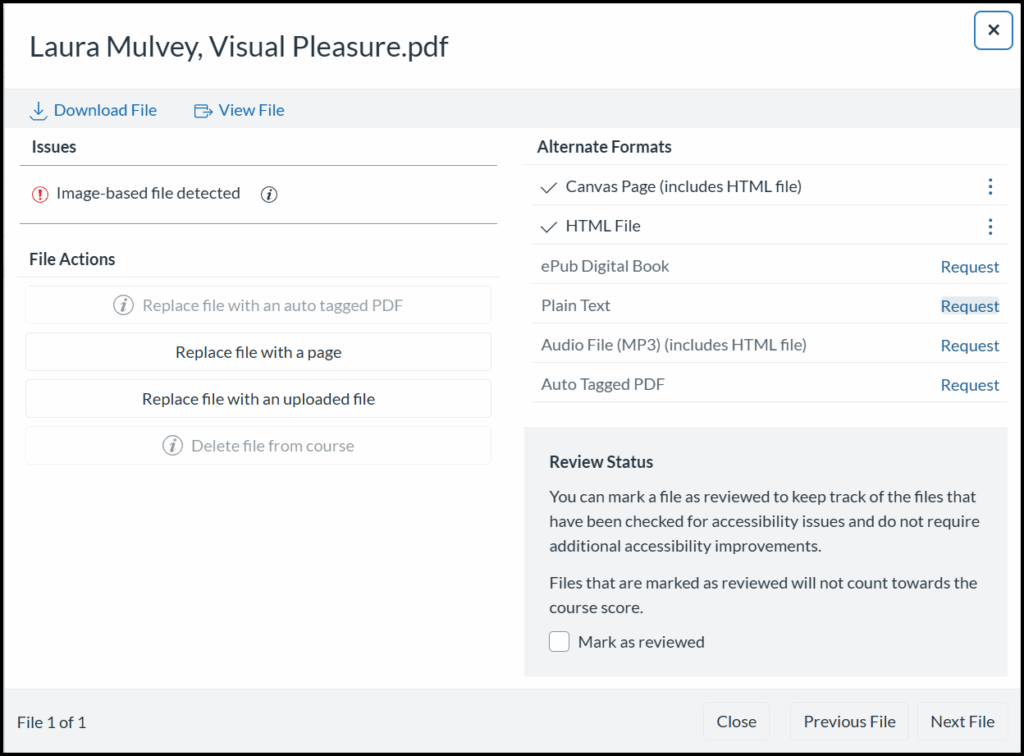
Click the Review button to see your different options for fixing the file. This can include replacing the file with a Canvas page, as well as replacing the file with another uploaded file. It’s important to note that PDFs will often have accessibility issues, particularly those created from scans.
If you have questions about how to improve your course’s accessibility, get in touch with the ET+I team. We can further explain accessibility issues and work with you to remediate them.
Resources
- What does UDOIT look for?
- How does UDOIT help me check my course for accessibility?
- How often does UDOIT scan my course content?
- Does UDOIT scan quiz questions?
- Does UDOIT scan Canvas’ New Quiz questions and item banks?
- Does UDOIT scan replies within a discussion?
- Is there a user guide for UDOIT?
- Is UDOIT a certification tool?
- What WCAG guidelines does UDOIT check for?
- How does UDOIT scoring work?
- How do I enable the UDOIT Home Scorecard for my institution’s courses?
- F.A.Q. on UDOIT (CCS has UDOIT Advantage)
- ULEARN Accessibility Guide – An Educational Companion to the Cidi Labs Accessibility Assistant, UDOIT Advantage