When CCS first purchased the DesignPLUS product from Cidi Labs, it was called Design Tools. One or more of your courses may have content that was designed with the legacy Design Tools sidebar. CCS has upgraded the Design Tools sidebar to the DesignPLUS sidebar (released by Cidi Labs in August 2023). However, it is possible that one or more of your Canvas courses was designed using the legacy Design Tools sidebar.
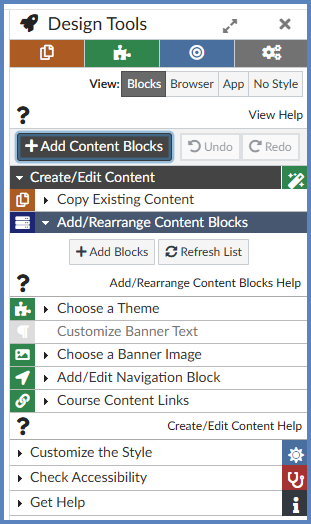
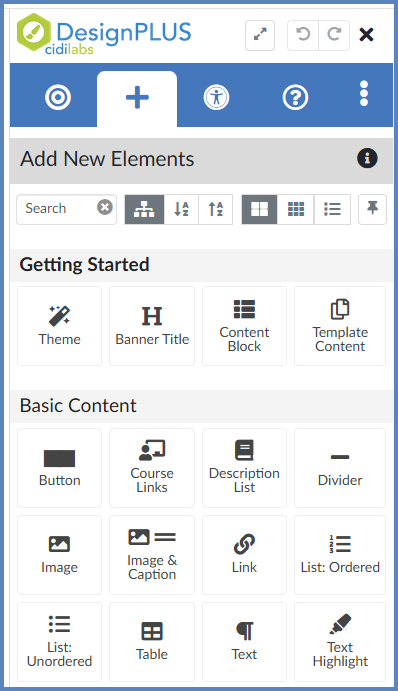
It is important to upgrade your content pages so that you can take full advantage of the DesignPLUS sidebar. The DesignPLUS sidebar offers two different ways to upgrade your content.
- Video Tutorial from Cidi Labs
- Upgrading Individual Content Pages
- Using the Course Upgrade Tool
- Additional Resources
Video Tutorial from Cidi Labs
Upgrading Individual Content Pages
These steps guide you through the process to upgrade course content pages one-by-one. For example, if you only have a few pages in your course that need upgrading, you may choose to use this procedure rather than Using the Course Upgrade Tool.
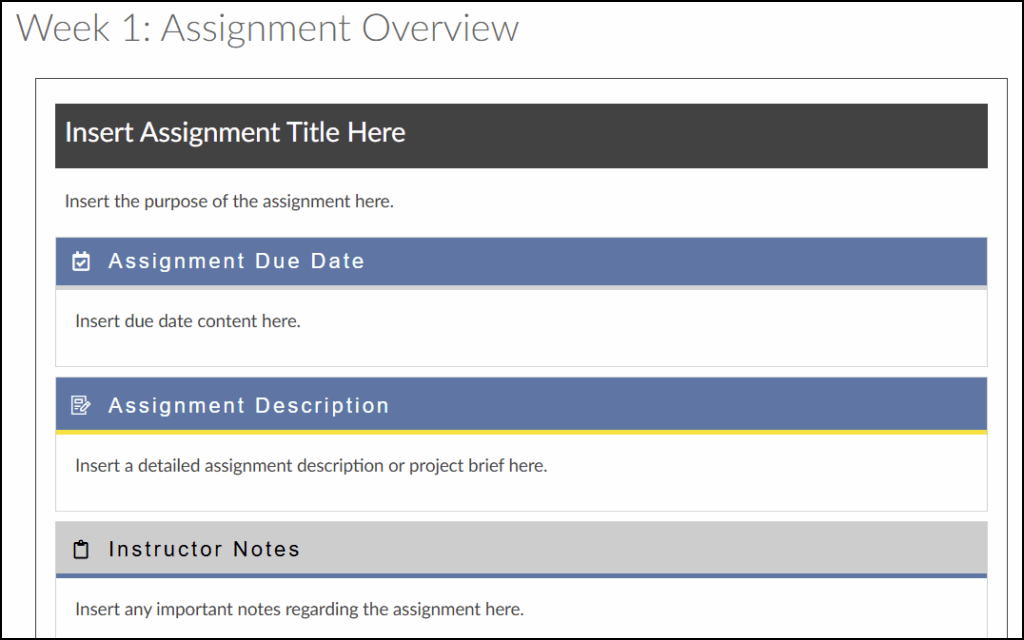
- In your Canvas course, navigate to a content page in your course that was designed with the Design Tools sidebar. For example, you may have content in your course that looks similar to either/both of these screenshots:
![Example of a Canvas course page titled 'Week 1 Overview', designed with the legacy Design Tools sidebar. It features distinct sections with yellow banner headers for 'Weekly Overview' and 'To Do List', and a grey header for 'Week [1] Outcome(s)'. Placeholder text within these sections indicates content like a weekly schedule, learning outcomes, and a to-do list.](http://campus.collegeforcreativestudies.edu/ed-tech/wp-content/uploads/sites/53/2024/11/DesignPLUS_UpgradeTool1-768x497.png)
- Click the ✏️ Edit button to edit the content page.
- At the top right-hand corner of the screen, click on the 🚀 rocket ship icon that appears. This will open the DesignPLUS sidebar.
- Alternatively, press the keyboard combination Alt/Option + Shift + D.
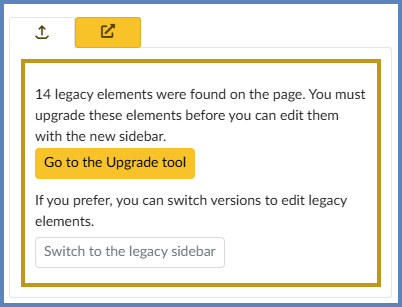
- At the bottom of the DesignPLUS sidebar, you may see a section that looks similar to the below screenshot which will indicate how many Design Tools legacy elements were found on your page. Click on the Go to the Upgrade tool button.
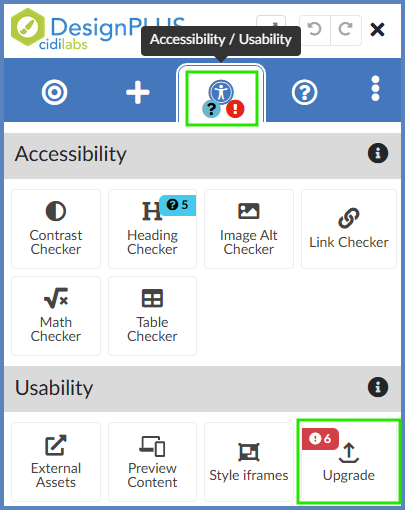
- Alternatively, click the Accessibility / Usability tab at the top of the DesignPLUS sidebar. Then, under the Usability heading, select the Upgrade button.
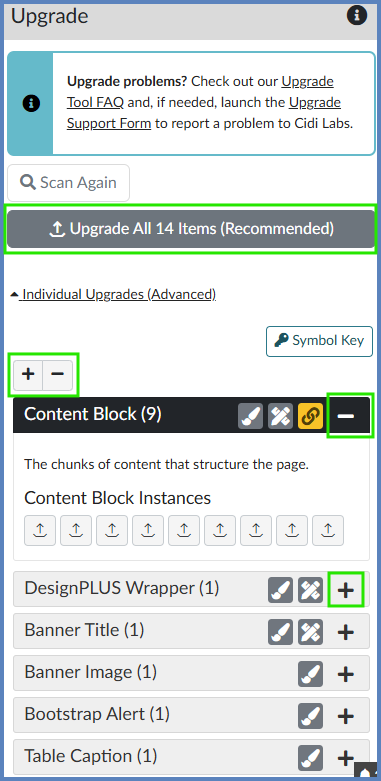
- Within the DesignPLUS sidebar, you will see a button to upgrade elements on the content page. [In this example, the button is Upgrade All 16 Items (Recommended)]. Use the ➕ and ➖ buttons below the Upgrade All button to review the elements DesignPLUS found that need to be upgraded. Click on the Upgrade All ## Items (Recommended) button when you are ready to upgrade all elements on the page.
- Click the Save button on your Canvas page once DesignPLUS has finished upgrading all elements on your page.
Using the Course Upgrade Tool
The Course Upgrade tool lets you upgrade all pages in your course. It is your responsibility to review all course content for accuracy. This tool does not have a “blind upgrade” (upgrading without reviewing) tool because it is important to make sure the upgrade is successful before saving in Canvas for these reasons:
- You would still need to review the pages afterward to ensure there are no errors during the upgrade.
- If there was an error during the upgrade and you don’t review the pages afterward, your students will be the first ones to discover the problem.
- If there was an error during the upgrade, you would not be able to revert Discussions, Assignments, Quizzes, and Announcements because they don’t have a version history like Pages do.
- In your Canvas course, in Course Navigation, click the Settings link.
- At the top right-hand corner of the screen, click on the 🚀 rocket ship icon that appears. This will open the DesignPLUS sidebar.
- Alternatively, press the keyboard combination Alt/Option + Shift + D.
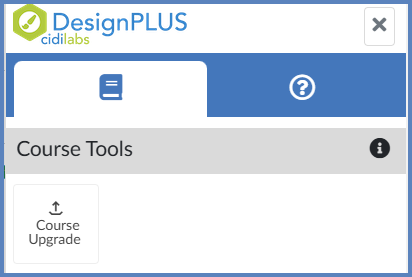
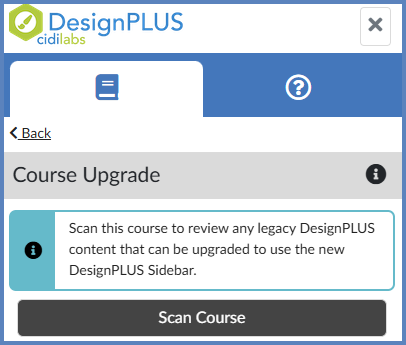
- Click on the Course Upgrade button in the DesignPLUS sidebar.
- Click on the Scan Course button in the DesignPLUS sidebar.
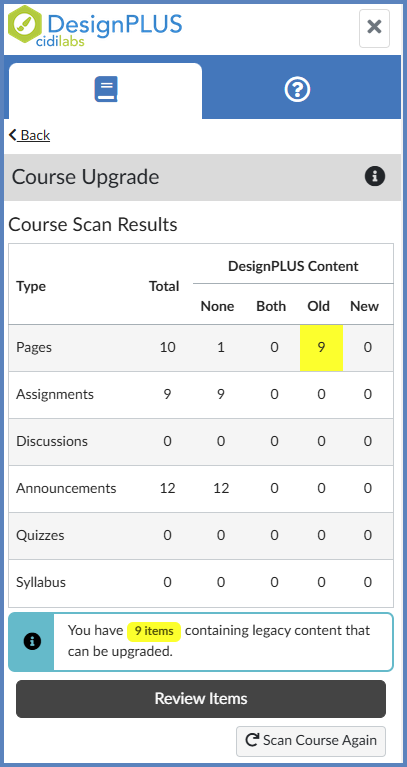
DesignPLUS will scan your entire course for content pages that need your attention. The Course Scan Results columns are:
- Type: The six content types that are scanned.
- Note 1: Quizzes does not include New Quizzes since DesignPLUS content is not included in New Quizzes.
- Note 2: Syllabus is not associated with Simple Syllabus.
- Total: This shows the total number of items scanned for each item type.
- None: No DesignPLUS content was found on the item
- Both: Legacy and new sidebar content was found on the item
- Old: Only legacy content was found on the item
- New: Only new content was found on the item
- Click on the Review Items button to proceed.
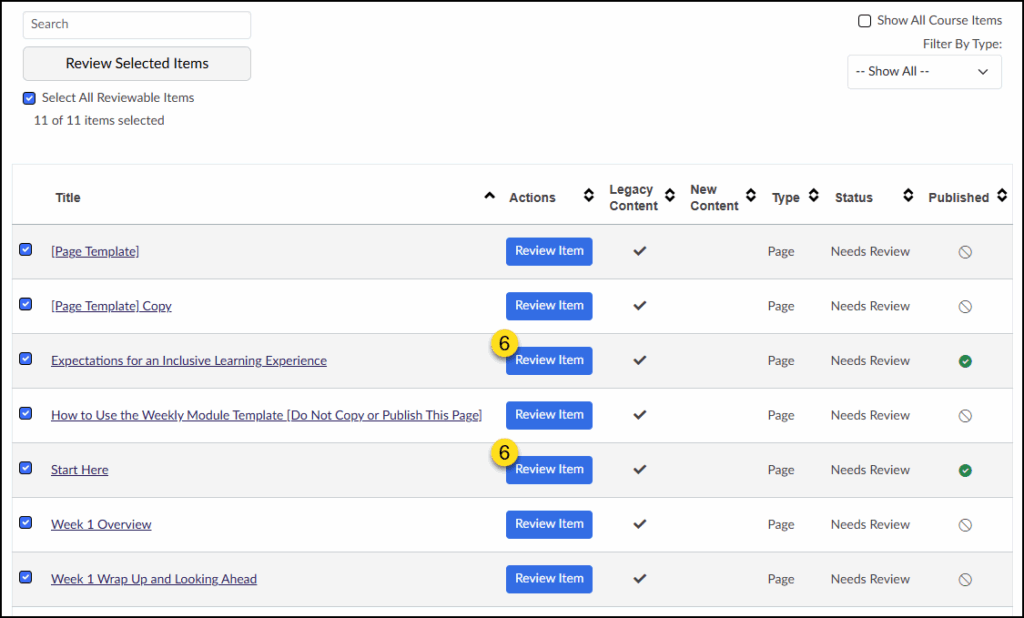
- A screen will appear which lists content pages in your course that need reviewing. To begin reviewing a page, click on the Review Items button.
- If no issues were found, the message “There are no items containing legacy content in this course.” would display at the bottom of the table, and no further actions are needed on your part.
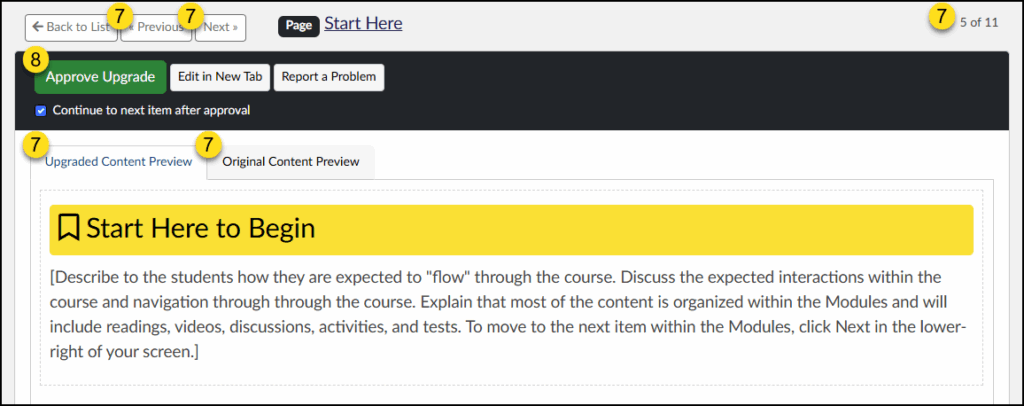
- Your page will display on the screen with several options:
- << Previous and Next >> buttons to navigate to the previous or next content page. The page number (Ex: 5 of 11) displays at the top right-hand corner of the screen.
- Upgrade Content Preview and Original Content Preview tabs let you toggle between what your page will look like after the upgrade and what your page looks like currently.
- Click the Approve Upgrade button to upgrade your content page.
- Optional: Place a checkmark next to Continue to next item after approval.