Use a Rubric for Assignment Grading

Use a Rubric for Assignment Grading

When you attach a rubric to an assignment in your course, it is important to ensure that the Use this rubric for assignment grading option is selected. By checking this option, you will be able to use the rubric in the Canvas SpeedGrader to grade student submissions. By default, this option is not selected when adding an existing rubric to an assignment, so it is important to ensure this option is selected for graded assignments.

Add a New Rubric to a Canvas Assignment

If you are adding a new rubric in your course to a Canvas assignment:

  1. In Course Navigation, click the Assignments link.
  2. Click on the name of your assignment where you want to attach a rubric.
  3. Rather than clicking on the ✏️ Edit button to edit the assignment details, click on the ➕ Rubric button. A new, blank rubric will appear.
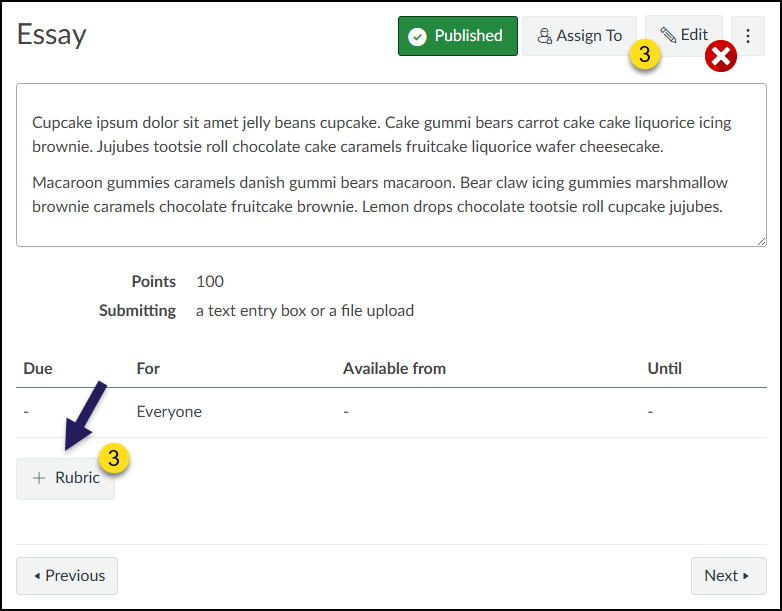
This is a screenshot of a published essay assignment page within the Canvas Learning Management System. The page shows the assignment title "Essay," a green "Published" status button, and an "Edit" button with a red 'X' icon and the number '3' next to it. Below the title is the assignment description text, followed by details indicating "Points 100" and "Submitting a text entry box or a file upload". A table for due dates and availability is present but shows no dates set. A purple arrow points to a "+ Rubric" button with the number '3' below the table. "Previous" and "Next" navigation buttons are at the bottom of the page.
  1. Build out your rubric to add Ratings and additional rubric rows (via the ➕ Criterion link).
  2. At the bottom of the rubric, select the option Use this rubric for assignment grading.
    • The checkbox for Hide score total for assessment results will disappear when Use this rubric for assignment grading is selected.
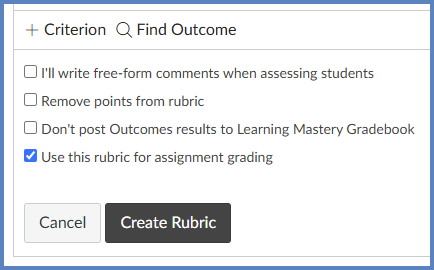
This screenshot from the Canvas LMS shows a menu with configuration options for an assignment rubric. At the top are links to "+ Criterion" and "Find Outcome". Below these are five unchecked checkboxes: "I'll write free-form comments when assessing students," "Remove points from rubric," "Don't post Outcomes results to Learning Mastery Gradebook," "Use this rubric for assignment grading," and "Hide score total for assessment results". A yellow circle containing the number '4' highlights the top left area near the "+ Criterion" link. A yellow circle with the number '5' marks the checkbox for using the rubric for grading. A purple arrow points to the last checkbox regarding hiding score totals. "Cancel" and "Create Rubric" buttons are located at the bottom.
  1. Click the Create Rubric button.

Add an Existing Rubric to a Canvas Assignment

If you are adding an existing rubric in your course to a Canvas assignment:

  1. In Course Navigation, click the Rubrics link.
  2. Verify that your rubric is displayed on the screen.
  3. In Course Navigation, click the Assignments link.
  4. Click on the name of your assignment where you want to attach a rubric.
  5. Rather than clicking on the ✏️ Edit button to edit the assignment details, click on the ➕ Rubric button. A new, blank rubric will appear.
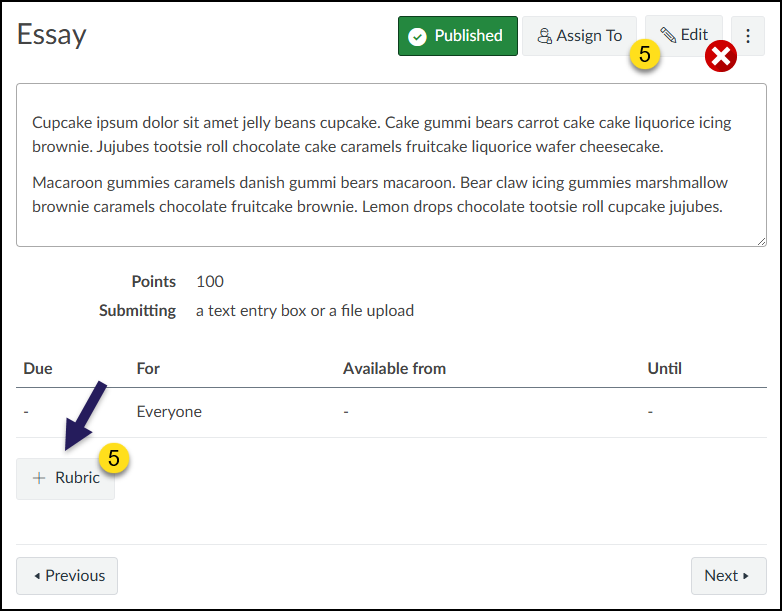
This is a screenshot of a published essay assignment page within the Canvas Learning Management System. The page shows the assignment title "Essay," a green "Published" status button, and an "Edit" button with a red 'X' icon and the number '5' next to it. Below the title is the assignment description text, followed by details indicating "Points 100" and "Submitting a text entry box or a file upload". A table for due dates and availability is present but shows no dates set. A purple arrow points to a "+ Rubric" button with the number '5' below the table. "Previous" and "Next" navigation buttons are at the bottom of the page.
  1. Click the 🔍 Find a Rubric link at the top right-hand corner of the rubric interface. The Find Existing Rubric window appears on the screen.
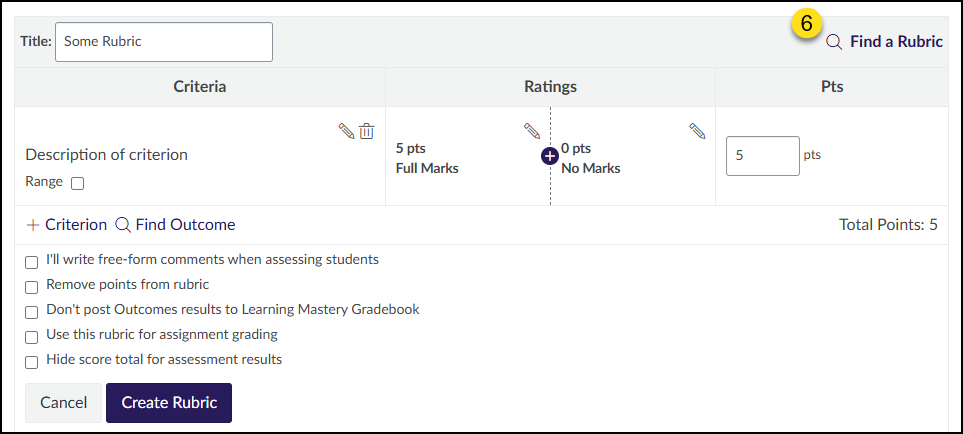
This screenshot displays the Canvas LMS rubric editing interface, where the title field is populated with "Some Rubric". In the top right corner, a yellow circle containing the number '6' highlights a magnifying glass icon next to a link labeled "Find a Rubric". Below the title and this link is the main rubric table organized by Criteria, Ratings, and Pts, currently showing one default criterion setup worth 5 points. Further down are links to add criteria or find outcomes, followed by a list of unchecked options checkboxes, and finally, "Cancel" and "Create Rubric" buttons at the bottom.
  1. In the left-most column, select your course name. (Example: Chris’ Sandbox)
  2. In the middle column, select the name of your rubric you wish to attach to the assignment. Once you select the name, the rubric will display in the right-most column. (Example: Learning Outcome Rubric)
  3. In the right-most column, you can attach the rubric in two ways:
    • Click on the name of the rubric at the top of the screen.
    • Click the Use This Rubric button at the bottom of the screen. (Note: You may need to use the scroll bars to see this button.)
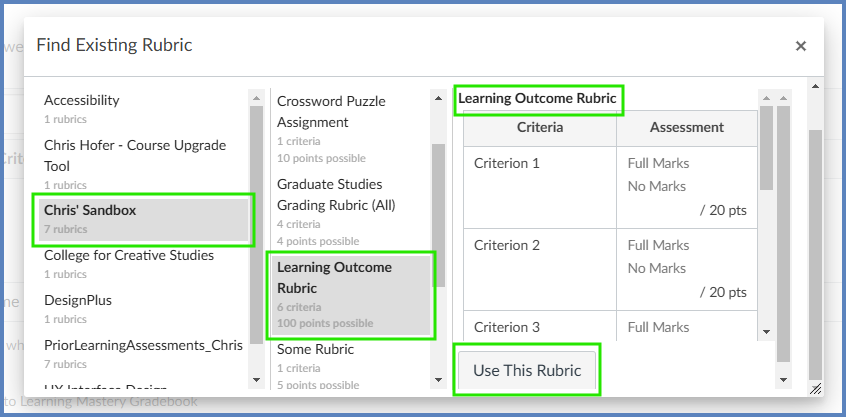
This is a 'Find Existing Rubric' pop-up window in the Canvas LMS organized into three columns. The left column lists courses, with 'Chris' Sandbox' highlighted and marked by a yellow circle with the number '7'. The middle column lists rubrics, with 'Learning Outcome Rubric' selected and marked by a yellow circle with the number '8'. The right column previews the rubric details; the rubric's title "Learning Outcome Rubric" at the top is marked by a yellow circle with the number '9', and the 'Use This Rubric' button at the bottom is marked by a second yellow circle with the number '9'.

Your rubric will display below your assignment details…replacing the new rubric that you saw in Step #5.

It is now time to ensure the rubric will be used for assignment grading.

  1. Click on the ✏️ pencil (Edit Rubric) icon.
    • If you get a prompt that you cannot edit the rubric, click the OK button.
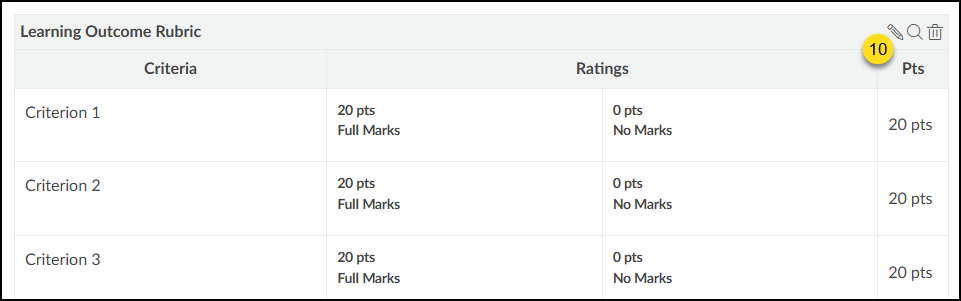
This is a screenshot of the "Learning Outcome Rubric" attached to an assignment in the Canvas LMS. The rubric is presented as a table with three columns: "Criteria," "Ratings," and "Pts". It contains three criteria rows: "Criterion 1," "Criterion 2," and "Criterion 3". For each criterion, the ratings are "20 pts Full Marks" and "0 pts No Marks," with a total of 20 pts listed in the "Pts" column. In the top right corner of the rubric, there are three icons: a pencil for editing, a magnifying glass, and a trash can. A yellow circle with the number '10' highlights the pencil icon, indicating the edit function.
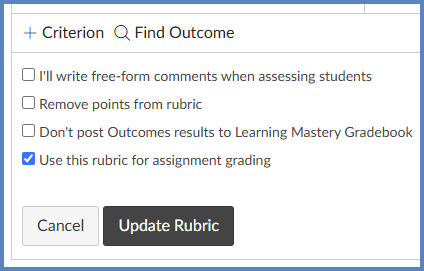
  1. At the bottom of the rubric, select the option Use this rubric for assignment grading.
    • The additional checkbox for Hide score total for assessment results (not shown here) will disappear when you select Use this rubric for assignment grading.
  2. Click the Update Rubric button.
This screenshot from the Canvas LMS displays a list of configuration checkboxes for an assignment rubric. A yellow circle with the number '11' highlights the checked option "Use this rubric for assignment grading." Above this are unchecked options for writing free-form comments, removing points, and not posting outcomes to the Learning Mastery Gradebook. At the bottom, a yellow circle with the number '12' highlights the "Update Rubric" button located next to a "Cancel" button.

You may get an additional message alert on your screen.

  • Example: You had initially set your assignment to 30 points. However, the rubric you are attaching to the assignment has a total of 100 points.
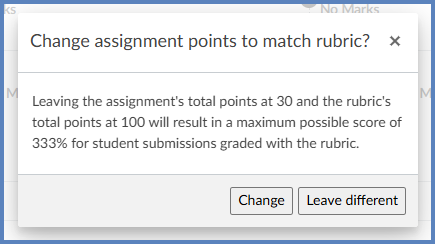
This is a pop-up warning dialog in the Canvas LMS titled "Change assignment points to match rubric?". The dialog text explains that leaving the assignment's total points at 30 while the rubric's total points are 100 will result in a maximum possible score of 333% for student submissions graded with the rubric. At the bottom right are two action buttons: "Change" and "Leave different".
  1. Click the Change button to update your assignment to be the same number of points as your rubric total.

Additional Resources

Add a rubric to an assignment
Use a rubric to grade submissions in SpeedGrader
Add a Rubric to a Graded Discussion