How to Bulk Edit Transactions
If you frequently use the same budget center and account number for multiple transactions, you can save time by using the bulk edit feature to update several transactions at once.
Step 1: SELECT ‘TRANSACTIONS’
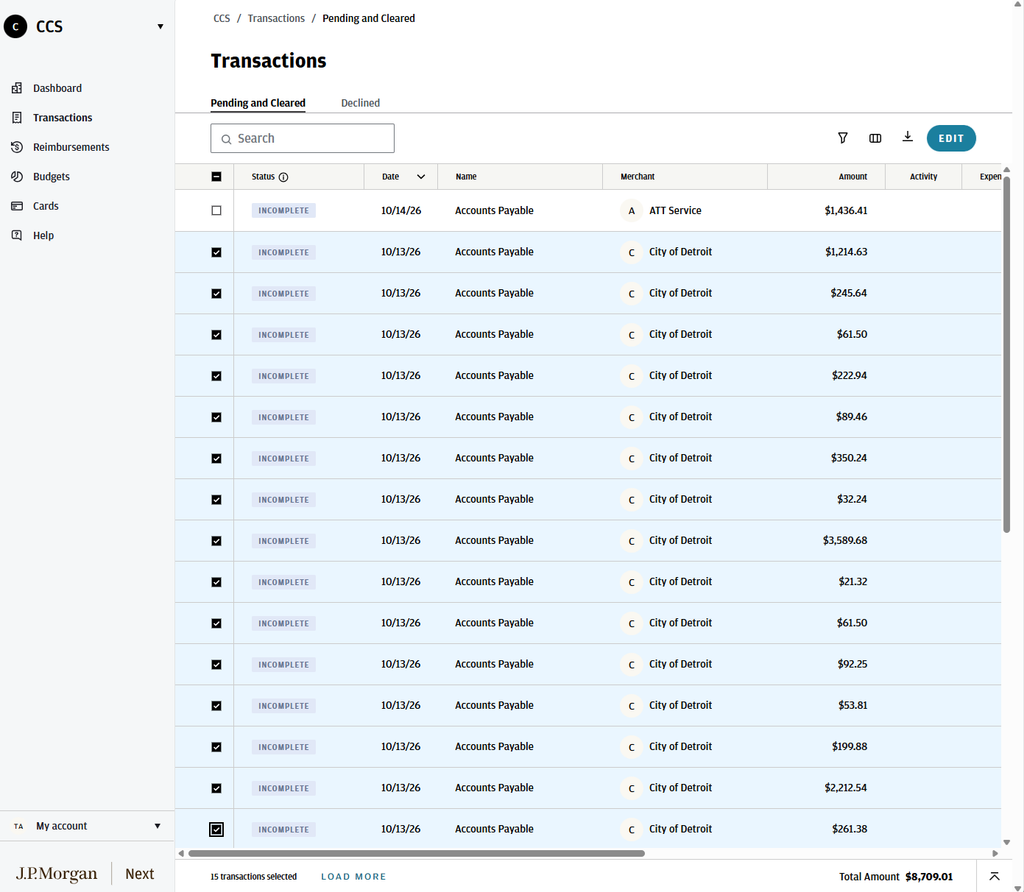
From the Transactions menu, check the box next to each transaction you want to update. Once you’ve selected all applicable transactions, click Edit in the top right-hand corner of the screen.
Step 2: EDIT TRANSACTIONS
A new menu will open. Click Show More to view and review all selected transactions.
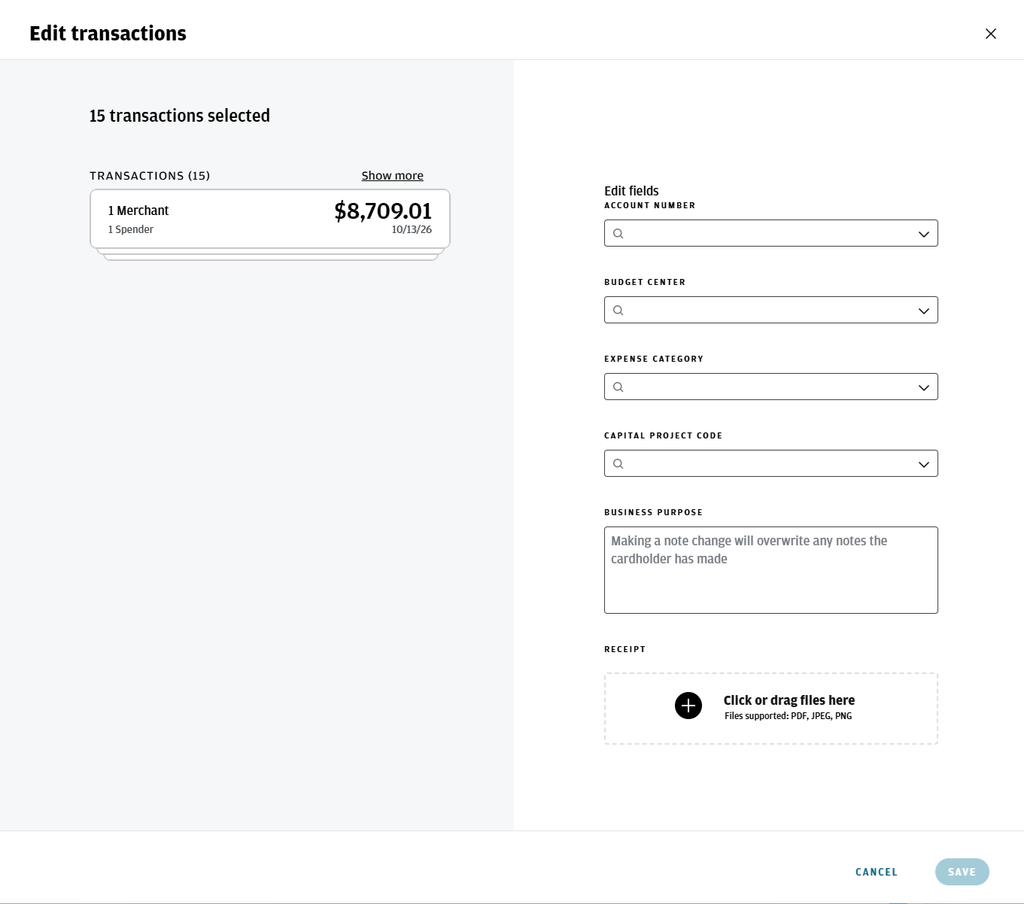
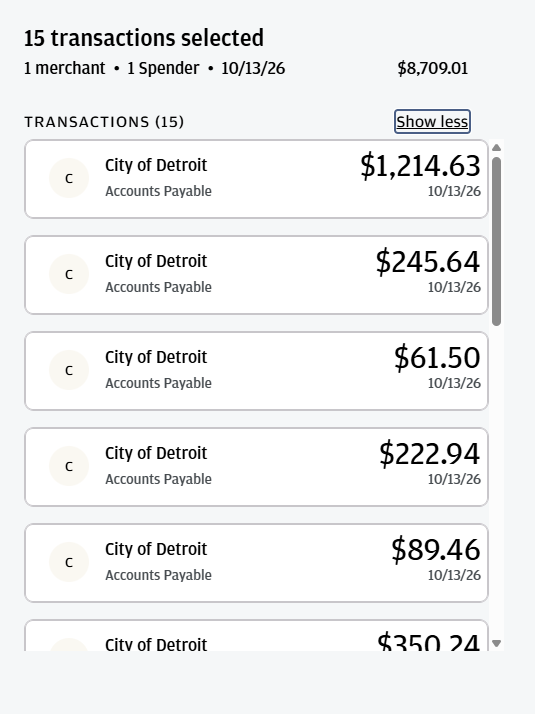
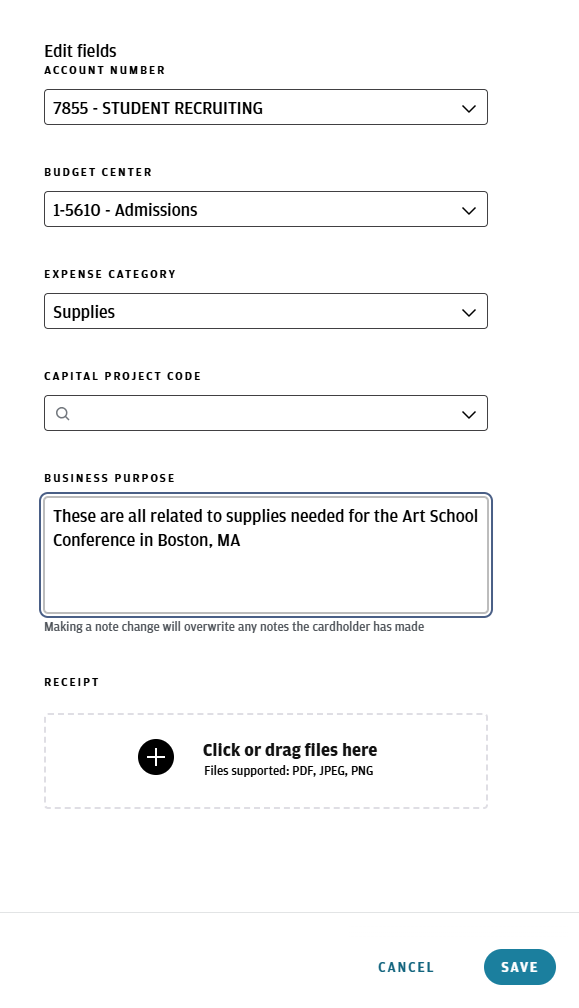
From here, you can update the Budget Center, Account Number, Expense Category, and Business Purpose for all selected transactions at once.
If the transactions share the same receipt, you can upload it here as well. If each transaction has a different receipt, you will need to go back into each individual transaction after saving to upload the appropriate receipt.
This feature is especially helpful if you’re using the mobile app to take pictures of your receipts as purchases are made, but prefer to complete the remaining required fields later.
Once you’ve entered all the information, click Save.
Support and Training
We want to make this transition as smooth as possible for everyone. Here is how you can get help:
1:1 Training: You can schedule a personalized session by reaching out to any member of the Business Services team by emailing us at busserv@ccsdetroit.edu